
What is Azure Arc
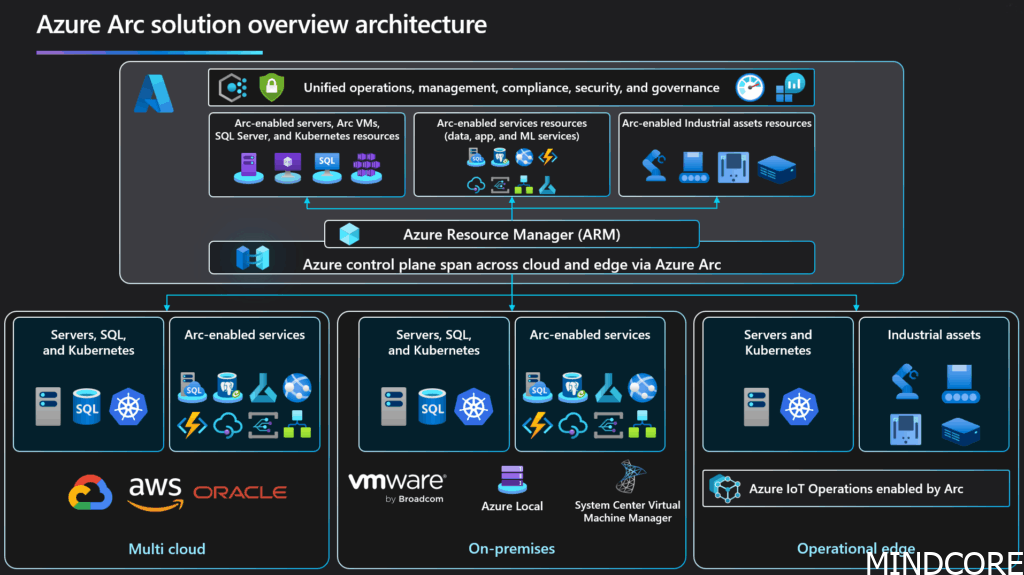
Azure Arc is a Microsoft service that extends your Azure management and governance capabilities to your resources outside of Azure, and this can include on-premises servers, virtual machines, and other cloud environments. With Azure Arc, you can centrally manage, secure, and automate workloads across hybrid and multi-cloud environments using familiar Azure tools. This unified approach is especially valuable for scenarios like Azure Automation and Hybrid Worker to run task run etc. PowerShell script on your servers, where you want to orchestrate tasks or apply policies consistently, regardless of where your resources are located. This is where Azure Arc bridges the gap between on-premises infrastructure and the cloud, enabling a seamless hybrid management experience.
What is Azure Automation
An Azure Automation account is a resource in Microsoft Azure that provides a central place to manage automation tasks and configuration management for your Azure and non-Azure environments.
With an Automation account, you can create, schedule, and run runbooks (like PowerShell scripts), manage update deployments, and handle configuration management using features like Desired State Configuration (DSC). This helps you automate repetitive tasks, orchestrate workflows, and ensure consistency across your infrastructure, whether it’s in the cloud or on-premises.
What can you do with Azure Automation and Runbooks?
Azure Arc extends Azure management and services to any infrastructure: on-premises, multi-cloud, or edge. When you combine Azure Arc with Azure Automation and Runbooks, you unlock powerful automation capabilities across your entire hybrid environment.
What Are Azure Automation and Runbooks?
- Azure Automation is a cloud-based automation and configuration service that supports process automation, configuration management, and update management.
- Runbooks are scripts (PowerShell, Python, or graphical) that automate repetitive tasks.
With Azure Arc, you can connect non-Azure servers and manage them as if they were native Azure resources—including running Automation Runbooks on them.
Key use cases
Configuration Management
- Automatically remediate drift from baseline configurations.
Inventory and reporting
- Generate etc. compliance and audit reports using automated scripts and send to Teams or email.
Routine maintenance tasks
- Automate disk cleanup, log rotation, or service restarts on a schedule.
- Reduce operational overhead and human error.
Incident response and remediation
- Trigger runbooks in response to alerts (e.g., high CPU, low disk space).
- Automatically resolve common issues or escalate as needed.
User and permission management
- Automate onboarding/offboarding of users or permissions on Arc-enabled servers or file shared (a lot is possible to do via PowerShell etc.)
- Integrate with identity management workflows.
Custom workflows
- Orchestrate complex, multi-step processes across hybrid resources.
- Integrate with ITSM tools, ticketing systems, or other cloud services (very custom).
How to getting started
- Onboard your servers to Azure Arc.
- Enable Azure Automation and link your Arc resources.
- Author or import Runbooks for your automation scenarios.
- Schedule or trigger Runbooks as needed – either on-demand, on a schedule or in response to events.
Prerequisites
Machine minimum requirements
- Two CPU cores
- 4 GB of RAM
- Non-Azure machines must have the Azure Connected Machine agent installed. To install the
AzureConnectedMachineAgent, see Connect hybrid machines to Azure from the Azure portal for Arc-enabled servers. - The system-assigned managed identity must be enabled on the Azure virtual machine, Arc-enabled server, Arc-enabled VMware vSphere VM or Arc-enabled SCVMM VM. If the system-assigned managed identity isn’t enabled, it will be enabled as part of the adding process.
Supported operating systems
| Windows (x64) | Linux (x64) |
|---|---|
| ● Windows Server 2022 (including Server Core) ● Windows Server 2019 (including Server Core) ● Windows Server 2016, version 1709, and 1803 (excluding Server Core) ● Windows Server 2012, 2012 R2 (excluding Server Core) ● Windows 10 Enterprise (including multi-session) and Pro ● Windows 11 Enterprise (including multi-session) and Pro | ● Debian GNU/Linux 8, 9, 10, and 11 ● Ubuntu 18.04 LTS, 20.04 LTS, and 22.04 LTS ● SUSE Linux Enterprise Server 15.2, 15.3, 15.4, 15.5, and 15.6 ● Red Hat Enterprise Linux Server 7, 8, and 9 ● Rocky Linux 9 ● Oracle Linux 7, 8, and 9 Hybrid Worker extension would follow support timelines of the OS vendor. Python version 3.12+ are not supported for Linux Hybrid Runbook Worker. |
Benefits
- Centralized automation
- Code sync. with Azure DevOps and Git to ….
- Secure access to on-premises environments.
- Scalable cloud-based runbook management.
Security considerations
- Least privilege on Hybrid Worker.
- Securing PSRemote Sessions.
- Permissions assigned to ressources you access
Create an Automation Account
To create an Automation Account, you need to go the the Azure Portal and search for “Automation Account” – you can access the page directly here so you can create it right away!

- Now click on Create
- Now you need to specify where to create it, liek Region, Azure Subscription and so on and follow the wizard

- Click now on Next
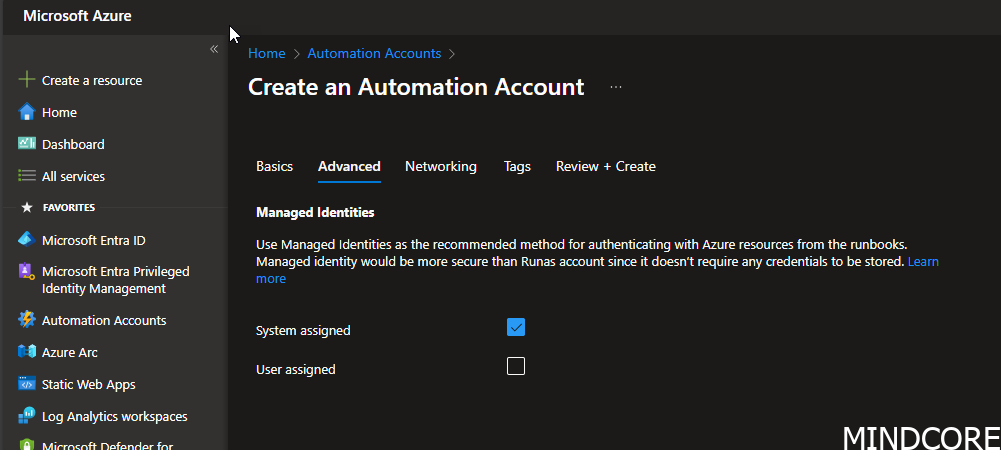
- Now you need to what type of Managed Identity you will use – here it´s default set to System assigned – you can read more about here for the differences: Azure Automation account authentication overview | Microsoft Learn
- Click Next
⚠️ Heads up about webhooks ⚠️
Webhooks in automation accounts have no authentication by default.
Only use them if your automation account is configured for private access to avoid exposing sensitive actions.
- Now under the Networking tab, you can set of the Automation Account is accessible from the Public access or Private access. Default is set to Public access.
This setting applies only to jobs on Hybrid Workers triggered by Webhooks, not cloud jobs.
Public access allows all networks to reach the Automation account.
Private access restricts Automation endpoints to authorized virtual networks only.
- Click Next and set Tags on the Automation Account if you use it – for this sample, I skip it. Click Next.
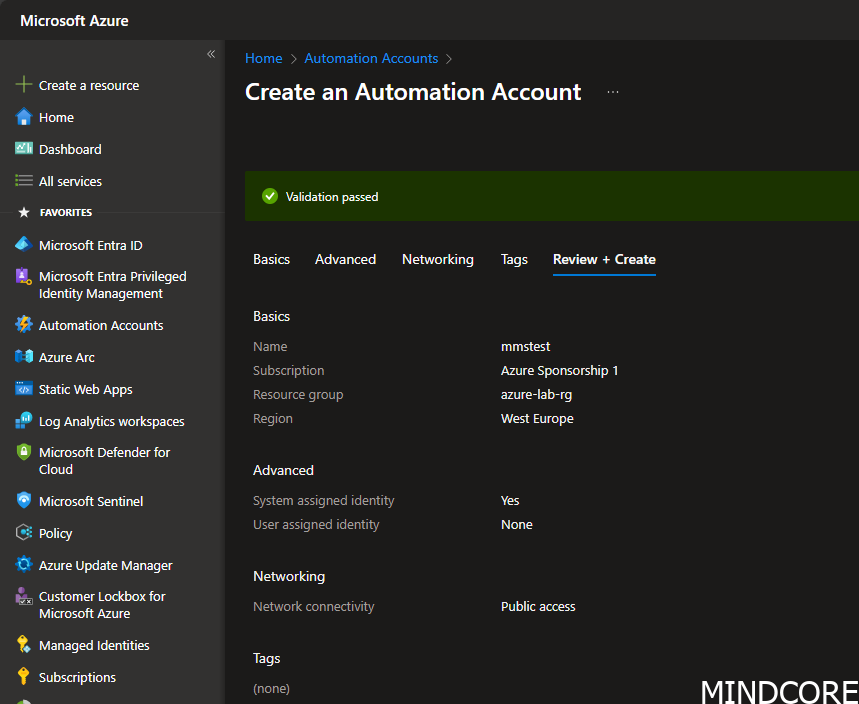
- Validate the settings, and if all looks good, click Create and the Automation Account will be created.
Now you have the Automation Account created, and you can via the Azure Portal see it, it´s Runbooks and all the over cool stuff – and the list is long as you can see here:
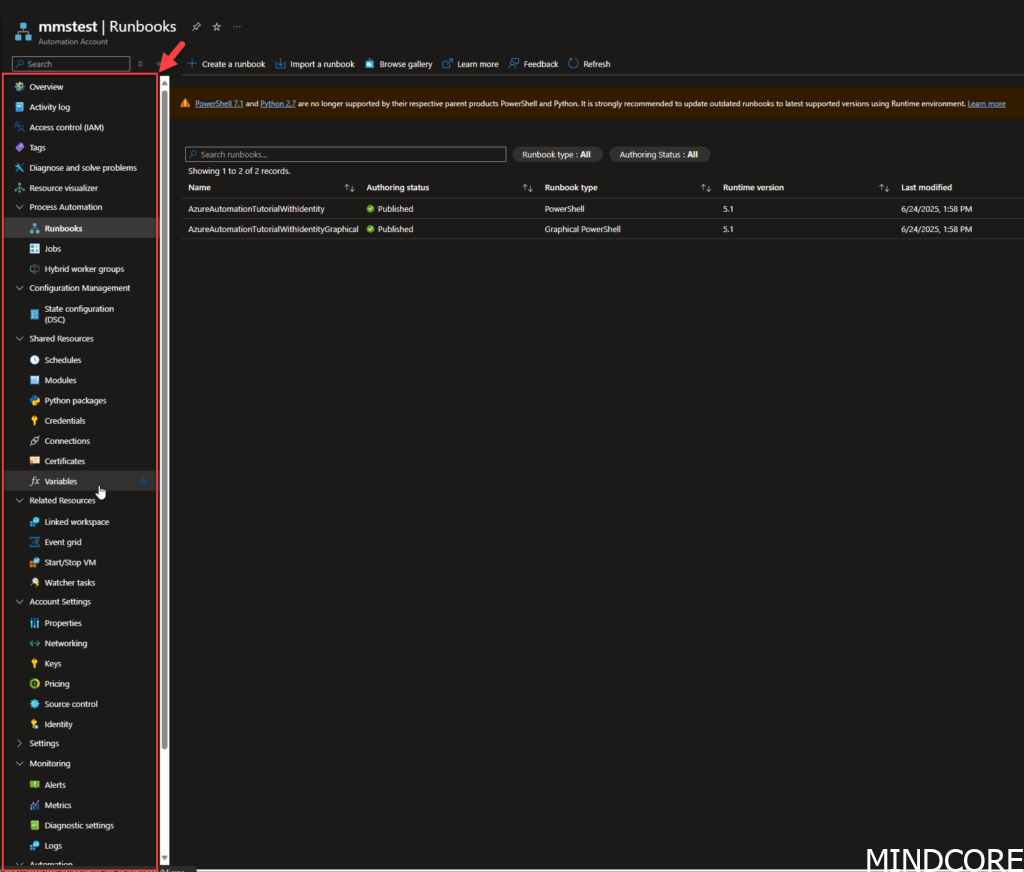
The following parts of the Automation Account is the most common used:
- Runbooks
- Jobs
- Hybrid worker groups
- Schedules
- Modules (but more options via PowerShell)
- Credentials
- Certificates
- Variables
- Source Control
- Identity
What is a Runbook
A runbook is a container for your automation script – it’s where your script resides – and you can specify if its executes in Azure (shared enviroment from a container) or On-prem via an HybridWorker (an Extension for Azure Arc). You can have multiple runbooks within an Automation Account, and runbooks can call each other as needed.
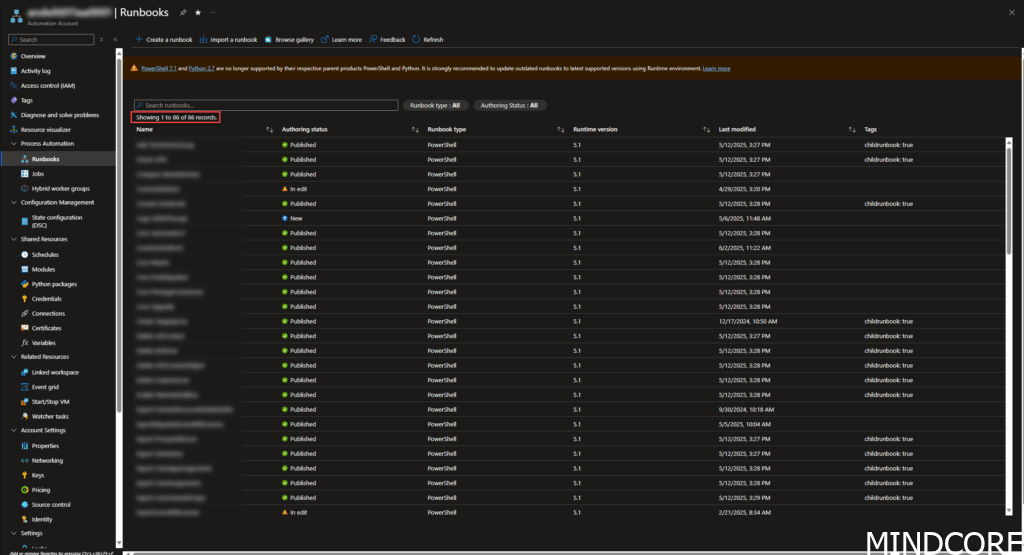
For example, in our setup, we have 86 runbooks in a single Automation Account. The PowerShell scripts for these runbooks are managed in Git and automatically synchronized with the Automation Account. Whenever a commit is pushed or merged into the repository (such as GitHub or Azure DevOps in the main branch), a sync is triggered automatically.
This process requires no manual intervention, allowing you to develop and test scripts under full source control, ensuring consistency and streamlined management.
When you open a Runbook – you have different options. Here you can manage it, see execution logs, set a Scheduler up and show the content of it and more.
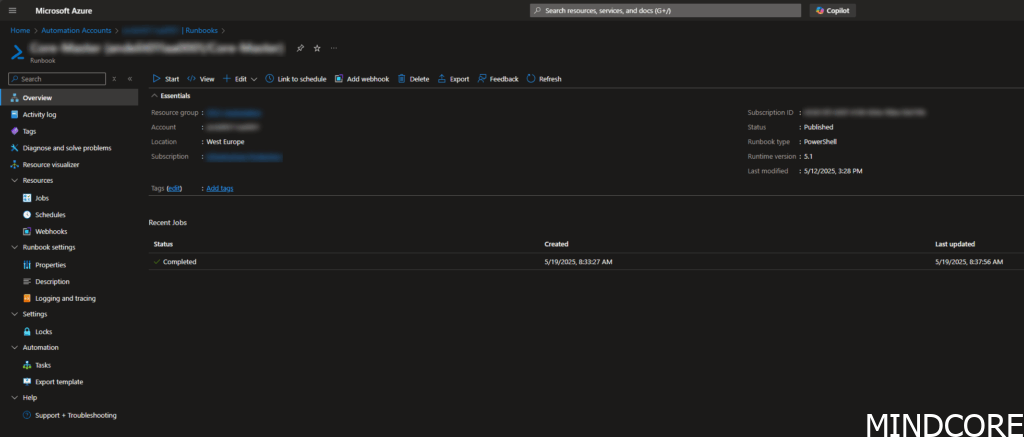
Here you have it all, and you have
Create a Runbook
This is very simple and easy 😎
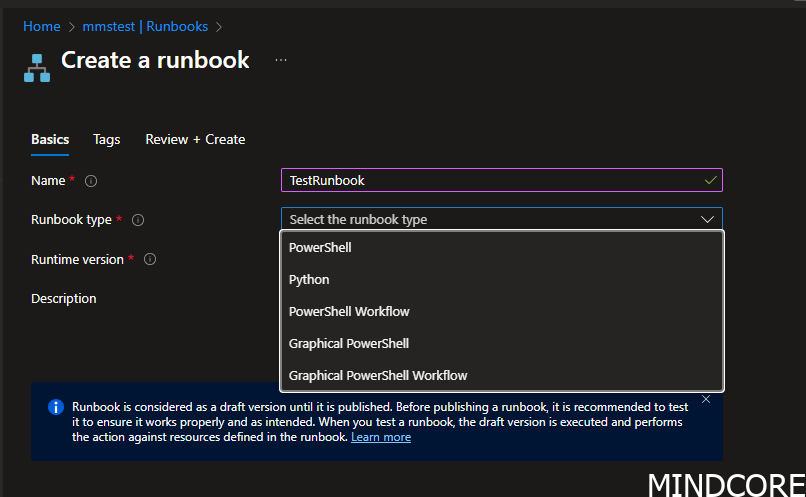
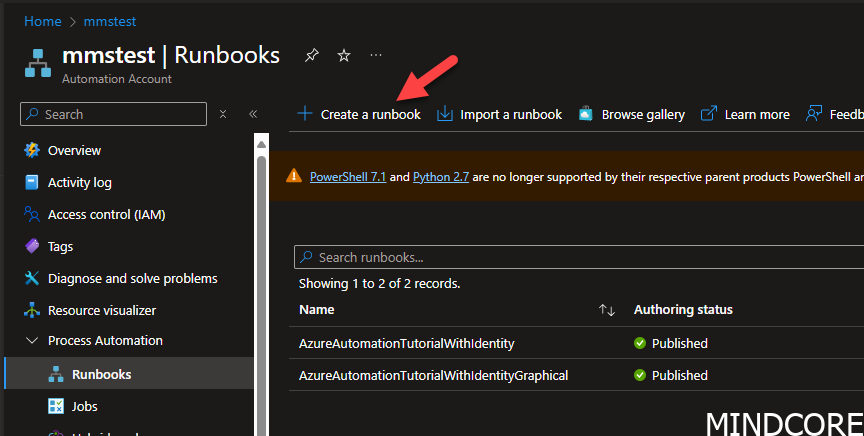
- Click on Create a runbook under the Process Automation > Runbooks page in the Azure Portal:
- Under here, you see the following wizard where you have to set a name, type and version of the runtime.
- When created, you can input your code – in this sample, some PowerShell Code.
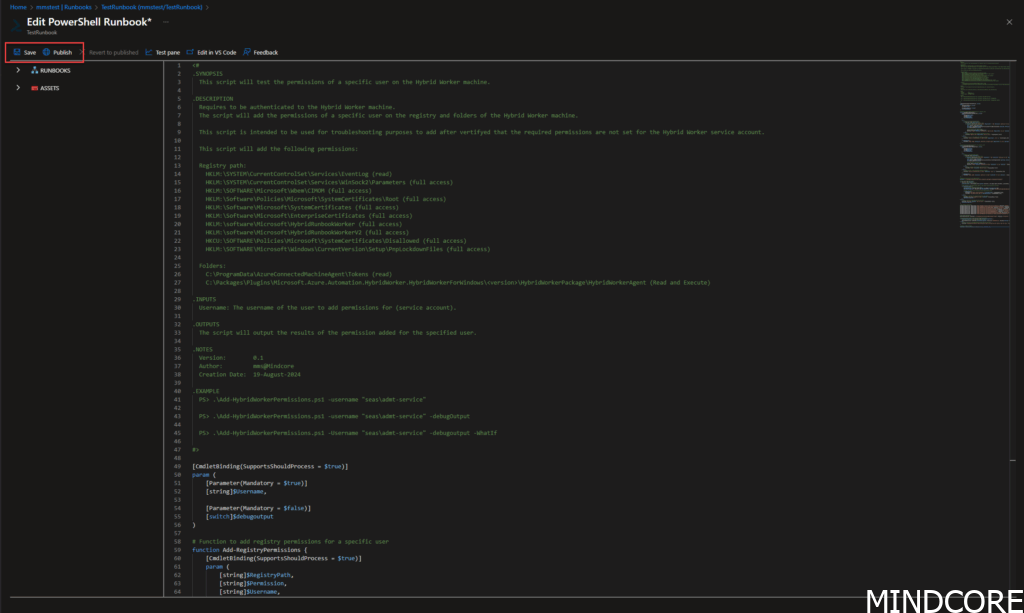
- When you are done, click on Publish (if done and tested) and Save to keep it in a “saved” state and you are good to go.
Why use Hybrid Workers?
Hybrid Workers securely connect cloud automation with on-premises resources. They allow cloud-based processes to run tasks on local machines without exposing the internal network.
This enables automation scenarios that need direct access to on-prem servers, file shares, databases, or applications that can’t move to the cloud. Hybrid Workers are essential when security, compliance, or network boundaries prevent direct cloud access.
They help automate tasks like account creations, file management, service restarts, and data processing across on-premises and cloud systems in a unified way.
Installing the Hybrid Worker extension
Prerequisites
- An Azure Arc enabled server
- An Automation Account
How to
This blogpost will assume there is an Arc machine already onboarded. If not, feel free to have a look at our other blogpost about how to onboard.
On a freshly onboarded machine, no extensions would be installed unless there’s a configured Azure Policy that deploys it (which might be another blogpost by itself).
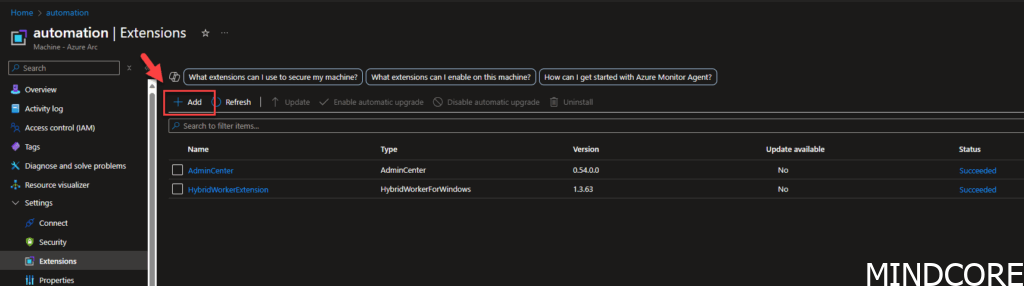
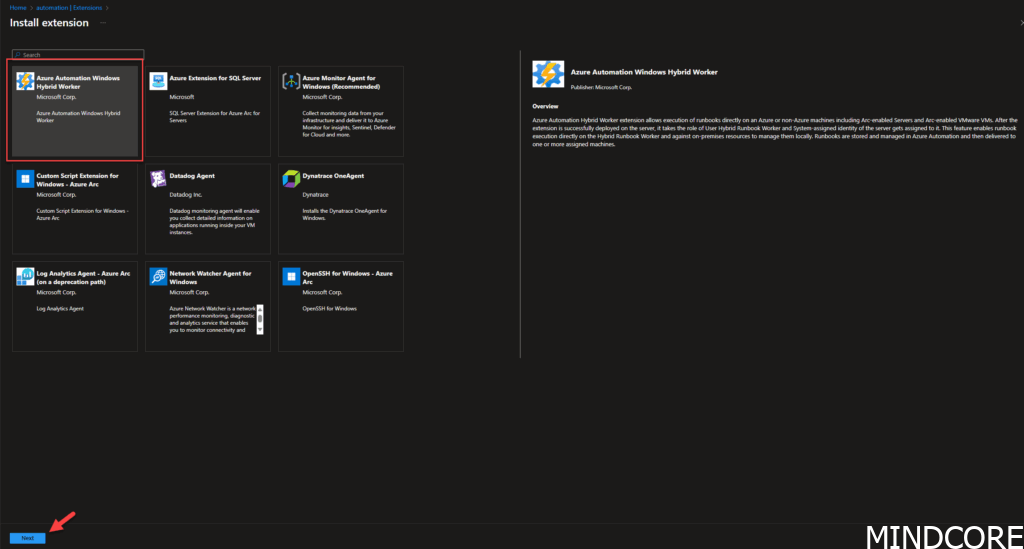
Under Extensions, click Add and select the ‘Azure Automation Windows Hybrid Worker‘ extension to install.
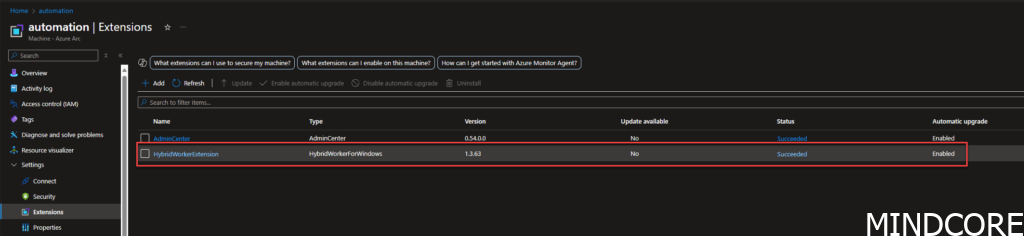
Wait a few minutes for the installation to complete. Now under the Extensions list the HybridWorkerExtension extension should now be listed with a ‘Succeeded’ status:
There are other ways of deploying extensions too, as previously mentioned, Azure Policy can be used to do it at scale, and the Azure CLI or PowerShell module can also be used to do it programmatically.
Hybrid Worker Groups
Start with going to your Azure Automation account, and go to Process Automation > Hybrid Worker Groups. Here you have the opportunity to click on Create hybrid worker groups.
Here you can create a group of Hybrid Workers, to support your needs and tasks. More about that if in an other blog post.
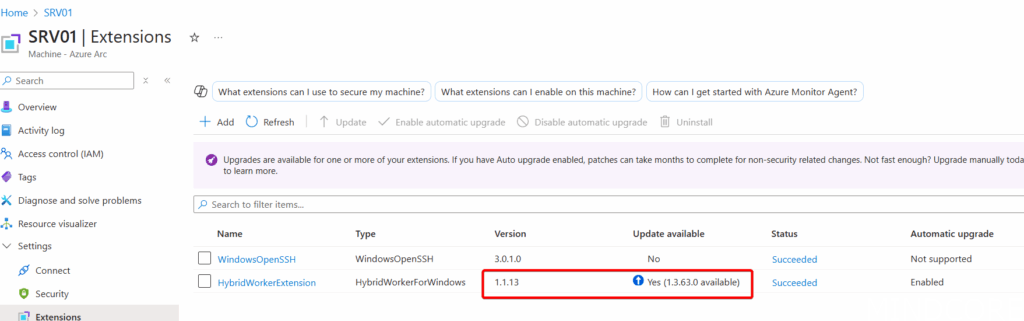
Note: If the Arc machine doesn’t have the Hybrid Worker extension installed and you add it to a Hybrid Worker group, it installs an outdated version — which is frustrating and makes no sense.
An outdated version is automatically installed when the machine is added to a Hybrid Worker Group without the Hybrid Worker extension manually installed. Since it’s not a major version, it won’t update automatically.
Run a Runbook
Now for the fun part – try running some of your scripts to see what works and where things might break! 😎
Experimenting with your runbooks on a Hybrid Worker is a great way to validate your automation, troubleshoot issues, and learn how your environment responds. Don’t be afraid to test different scenarios; every result is a step toward a more robust automation setup.
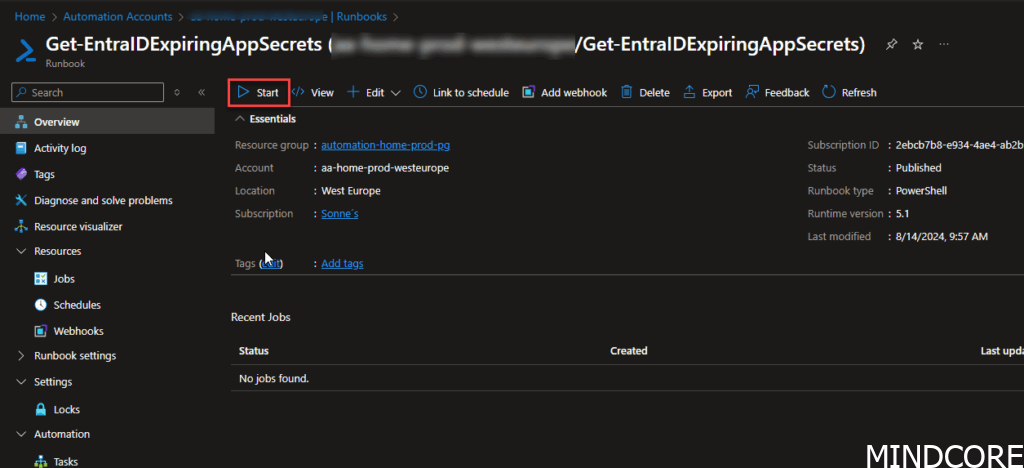
To manual start a Runbook, go the the Runbook you need to start, and from here click on Start. Here you will see an interface like – click here on Start:
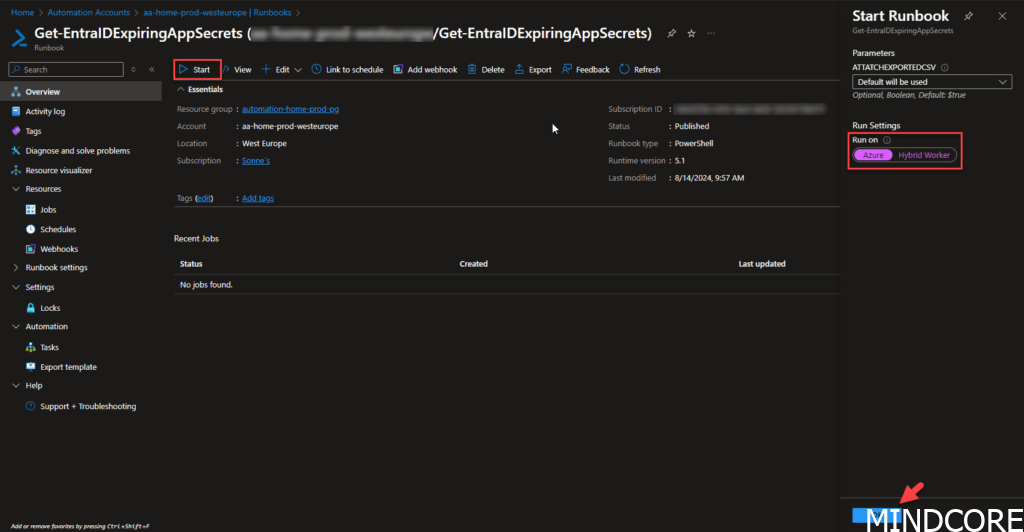
Default, it will be set to run from Azure, but as before we installed a Hybrid worker, and it will now be listed here to run from – click on OK to start the run!

Now the Runbook is running from the Hybrid Worker – here a report of Entra ID Applications via a System assigned Managed Identity – so no manual client secrets and so to manage!
A system assigned managed identity is restricted to one per resource and is tied to the lifecycle of this resource (your Azure Automation account). You can grant permissions to the managed identity by using Azure role-based access control (Azure RBAC), Entra ID Roles or a tool like my tool here available on my GitHub – and read a bit about the tool here too: Entra ID – Managed Identity Permission Manager – Mindcore Techblog.
The managed identity is authenticated with Microsoft Entra ID, so you don’t have to store any credentials in code – and this is the cool part! ❤️

Our take on this – based on our experience from customers/projects
At MINDCORE we have used this for different projects, but also a large migration project where we build an engine around it to migrate users (identities) from one domain/tenant to another one – in a hybrid environment on both sides (Entra ID and On-prem Active Directory) – In high-level the flow/architecture can be like:
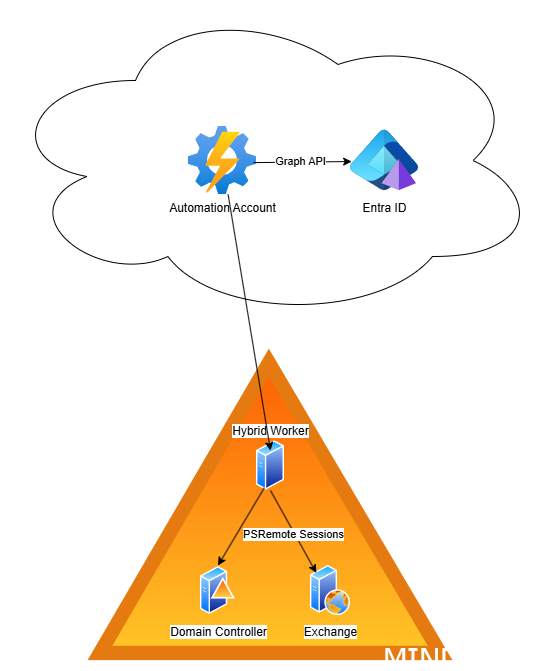
We use an Automation Account with a Managed Identity that has access to services like Entra ID and Microsoft Graph. This setup also connects to the on-premises environment, allowing us to manage and execute code and tasks in the correct order.
Cloud Components
- Azure Automation Account
- Runs automation runbooks (PowerShell, Graph API calls etc.).
- Can directly interact with cloud services.
- Microsoft Entra ID (formerly Azure Active Directory)
- Used for authentication and authorization.
- The Automation Account connects to Entra ID via Graph API to manage cloud identities, groups, and directory objects.
On-Premises Components (within the local data center)
- Hybrid Worker
- An on-premises server registered with the Azure Automation Account.
- Executes runbooks that require access to on-premises resources.
- Domain Controller
- Managed through PowerShell Remote Sessions (PSRemote Sessions).
- Allows automation tasks to interact with Active Directory objects, GPOs, and other domain services.
- Exchange Server
- Also managed through PSRemote Sessions.
- Enables automation of Exchange management tasks (like mailbox management, server configurations, etc.).
How it connects and works
- The Azure Automation Account can run cloud-only tasks and connect to Microsoft Entra ID via Graph API to manage identity services.
- When the automation needs to interact with on-premises systems like Domain Controllers or Exchange Servers, it uses the Hybrid Worker.
- The Hybrid Worker securely connects to the local infrastructure and runs the scripts as if they were executed on-premises.
- PowerShell Remoting is used by the Hybrid Worker to perform tasks on the Domain Controller and Exchange Server.
Good use cases we have seen/positive stuff
Overall we have used this, we have identities some nice aspects of it, and some of them are:
- Security: Managed Identities
- Git/Version control: No manual changes/approval flows and sync of code automatically –
Our limitations we have seen
From our experiences, we have found some fun limitations we have figured out based on our use of this:
- Speed:
- Not use a lot of Write-Output for showing output in the Automation Account – the job then slows down the execution of the job, as it need to send the content from Hybrid Worker > Azure > and then show it in the Automation Account output – this is fun even if it should be fast, but we could see a time difference based on this on the job´s runtime.
- Git version control have some fun limitations like:
- It default´s back to PowerShell 5.1 etc. if you sync PowerShell scripts to the Automation Account via Git to the Runbooks, even if you prior to the Sync have created an empty PowerShell Runbook set to Runtime 7.2 etc. 😖
- PowerShell Modules:
- It´s not easy to manage the installed PowerShell Modules
- If you install it via the UI – it´s allways installed the newest v. (not good allways) or you need to upload the module in a specific version in a .zip file by hand!
- If you need to install a specific v. you can only manage it via PowerShell/API
- Doesn’t handle Module dependencies (not checking that 😓)
- It´s not easy to manage the installed PowerShell Modules
What I’d like to see in the future
- Ensure support for all current PowerShell versions and keep it updated.
- Improve the stability of the extension when running the Hybrid Worker with custom credentials. If permissions on the folder
C:\ProgramData\AzureConnectedMachineAgent\Tokensare reset, tasks may stop running and the Runbook state can eventually be set to ‘Suspended‘ in the Azure Portal.- We have reported this issue to Microsoft last year, as it appears to be a known limitation in other forums as well. See GitHub – Pull Request #124220 · MicrosoftDocs/azure-docs.
The issue was later recognized, but the status of a fix was recently changed, unfortunately not for the better: Pull Request #125153 · MicrosoftDocs/azure-docs – it´s about Azure Connected Machine agent update causing folder permissions to be lost. This causes jobs which use a custom credential to go into a suspended state until the folder permissions are reapplied – and no fix planned for now 😭
- We have reported this issue to Microsoft last year, as it appears to be a known limitation in other forums as well. See GitHub – Pull Request #124220 · MicrosoftDocs/azure-docs.
- Improve error log output and organization in the portal. Currently, logs are spread across different tabs, which makes it difficult to consistently find errors, output, and exceptions.
- Faster output when output a lot of data – it´s slows up very fast and…
- Support for all runbook types and versions when configured to use Git for runbook synchronization.
- Why does the system/backend revert from PowerShell 7.2 to PowerShell 5 after the sync tasks have run when setup to use etc. Git? 🤯
- And to the last – try to keep What’s new with Azure Connected Machine agent – Azure Arc | Microsoft Learn a bit more up to date (updated now after I have pinged the Product Team..)
- Regarding Hybrid Worker Groups/Extentions:
- If a machine is added to a Hybrid Worker Group without the extension installed, the latest supported version should be deployed automatically — not an outdated one.
- The system should either trigger an automatic update or at least provide a clear warning that an older version was installed and won’t auto-update.
Right now, this behavior feels counterintuitive and error-prone, especially in production environments.
Some parts are updated at 30 June 2025, but it´s not all – see a list here of the recent changes to Azure Automations: What’s New in Azure Automation | Microsoft Learn
Whats next?
We have more blog posts in the pipeline – so stay tuned! In upcoming posts, we’ll dive deeper into Azure Automation, Hybrid Workers, Azure Arc and best practices for managing your automation environment.
We’ll also share troubleshooting tips based on real-world scenarios we’ve encountered, helping you avoid common pitfalls and resolve issues faster. Expect practical advice, lessons learned, and solutions to challenges you might face when working with runbooks, permissions, and hybrid automation setups.
If you have specific topics or questions you’d like us to cover, let us know in the comments. We’re excited to continue sharing our experience and helping you get the most out of Azure Automation!
References
Azure Automation subscription limits and quotas | Microsoft Learn
Azure Automation Runbook Types | Microsoft Learn
Troubleshoot extension-based Hybrid Runbook Worker issues in Azure Automation | Microsoft Learn








