
On updated tenants, external file sharing is now enabled in both 1:1 and group chats.
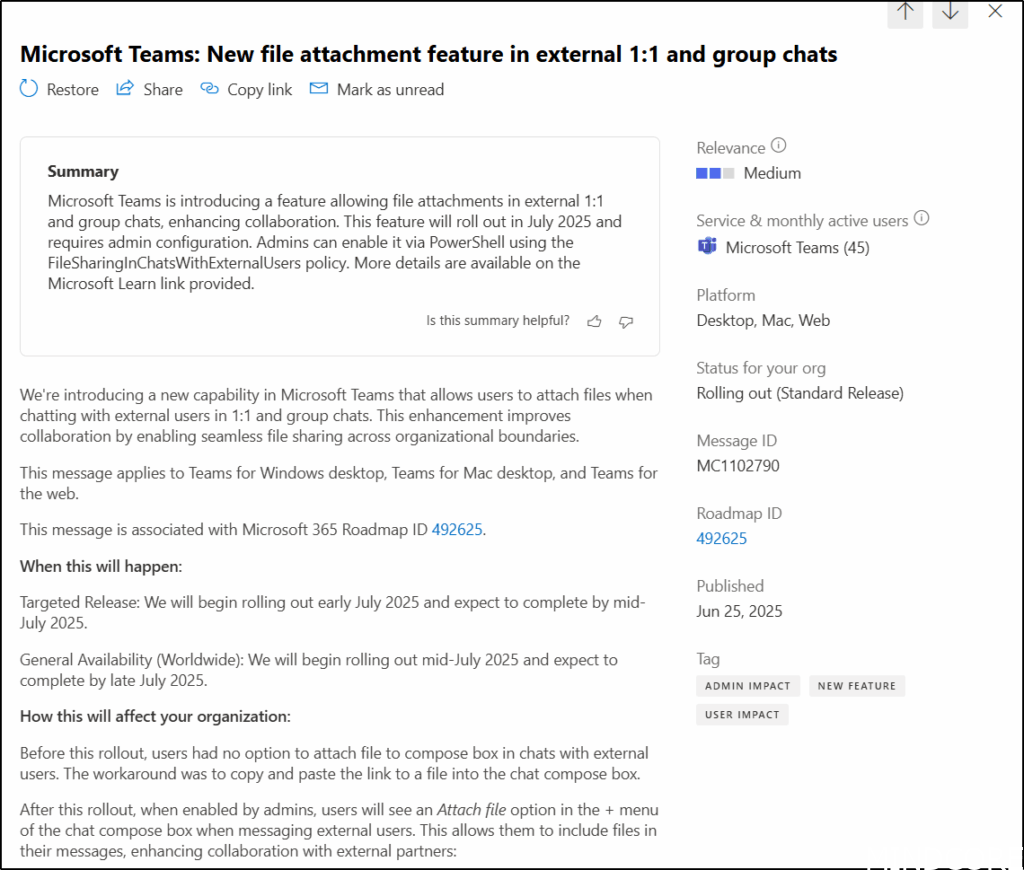
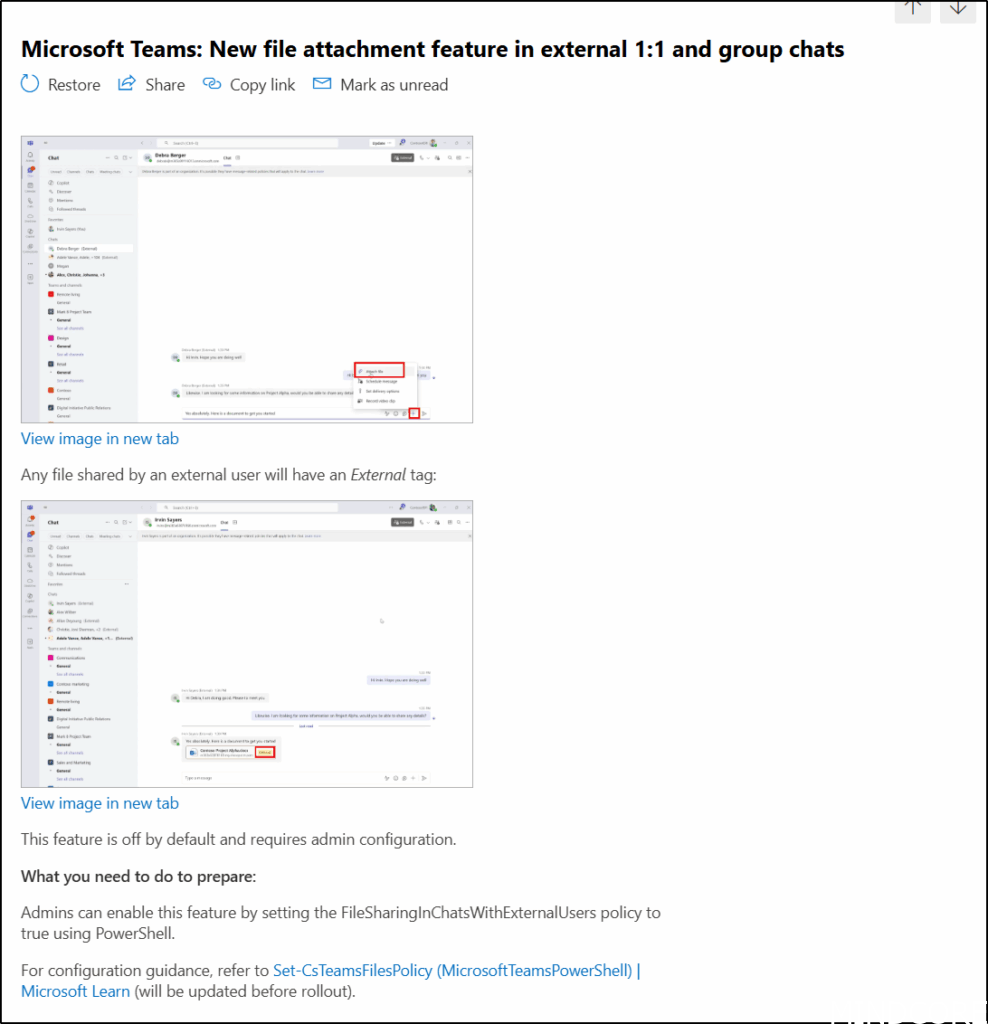
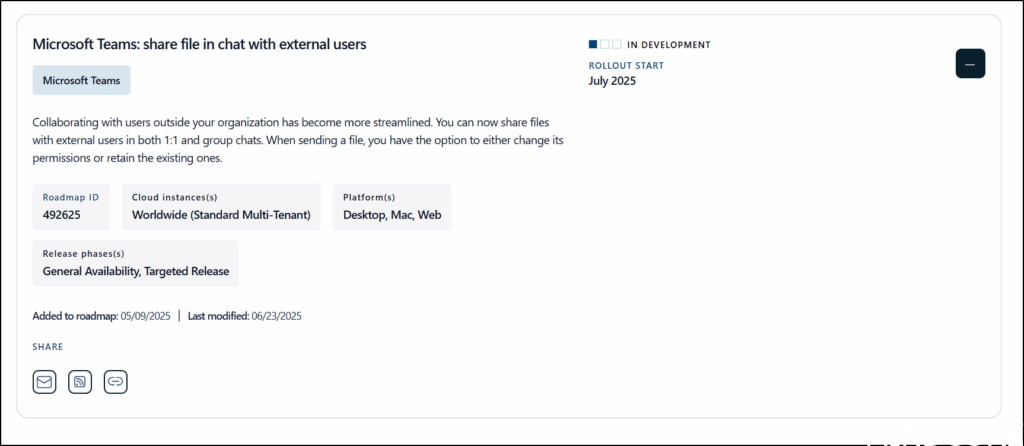
When this feature is not enabled you will not see an attach file option when chatting with an external user. To share a file, you must first share the file from your OneDrive and then add the link into the chat.
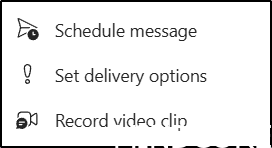
With the update, we will now be able to do it directly in the chat, with a new option called Attach file.
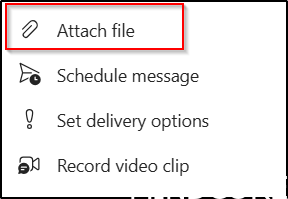
You can attach recent files, Cloud files (Teams or OneDrive) or upload files from your device.
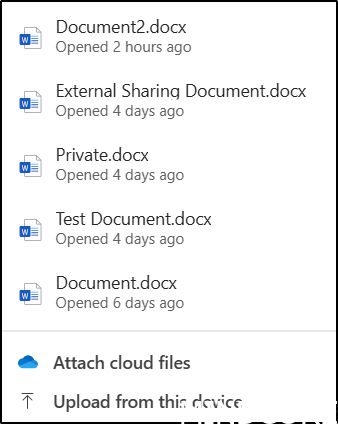
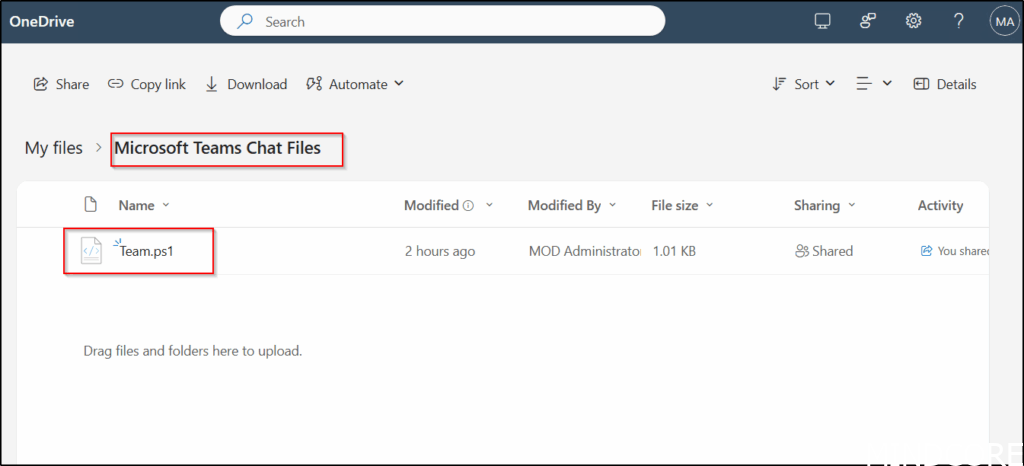
If you upload from your device the file will be copied to you OneDrive and shared from here (SharePoint), if this is allowed.
Here you can see the folder created on OneDrive and the copied files I attached to a chat.
If you attach a file from Teams, it will be shared via Teams (SharePoint), if permitted. To change sharing settings, click the message or use the dropdown arrow.
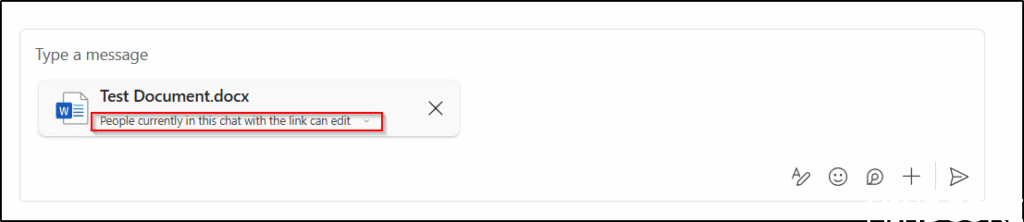
Sharing options available.
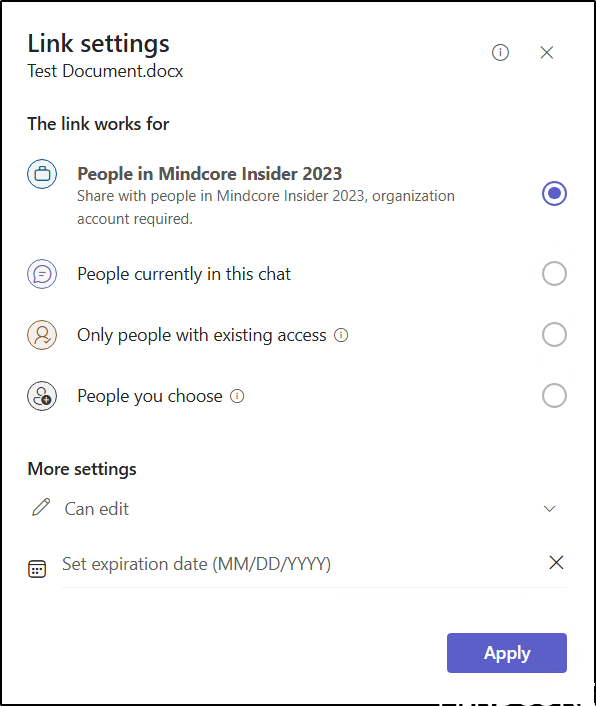
Teams adheres to SharePoint and OneDrive sharing settings, including those defined by sensitivity labels. If external sharing is disabled on the SharePoint site, file sharing will not be possible. Users you share files with will be created as normal B2B guests, so this must not be disabled.
Currently, it appears that Teams becomes unresponsive (grayed out) when attempting to attach a file from a team where external sharing has been disabled at the SharePoint site level.
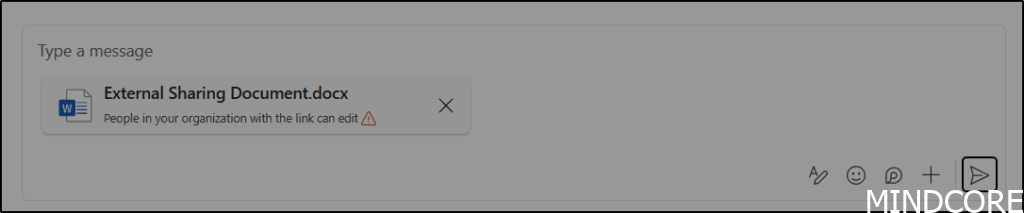
The feature must be enabled on teams before you can use it.
You need a newer version of teams powershell module.
https://www.powershellgallery.com/packages/MicrosoftTeams
This test was done with version 7.1.0, in order to check your version use the following PowerShell command.
Get-Module MicrosoftTeams -ListAvailable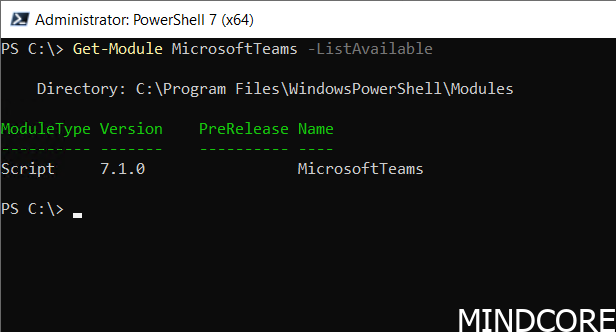
Connect to Microsof Teams.
Connect-MicrosoftTeams
The verify the current setting looking for the option FileSharingInChatswithExternalUsers
Get-CsTeamsFilesPolicy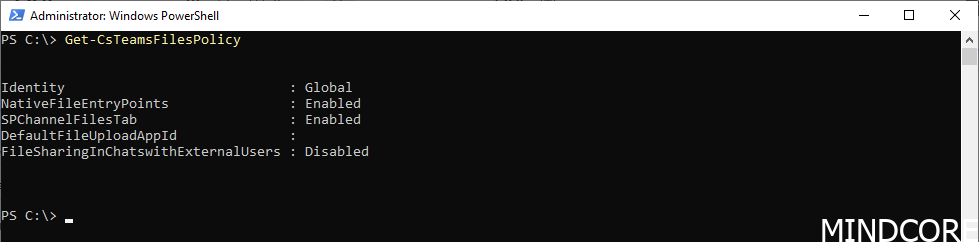
This setting must be enabled for the attach file option to appear.
Set-CsTeamsFilesPolicy -Identity Global -FileSharingInChatswithExternalUsers Enabled
The option is now enabled, and an “Attach file” feature appears in the + menu when communicating with external users.
Numerous settings in SharePoint, Microsoft 365 Groups, and Teams have a considerable influence on users’ overall experience with Microsoft 365 and Teams. During our Governance workshops, we initiate the process with our governance data collector, which compiles information regarding the current Microsoft 365 configuration and highlights areas where alternative strategies may be considered. We have recently incorporated this new sharing option into our data collector, as it is a critical feature to (also) have a view on.
And now a short message in Danish 🙂
Hos Mindcore elsker vi at dele viden, men det er vores Danske kunder der rent faktisk gør dette arbejde muligt. Hvis du er interesseret i hvad vi kan tilbyde i forhold til Microsoft 365 Governance og sikkerhed, Azure ARC, Intune eller nogen af de andre områder vi har skrevet om her på bloggen, så kontakt os på info@mindcore.dk eller telefon 51 91 44 10.








