
In my previous blogposts I’ve shown some of Azure Arc’s features, and interesting capabilities. All super cool ways to securely interact with your machines, regardless of where they are hosted. However, so far, I’ve glanced over a problem:
How do you get started with onboarding machines?
In Part 1 of this mini-series, I’ll introduce some of the options available for onboarding VMs to Azure Arc. Both simple ways for testing purposes, and then some of the more scalable options, including some common pitfalls and security considerations to keep in mind.
Azure Arc VM Onboarding blog mini-series overview:
1. Azure Arc VM Onboarding Pt.1 – Introduction (This blog post)
2. Azure Arc VM Onboarding Pt.2 – GPO Deep-Dive & Deployment Monitoring Workbooks (coming soon)
3. Azure Arc VM Onboarding Pt.3 – Automating Post-Deployment Configurations (coming soon)
Also be sure to check out our other Azure Arc blogposts in our Modern Server Management series!
Prerequisites
Before you get your hands dirty and start deploying the agent, have a read through Microsoft’s own documentation which covers details such as:
| Task | Detail |
|---|---|
| Create a resource group | A dedicated resource group to include only Azure Arc-enabled servers and centralize management and monitoring of these resources. |
| Plan Tags to help organize machines. | Evaluate and develop an IT-aligned tagging strategy that can help reduce the complexity of managing your Azure Arc-enabled servers and simplify making management decisions. |
| Design and deploy Azure Monitor Logs | Evaluate design and deployment considerations to determine if your organization should use an existing or implement another Log Analytics workspace to store collected log data from hybrid servers and machines. |
| Develop an Azure Policy governance plan | Determine how you’ll implement governance of hybrid servers and machines at the subscription or resource group scope with Azure Policy. |
| Configure Role based access control (RBAC) | Develop an access plan to control who has access to manage Azure Arc-enabled servers and ability to view their data from other Azure services and solutions. |
Also have a look at how you’ll manage access controls by defining custom roles that suit within your organization.
NOTE: Keep in mind that users, groups, or applications assigned with roles like “contributor” or “owner” or “Azure Connected Machine Resource Administrator” are able to execute operations like deploying extensions, effectively delegating root or administrator access on Azure Arc-enabled servers.
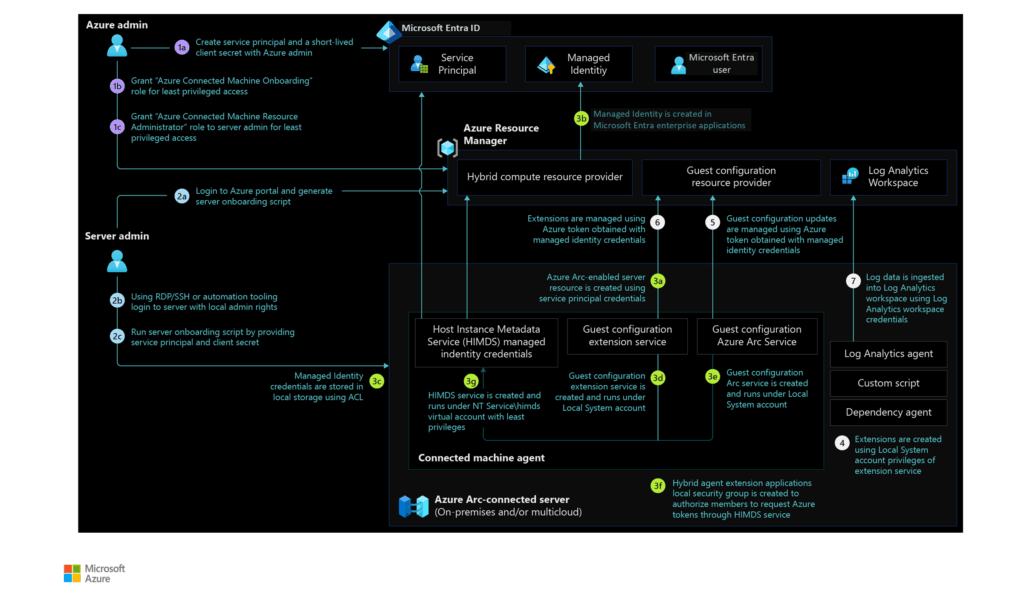
Also consider the security implications of Azure Arc-enabled servers and understand potential risks and drawbacks. This includes determining if and how security features (for example, extension allowlists) should be applied to the agent upon deployment. This is especially important for Tier 0 or otherwise high importance virtual machines.
Additionally note that during onboarding, a Managed Identity is automatically created for each machine. This registers a service principal in Entra ID in the form of an Enterprise Application using the hostname which can be enumerated by any user in the tenant (but not guests by default). An example of this can be seen below:

$params = @{
    Filter = "servicePrincipalType eq 'ManagedIdentity'"
}

# Get service principals and filter for HybridCompute managed identities
$service_principals = Get-AzADServicePrincipal @params |
    Where-Object {
        $_.AlternativeName -match "Microsoft\.HybridCompute/machines/"
    }

# For each managed identity, find the resource group and subscription ID
$results = foreach ($sp in $service_principals) {
    # Parse subscription ID and resource group from resource ID
    if ($sp.AlternativeName -match "^/subscriptions/([^/]+)/resourceGroups/([^/]+)/") {
        $subscription_id = $matches[1]
        $resource_group = $matches[2]
    }
    [PSCustomObject]@{
        DisplayName    = $sp.DisplayName
        ObjectId       = $sp.Id
        SubscriptionId = $subscription_id
        ResourceGroup  = $resource_group
    }
}

# Display results in a table format
$results | Format-Table -AutoSize
Network requirements
The Azure Connected Machine agent for Linux and Windows communicates outbound securely to Azure over TCP port 443. By default, the agent uses the default route to the internet to reach Azure services. Considerations are needed for air-gapped servers without internet access. In those scenarios, the agent can be configured to use a proxy server.
The Azure Arc gateway (preview) is a feature that can be used to simplify network configuration requirements down to only seven endpoints. This simplifies proxy configuration. Honestly, I’m not entirely sure why this isn’t just the default but that will be another blogpost by itself.
Azure Resource Providers
The following Azure resource providers must be registered in your subscription to use Azure Arc-enabled servers:
- Microsoft.HybridCompute
- Microsoft.GuestConfiguration
- Microsoft.HybridConnectivity
- Microsoft.AzureArcData (if you plan to Arc-enable SQL Servers)
- Microsoft.Compute (for Azure Update Manager and automatic extension upgrades)
You can register the resource providers using the following commands:
Connect-AzAccount
Set-AzContext -SubscriptionId [subscription you want to onboard]
Register-AzResourceProvider -ProviderNamespace Microsoft.HybridCompute
Register-AzResourceProvider -ProviderNamespace Microsoft.GuestConfiguration
Register-AzResourceProvider -ProviderNamespace Microsoft.HybridConnectivity
Register-AzResourceProvider -ProviderNamespace Microsoft.AzureArcData
Onboarding Methods
Microsoft has provided documentation for deployment using many different methods. However, not all of the described methods are scalable, while others require fairly extensive management setups (such as Configuration Manager or SCVMM).
By far the easiest solution is to deploy the agent through an Arc enabled VMware VSphere. It can automatically discover VMware VMs and install the agent on them.
If you’re not running VMware, or Configuration Manager/SCVMM, your hypervisor may have other native remoting capabilities that don’t require direct network access (such as Hyper-V’s PowerShell Direct) which could be used to deploy the agent securely and at scale. Using PSRemoting interactively allows for the use of the Connect-AzConnectedMachine cmdlet which lets you sign in to Azure with the usual Az.Accounts PowerShell module and as long as the user account has the correct permissions to onboard machines, no service principal is required to be set-up and managed (see below on why this is a good thing).
Beyond hypervisor access, your next best option might still be pushing it out over GPO (I know, I know… but it is one of Microsoft recommended methods). The reality is that most enterprise customers are definitely still using Active Directory so this can make a lot of sense. Naturally this does come with its own setup requirements such as a network share, and occasional rotation of the Service Principal secret. Luckily it is a well-documented process outlined by Microsoft. I recommend having a look at the Microsoft provided scripts. The process is made even simpler by following the Arc setup Wizard in the Azure Portal:

Lastly, a PowerShell script can also be executed against the servers remotely if PSRemoting is enabled in the environment or a third-party management system is available to push a script out. This is often the simplest way to just quickly deploy the agent and get started. Perfect for a test environment but would require quite a bit of work to scale up if you choose not to use any of the previously mentioned options.
A note on the Service Principal
If an onboarding method is chosen that requires the setup of a Service Principal (this includes the GPO or non-interactive PowerShell script methods), additional care should be taken to protect the secret.
This starts with the creation of the Service Principal. When beginning the setup process on adding servers to Azure Arc from the Azure Portal you’ll be prompted for the following options:
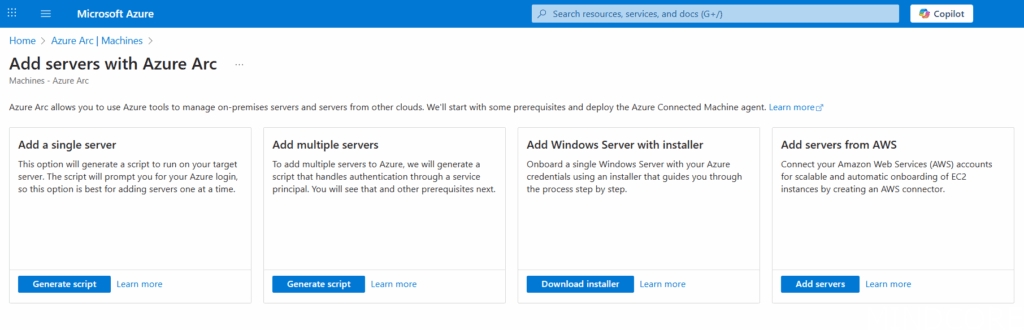
Choosing ‘Add multiple servers’ lets you configure a Service Principal for the initial authentication during the setup process:
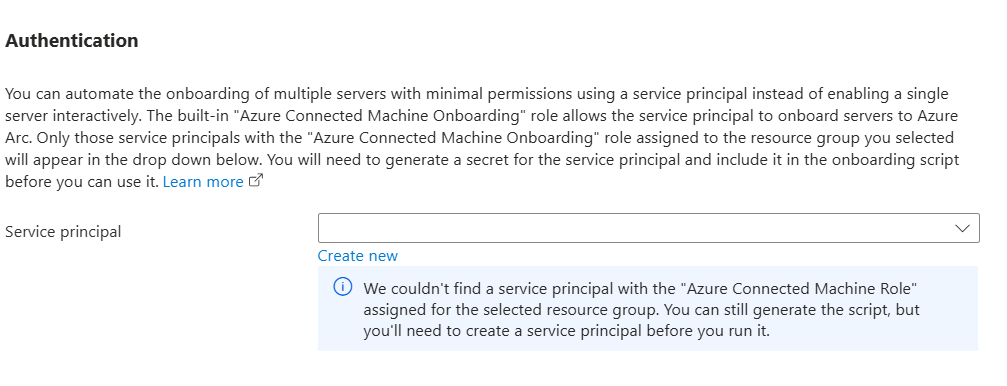
Ensure to choose the scope assignment level to be on the Resource Group (to be as narrow as possible following principles of least privilege) and note that an expiration on the client secret is mandatory (and definitely should be rotated regularly):
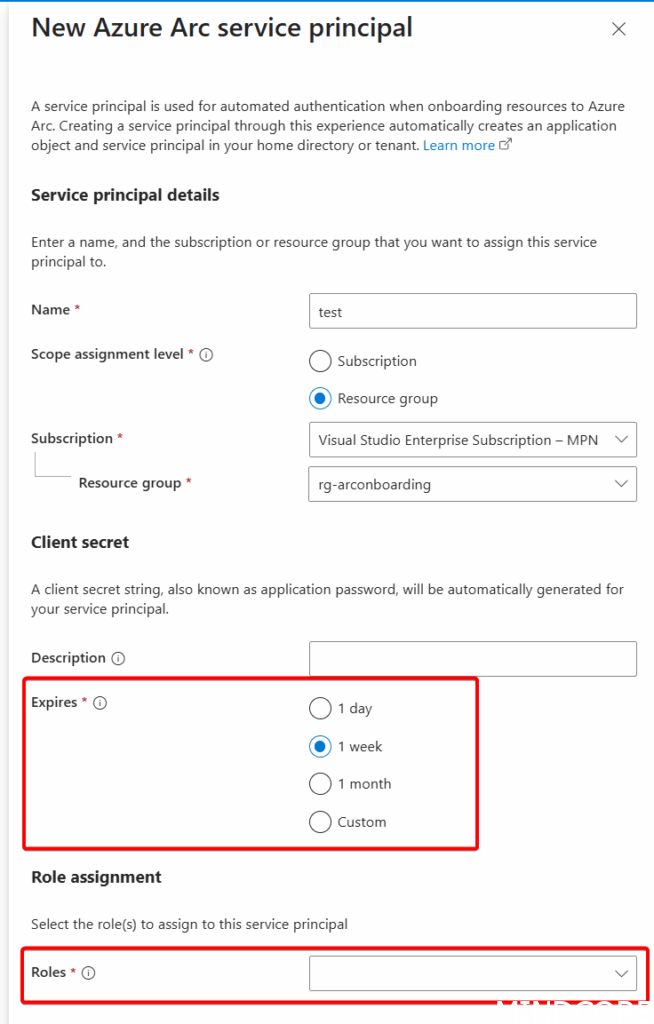
Also note the Role assignment options. This one is super important:
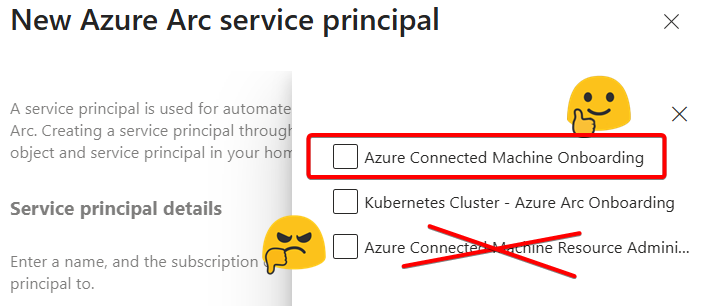
Make sure to ONLY select ‘Azure Connected Machine Onboarding’ role and NOT ‘Azure Connected Machine Resource Administrator’
The administrator role is a privileged role and has many more permissions than what is required for the initial onboarding. Honestly, it should come with a huge red banner (or not exist within this setup at all). The reason for this is that while the Service Principal secret won’t be stored in plaintext (they are encrypted, even for the GPO method), it’s not very difficult to obtain since, by necessity, the secret is accessible over the network for all domain computers by default. More on this in Part 2 of the series.
The administrator role has the following permissions:
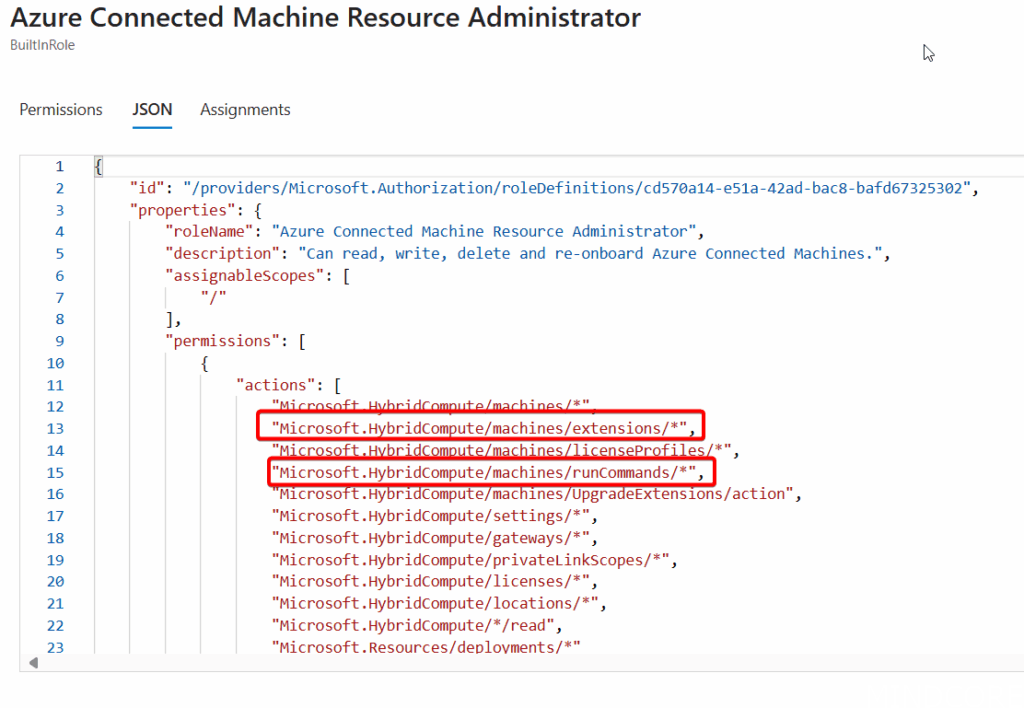
RunCommands and Extension permissions allows someone with the secret to run commands on any Arc onboarded machine under System privileges, hence why this should be avoided at all costs.
Post-onboarding Configurations
Now that we can easily get machines onboarded, we can look at what’s required for being able to manage them at scale. For example, the SSH and RDP connectivity from my previous blogposts require the OpenSSH extension be installed on the machines. This can be done in a variety of ways, either manual, or automated through, for example, Azure Policy or PowerShell.
Other common tasks can include onboarding to Azure Update Manager, configuring SSH keys, installing other extensions, or enabling the Azure Hybrid benefits.
Stay tuned for a follow-up blogpost where I’ll show off a Function App that automates all of this as soon as a new machine is detected in Azure!
Conclusion
Onboarding to Azure Arc at face value can be considered a simple affair, but once you start to dig into the details, there’s a lot to consider. Organizations with specific security requirements specifically need to consider all options and potentially add additional security measures (such as disabling unnecessary management features or onboarding to a dedicated subscription). I hope this blog helps in gaining a better understanding of all the involved pieces of the larger puzzle before organizations start rolling out Arc.








