
While I was writing part 1, I kept digging into more details on the GPO deployment method and figured that it deserves a post by itself. Here I’ll cover some pitfalls I’ve run into and things to make life easier such as logging the deployments and having a workbook to monitor things.
Azure Arc VM Onboarding blog mini-series overview:
1. Azure Arc VM Onboarding Pt.1 – Introduction
2. Azure Arc VM Onboarding Pt.2 – GPO Deep-Dive & Deployment Monitoring Workbooks (This blog post)
3. Azure Arc VM Onboarding Pt.3 – Automating Post-Deployment Configurations (coming soon)
Also be sure to check out our other Azure Arc blogposts in our Modern Server Management series!
Generating and deploying the script
The first step is to generate the required script which can be done directly from the Azure portal:


In this example, I’ll be onboarding Windows machines to a dedicated resource group and using a specified Gateway resource for it (which will be its own blogpost). I’ve created a Service principal for it which only has the Azure Connected Machine Onboarding role assigned to it.

Next, choose the ‘Group Policy’ deployment method which advises to download the latest installer package and the deployment scripts/libraries from Github. This is just following the documentation.
On my Lab Domain Controller, I’ve created a remote share that will host the agent package alongside the configuration file it needs. It’s configured to provide Domain Controllers, and Domain Computers with Change permissions, and Domain Admins with Full Control permissions:
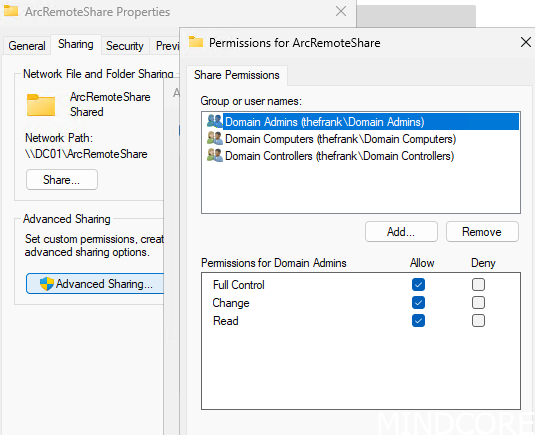
NOTE: In a real environment, it’s not required for these files to be on a DC, so place them on any other file share server.
Now, download the .msi package and copy it to the newly created shared folder:

Next, download the required scripts and verify them. These are also not required to be run from a DC (and that’s definitely not recommended). Microsoft helpfully provides some fields to fill in back on the onboarding page that generates the required script for you:

Again, note that the Remote server for logging purposes is the DC here for this demo environment, please use a dedicated file share server for this instead.
Running the script generates the GPO:


Now let’s take a look at the shared folder to see what it has done:

The Logging folder will be covered later, but the Deploy folder is interesting:
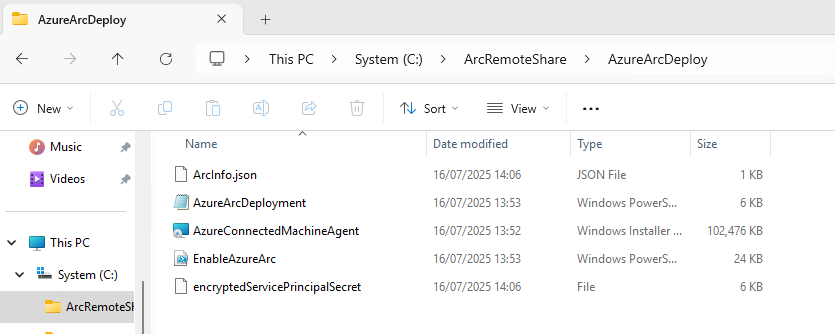
We can see that the same .msi package was copied here alongside the script that the scheduled task will trigger after it’s been created by the GPO. Of more interesting note is the encryptedServicePrincipalSecret file. This is a DPAPI-NG encrypted file containing the plaintext secret. This can be decrypted by members of the domain computers group:

Technically, this means that the Service Principal secret could be recoverable from any NT_AUTHORITY\SYSTEM context in the domain. Again, this is why we ensure that the Service Principal has the lowest privilege possible and that the secret is rotated regularly. Once all machines are onboarded, the GPO should be disabled and this secret cleared out to ensure no one can enroll any other machines.
This becomes especially crucial once we build onboarding automations that take place after the Arc agent has been installed and connected. These automations may install contain additional credentials that a possible nefarious actor could use.
My recommendation is to adjust the permissions with a custom group that ONLY includes domain-joined servers (instead of Domain Computers, which includes workstations as well). This reduces the attack-surface dramatically. Alternatively, scope it to only the group of servers that will actually be onboarded to Arc.

Off course, this assumes that your environment has an AD group that includes only servers, which is probably why Microsoft defaults to using just Domain Computers.
Applying the GPO
With permissions adjusted, apply the GPO to an appropriate OU that contains servers to be onboarded:

After linking the GPO, on a server, force a GPO refresh and the Arc Agent will get installed and automagically connect:

In Azure we can immediately see the machine onboarded as well:

And through some Azure Function magic that I’ll cover in a later blogpost, the machine immediately gets the WindowsOpenSSH extension deployed alongside a public SSH key and some Tags.
Logging and Monitoring
Back on the now freshly onboarded machine we can see the completed task within task scheduler:

Funnily enough, I couldn’t find the task any longer, and checking the GPO confirmed that it cleans up after itself.
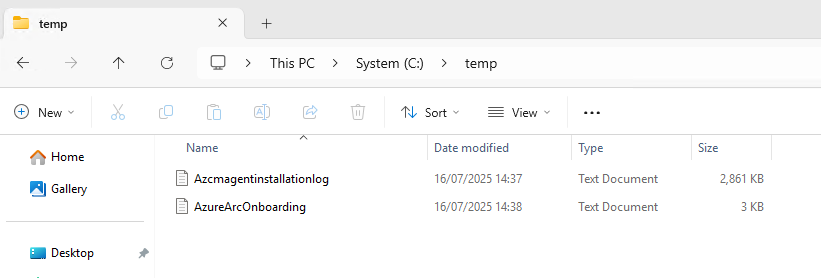
For a successful Arc onboarding, no logs will be pushed to the shared folder ‘AzureArcLogging’ but there will be some local logs left on the machine in $env:SystemDrive\temp:

However, when I try to deploy the same GPO to a server that doesn’t have an outbound internet connectivity, it will obviously fail. The first time the scheduled task is triggered, it will install the agent but fail on testing connectivity but that still does not generate logs. On a second attempt to test connectivity, the script will push logs to the AzureArcLogging folder like so:

This is a great for troubleshooting from a centralized location but we can make this even better by pushing it to a log analytics workspace! That way we can build a workbook (dashboard) and monitor things from Azure!
Pushing the logs to Azure
Prerequisites
- Azure Automation Account.
- Hybrid Worker (so at least 1 Arc-onboarded machine) with access to the remote file share (AzureArcLogging folder).
For information on what an Azure Automation Account is or how a Hybrid Worker works, have a look at this other blogpost we’ve done!
With a runbook configured to point at the server hosting the file share, it can filter and retrieve logs of the last 24 hours (and cleanup anything older). Schedule it to trigger automatically every day to automatically retrieve any new logs.

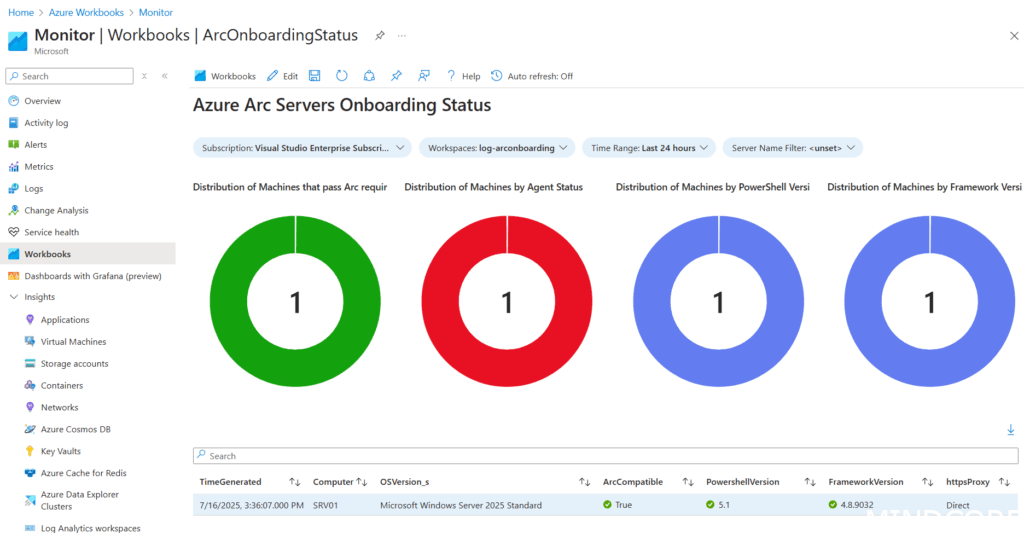
If log files are detected, it will upload them to a Log Analytics workspace, this includes the last error message for easier troubleshooting:
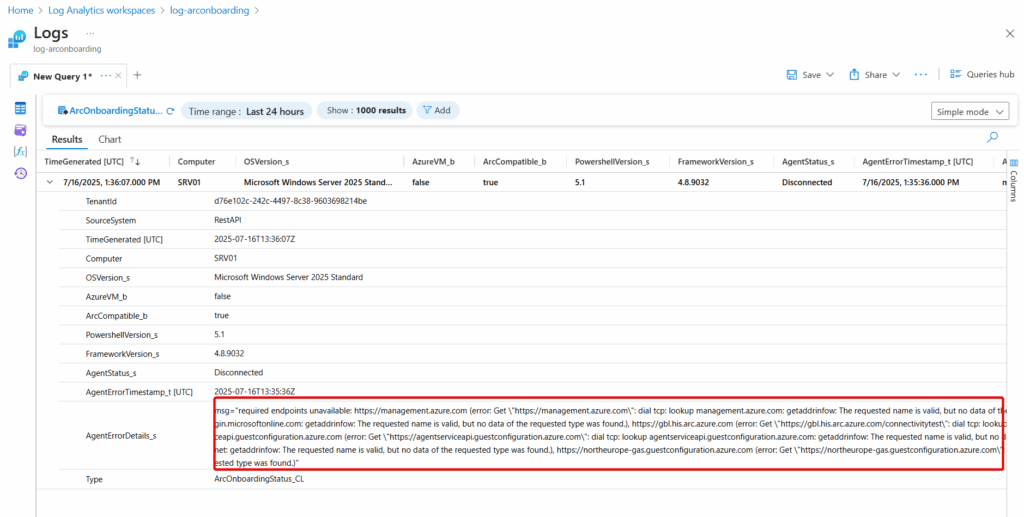
Then we can visualize it in a simple workbook that shows any failed machines at a quick glance for further troubleshooting:
What I’d like to see
- Arc Gateway configuration during deployment by GPO is missing – this functionality seems to work when generating the basic script but does not work while GPO onboarding. I suspect it might be because the DeployGPO.ps1 script isn’t updated yet to support it and Gateway is still in preview but that functionality needs to be there before it goes GA.








