
Introduction
Microsoft Purview is Microsoft’s unified data governance, compliance, and risk platform. It lets you discover, classify, label, protect, retain, and monitor data across Microsoft 365, On-Premises, multicloud, and SaaS sources. It centralizes policies (like sensitivity labels) to enforce consistent security and compliance.
During our Governance workshops, we initiate the process with a governance data collector that compiles comprehensive information regarding the current Microsoft 365 configuration and highlights areas for potential improvement. For instance, we document the use of sensitivity labels to facilitate further discussion during the workshop.
Organizations often secure documents and emails with Microsoft Purview (formerly Microsoft Information Protection) sensitivity labels – but stop short of governing collaboration spaces themselves. Extending sensitivity labels to Microsoft Teams, SharePoint sites, and Microsoft 365 Groups lets you consistently enforce privacy, external sharing, guest access, and unmanaged device controls at the “container” level. This article walks through the why, the architecture, configuration steps, governance considerations, automation, troubleshooting tips, and best practices.
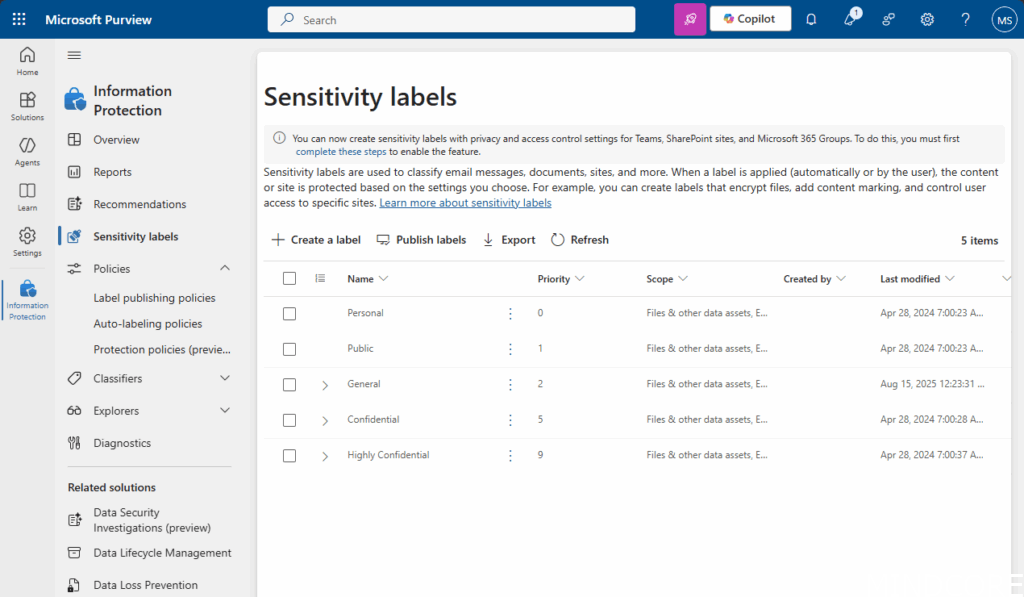
Sensitivity labeling adds persistent classification and protection metadata to content, enabling:
- Consistent enforcement of access, encryption, and sharing restrictions
- Clear data handling guidance for users (visual markings, tooltips)
- Automation of compliance (DLP, retention, eDiscovery scoping)
- Reduction of oversharing and data exfiltration risk
- Auditable traceability of how sensitive data is used
- Scalable governance across Teams, SharePoint, Exchange, and endpoint files
Key Concepts
- File vs. Container Labels:
- File/Item labels (documents, emails) can apply encryption, content marking, auto‑labeling
- Container labels (Teams, Groups, Sites) does NOT encrypt the container; instead they govern collaborative settings (privacy, guest access, external sharing, unmanaged device/session restrictions)
- Unified Labeling: All modern sensitivity labeling (files + containers) lives under Microsoft Purview
- Scope Activation: A single label can optionally apply to (a) Files & Emails and/or (b) Meetings (newer capability) and/or (c) Groups & Sites
Typical Business Drivers
- Data residency & regulatory classification continuity from documents to workspaces
- Minimizing oversharing (accidental external guest inclusion or link oversharing)
- Standardizing privacy posture for project, M&A, HR, Legal, R&D, etc.
- Enabling zero trust controls for unmanaged / BYOD endpoints
- Supporting eDiscovery scoping and lifecycle policies aligned with classification
- More?
What Are Sensitivity Labels?
- Overview of sensitivity labels in Microsoft Purview.
- How labels help protect data.
How to enable Sensitivity Labels for Teams Sites
Prerequisites
- You must be a Global Administrator or have sufficient directory permissions.
- You’ll consent to Directory.ReadWrite.All and Group.ReadWrite.All (admin consent) to change the settings to enable the properties for the Groups in Entra ID (with use of the following script)
- Need Compliance Administrator to manage the Labeling
- Connectivity to Teams/SharePoint admin centers for validation (optional)
- Microsoft 365 E3 + E5 Compliance add‑ons or Microsoft 365 E5 (Sensitivity labels for containers typically require at least E3 + AIP P1; advanced capabilities like auto‑labeling, DLP integration, conditional access reinforcement often need E5). Always confirm the current licensing guide
- PowerShell Modules (as needed):
- Exchange Online PowerShell module (EXO V3)
- Microsoft Graph PowerShell
- Organizational Config Flag (Older Tenants): Most modern tenants already have unified labeling enabled. Historically:
Set-OrganizationConfig -EnableMIPLabels $true
If you runGet-OrganizationConfigand see EnableMIPLabels: False, enable it (rare in 2025, but worth checking for older tenants). - The UnifiedAuditLog need to be enabled
- And ofc. Planning & Design for Classification, Risk and so on – but we can take that in another round 😉
Applying Labels to a Team
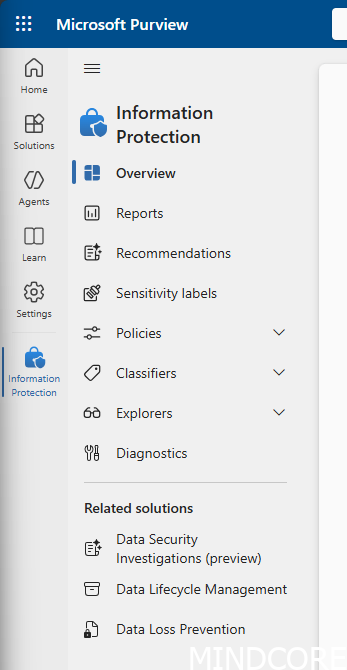
To apply sensitivity labels to a Team (the backend here is SharePoint), you need go to Microsoft Purview in the area Solutions > Information Protection. Here you have the following you can setup and manage:
INFO: By default, sensitivity labels cannot be used with Microsoft 365 Groups or SharePoint sites. To enable this functionality, you first need to activate MIP integration for unified groups in Entra ID.
Change the Tenant Groups settings so you can assign labels to a Team
By default, group label creation in Microsoft Entra ID is unavailable – the option is greyed out. To enable this functionality, you must first turn on the feature in Entra ID. Please note that Microsoft’s documentation may be confusing, as the outlined steps only succeed if your environment already includes a directory setting for Microsoft 365 Groups. If this setting is missing, the necessary PowerShell cmdlets will not work.
Here is some PowerShell script to enable the feature and the needed changes:
Setup and Applying a Label to a Team
In this section, we’ll walk through how to set up and apply a label to a Team, ensuring your documents are automatically protected and classified (based on your policy setup – I’m using a basic sample here in the blog).
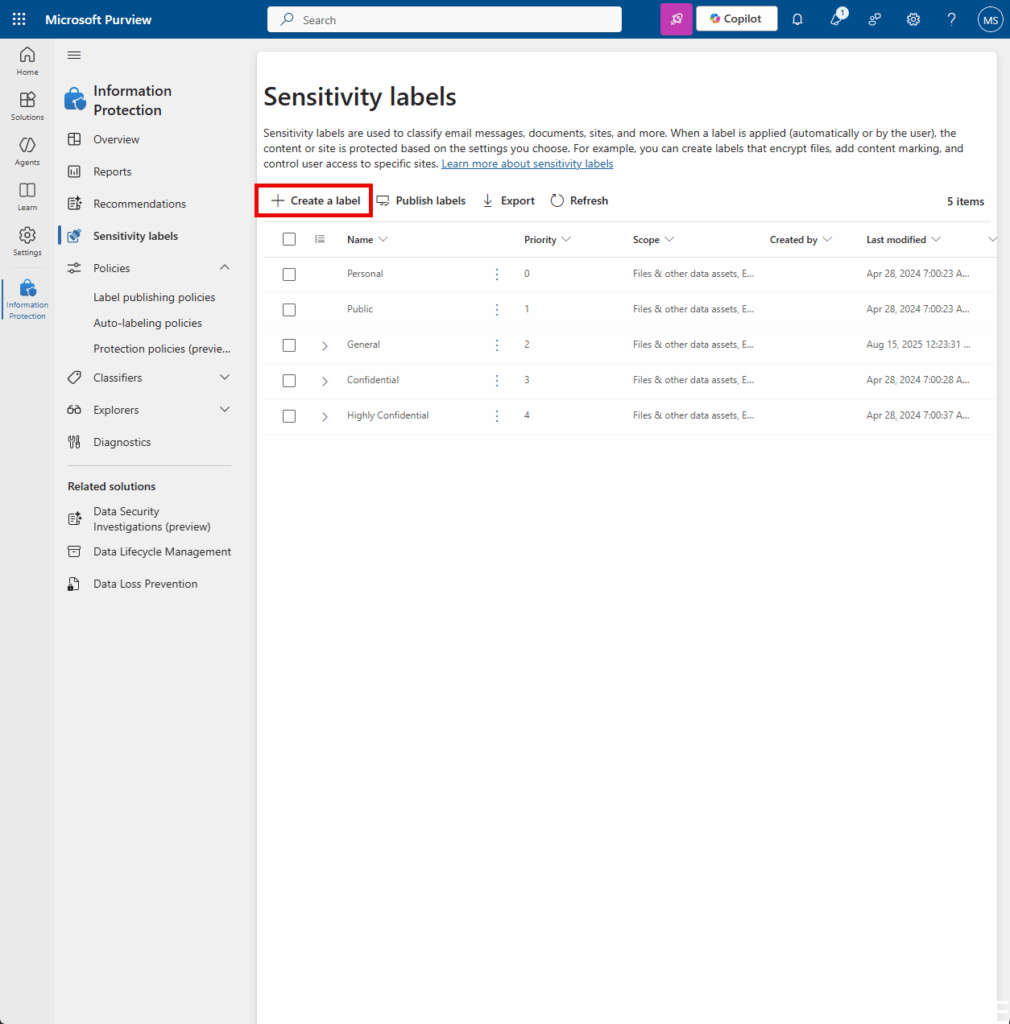
- Sign in to the Microsoft Purview portal and go to Solutions > Information Protection > Sensitivity labels
- Click on + Create and then Label to start the new sensitivity label configuration.
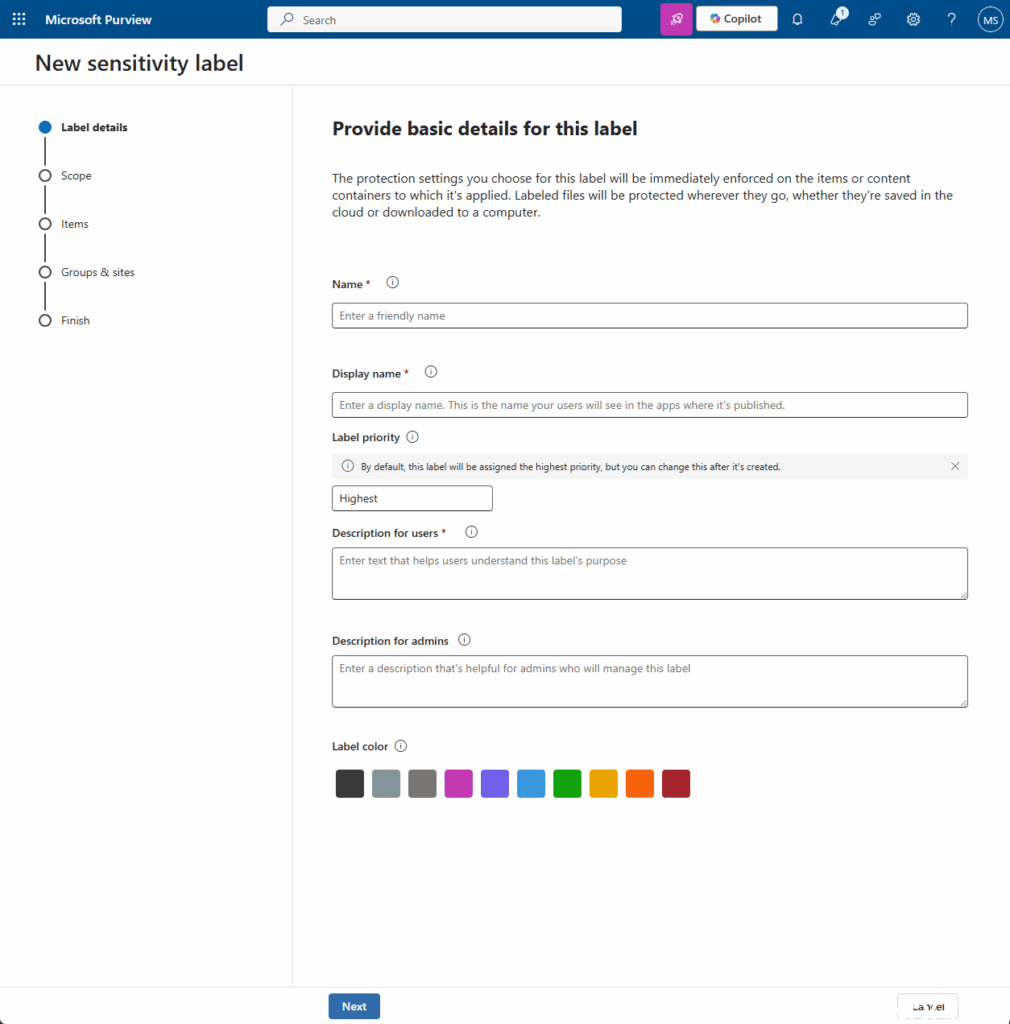
- On Provide basic details for this label page, input the needed information like name, color and information to your users.
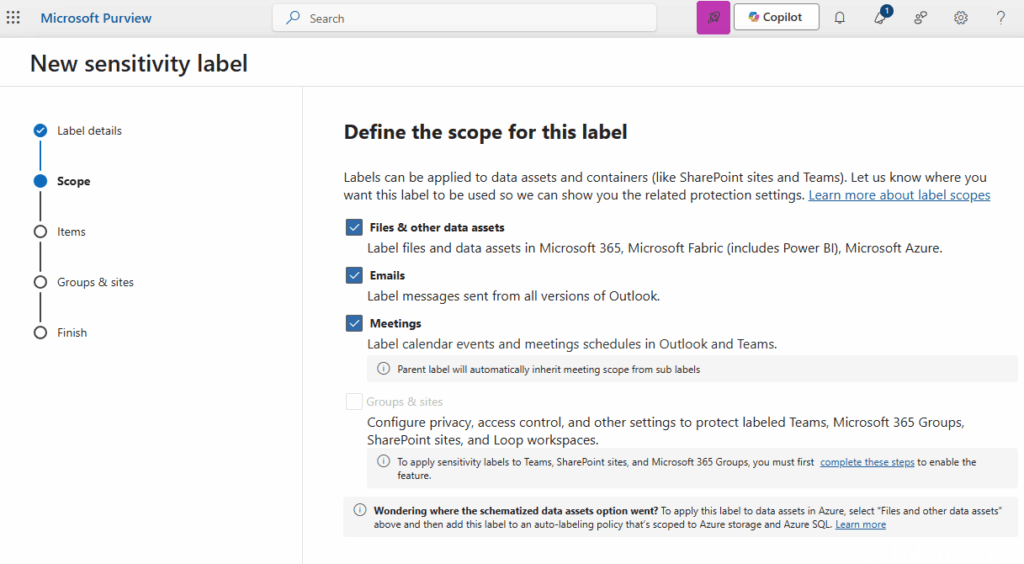
- The following options listed here determine the label’s scope for the settings that you can configure and where they’ll be visible when they’re published
INFO: You can’t select Meetings unless Files & other data assets and Emails are also selected. For more information about this dependency and extending labels to include meetings, see Use sensitivity labels to protect calendar items, Teams meetings, and chat.
If you don’t select any scope options, you’ll see the configuration page but won’t be able to set up the options, and the labels won’t appear for users in those apps.
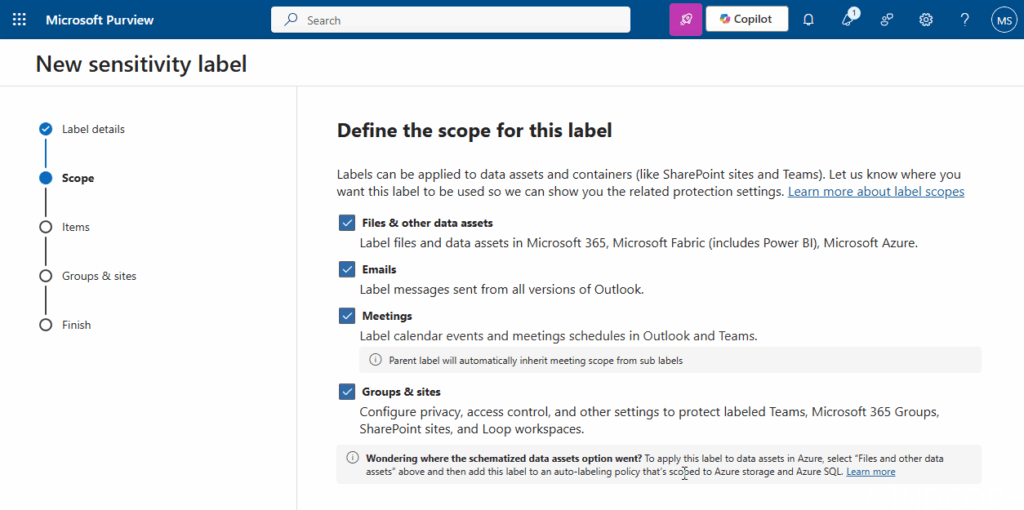
- Then we need to follow the configuration prompts for the label settings. Here we test to adding content markings like footers, and watermarks to labeled items.
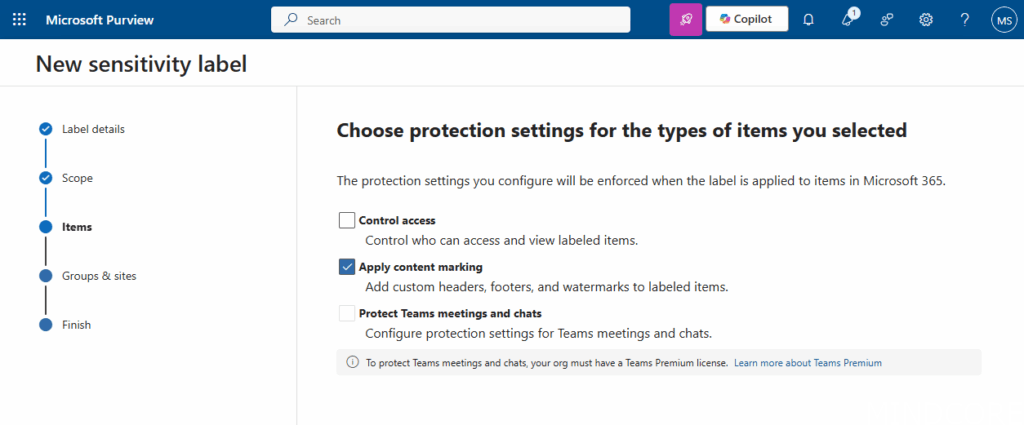
You can also control access to the files – like here under Control access form the setting above:
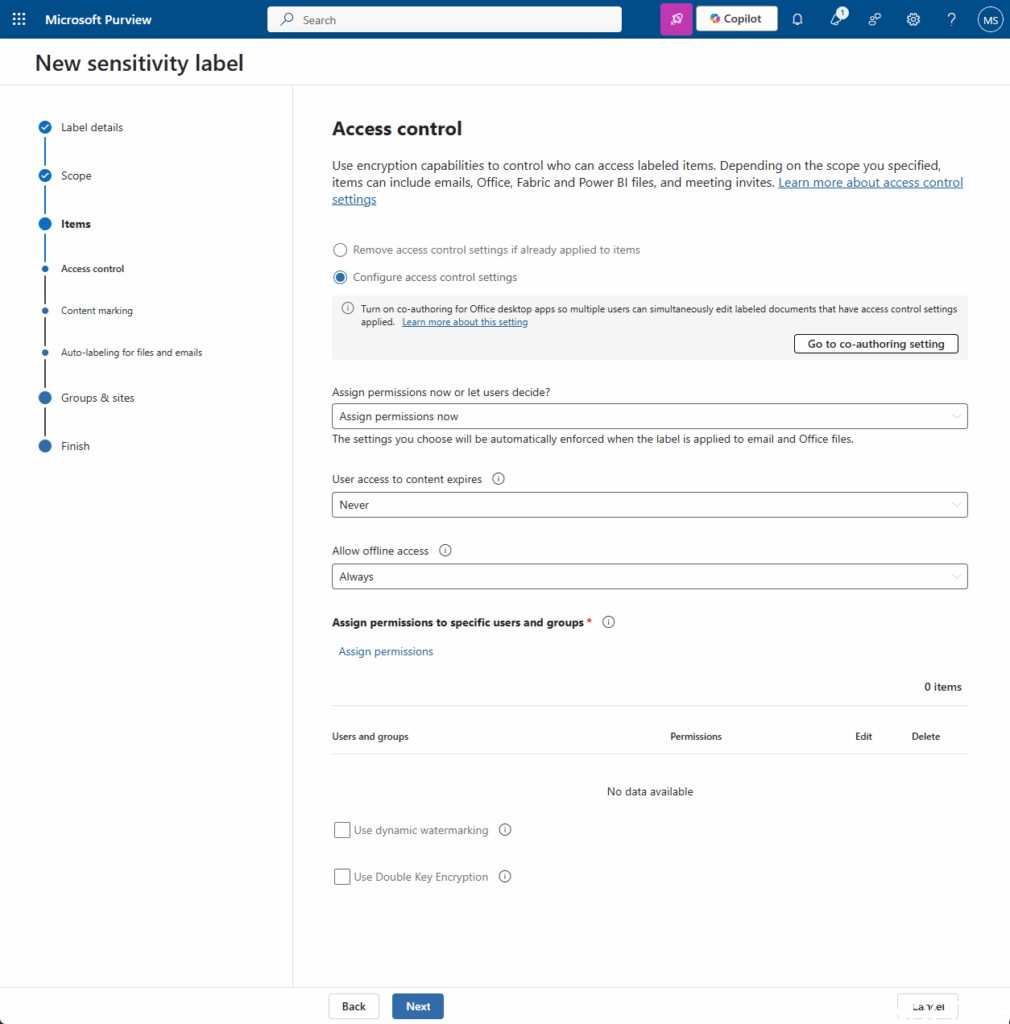
- Now in the Content marking page, lets add the content we want to add – here is a sample:
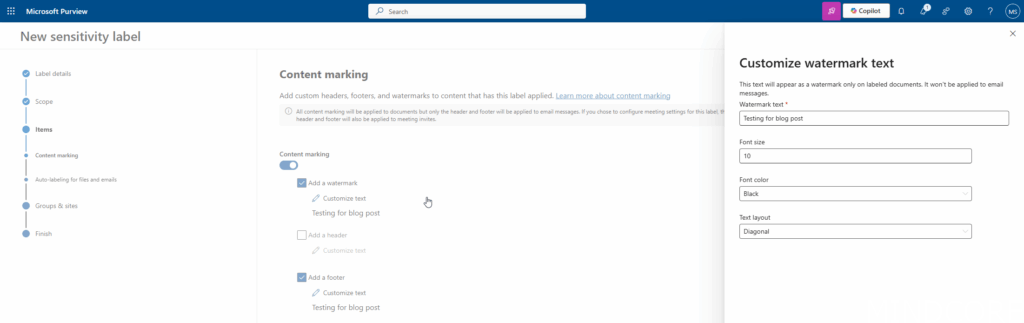
INFO: To automatically apply this label to files that are already saved (in SharePoint and OneDrive) or emails that are already processed by Exchange, you must create an auto-labeling policy.
- Now click Next, and here you have the following options under the Define protection settings for groups and sites page:
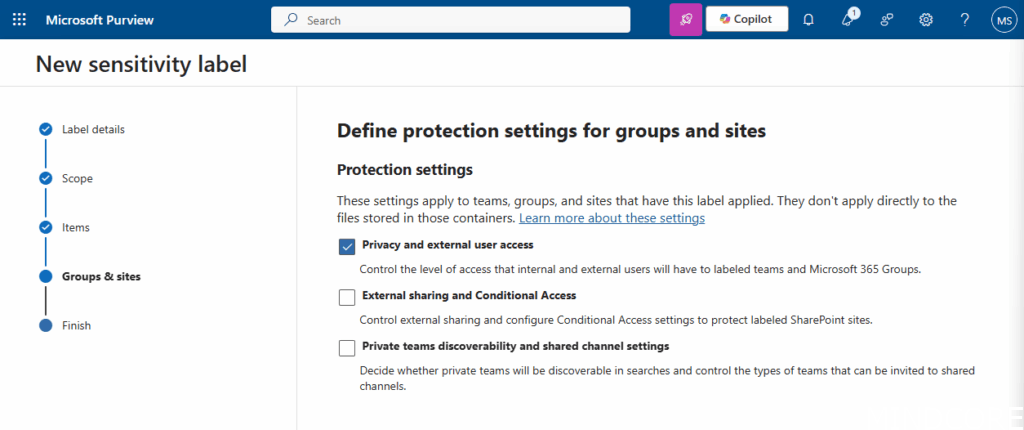
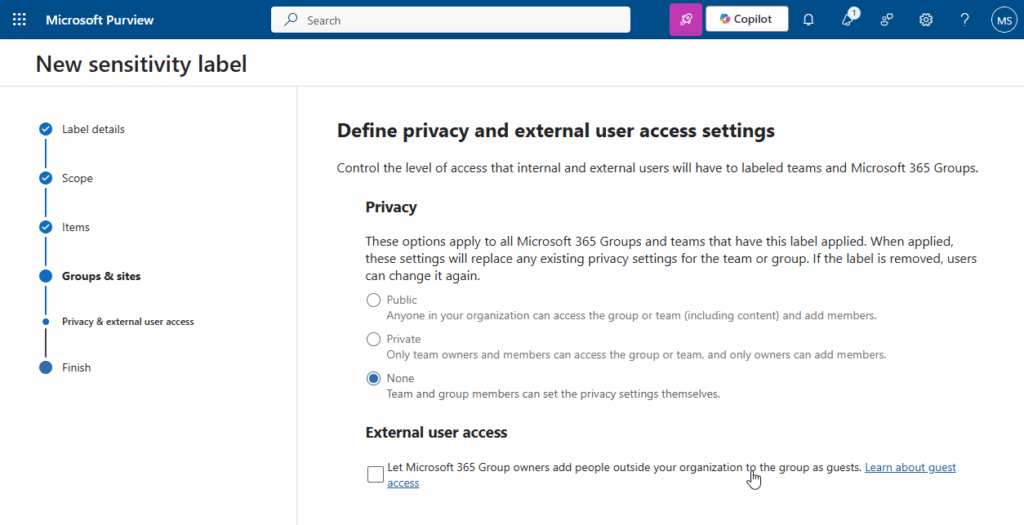
- Click on Next, then review the label settings – and if all is fine, then click on Create label
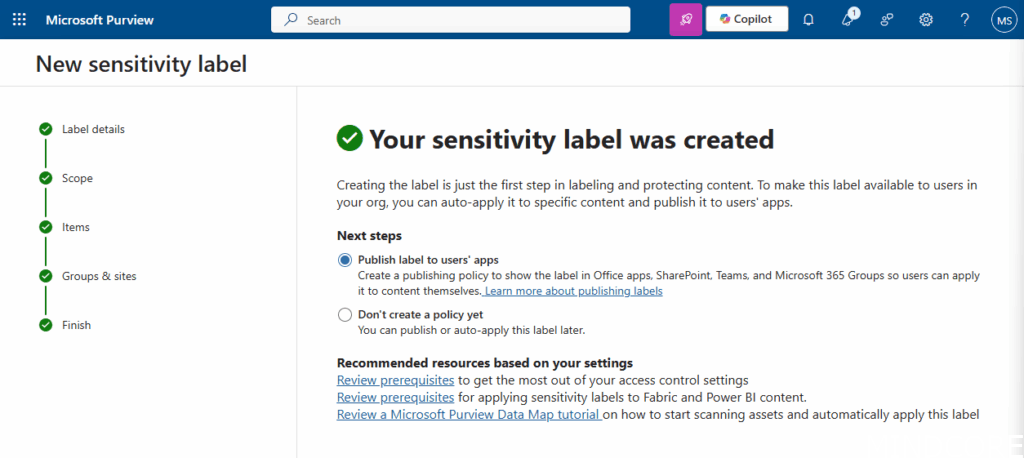
- All is now created – now we need to “publish” the label out to users to the applications for the users can use it (needed for Auto apply to work) – this us useful if created custom content – there is some default policies like here you can change:
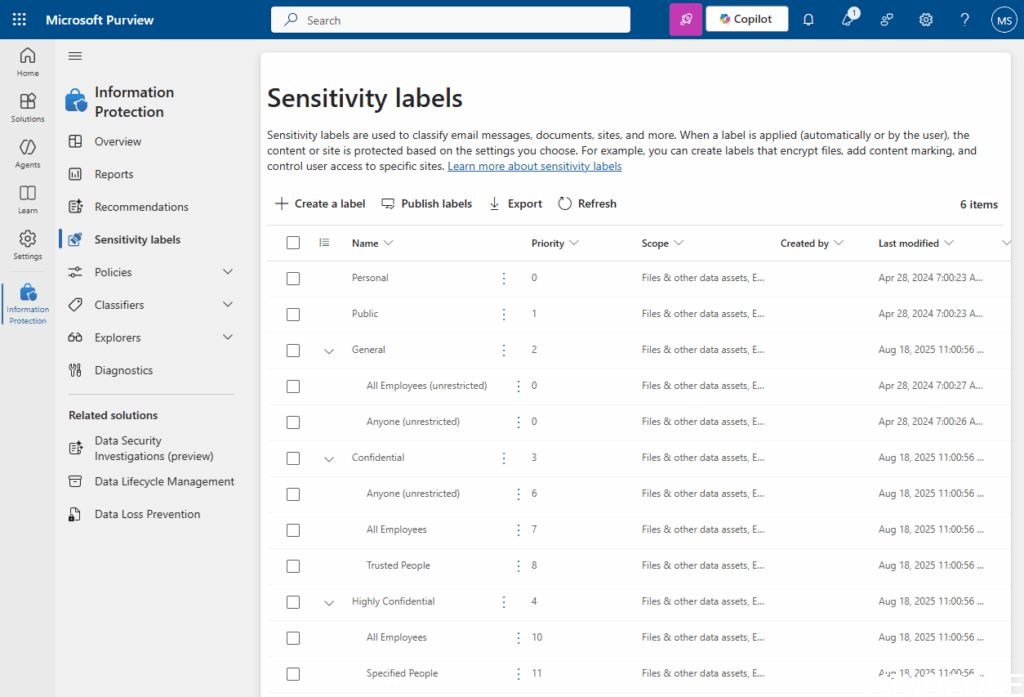
Repeat these steps to create more labels – there is a lot, and you can also make your own 😉
Prepare Label Policy
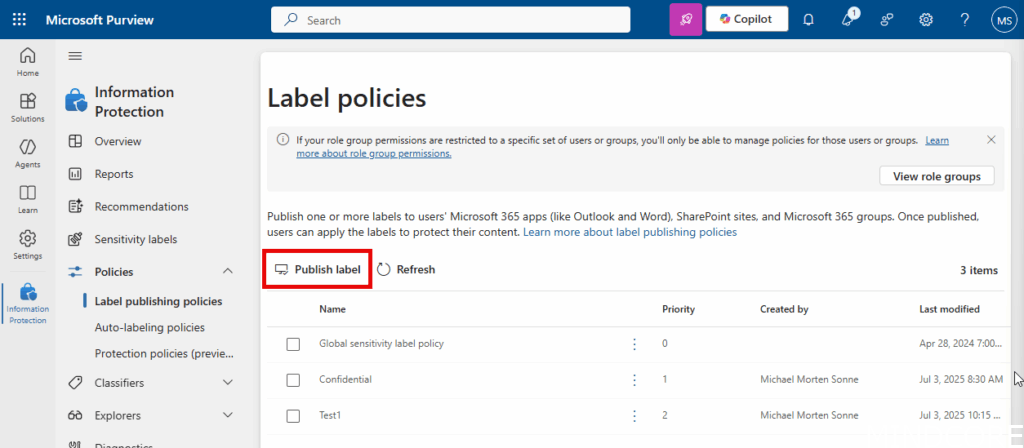
Publish one or more labels to Microsoft 365 apps, SharePoint sites, Teams and groups. Once published, users can apply these labels to protect their content.
- Click on Publish label – this will open the wizard to create the needed.
- Now select the Sensitivity Label we just created –
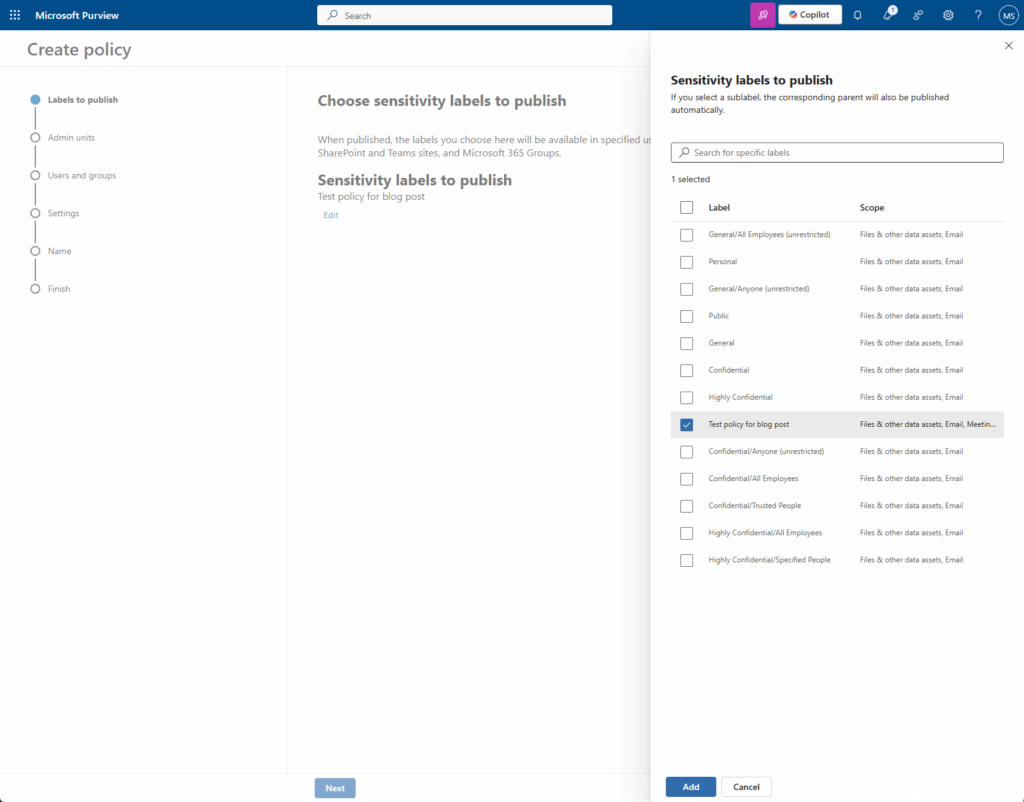
- Select the Label
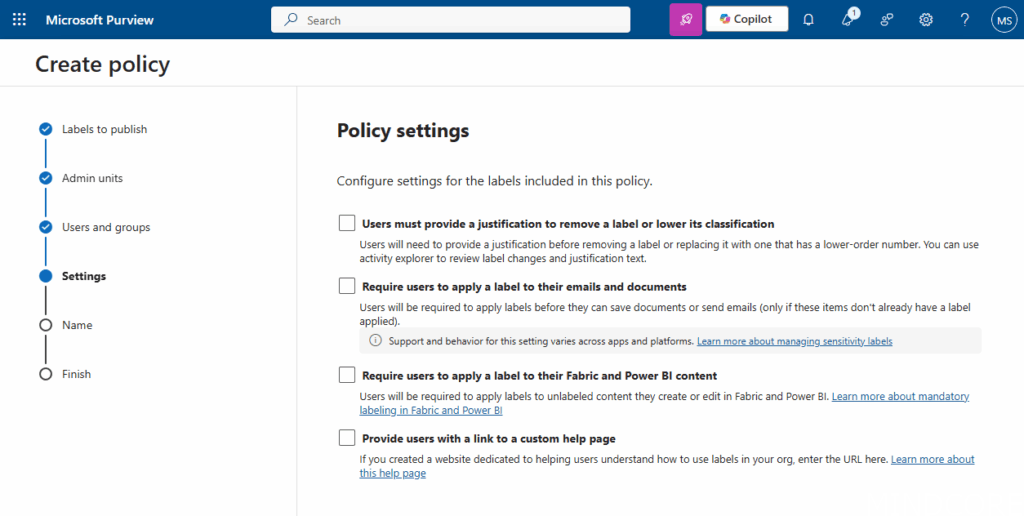
- Set the options you will use – then click Next.
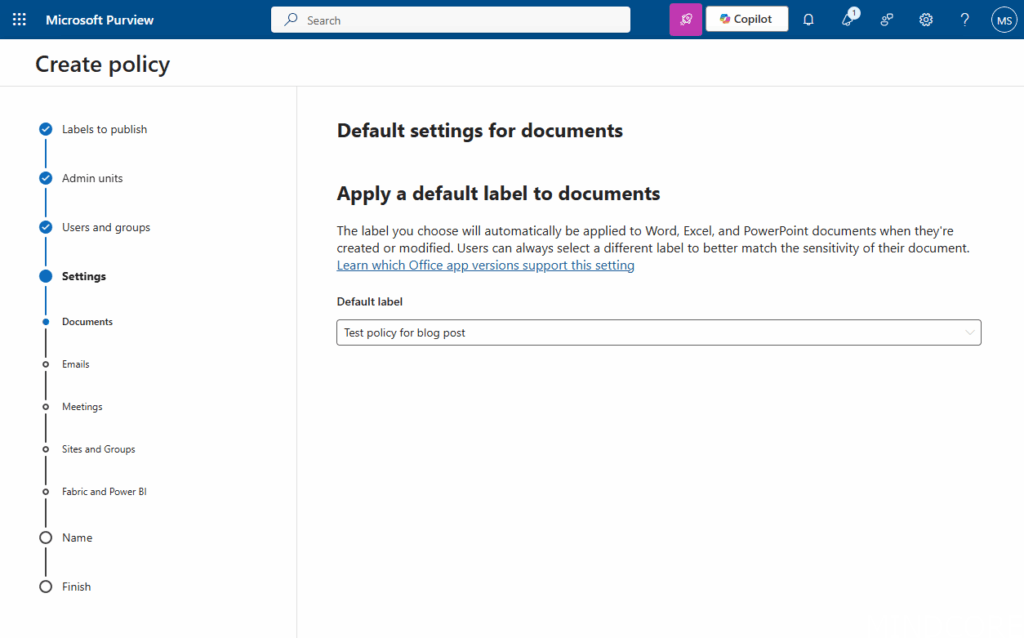
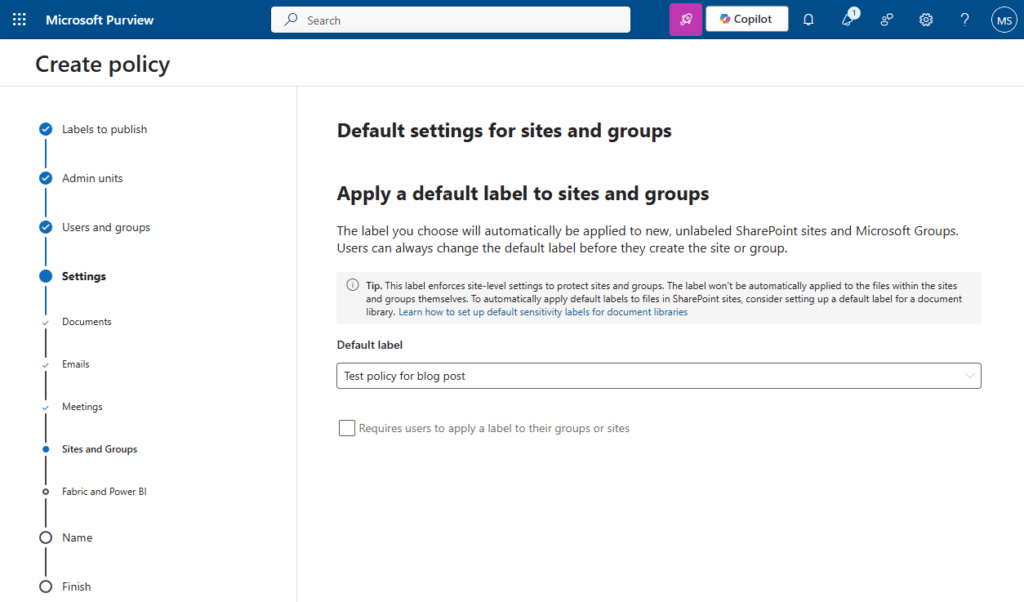
As you can see, there are many options available for configuring labels and policies. I won’t cover every setting in this blog post, but it’s worth exploring them to find what best fits your organization’s needs. For most scenarios, focusing on the core settings will help you get started quickly, and you can always fine-tune the configuration as your requirements evolve.
- Step-by-step: How to assign a sensitivity label to a Team.
- What happens when a label is applied (e.g., access restrictions, external sharing controls).
Setup Automatic Labeling of Files
Automatic labeling helps ensure that files in your Teams environment are consistently classified and protected according to your organization’s policies. In this section, we’ll cover how to set up automatic labeling so that new and uploaded documents receive the correct label without manual intervention.
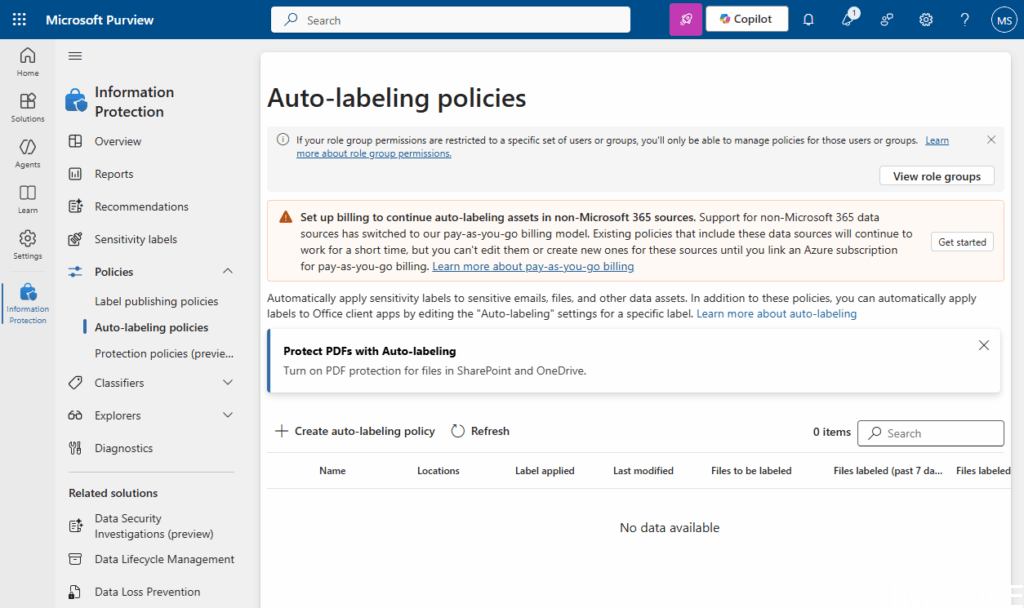
- In the Microsoft Purview portal, go to Information Protection > Auto-labeling policies. Here you will see the following overview.
- Click on Create auto-labeling policy
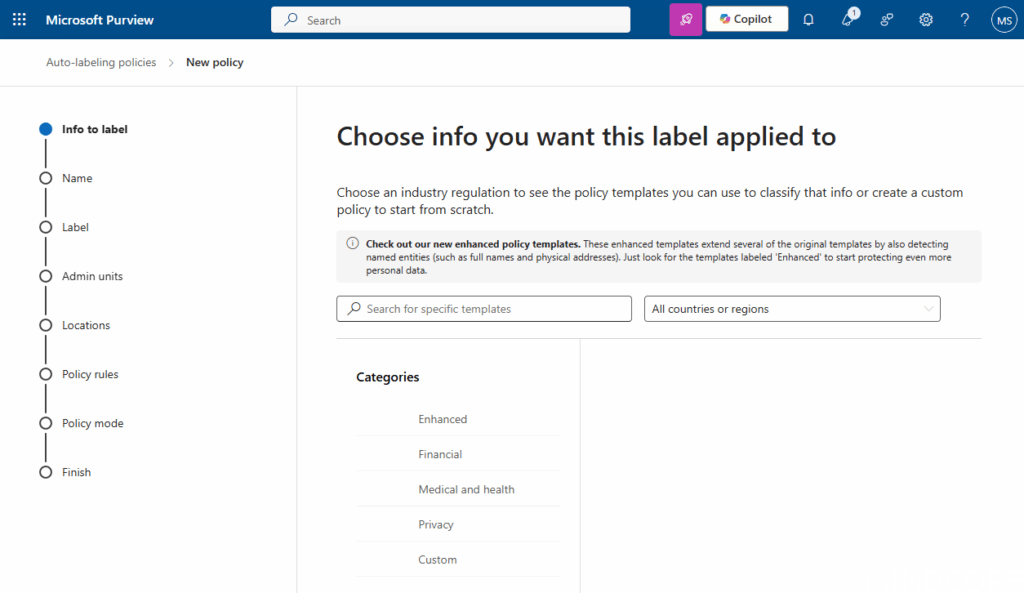
- Next, you need to set what type of data this need to be applied on. Set the conditions (e.g., content contains specific keywords, patterns, or sensitive info types such as credit card numbers, HR data, etc.). Is this sample I just the GDPR data type to test with – you can use built-in or custom sensitive information types if needed.
- Click Next
- Now, set a name for the policy, some information for and so:
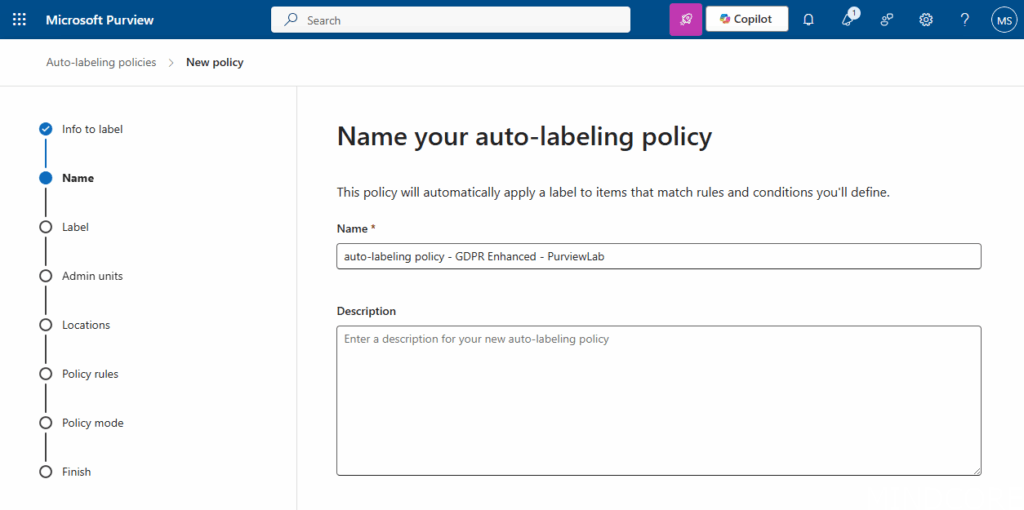
- Now click Next and the backend will validate the naming (as you can´t have 2 policies with the same name)
- Now lets add the label we created before, and assign that in the auto-label policy:
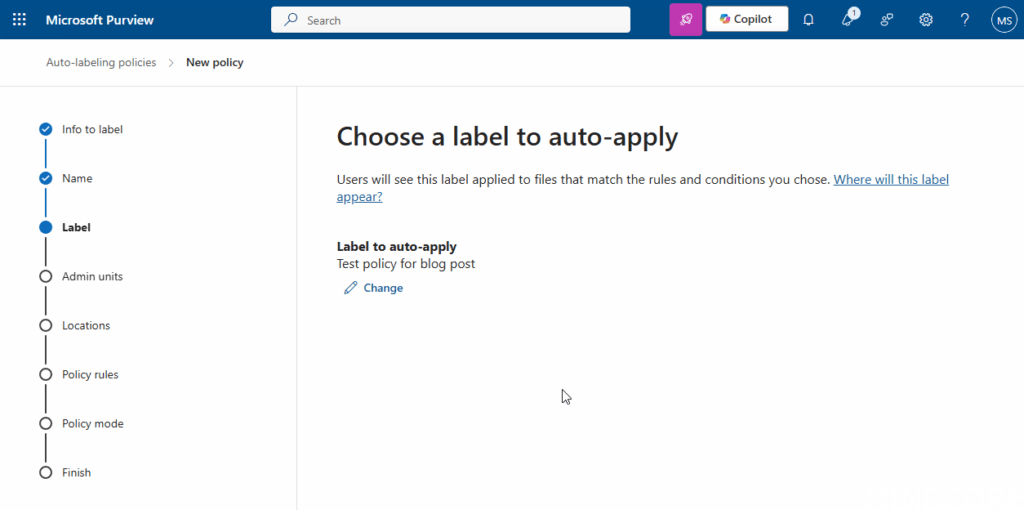
- Then click Next.
- On the Assign admin units, skip it – as we in this sample assign this for all in the tenant.
- Click Next.
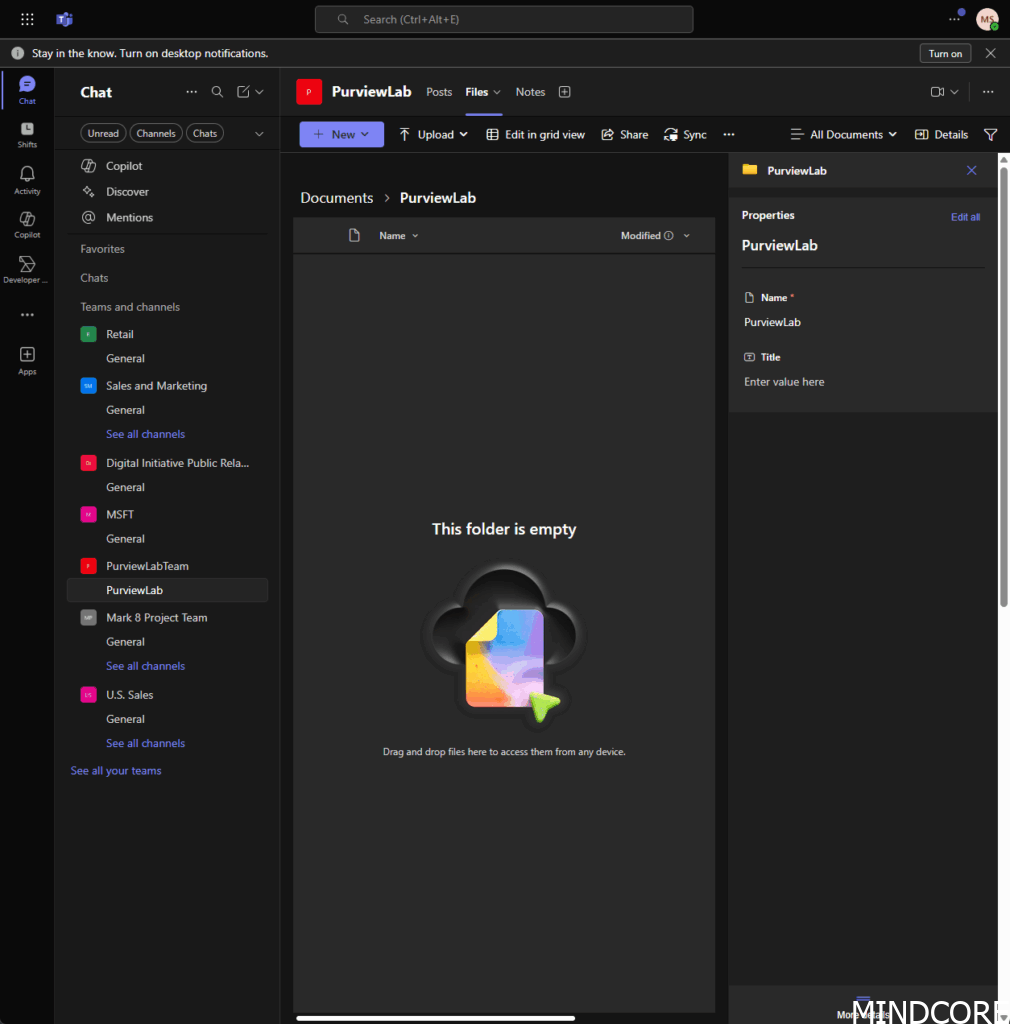
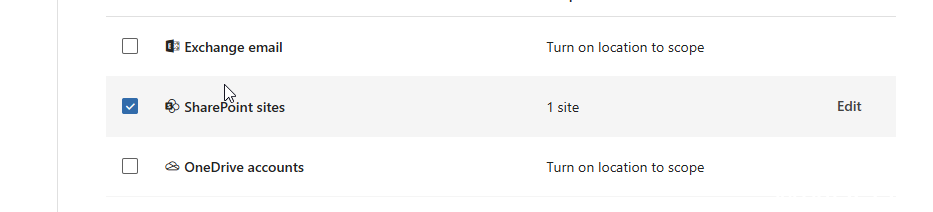
- Now we are to the fun part – select the Team site we need to apply the policies too via our Auto-apply policy – under SharePoint sites, click on Edit to change from all sites to Specific sites:
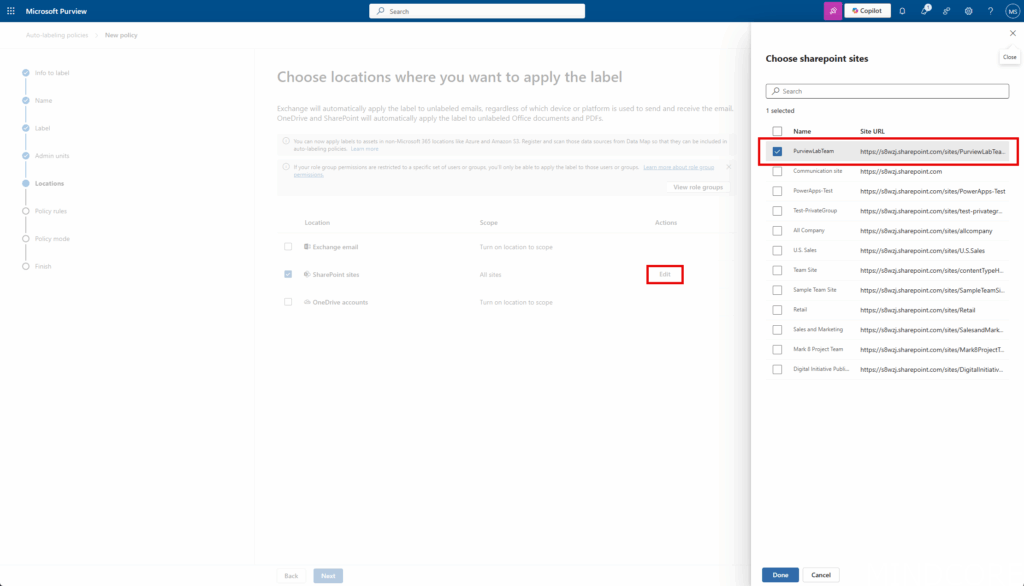
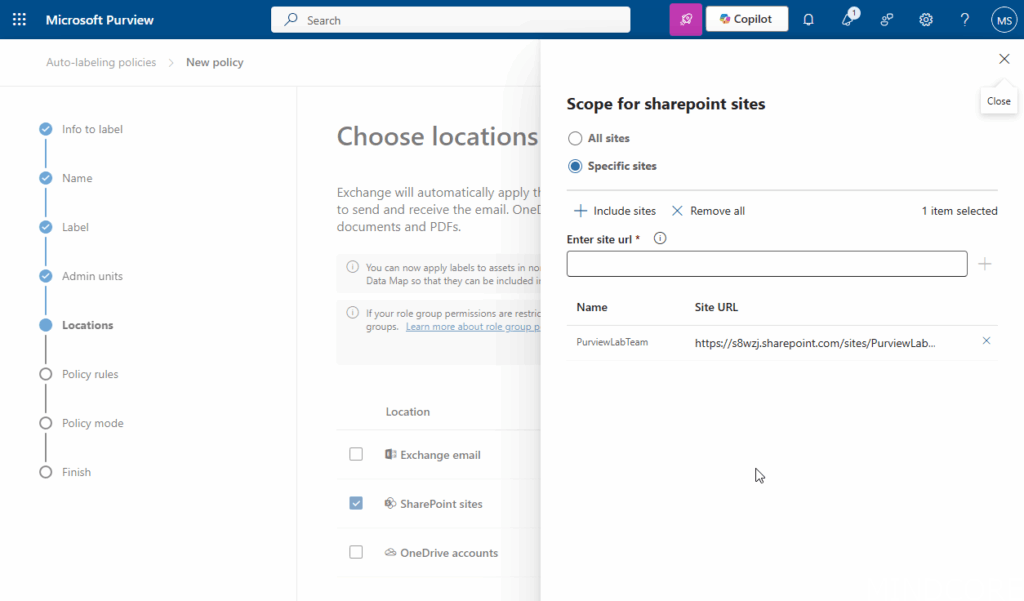
- Click on Done, and you will see the following in the overview:
- Click on Next.
- On the Set up common or advanced rules page, you can select rules to define one set of rules that will apply to all locations you selected. Click Next.
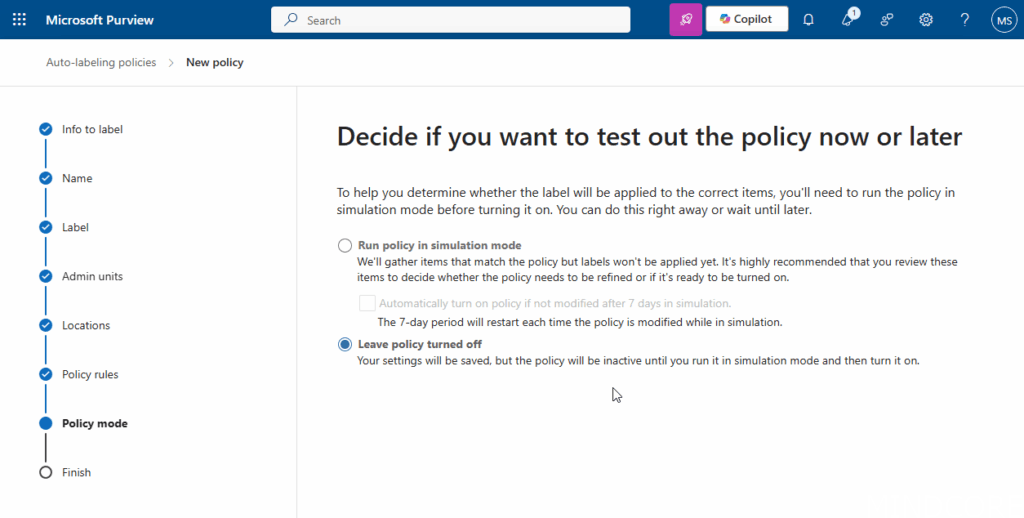
- Now decide if you want to test the policy now or later – in this test, we will later turn on on and skip the testing to test it for this blog post.
- Click on Next
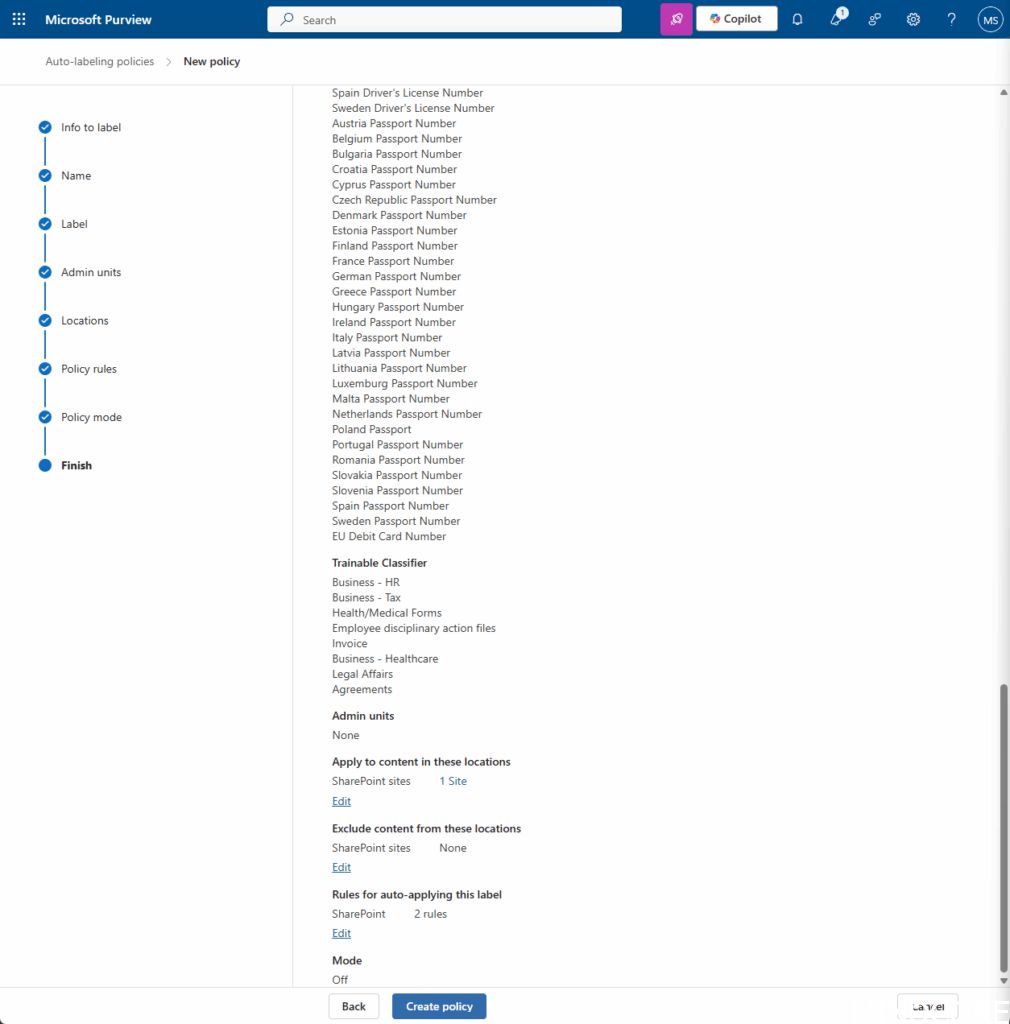
- Now we need to review the auto-label policy – and if all looks good, click on Create Policy.
Here’s a short video showing the creation of a new document in a Teams site. As the document is created, Word briefly processes it, and then the label “Test policy for blog post” is automatically applied, including the configured watermark. You can customize label settings, such as sharing permissions and encryption.
Now, let’s take it a step further. I’ve created a Word document locally on my laptop, and as you can see, there’s no watermark or label applied—everything looks normal.
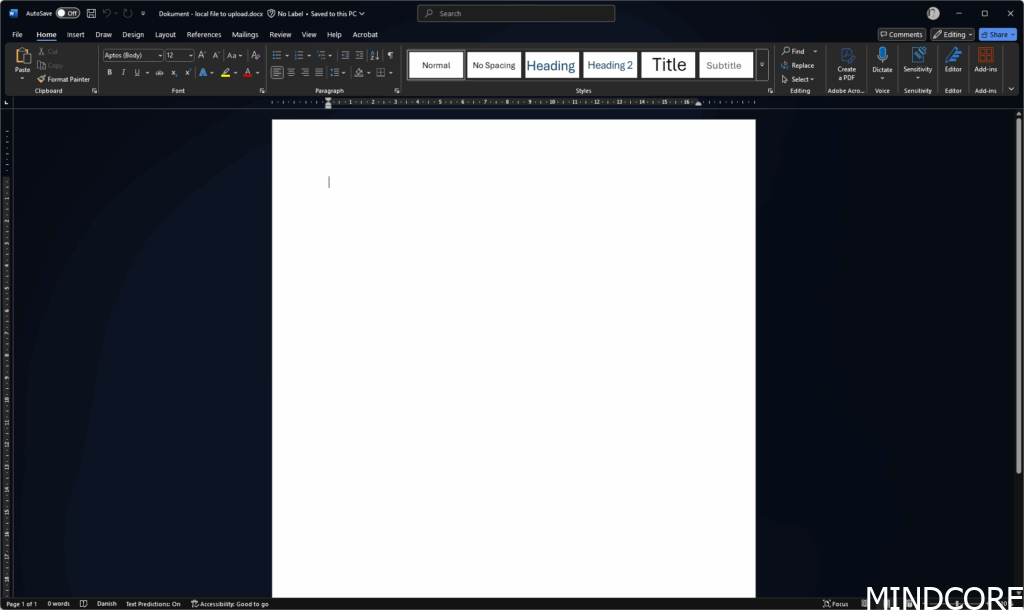
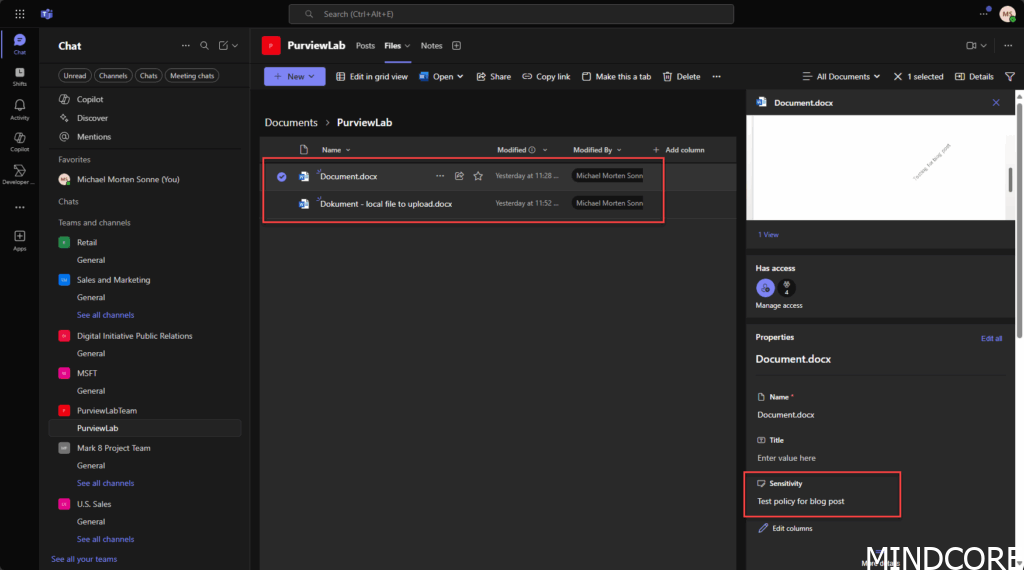
Next, I’ll upload the local Word document to Teams to see if the label policy is automatically applied to the document.
You can also see that when you select the file in Teams and open the properties tab, the label is shown as applied:
User Experience
In the Office ribbon (for example here in Word), there is a menu where you can view the applied label and, if needed, see its properties for labeled documents.
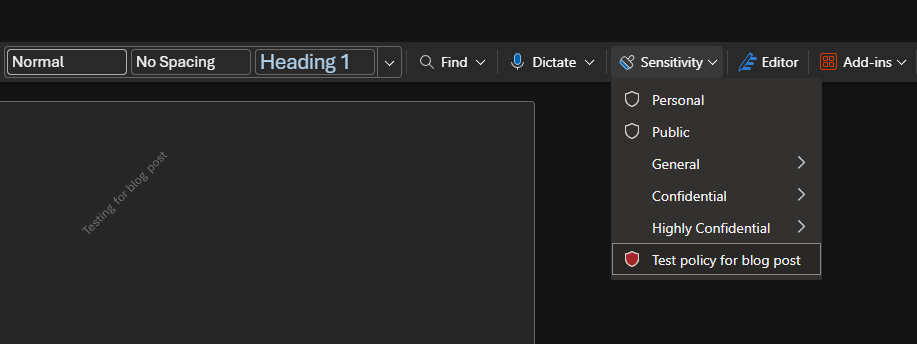
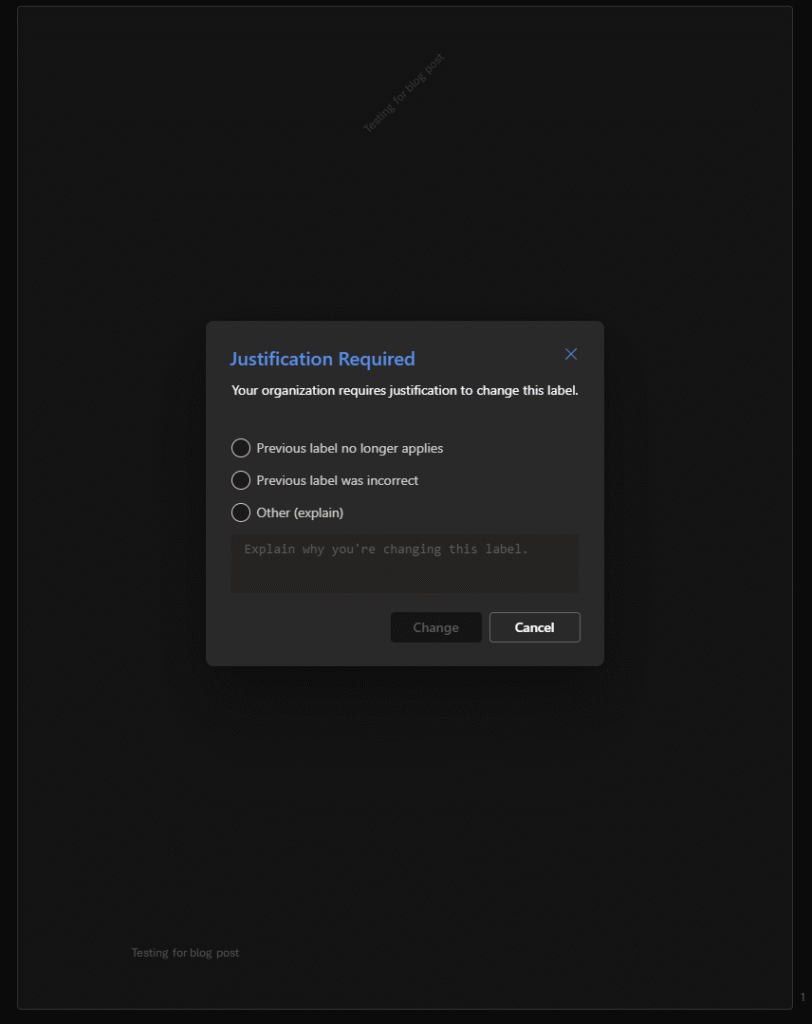
If the user wants to change the label to another one (or remove it) in this example, they need to select the desired label from the menu and confirm the change.
Compliance and Security Benefits
Automatic labeling helps organizations meet compliance requirements by ensuring sensitive information is consistently classified and protected. It reduces the risk of accidental data leaks and supports regulatory standards.
How Automatic Labeling helps with Compliance
Automatic labeling applies appropriate security labels based on document content, making it easier to comply with data protection laws and internal policies. It streamlines audits and reporting by maintaining consistent labeling across documents.
Examples of Scenarios where this is useful
- Protecting confidential financial reports (like documents with project names and so inside)
- Ensuring personal data in HR documents is labeled and secured
- Automatically labeling emails containing sensitive customer information
Tips and Best Practices
- Define clear labeling policies that align with regulatory requirements
- Educate users about the importance of labeling and how it works
- Regularly review and update label configurations to address new risks
Common pitfalls to avoid
- Overcomplicating label options, which can confuse users
- Failing to test automatic labeling rules before deployment
- Neglecting to monitor and audit label usage for accuracy and effectiveness
- Importantly, label protection on documents can be removed if the label does not encrypt the document itself. For more information read here: Sensitivity Labels in .DOCX Files: How Secure Is That Metadata? – Mindcore Techblog
Notes & Tips
- Auto-labeling is retrospective and prospective: It scans existing and new files.
- Not instant: Policy deployment and labeling may take several hours to days, depending on tenant size and activity.
- Manual override: Users can still manually change a label if allowed in your policy.
- Audit logs: Use Microsoft Purview audit logs to monitor labeling actions.
Troubleshooting
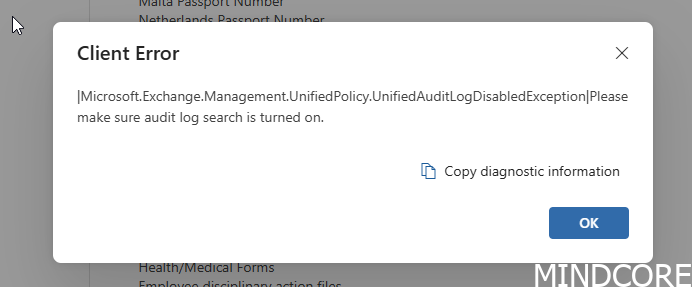
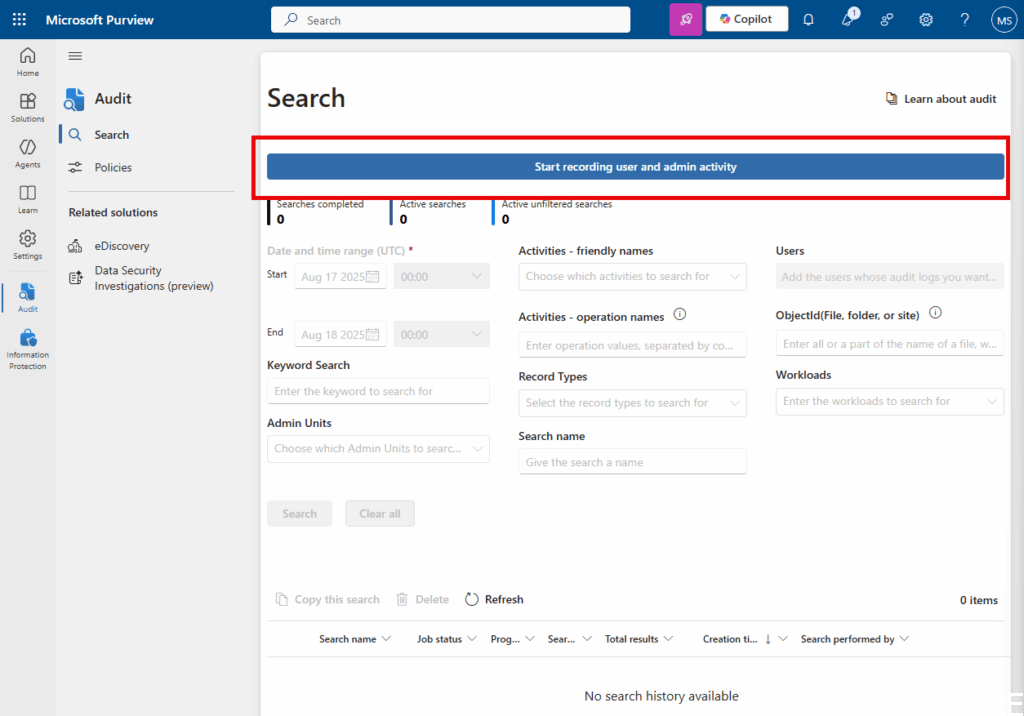
There are some requirements for this feature to work—one of them is the Unified Audit Log. If you create an auto-labeling policy and get an error, you need to go to https://purview.microsoft.com/audit/auditsearch and enable activity recording.
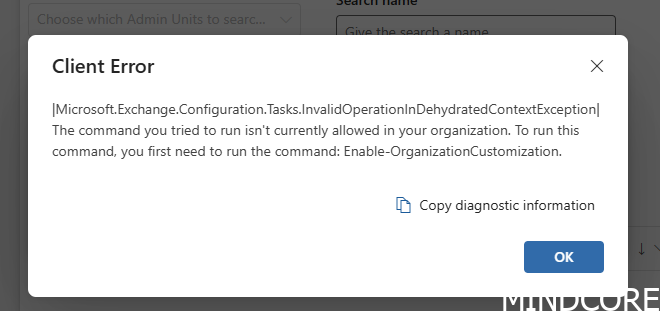
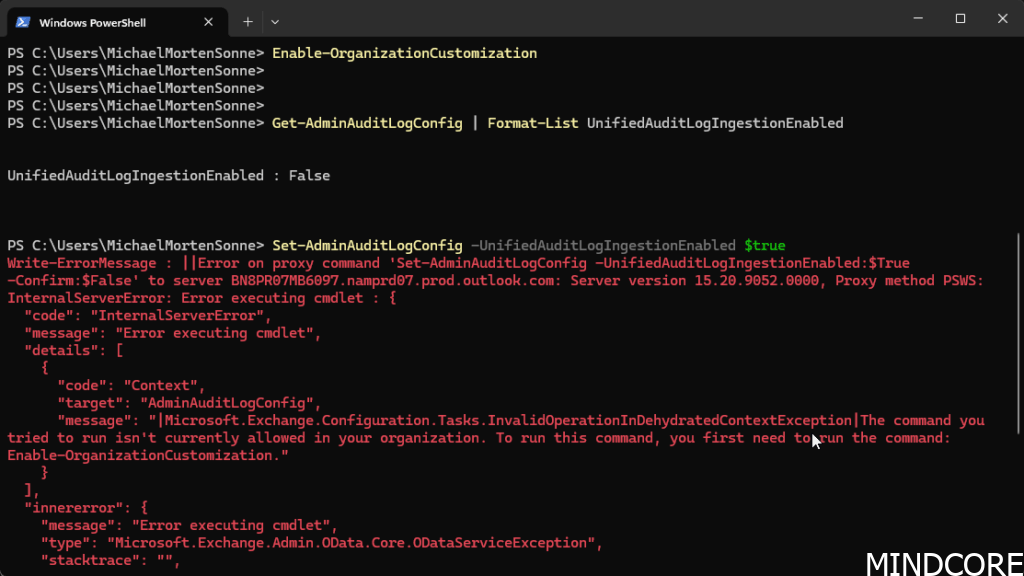
If you then encounter another error, you may need to change a setting in Exchange Online.
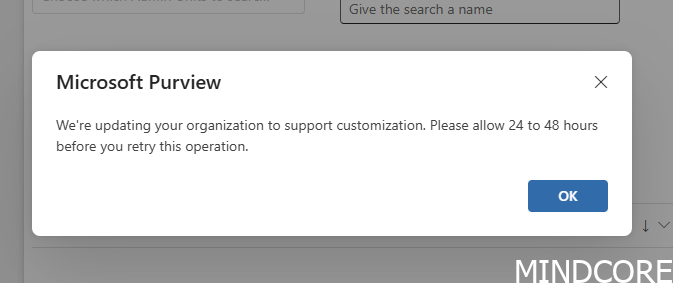
As we all know, some tasks can take a long time to complete, and you might see a message indicating you just need to wait 😥
Conclusion
Automatic labeling in Teams (for this sample) is a valuable feature for protecting sensitive data and documents. Before broad deployment, it is important to carefully define your labeling policies and understand that automation may take time to fully take effect across your organization (hours to days). Planning for this transition is essential to ensure a smooth rollout.
By implementing automatic labeling, organizations can enhance data security and compliance with minimal user intervention. This capability helps safeguard information in ways that may not have been previously considered, making it a worthwhile addition to your data protection strategy.
And now a short message in Danish.
Hos Mindcore elsker vi at dele viden, men det er vores Danske kunder der rent faktisk gør dette arbejde muligt. Hvis du er interesseret i hvad vi kan tilbyde i forhold til Microsoft 365 Governance og sikkerhed, Azure ARC, Intune eller nogen af de andre områder vi har skrevet om her på bloggen, så kontakt os på info@mindcore.dk eller telefon 51 91 44 10.
References
Turn auditing on or off | Microsoft Learn
Get started with sensitivity labels | Microsoft Learn
Configure group settings using PowerShell – Microsoft Entra ID | Microsoft Learn
Learn about sensitivity labels | Microsoft Learn








