
Today we secure our tenants using conditional access or security defaults, but in the old days many tenants were configured to use Legacy per-user Multi-Factor Authentication (MFA).
It is recommended that per-user Microsoft Entra multifactor authentication should not be enabled or enforced when Conditional Access policies are in use.
Convert users from per-user MFA to Conditional Access based MFA
When MFA is implemented via a Conditional Access policy, the user’s status will remain unchanged, so users may continue to appear as disabled. Conditional Access does not alter the user state.
Also remember that on September 20th, 2025, this legacy MFA policies will be deprecated. How to migrate to the Authentication methods policy – Microsoft Entra ID | Microsoft Learn
To quickly see which users have per-user MFA enabled, use the portal or PowerShell.
In Entra ID, we can go to Users – All users and click on Per-user MFA.
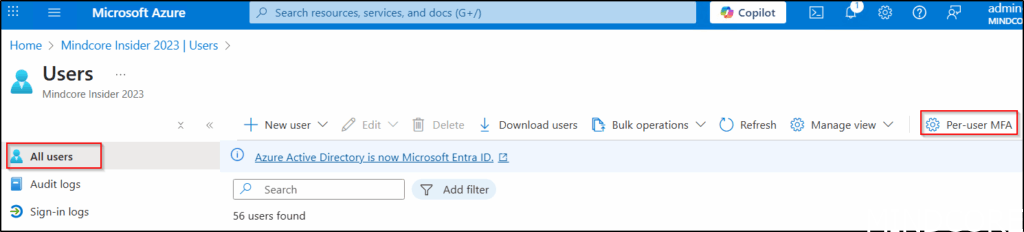
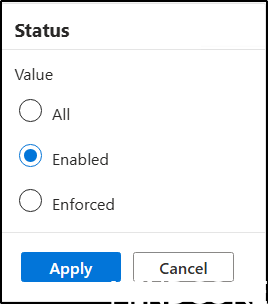
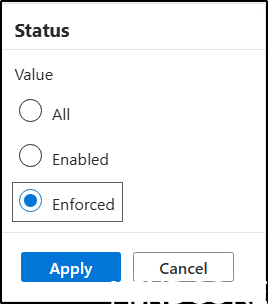
Here you can view users who have Per-user MFA enabled or enforced.
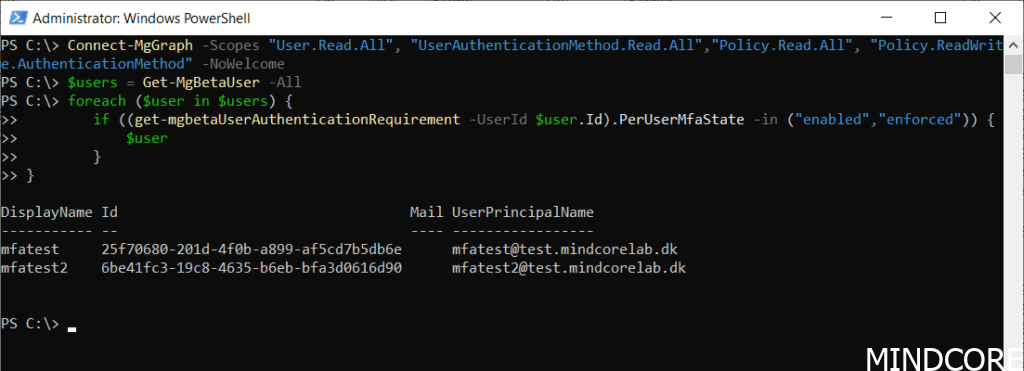
We can also list it with PowerShell.
Connect-MgGraph -Scopes "User.Read.All", "UserAuthenticationMethod.Read.All","Policy.Read.All", "Policy.ReadWrite.AuthenticationMethod" -NoWelcome

$params = @{
	perUserMfaState = "disabled"
}

$users = Get-MgBetaUser -All

foreach ($user in $users) {
        if ((get-mgbetaUserAuthenticationRequirement -UserId $user.Id).PerUserMfaState -in ("enabled","enforced")) {
            $user
        }
}
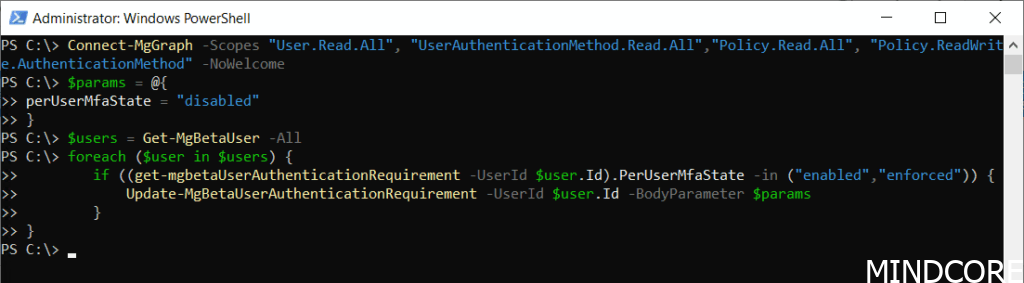
To modify users whose status is Enabled or Enforced, the code can be adjusted like this.
Connect-MgGraph -Scopes "User.Read.All", "UserAuthenticationMethod.Read.All","Policy.Read.All", "Policy.ReadWrite.AuthenticationMethod" -NoWelcome

$params = @{
	perUserMfaState = "disabled"
}

$users = Get-MgBetaUser -All

foreach ($user in $users) {
        if ((get-mgbetaUserAuthenticationRequirement -UserId $user.Id).PerUserMfaState -in ("enabled","enforced")) {
            Update-MgBetaUserAuthenticationRequirement -UserId $user.Id -BodyParameter $params
        }
}
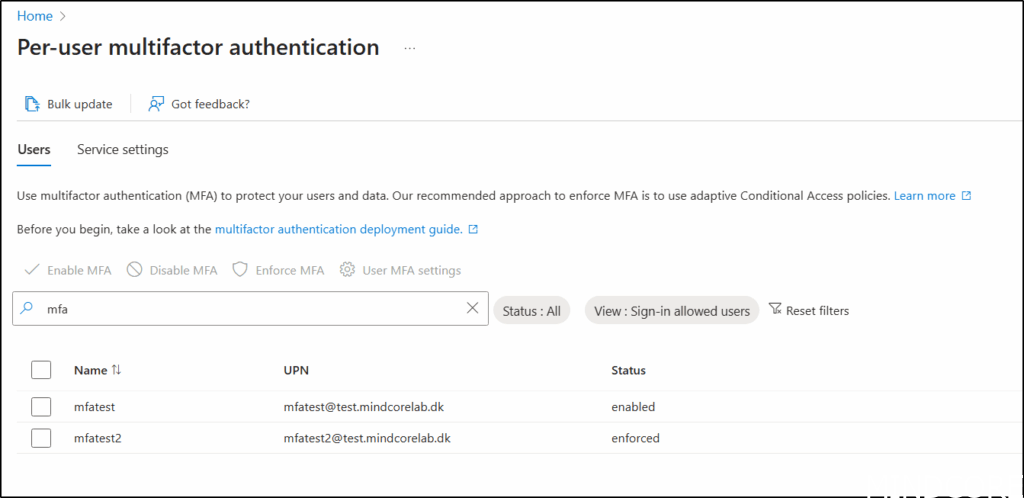
Users with status enabled of enforced before running last script.
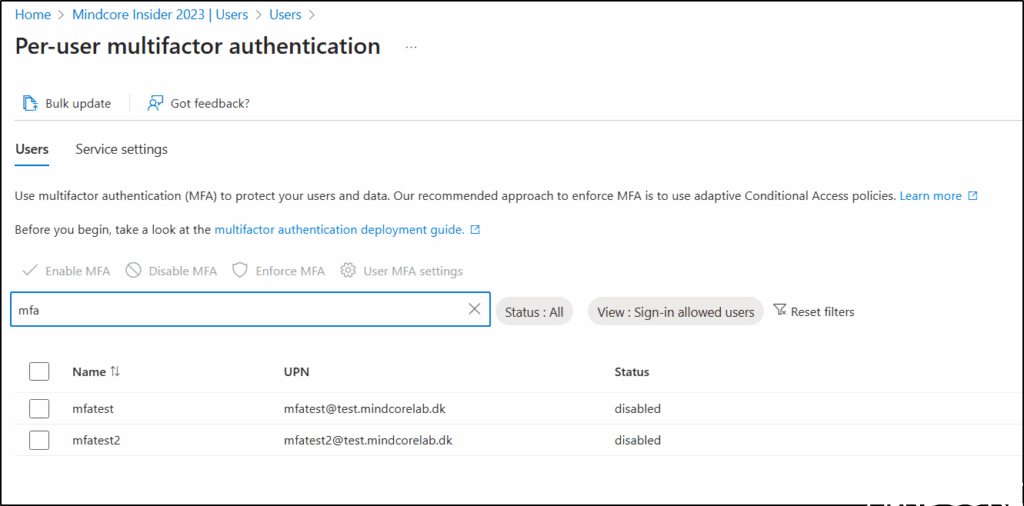
And the same users after running the script.
Various settings in SharePoint and Entra ID can affect users’ experiences with Microsoft 365. In our Governance workshops, the process begins with a governance data collector that gathers details about the current Microsoft 365 configuration and identifies areas where different approaches may be evaluated. For instance, the use of Per-user MFA is a setting that we collect so that we can discuss this setting based on an informed basis.
And now a short message in Danish
Hos Mindcore elsker vi at dele viden, men det er vores Danske kunder der rent faktisk gør dette arbejde muligt. Hvis du er interesseret i hvad vi kan tilbyde i forhold til Microsoft 365 Governance og sikkerhed, Azure ARC, Intune eller nogen af de andre områder vi har skrevet om her på bloggen, så kontakt os på info@mindcore.dk eller telefon 51 91 44 10.








