
A frequently discussed topic during our Microsoft 365 governance workshops is the appropriate retention period for chat messages within Teams.
Some customers prefer that chat messages are deleted after a predefined period rather than being retained for an extended time.
In this post, we will examine how to efficiently delete chat messages for an individual user in the shortest possible time.
Since this is part of our governance workshop, we initiate the process with a governance data collector that compiles comprehensive information regarding the current Microsoft 365 configuration and highlights areas for potential improvement. For instance, we document the use of retention policies to facilitate further discussion during the workshop.
While it is possible to set a retention policy that deletes messages after one day, the service implements a series of processes to ensure deletion compliance. Consequently, although a message is marked for deletion after one day, it may take up to 16 days for it to be permanently removed and excluded from eDiscovery search results.
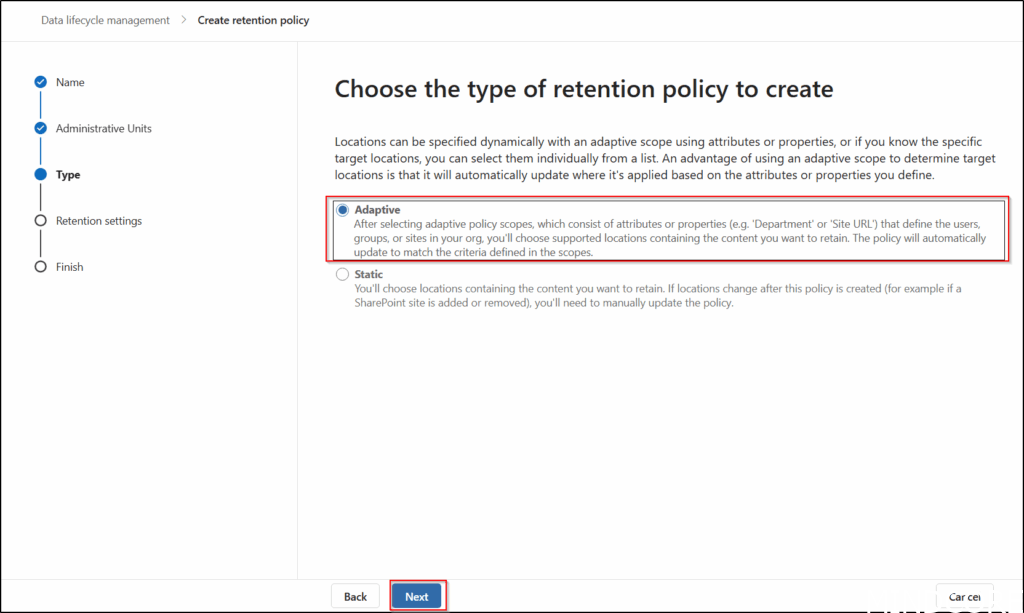
Since we in this example only want to target a single user, we will start by creating an Adaptive scope.
Adaptive scopes | Microsoft Learn
First we go to the Purview portal https://purview.microsoft.com/ and select Settings – Roles and scopes – Adaptive scopes.
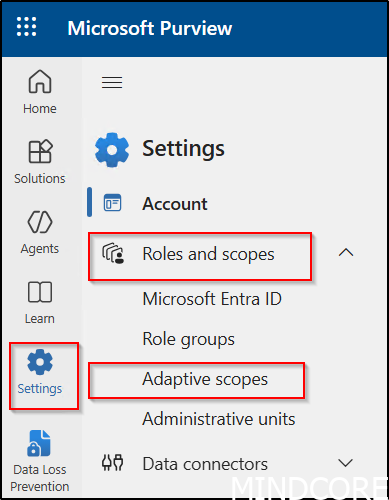
Click Create scope.

Name the scope.
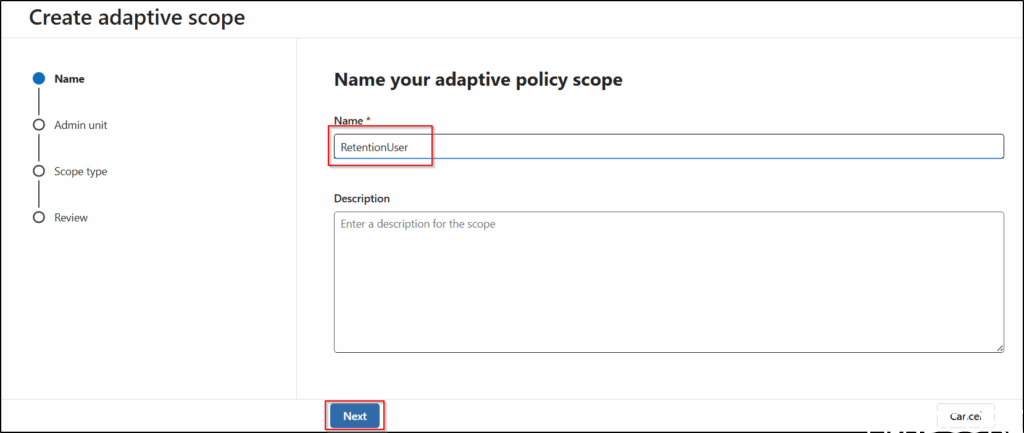
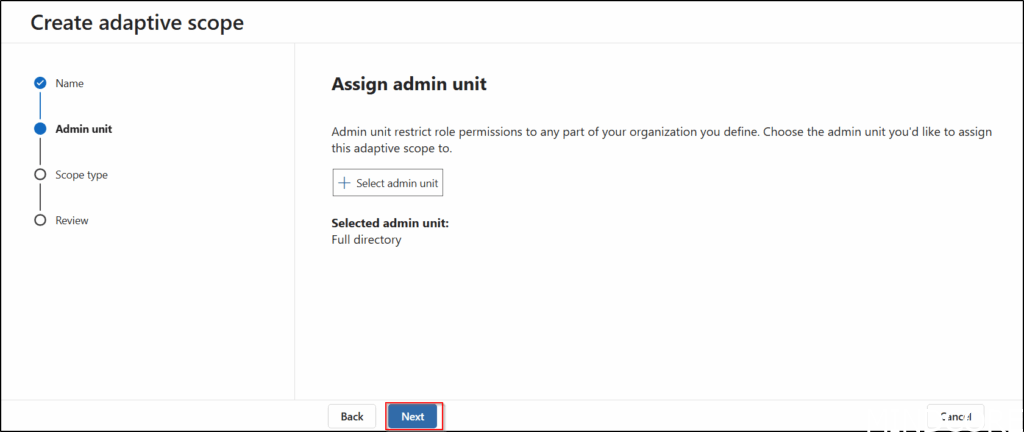
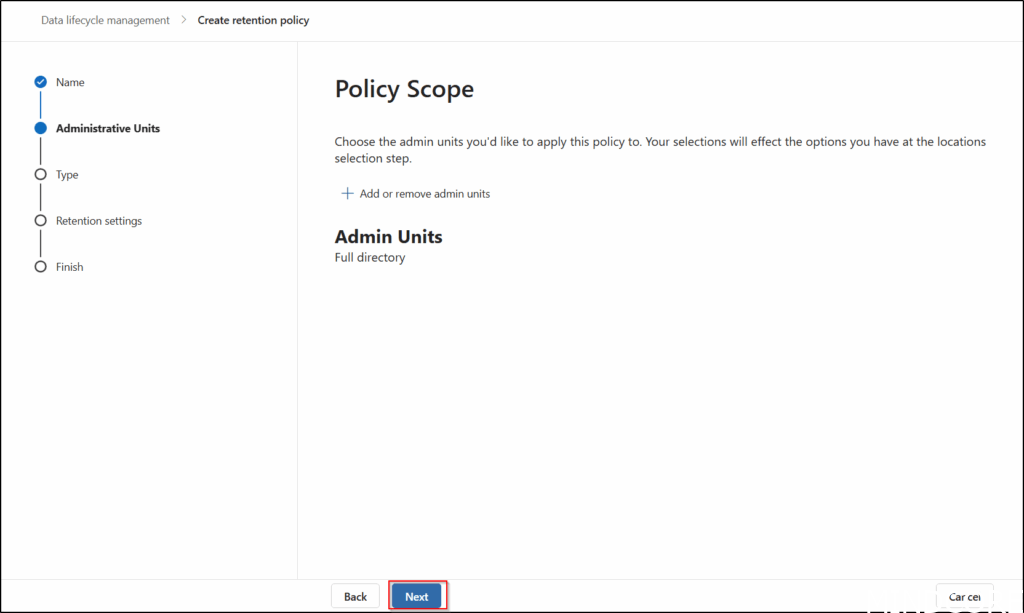
In this example we will not use an admin unit, but use default Full directory.
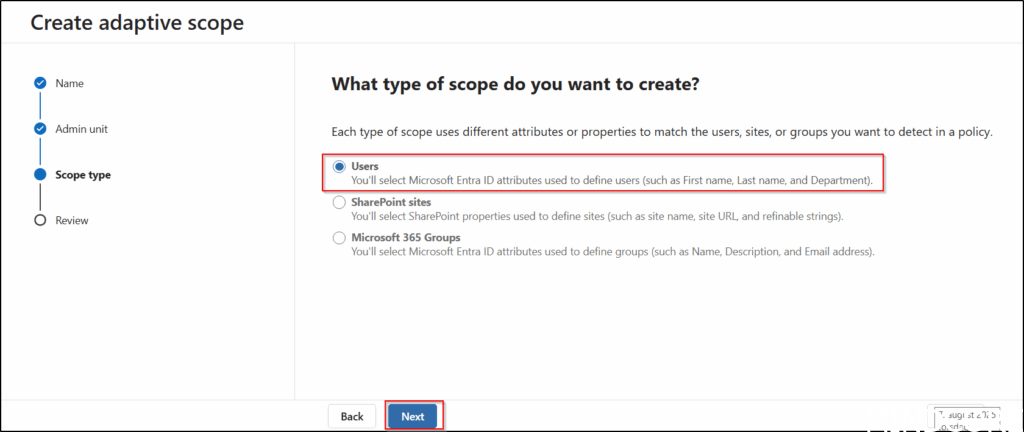
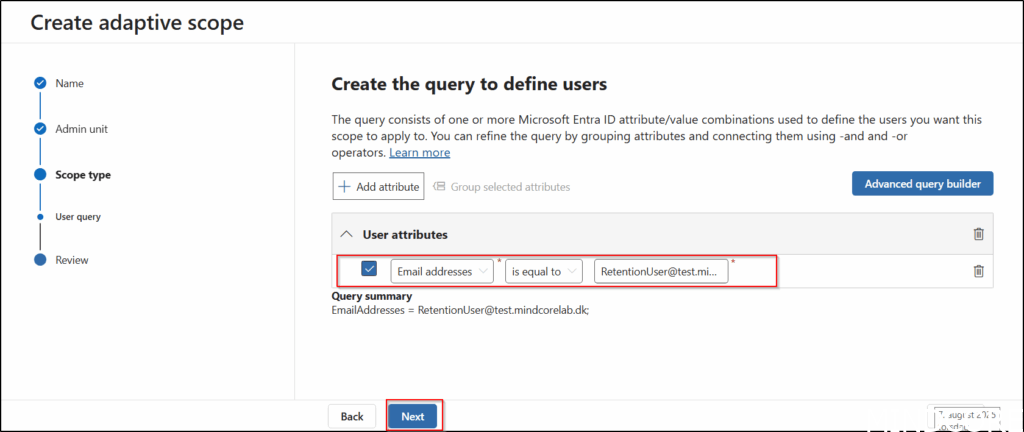
We will target a user.
We will in this example target the user based on a specific email address.
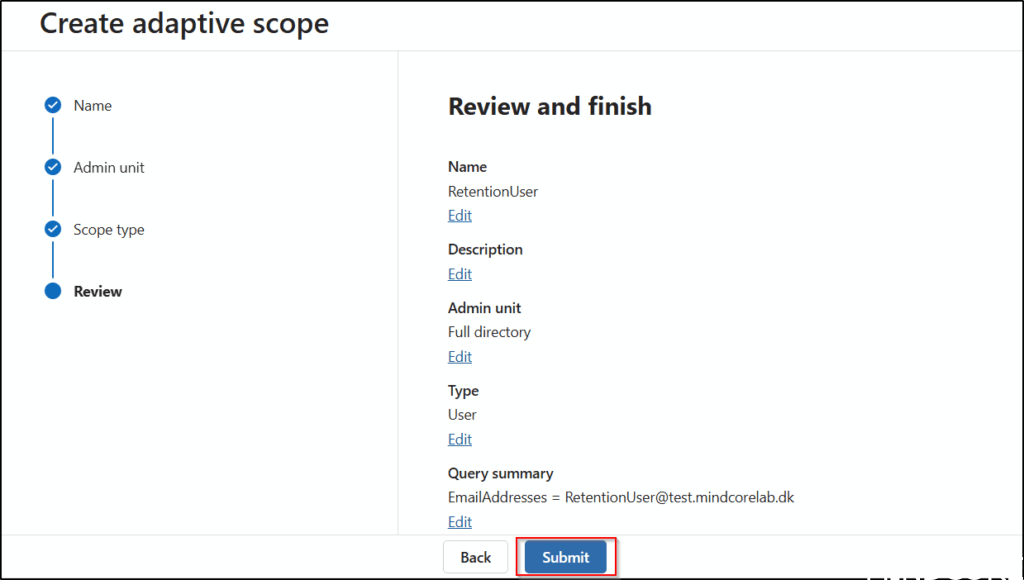
And finaly submit the scope.
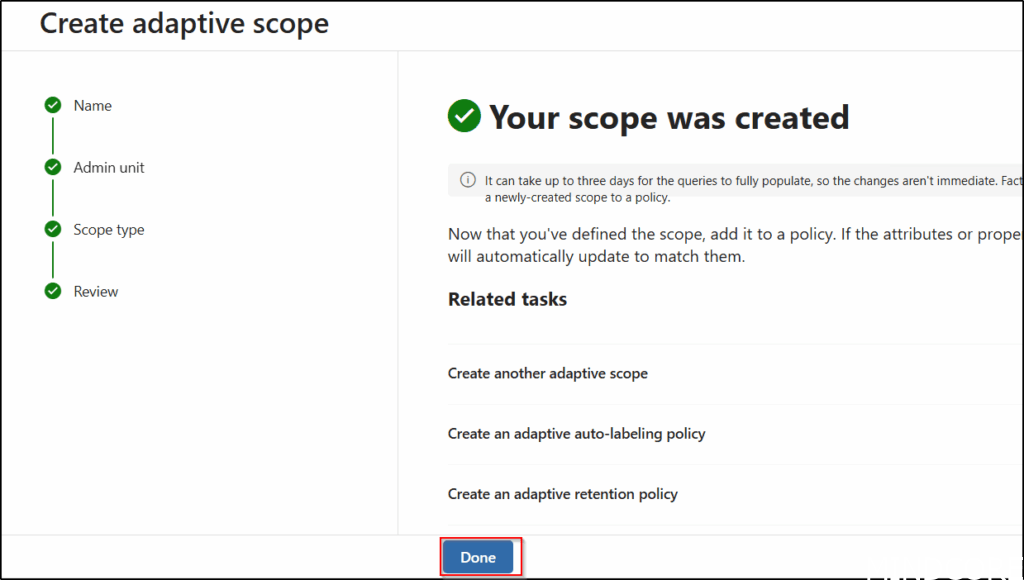
Scope is now created, so we can just click Done.
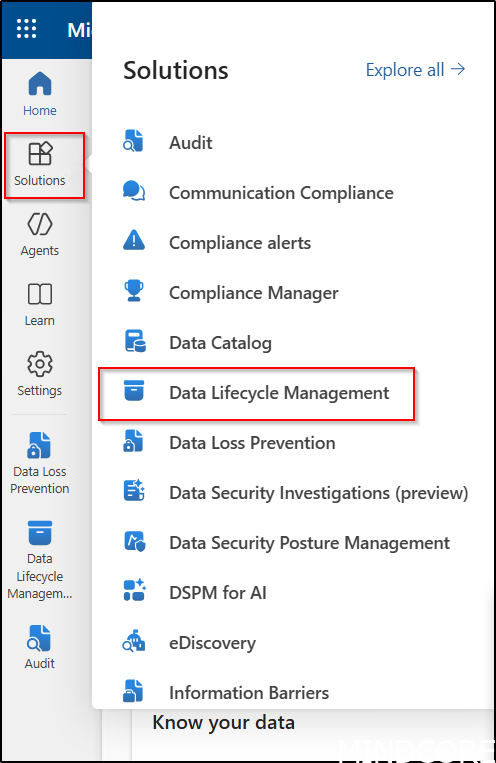
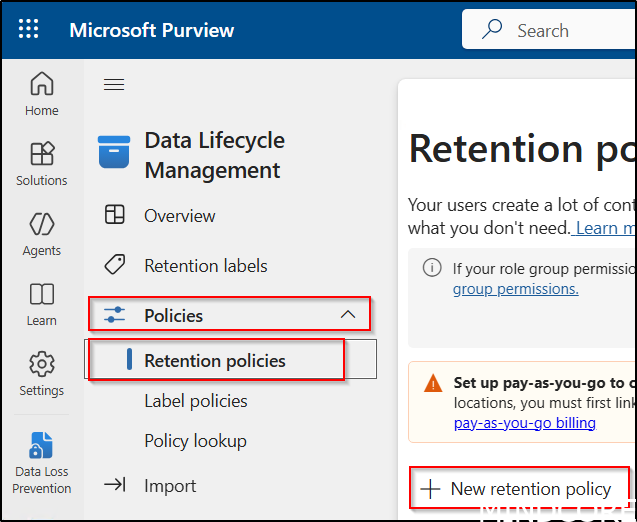
Next, still in the Purview portal https://purview.microsoft.com/ we select Solutions – Data Lifecycle Management
Select Policies –Retention policies – New retention policy.
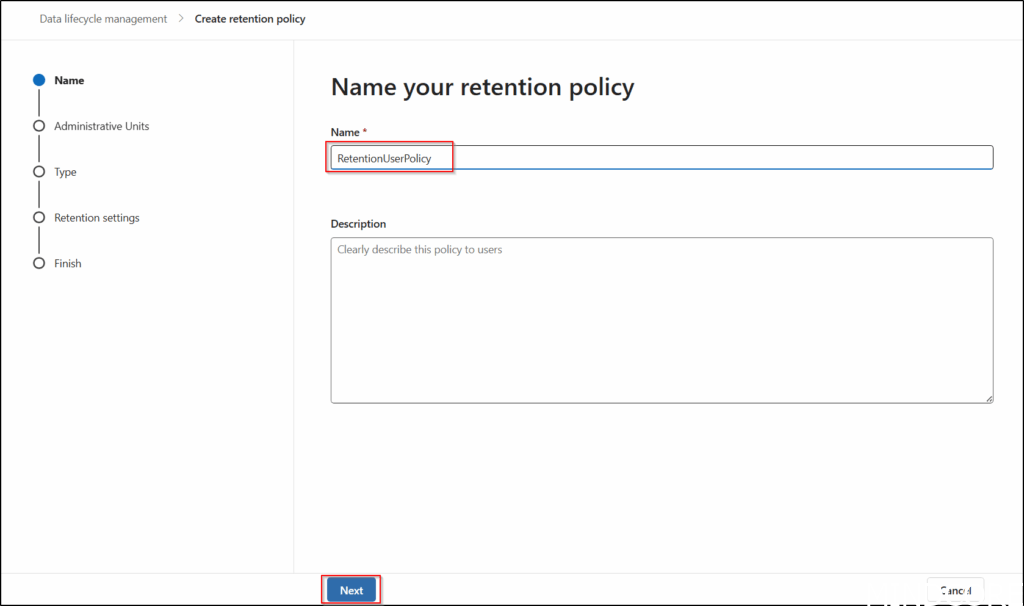
Name the policy and click Next.
In this example we will not use an admin unit, but use default Full directory.
Select the Adaptive type.
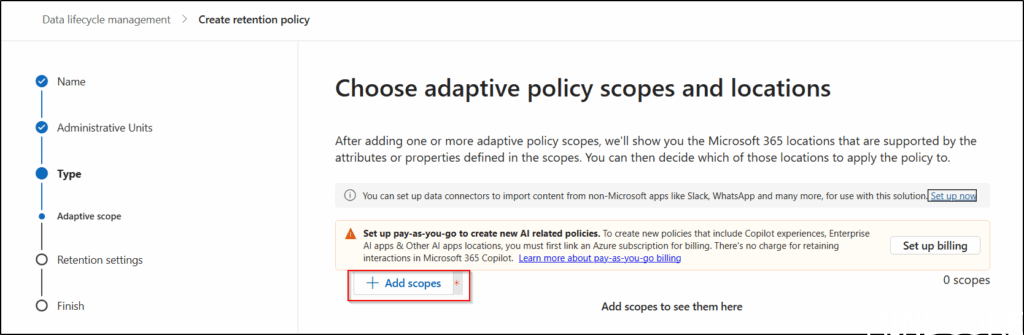
Select Add scopes.
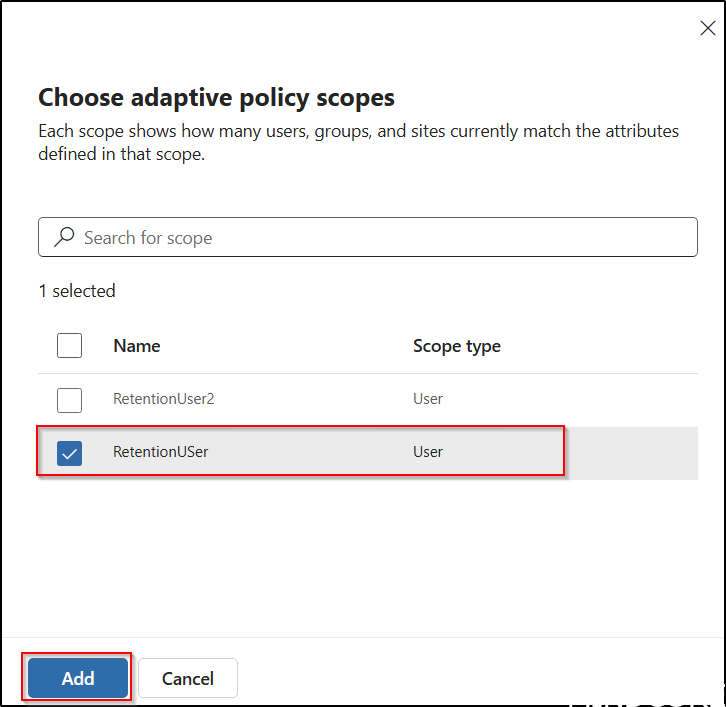
And select the Adaptive Scope you just created.
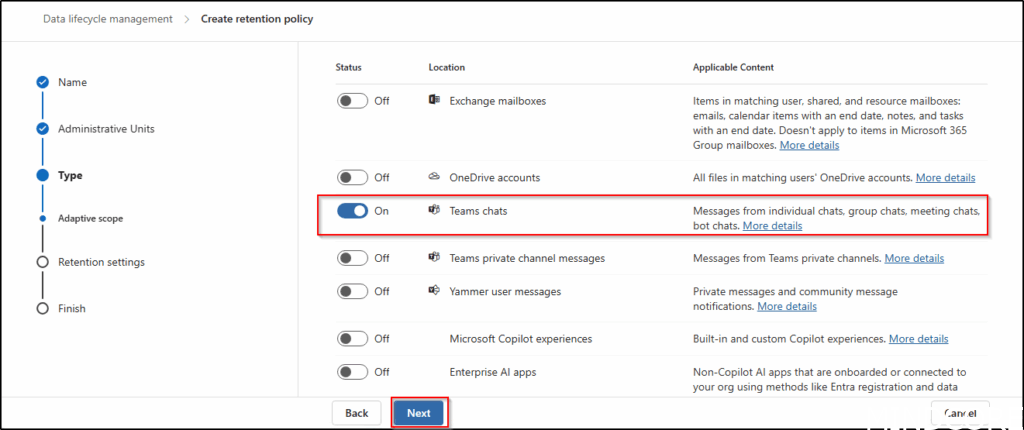
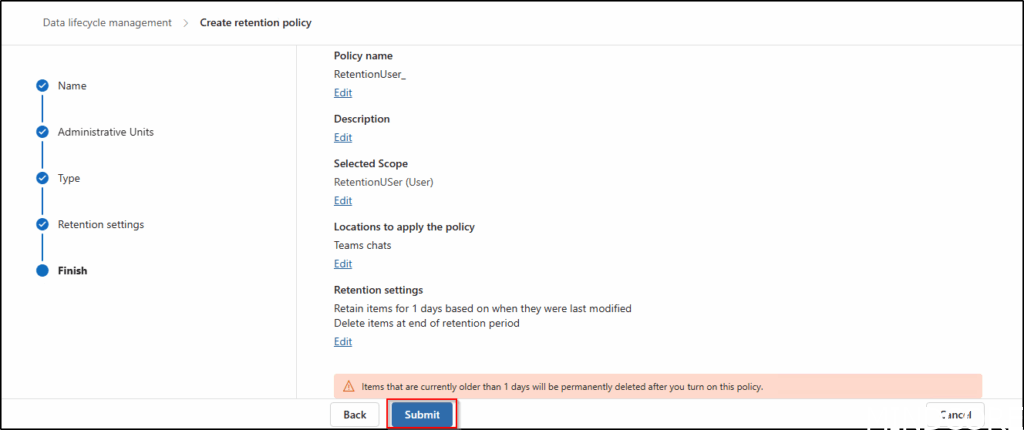
In this example, we will focus exclusively on targeting a specific user and their associated chats. Subsequently, we can review the results to determine the exact impact of this approach.
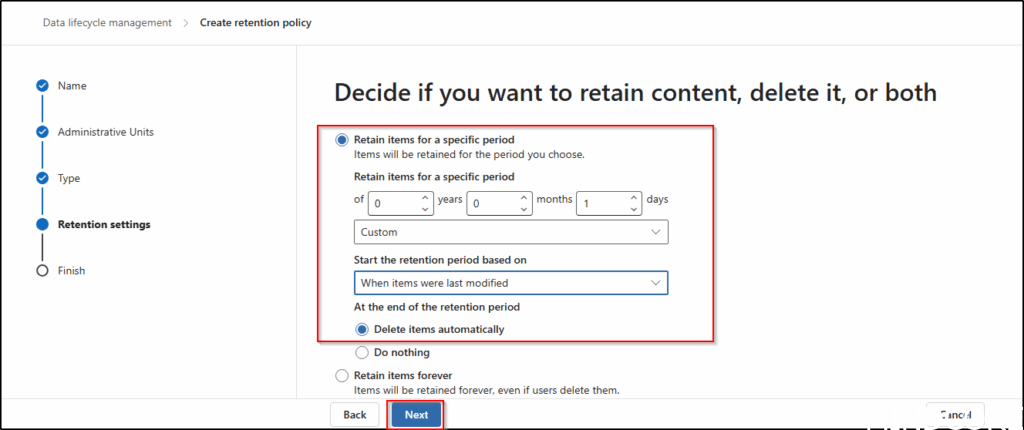
In this example we will delete the selected chat types after only one day.
We can then save the policy using Submit.
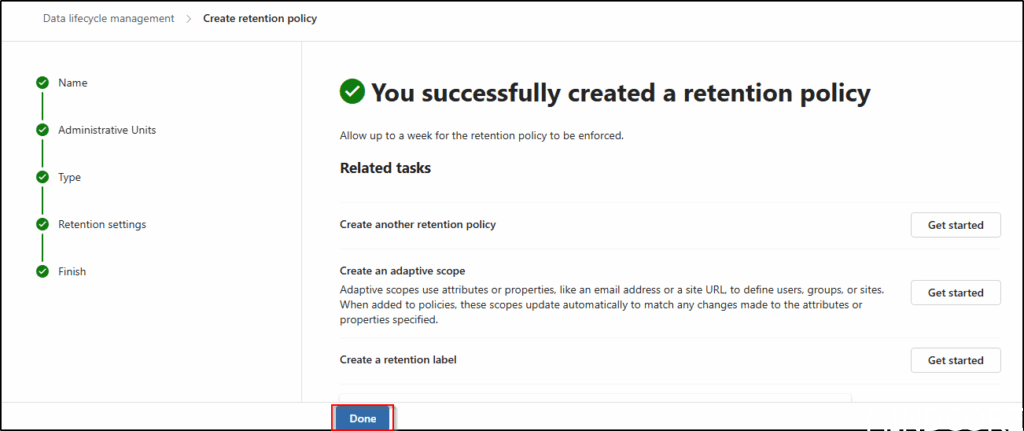
Click Done to complete the wizard..
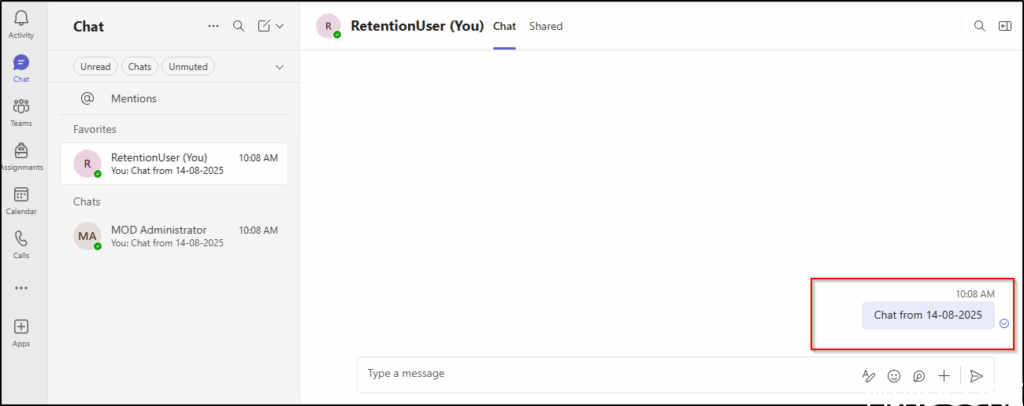
Let’s start a chat with ourselves.
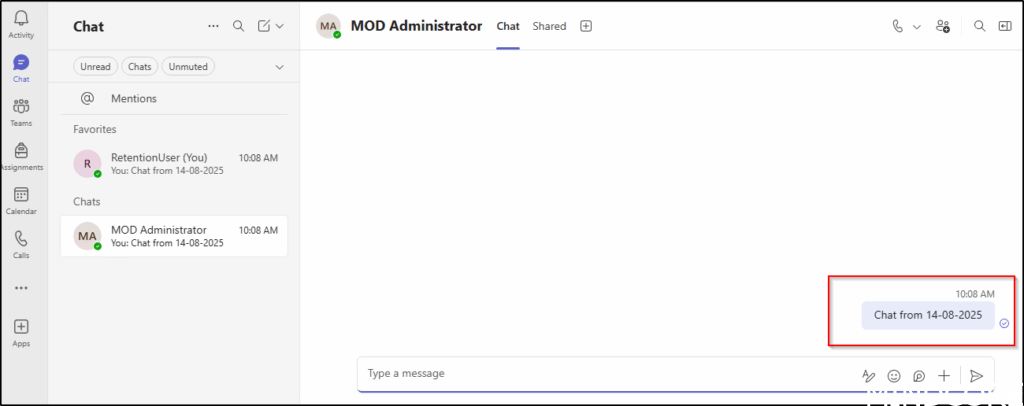
Next, we compose a message for a colleague.
Finally, a message will be posted in a Teams channel.
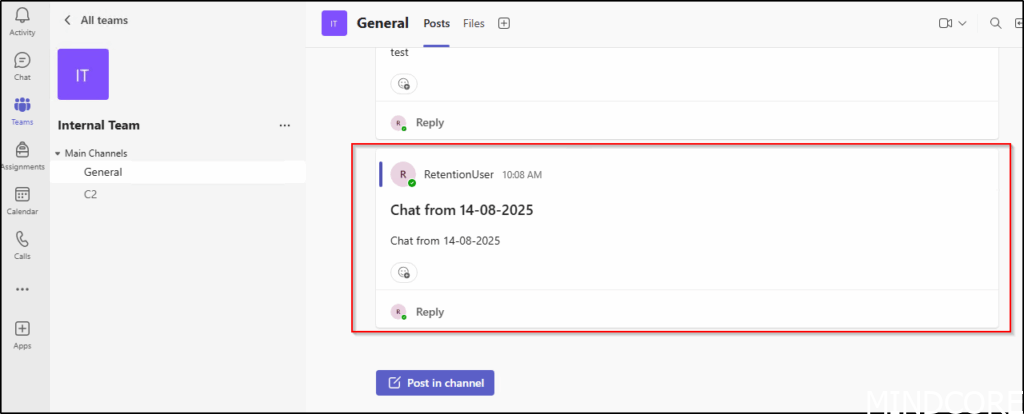
We will now await the implementation of our policy.
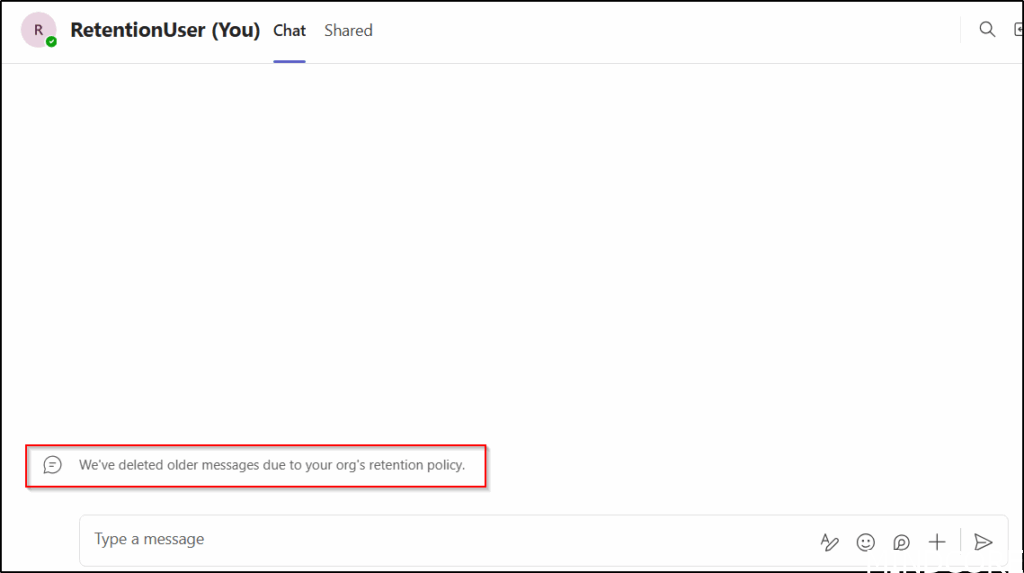
As you can see the message to the user itself is deleted.
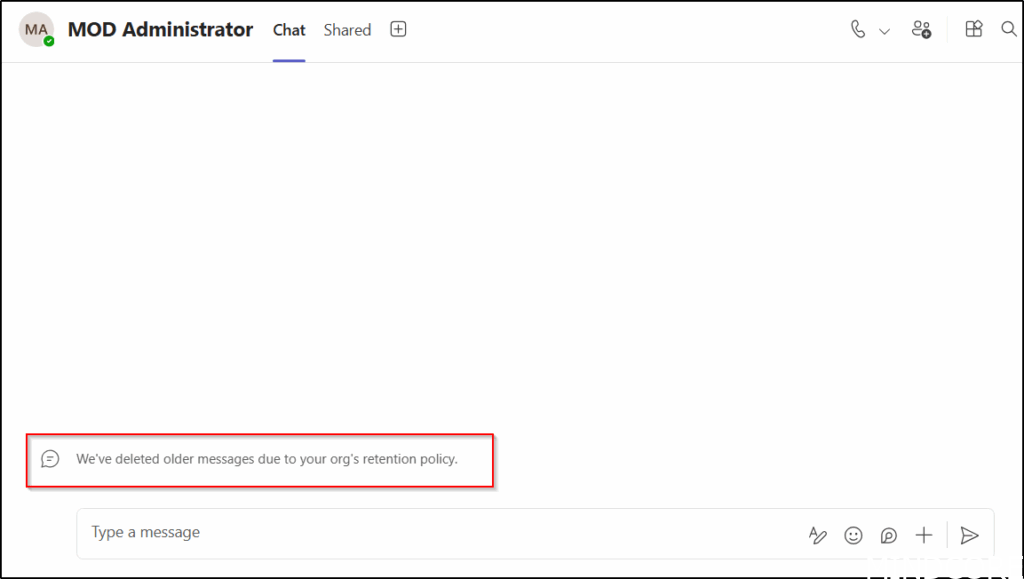
This is also the case for the message to our colleague.
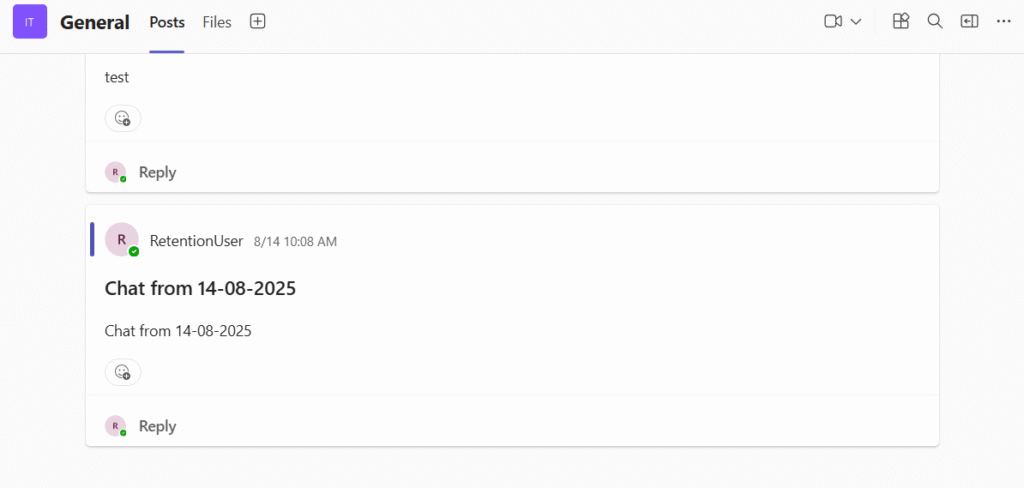
But since we did not target the teams group, the chat is still here.
It is of course also possible to achieve this in PowerShell.
The Exchange Online PowerShell module is needed to use the Connect-IPPSSession cmdlet for Security & Compliance PowerShell access.
Connect-IPPSSession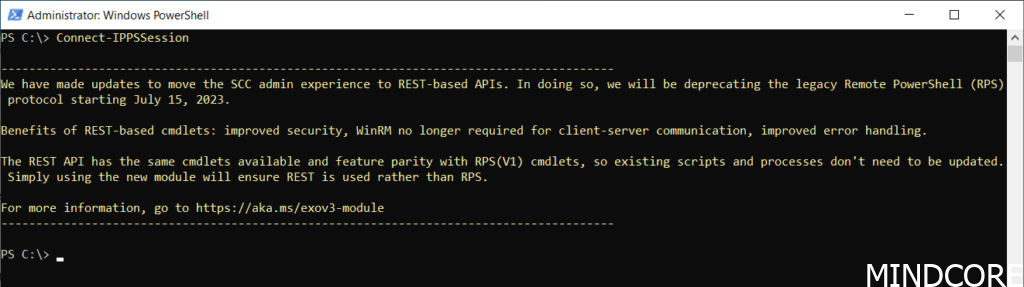
We can then create the adaptive scope using the command.
New-AdaptiveScope -Name "RetentionUser2" -LocationType User -RawQuery "(EmailAddresses -like 'RetentionUser2@test.mindcorelab.dk')"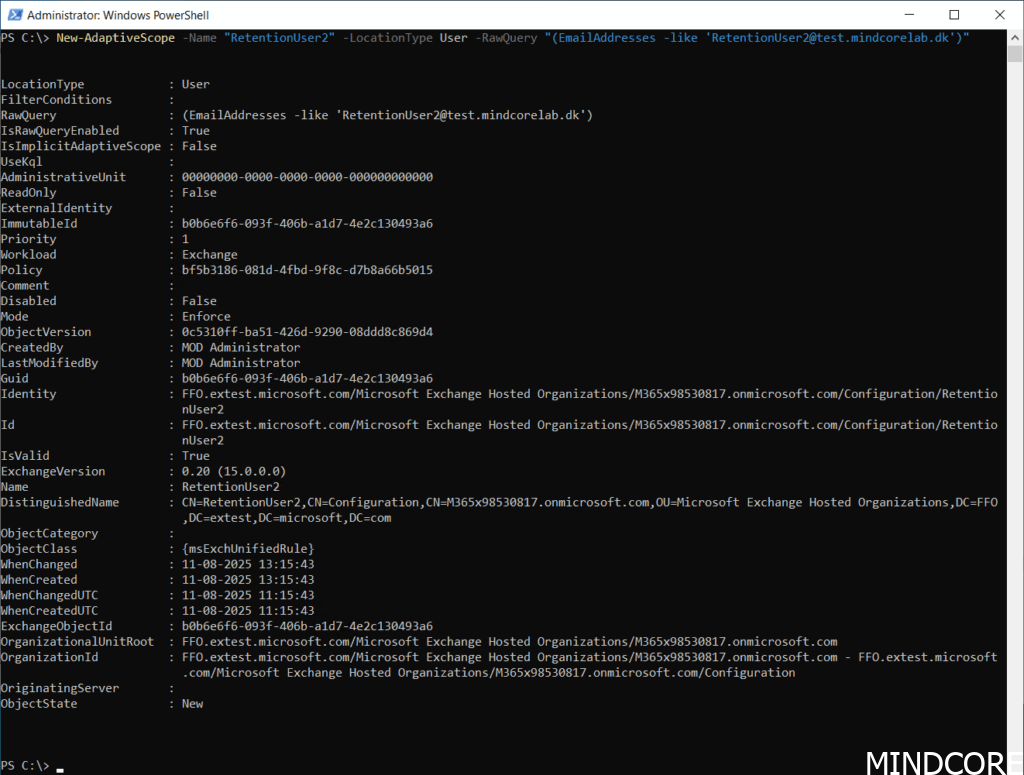
The retention policy with this command.
New-AppRetentionCompliancePolicy -Name "TeamsChatOneDayPolicy" -Applications "User:TeamsChatUserInteractions" -AdaptiveScopeLocation "RetentionUser2"
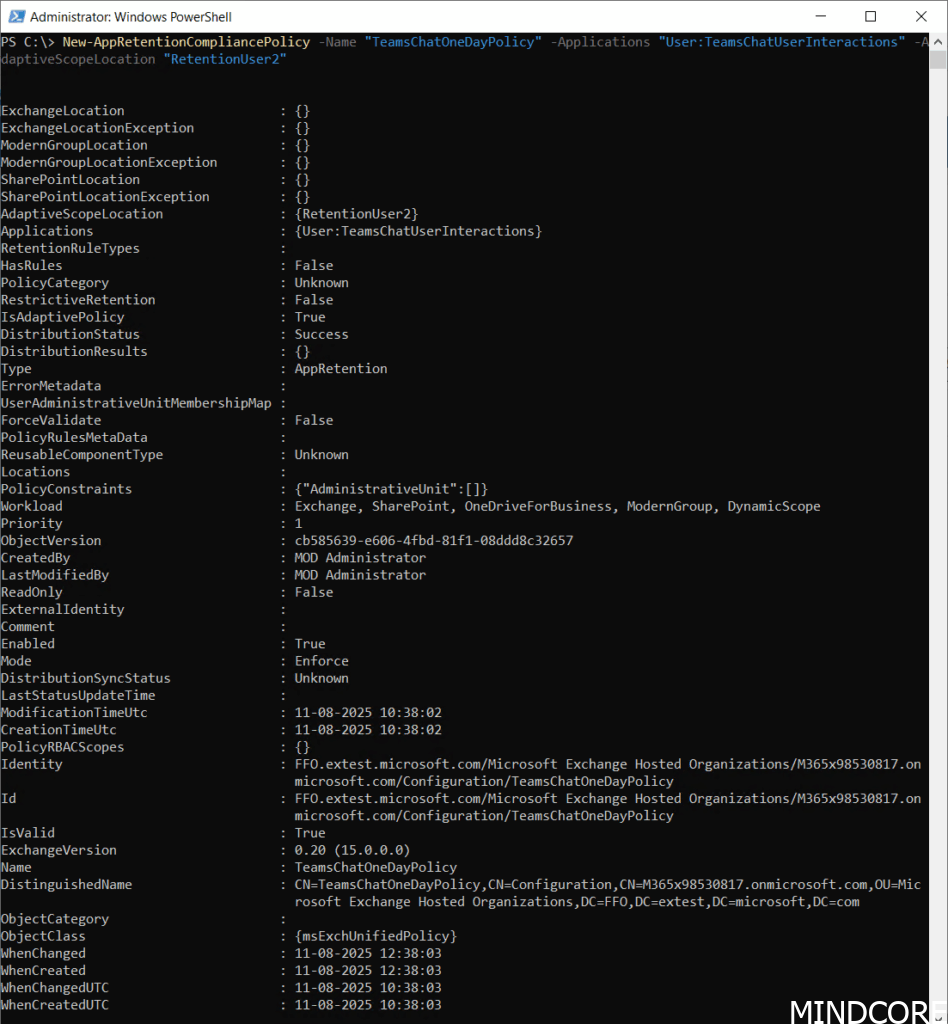
And then put it all together as a Compliance Rule.
New-AppRetentionComplianceRule -Name "TeamsChatOneDayRule" -RetentionDuration 1 -RetentionDurationDisplayHint Days -RetentionComplianceAction Delete -Policy "TeamsChatOneDayPolicy" -ExpirationDateOption "ModificationAgeInDays" 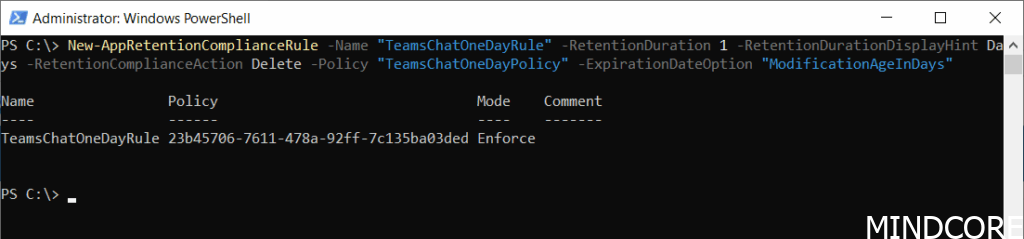
To delete chats in groups, the process must be performed at the team level rather than targeting individual users.

Create and configure retention policies
Manage retention policies for Microsoft Teams
Learn about retention for Microsoft Teams
Validate advanced adaptive scopes queries written in OPATH
And now a short message in Danish.
Hos Mindcore elsker vi at dele viden, men det er vores Danske kunder der rent faktisk gør dette arbejde muligt. Hvis du er interesseret i hvad vi kan tilbyde i forhold til Microsoft 365 Governance og sikkerhed, Azure ARC, Intune eller nogen af de andre områder vi har skrevet om her på bloggen, så kontakt os på info@mindcore.dk eller telefon 51 91 44 10.








