
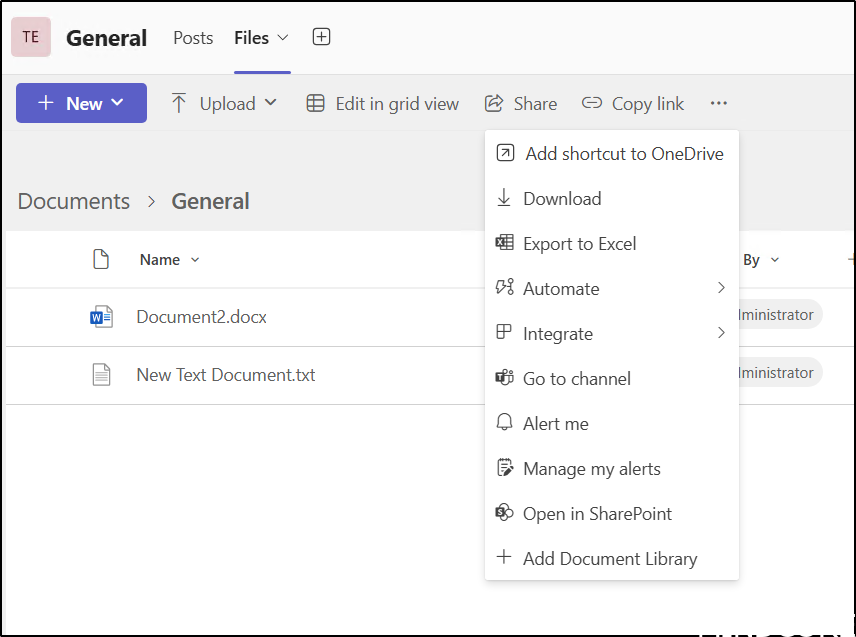
A common inquiry that arises during our Microsoft 365 Governance workshop concerns the use of the Sync to OneDrive feature in Teams and the Add shortcut to OneDrive option. Both functionalities are accessible from the Files tab within a Teams channel.
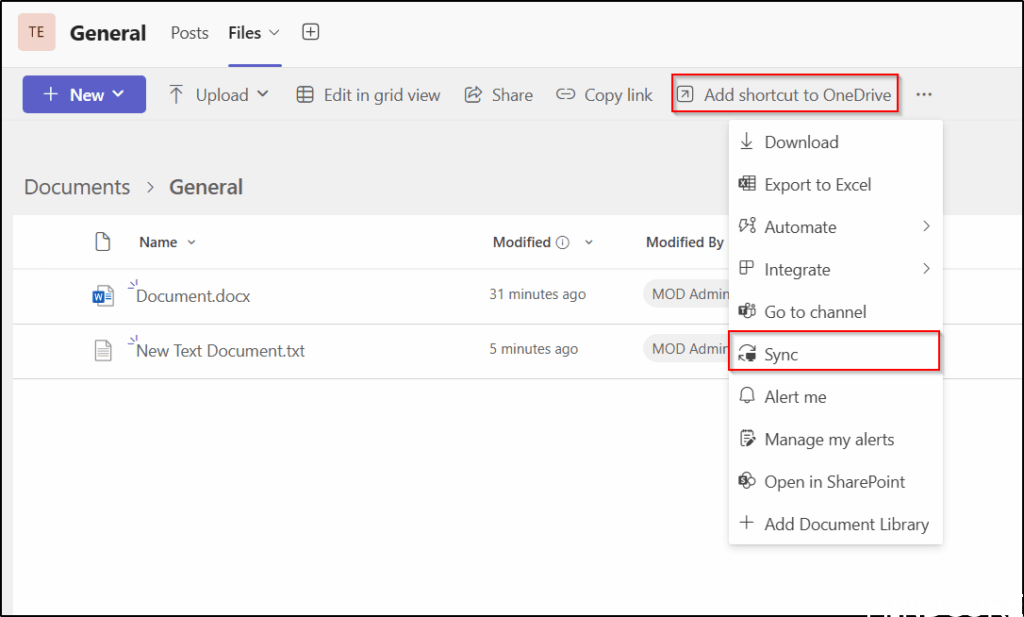
We normally recommend using Add shortcut to OneDrive instead of Sync, because the shortcut will be available on all devices and not only the device you setup sync on.
But historically there have been a lot of cases where people delete files in their OneDrive without realizing that it will delete the same files from teams as well, even though you will be warned of this, both Add shortcut to OneDrive and Sync, can cause this issue.
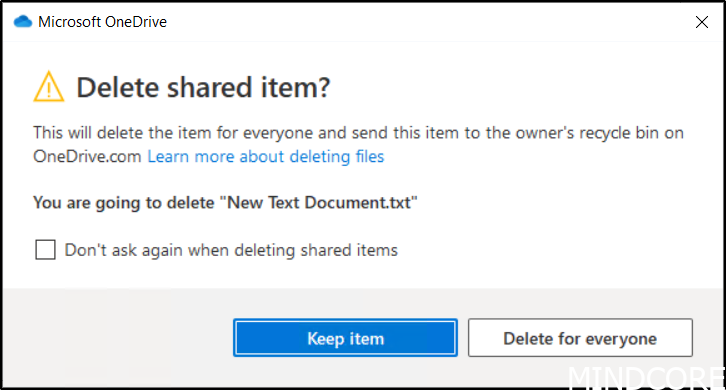
Some customers choose to remove the Sync option and only use the Add shortcut to OneDrive, to only communicate one functionality, and because you cannot use both Sync and Add shortcut to OneDrive on the same Files store in Teams.
We can disable the Sync option on tenant level or at an individual Teams site (SharePoint library). But if we do it at library level we will also break Add shortcut to OneDrive because it would not be able to download the files to your client.
Let’s test removing it at the tenant level (all SharePoint libraries) using SharePoint Online Management Shell.
Download the latest SharePoint Online Management Shell.
First, we connect to SharePoint as a SharePoint Administrator.
Next we use the Set-SPOTenant PowerShell cmdlet to remove the OneDrive sync button.
Connect-SPOService -url https://tenant-admin.sharepoint.com
Set-SPOTenant -HideSyncButtonOnTeamSite $true
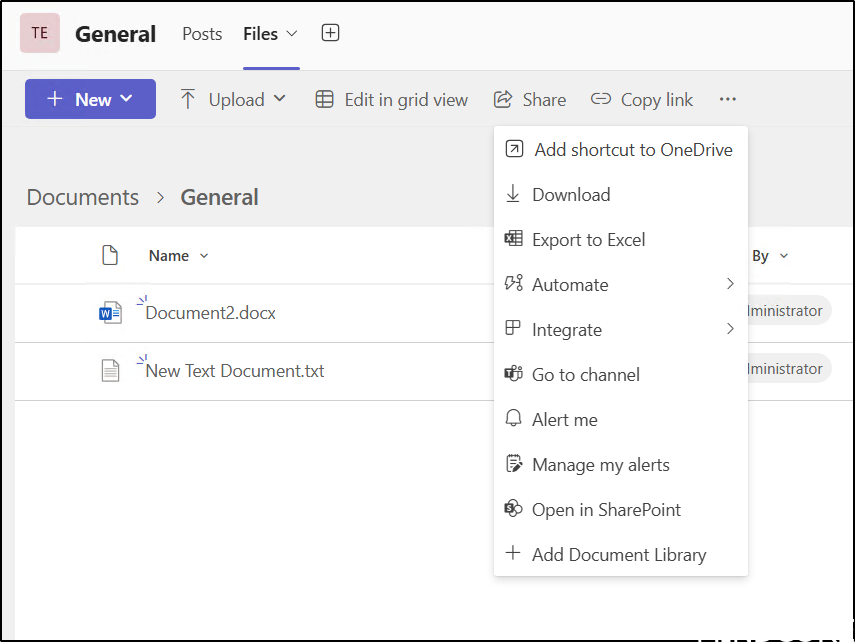
And as a result, the Sync button is gone from Teams and Add shortcut to OneDrive will still work as expected (also shown in the output from the command).
The Add shortcut to OneDrive is a great feature which we also use for specific automation at some customer sites.
Where our automation will generate or delete OneDrive shortcuts for users based on Teams memberships and only for Teams specified by a prefix.
Ite will then create OneDrive shortcuts without user interaction and removes OneDrive shortcuts without user interaction.
If a user is a member of a Team with the specified prefix, they’ll have a shortcut created for it in their OneDrive.
If a user has a shortcut created from a Teams with a specific prefix it will be removed when the user loses the Group membership.
The Automation tracks membership changes using Delta’s and stores Delta Links for each monitoring Group in an Automation Variable.
The automation is meant to run as a regularly scheduled task in an Azure Automation Account to make use of a Managed Identity for Authentication.
Dynamically uses either Automation Account variable or provided Storage Account to store Delta Links depending on how many links need to be stored (more than 450 Teams requires a storage account).
SharePoint, the Microsoft 365 admin portal, and Entra ID all significantly impact on how users experience Microsoft 365 and Teams. In our Governance workshops, we always begin with our governance data collector that gathers details about the current Microsoft 365 configuration and identifies areas where we suggest alternative approaches, the guest sharing options are a good example of data we collect for teams.
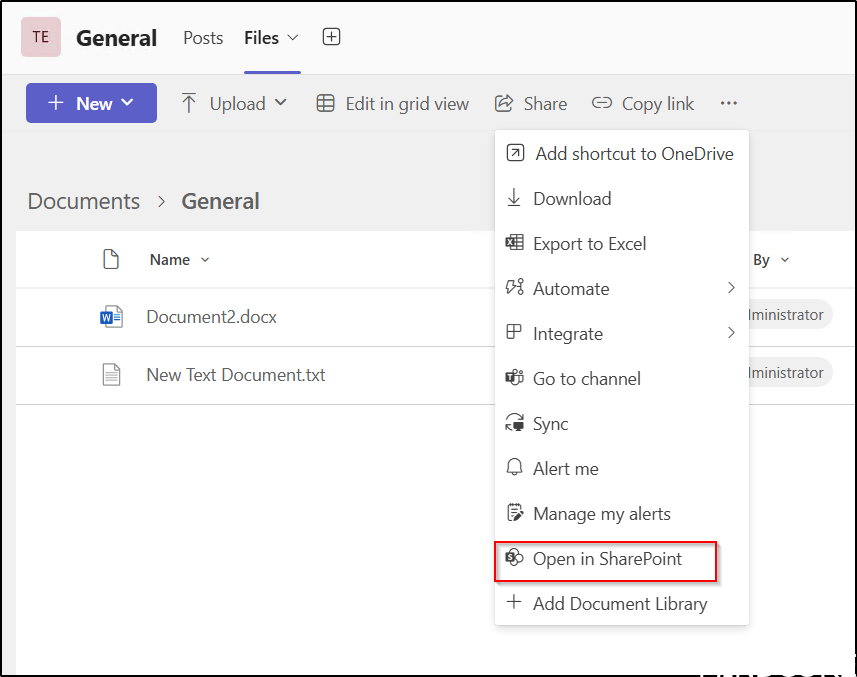
Sync can be disabled at the SharePoint library level rather than for the entire tenant; however, this action will also prevent the use of Add shortcut to OneDrive. For users in Teams, one method to accomplish this is by selecting Open in SharePoint on the Files tab.
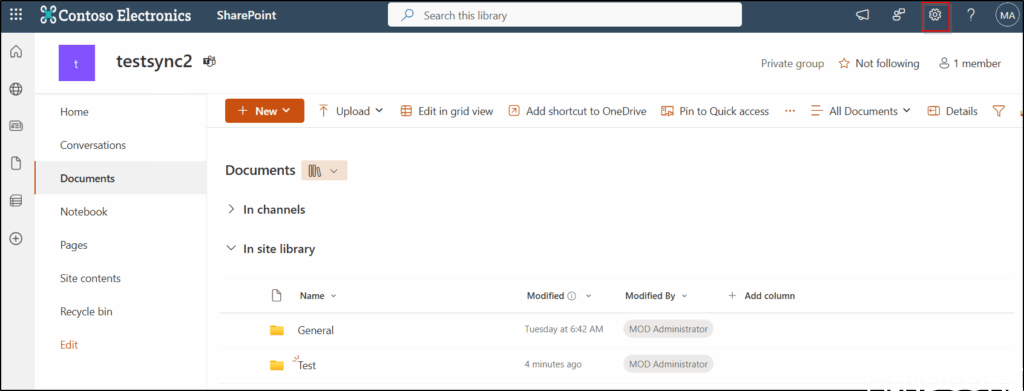
In SharePoint, click the gear icon at the top.
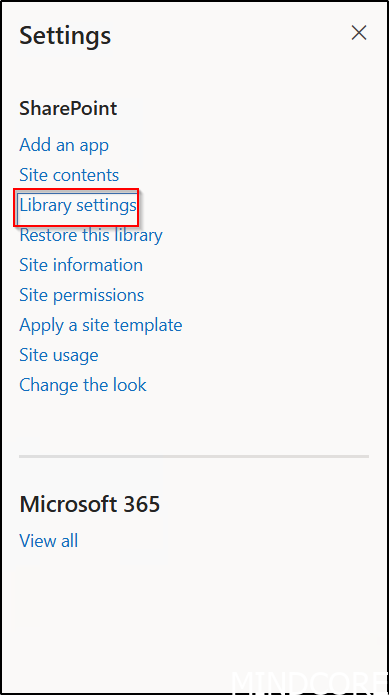
Select Library settings.
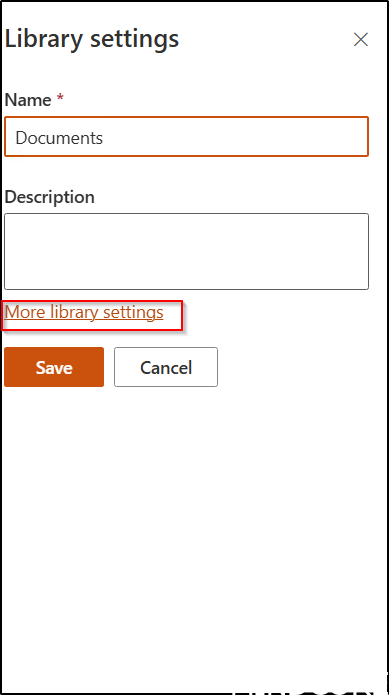
Click More library settings.
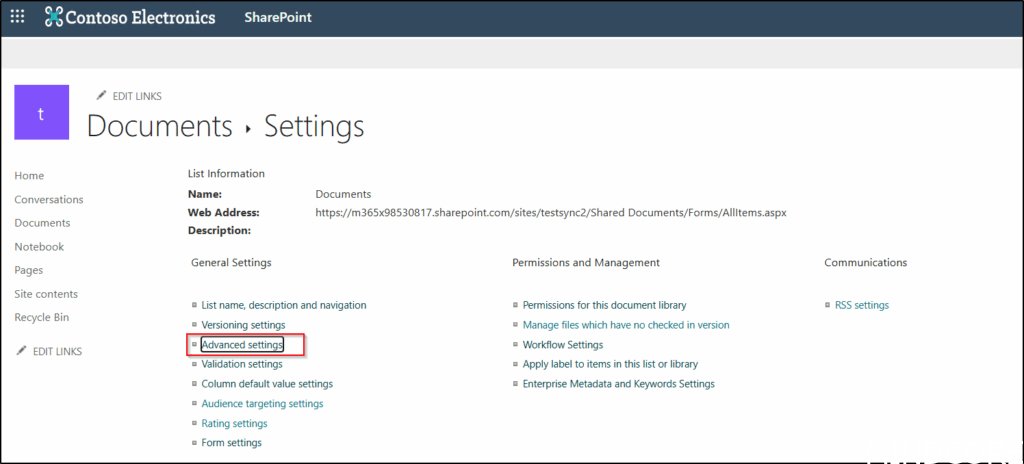
Select Advanced settings.
Navigate to the Offline and sync section, and set Allow people to sync this document library to their computers with Microsoft OneDrive and access it offline to No.

Please click OK at the bottom of the page.
The Sync button has now been removed for all channels within this team, except for Shared and Private channels. For those channels, the steps will need to be repeated separately.
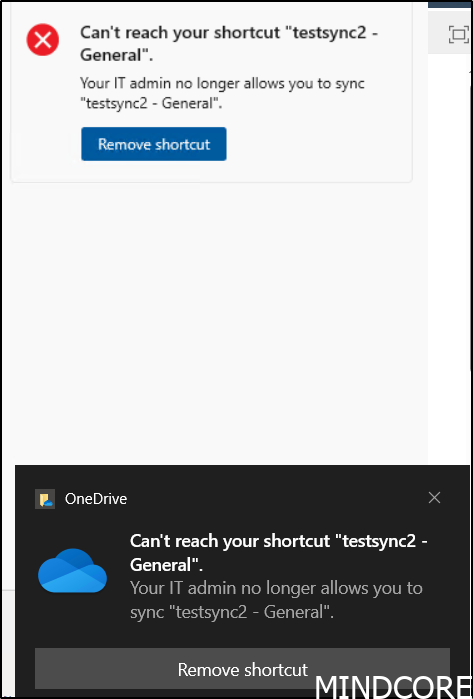
Avoid this method if you want to continue using Add shortcut to OneDrive. While you can remove Sync at the Library, Site Collection, or Site level, it causes the same issue with Add shortcut to OneDrive.
Therefore, we suggest disabling Sync at the Tenant level and using Add shortcut to OneDrive instead. PNP allows you to remove Sync at the Site level, but SharePoint Online Management Shell does not, and the same issue applies regarding Add shortcut to OneDrive.
And here you can clearly see why this option is not the way to go, unless that is exactly what you want.
PNP example:

In Part Two, we’ll discuss removing Add shortcut to OneDrive, though we do not recommended it for production environments.
SharePoint has many settings that typical team users may not know about. We recommend building your own app or automation to ensure Teams and site settings meet requirements, such as Naming standards, download control, guest access, sharing options, folder structures and much more. We’ve successfully assisted many customers in implementing this approach for better teams’ management.
And now a short message in Danish 🙂
Hos Mindcore elsker vi at dele viden, men det er vores Danske kunder der rent faktisk gør dette arbejde muligt. Hvis du er interesseret i hvad vi kan tilbyde i forhold til Microsoft 365 Governance og sikkerhed, Azure ARC, Intune eller nogen af de andre områder vi har skrevet om her på bloggen, så kontakt os på info@mindcore.dk eller telefon 51 91 44 10.








