
During our Microsoft 365 Governance workshops with customers, a common question is how to handle inactive teams.
Our primary recommendation is to implement automated processes for archiving inactive teams, team owners can also archive a team themselves.
The team’s conversations and files will be set to read-only and remain searchable.
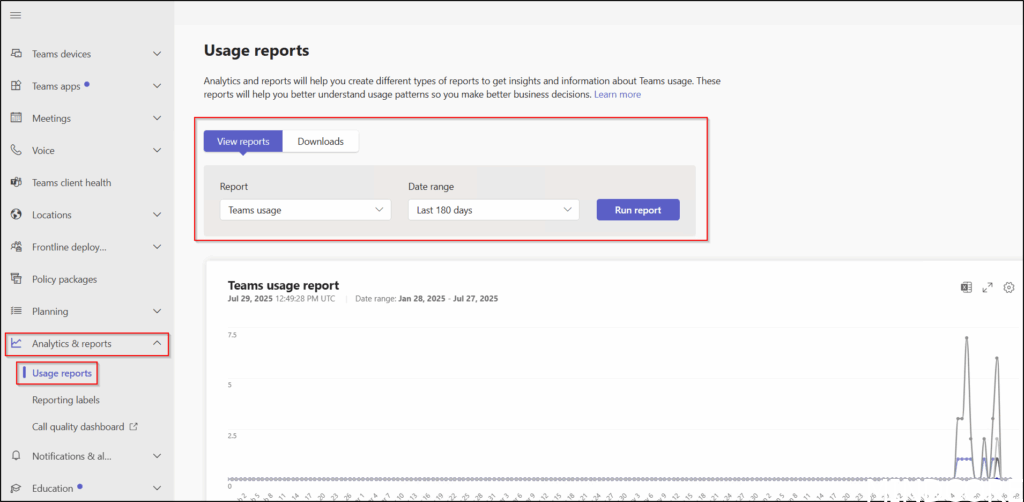
We can find inactive teams in the Teams admin portal by creating a Teams usage report.
Access the Microsoft Teams admin center and navigate to Analytics & reports, then select Usage reports. On the View reports tab, choose Teams usage from the Report drop-down menu and specify the desired date range. Click Run report to generate the Teams usage report.
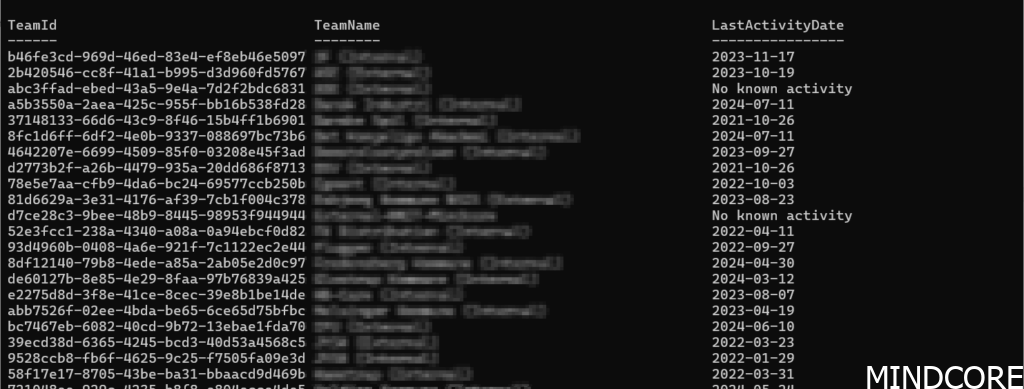
In the list you will be able to find the last activity date for each team.
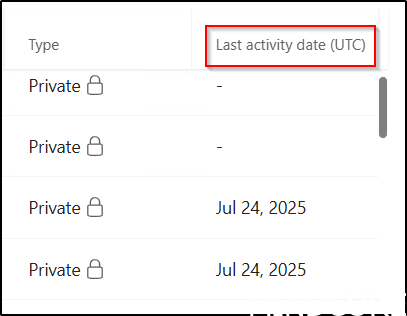
You can also export it as a CSV file for further analysis.

Another method for generating a report is to utilize PowerShell code as demonstrated below (just for inspiration).
$InactiveDays = 365
$ThresholdDate = (Get-Date).AddDays(-$InactiveDays).Date

Get-MgBetaReportTeamActivityDetail -Period 'ALL' -OutFile "temp.json"

$TeamActivities = (Get-Content -Raw "temp.json" -Encoding UTF8 | ConvertFrom-Json).Value

$Report = @()
foreach ($TeamActivity in $TeamActivities) {
    $reportthis = $false
    if ($TeamActivity.isDeleted -eq $False)   {
        if ($TeamActivity.lastActivityDate) {
	        $LastActivityDate = $TeamActivity.lastActivityDate
            if ([datetime]$LastActivityDate -lt $ThresholdDate) {
                $reportthis = $true
            }
	    }
        else {
            $LastActivityDate = "No known activity "
            $reportthis = $true
        }

        if ($reportthis -eq $True) {
            $TeamActivityObject = [PSCustomObject]@{
                TeamId           = $TeamActivity.teamId
                #TeamName         = (get-MgBetaGroup -Property DisplayName -GroupId $TeamActivity.teamId).DisplayName
                TeamName         = $TeamActivity.teamName
	            LastActivityDate = $LastActivityDate
	        }
            $Report += $TeamActivityObject
        }

    }
}

Write-Output $Report | Sort-Object -Property TeamName | Format-Table

$Report | Export-Csv -Path "Teams.csv" -NoTypeInformation -encoding UTF8
You might see concealed team information like this when running the report.
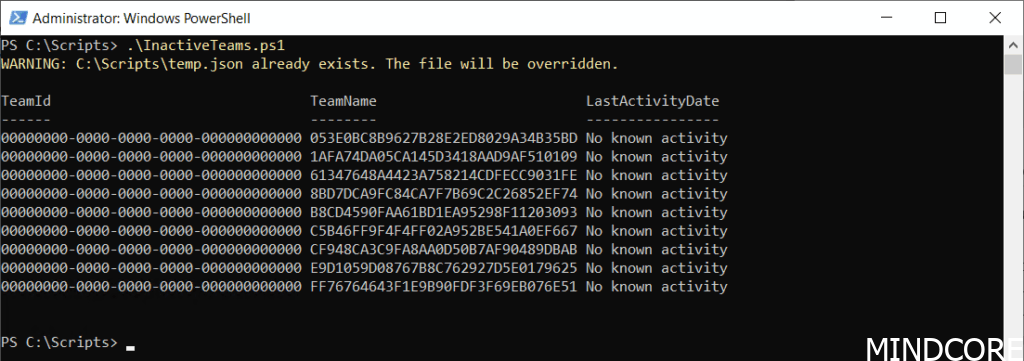
This means that we have enabled concealed data in reports in Microsoft 365 in the admin portal.
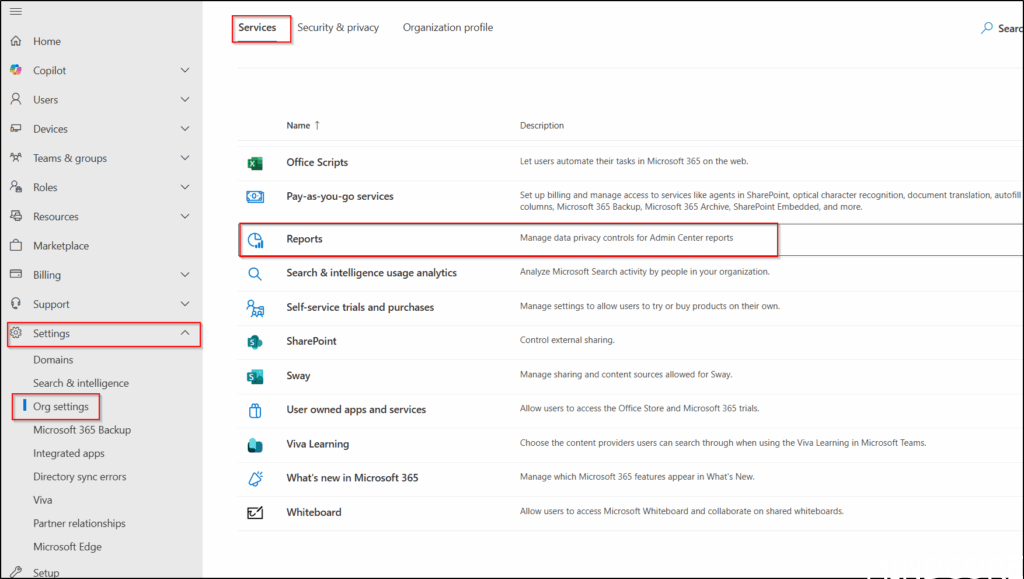
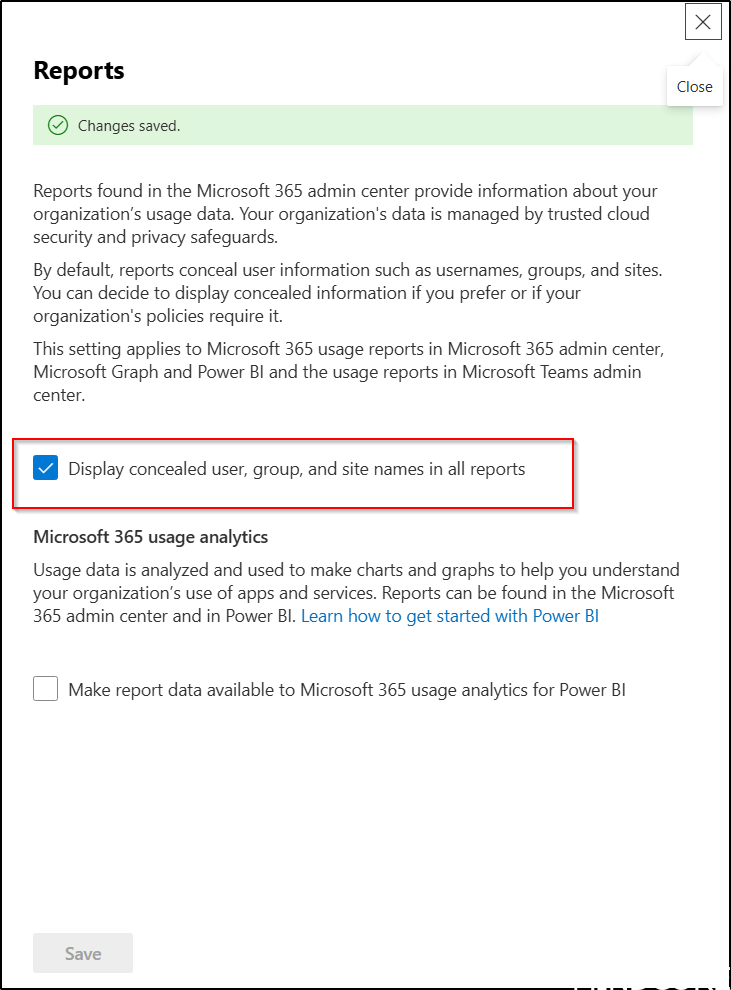
This is yet another setting we cover in our Governance workshops.
Please note that the report may be incomplete due to unregistered team activities but archiving rather than deleting teams generally prevents issues.
But here is an exsample of the report.
Archive a team in PowerShell with this command.
Invoke-MgBetaArchiveTeam -TeamId TeamID -ShouldSetSpoSiteReadOnlyForMembers
This parameter ShouldSetSpoSiteReadOnlyForMembers specifies that team members will have read-only permissions on the SharePoint Online site linked to the team.
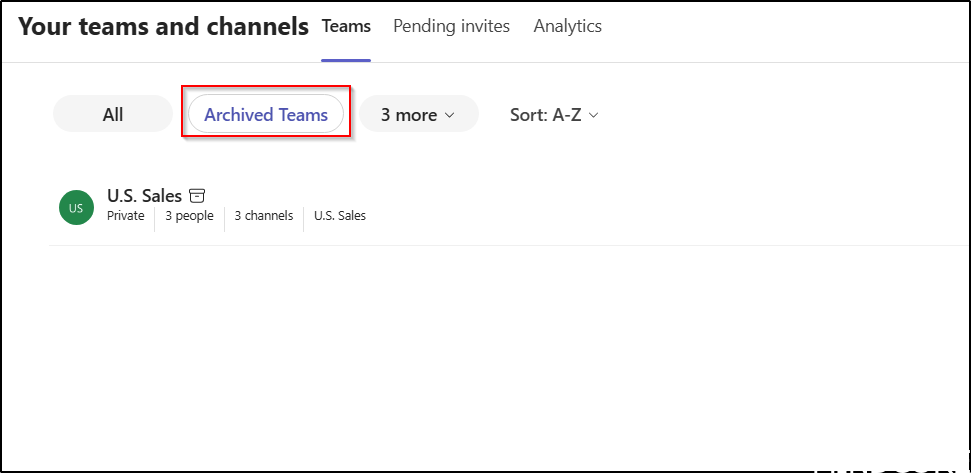
We can verify that the Team has been archived in Teams as shown here.
Various settings in SharePoint, Microsoft 365 Groups, and Teams can affect users’ experiences with Microsoft 365 and Teams. In our Governance workshops, the process begins with a governance data collector that gathers details about the current Microsoft 365 configuration and identifies areas where different approaches may be evaluated. For instance, the use of team archiving and concealed data in reports are settings that we collect so that we can discuss these settings based on an informed basis.
The key governance concern regarding not using Teams archiving is uncontrolled information flow, which can compromise security, compliance, and information management.
And now a short message in Danish
Hos Mindcore elsker vi at dele viden, men det er vores Danske kunder der rent faktisk gør dette arbejde muligt. Hvis du er interesseret i hvad vi kan tilbyde i forhold til Microsoft 365 Governance og sikkerhed, Azure ARC, Intune eller nogen af de andre områder vi har skrevet om her på bloggen, så kontakt os på info@mindcore.dk eller telefon 51 91 44 10.








