
As demonstrated previously, numerous technical configurations are available to support effective Microsoft 365 Governance.
In this post, we will examine several minor adjustments that have the potential to significantly influence our user’s behavior.
When receiving mail from external partners, by default our users must know that the mail is received from an external user.
To enable this feature with PowerShell we first need to connect to Exchange Online and then activate the feature.
If you already use mail flow rules to append text to the subject lines of messages received from external senders, it is recommended to disable these rules prior to enabling this feature.
All commands here require an Exchange Online connection.
Connect-EXchangeonline -ShowBanner:$falseThe Set-ExternalInOutlook cmdlet is then used to adjust the configuration of external sender identification in Outlook, Outlook for Mac, Outlook on the web, and Outlook for iOS and Android.
Set-ExternalInOutlook -Enabled $true
We can use this command to get the current configuration.
Get-ExternalinOutlook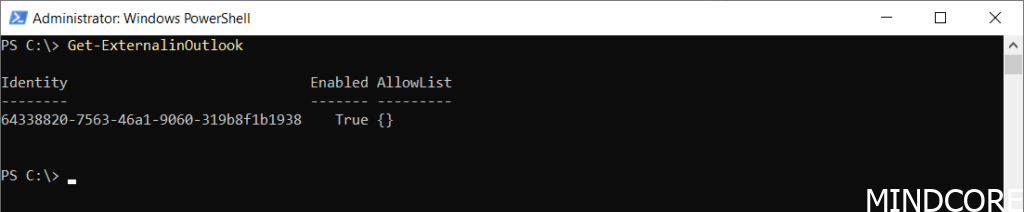
Once this setting is enabled, users may notice the External icon in messages from external senders within 24 to 48 hours. But this is how it will look when enabled.

We can also display a warning when users email external recipients.
The PowerShell command Set-OrganizationConfig with the MailTipsExternalRecipientsTipsEnabled parameter is used to enable this feature.
Set-OrganizationConfig -MailTipsExternalRecipientsTipsEnabled:$True
We can use this command to get the current configuration.
Get-OrganizationConfig | ft MailTipsExternalRecipientsTipsEnabled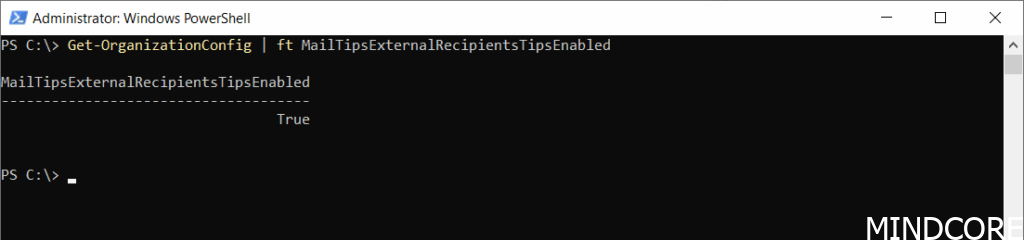
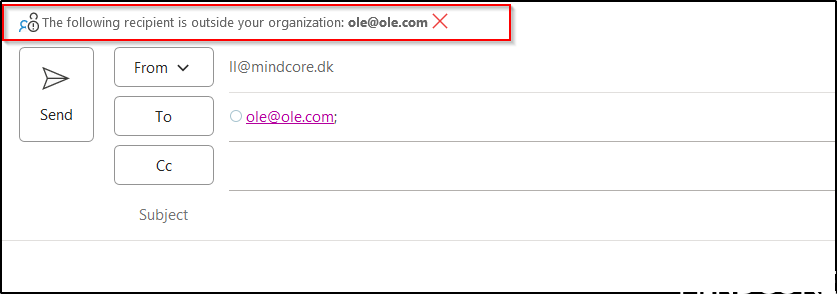
When enabled, this is how it appears when you enter an external recipient in the “to” field.
Various settings in SharePoint, Microsoft 365 Groups, Exchange Online and Teams can affect users’ experiences with Microsoft 365 and Teams. In our Governance workshops, the process begins with a governance data collector that gathers details about the current Microsoft 365 configuration and identifies areas where different approaches may be evaluated. For instance, the use of the features in this post are settings that we collect so that we can discuss these settings based on an informed basis.
And now a short message in Danish
Hos Mindcore elsker vi at dele viden, men det er vores Danske kunder der rent faktisk gør dette arbejde muligt. Hvis du er interesseret i hvad vi kan tilbyde i forhold til Microsoft 365 Governance og sikkerhed, Azure ARC, Intune eller nogen af de andre områder vi har skrevet om her på bloggen, så kontakt os på info@mindcore.dk eller telefon 51 91 44 10.








