
Introduction
If you need to find specific emails in a Microsoft 365 mailbox and export their contents for investigation, compliance, or troubleshooting, this PowerShell script can help. It leverages Microsoft Graph to search messages by their InternetMessageID and saves each one as a text file for easy read.
Created this some time ago to help one in a case where they had the message ID´s and the receiver, but could not find it in an easy was (the Compliance Search does not work so well – sorry 🤫), so here we share this as it could benefit others! 🙂
What does the script do?
- Authenticates to Microsoft Graph using client credentials (just for a sample, can be like a Managed Identity and so too, and then upload the results to some storage like a Storage Account)
- Reads a list of InternetMessageIDs from a file (or other type of input, again just for a sample)
- Searches the specified mailbox for each message.
- Saves the contents of each found message as a separate
.txtfile.
Use cases & value
- Investigations or Incident Response
If you have a list of suspicious, malicious, or otherwise important message IDs (for example, from security logs, eDiscovery, or phishing reports), you can quickly pull the full message content. - Compliance and Legal Discovery
For compliance audits or legal requests, you may need to extract specific emails from user mailboxes. This script allows you to reliably export those messages for archiving, review, or forwarding. - Bulk Email Extraction
If you need to analyze a large number of specific emails (such as all messages flagged by a spam filter or quarantine), you can input a list of IDs and have the script export all matching messages in one go. - Forensics and Analysis
It helps forensic teams or administrators to preserve the full content, headers, and metadata of messages for later analysis or evidence. - Automation
This is much faster and less error-prone than manual extraction, especially for large lists or repeated operations.
Why use this script instead of the Compliance Portal’s Content Search?
The built-in Compliance Portal Content Search in Microsoft 365 is a powerful tool for discovering and exporting email data for compliance, investigations, or eDiscovery. However, many admins find that:
- Searches can be slow, especially in large environments or when searching for many messages.
- Precision may be limited: Content Search often relies on keywords, sender/recipient addresses, or dates rather than unique identifiers.
- Searching by InternetMessageID can be unreliable or unsupported: If the format isn’t exact, or if the message is in an unusual location (like a subfolder or archive), results may not appear.
- Bulk extraction isn’t streamlined: Exporting dozens or hundreds of specific messages requires manual steps and can be error-prone.
The PowerShell/Graph Script solves these problems by:
- Directly querying messages by their exact InternetMessageID for precise retrieval.
- Automating the extraction of large sets of messages, saving each as a discrete, readable file.
- Faster, scriptable workflow, ideal for admins and security teams.
- Flexible output: You can include more metadata, customize the output, and integrate with other automation.
Troubleshooting: When Content Search Fails
If the Compliance Portal’s Content Search couldn’t find your messages:
- Check the InternetMessageID format: It must match exactly, including angle brackets if present
- Verify mailbox selection: Make sure you’re searching the correct mailbox and that the messages haven’t been moved or deleted.
- Test with the script: The PowerShell script gives you more visibility and control over search parameters. Any errors or missing messages will be reported in the console, helping you diagnose issues.
Prerequisites
Before you start, make sure you have Entra ID App Registration:
- Grant it the
Mail.Reador permission for Microsoft Graph. - Collect the
Client ID,Client Secret, andTenant ID. (just for a sample) - PowerShell 5.x or later
- A text file (e.g.,
c:\temp\MessageIDs.txt) with one InternetMessageID per line. - Mailbox UPN (e.g.,
user@domain.cloud) - Output folder (e.g.,
c:\temp\output) - The script – can be found here: public/Exchange Online/Get-MailByMessageID at main · mindcore-tech/public
How to use the script
- Configure the Variables
- Set
$Search_UPNto the mailbox UPN. - Set
$OutFolderto your desired output folder. - Set
$list_of_MessageIDSto your file containing InternetMessageIDs. - Insert your Entra ID application credentials for
$clientID,$ClientSecret, and$tennent_ID.
- Set
- Prepare Your InternetMessageIDs
- These can be obtained from mail headers or other tools.
- Run the Script
- Open PowerShell.
- Go to the path there the script is and execute.
The script will process each message ID, search the mailbox, and save the message as a text file as the output here:
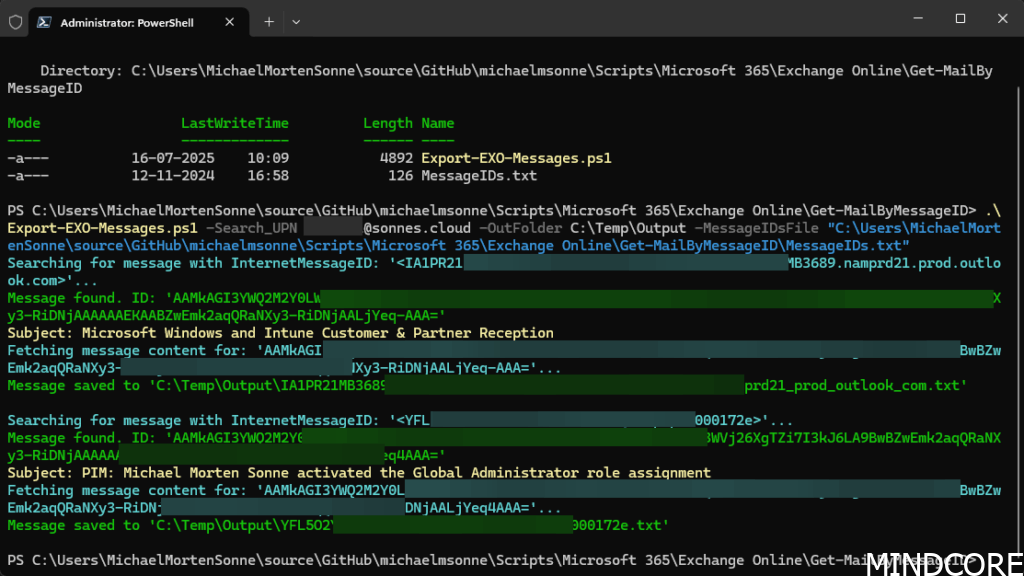
What is the output?
- For each found message, a
.txtfile will be created in your output folder. - The file is named after the InternetMessageID (sanitized).
- You’ll see status updates for each processed message, including the subject line and any errors.
- Useful for auditing, incident investigation or eDiscovery.
- The content in the exported files will be:
- InternetMessageID, Subject, From, To, Received, Body Preview: and Full Body

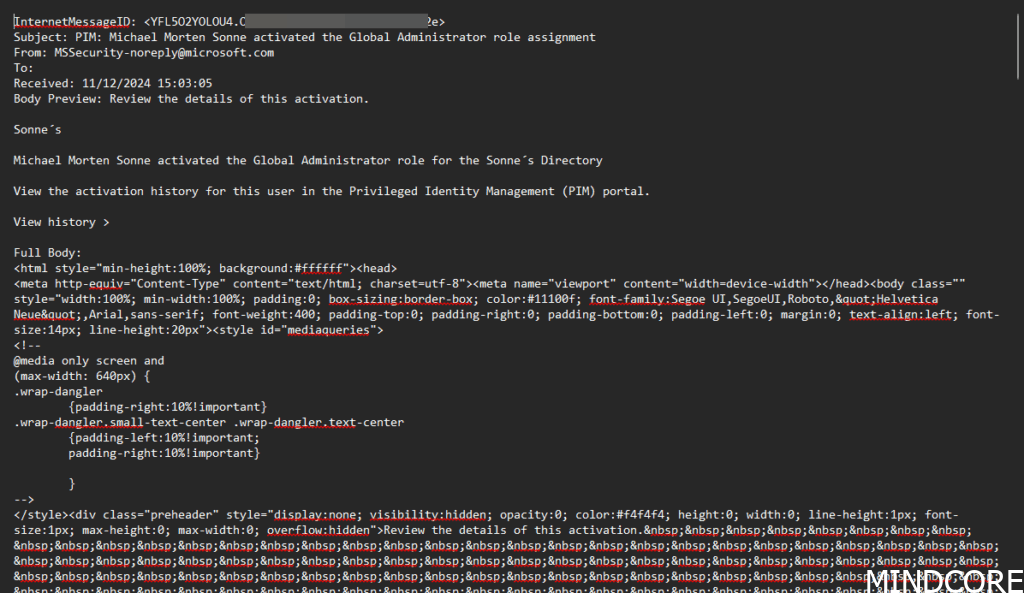
Troubleshooting
- If you see authentication errors, check your Entra ID application permissions.
- Make sure the mailbox UPN is correct and exists.
- The script skips any message IDs that can’t be found and logs an error.
Summary
This script is especially useful when:
- You need to retrieve messages by their unique IDs, not keywords.
- Speed and automation are important.
- The Compliance Portal isn’t returning the results you expect.
Tip: Always double-check the format of your InternetMessageIDs, and use the script’s error output to troubleshoot missing results.
In short:
If Content Search is slow or unreliable for your scenario, this script is a robust alternative for targeted, automated, and repeatable mailbox searches in Microsoft 365.
Security Note:
Never share your client secrets. Always keep credentials secure and if possible, not use client secrets.
Have a to-do task to change the auth flow – but feel free to change it so it´s fit your needs and workflow.
Further Reading:
Explore more Microsoft 365 automation tips on Mindcore Blog.








