
Microsoft Entra ID Privileged Identity Management (PIM) for Groups allows organizations to control and audit elevated group memberships through just-in-time access.
Managing elevated permissions in Microsoft Entra ID can sometimes be tricky, especially when it comes to Privileged Identity Management (PIM) for Groups. While the Entra portal allows users to manually activate eligible group memberships, automation is essential for operational efficiency, scripting, and self-service scenarios.
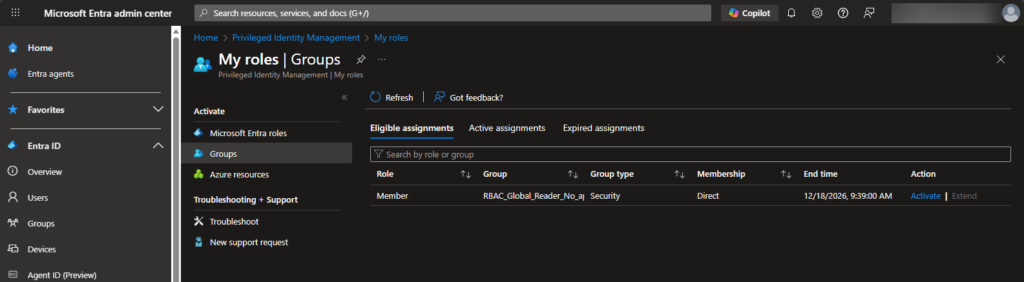
In this post, we’ll explore how to activate PIM-enabled group memberships using PowerShell and Microsoft Graph.
What is PIM for Groups?
Privileged Identity Management (PIM) for Groups in Microsoft Entra ID is a feature that lets you control, secure, and audit membership in privileged security groups using just-in-time (JIT) access instead of permanent assignments.
In short: users are only members of powerful groups when they actually need to be.
The problem PIM for Groups solves
Traditionally, users were added permanently to security groups that can grant access to etc.:
- Azure RBAC roles (via group-based assignments)
- Azure subscriptions and resource groups
- Microsoft 365 workloads
- Administrative or sensitive applications
This creates risk:
- Standing access increases the attack surface
- Permissions are often forgotten and never removed
- Auditing “who had access and when” is difficult
What PIM for Groups does
PIM for Groups allows you to make group membership:
- Eligible instead of permanent
- Time-bound (hours, not forever)
- Audited and logged
- Protected by policies
Users activate group membership only when needed, and it automatically expires.
How PIM for Groups works
With PIM for Groups, users can be assigned as:
- Eligible Member – can activate membership when needed
- Eligible Owner – can activate ownership when needed
When activation occurs:
- The user requests activation (portal or API)
- Policies are enforced (MFA, justification, approval)
- Membership becomes active for a limited time
- Access is automatically revoked when time expires
Key features
PIM for Groups supports:
- ⏱ Just-in-time access
- 🔐 MFA enforcement
- ✍ Justification requirements
- 👥 Approval workflows (optional)
- 📊 Audit logs and alerts
- ⛔ Automatic expiration
Common use cases
PIM for Groups is especially useful when groups are used to:
- Assign Azure RBAC roles via group-based access
- Control access to production subscriptions
- Grant temporary admin permissions
- Implement least-privilege access models
PIM for Groups vs PIM for Roles
| Feature | PIM for Roles | PIM for Groups |
|---|---|---|
| Scope | Directory roles | Security groups |
| Assignment | Role-based | Group-based |
| Flexibility | Limited | Very high |
| Azure RBAC | Indirect | Native via groups |
PIM for Groups is often preferred because group-based access integrates cleanly with Azure RBAC, applications, and M365 services.
But a lot is not using Entra ID PIM for groups 😏
Why PIM for Groups matters
PIM for Groups enables:
- Strong Zero Trust and least privilege
- Reduced standing permissions
- Better auditability and compliance
- Scalable access governance
The biggest advantage of PIM for Groups is the flexibility you have. With directory roles in PIM, you can only have one policy per role, which applies to everyone in your tenant.
With PIM for Groups, you can apply different rules to different groups, even if they grant the same permissions. For example:
- One group can require approval and allow only short activation times for external consultants
- Another group can have longer activation durations and no approval for internal employees
This makes it possible to tailor security and governance based on who needs the access, not just what access is granted.
It’s a foundational building block for modern identity and access management in Entra ID.
Why Automate PIM Group Activation?
The Entra ID portal works well for ad-hoc activation, but manual activation doesn’t scale for etc.:
- Automation and runbooks
- Break-glass access scenarios
- Controlled self-service tools
Using PowerShell and Graph API enables:
- Consistent justification for access requests (so you etc. not need to write the same every morning you start your work)
- Auditable activation logs
- And more – lot´s of options depending on what you can do! 😏
Automating PIM group activation ensures repeatability and reduces human error — critical in regulated or large-scale environments.
How the script for PIM Group Activation works
Under the hood, activating a PIM-enabled group membership involves several steps:
- Authenticate to Microsoft Graph
- Resolve the current user
- Locate the target group
- Validate PIM eligibility
- Submit a self-activation request
- Poll the status until provisioned
Your script handles all these steps automatically, providing detailed logging and a clean summary.
The PowerShell script for not just on PoC level/a sample (but a bigger one I now 😂). Key features include:
- Modular, reusable functions
- Automatic module installation and import
- REST-based Microsoft Graph calls for broader compatibility (personal seen a lot of issues with Cmdlet´s over the past)
- Error handling and fallback logic for eligibility checks
- Real-time polling and an elegant activation summary
- Comprehensive logging for auditing
Example activation summary output:
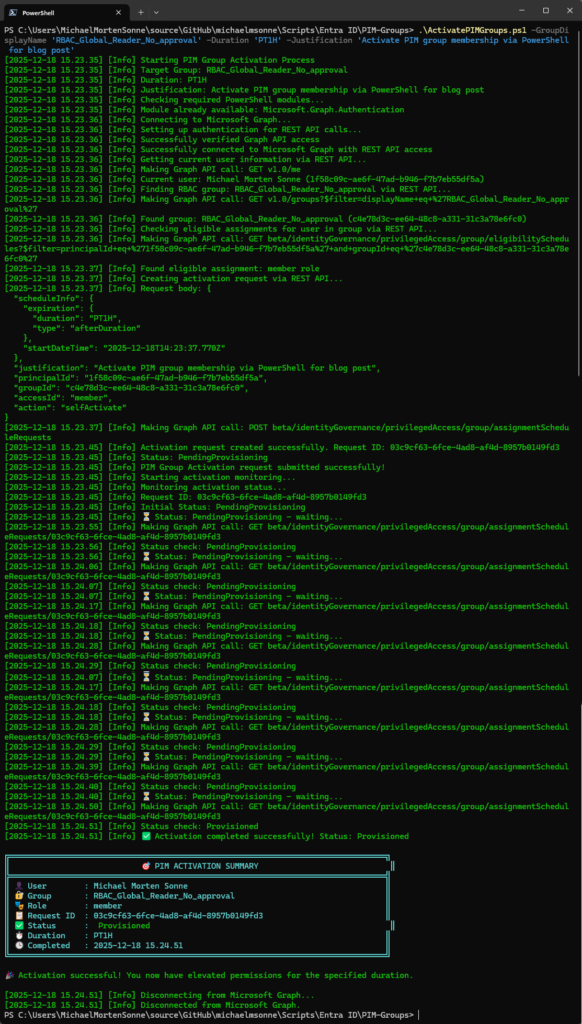
The full PowerShell script used in this article is available on our GitHub repository here. Keeping the code on GitHub makes it easy to review, reuse, and contribute improvements, and ensures you always have access to the latest version as the script evolves.
Verifying PIM Activation in the Entra ID Portal
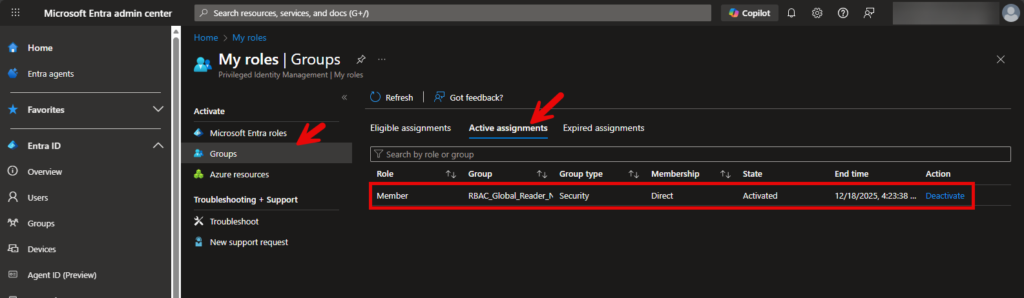
Even though the script monitors activation status in real time, users can always check the current membership status directly in the Entra portal here: Entra ID PIM – Activation Menu
- Navigate to the “Groups” view.
- You can see active, pending, or expired activations.
- This is especially useful for:
- Verifying after a long-duration activation
- Troubleshooting approval workflows
- Cross-checking with audit logs
Known limitations
- The script relies on Microsoft Graph beta endpoints (may change)
- Long-duration activations may need portal verification
- Interactive login is required (no unattended service principal support yet – if ever possible – need verification)
Next steps/roadmap idea’s
- Support multiple groups in one run
- Add deactivation logic
- Package as a PowerShell module
- Make it better and fix the small details/bugs 😉
- …
But we have a start here – it will when time, be developed over time: public/EntraID/PIM/ActivatePIMGroups at main · mindcore-tech/public
Conclusion
Automating PIM group activation removes friction without sacrificing control. With the right permissions, logging, and governance, PowerShell becomes a powerful companion to Entra ID PIM in the portal, especially for group-based access scenarios and “get started fast” with a script to get the job done! 😎
Any feedback on the script and so is welcome, so just let us know.








