
I’ve spent the last few years deploying and reviewing Microsoft Sentinel for teams of all sizes, and the same pattern keeps showing up: great intentions, noisy detections, and rising costs.
This post shares the six practices I lean on to keep Sentinel useful without burning budget by turning on the right connectors, filtering chatty sources, tuning KQL rules to real-world behavior, working with the SOC to cut false positives, and setting retention where it actually makes sense. I’ll also touch on the move to the Defender Security portal and what that means for how you run Sentinel day to day.
DO: Use All Available Free Data Connectors
Microsoft Sentinel provides data connectors with zero ingestion costs. These connectors should be implemented first to provide good baseline security coverage while minimizing expenses.
Free Data Sources
The following data sources have no ingestion charges and should be enabled on all tenants, as it’s a free security benefit for those that use Sentinel:
| Microsoft Sentinel data connector | Free data type |
| Azure Activity | AzureActivity |
| Health monitoring for Microsoft Sentinel | SentinelHealth |
| Microsoft Entra ID Protection | SecurityAlert (IPC) |
| Microsoft 365 | OfficeActivity (SharePoint) |
| OfficeActivity (Exchange) | |
| OfficeActivity (Teams) | |
| Microsoft Defender for Cloud | SecurityAlert (Azure Security Center) |
| Microsoft Defender for IoT | SecurityAlert (Azure Security Center for IoT) |
| Microsoft Defender XDR | SecurityIncident |
| SecurityAlert | |
| Microsoft Defender for Endpoint | SecurityAlert (MDATP) |
| Microsoft Defender for Identity | SecurityAlert (AATP) |
| Microsoft Defender for Cloud Apps | SecurityAlert (MCAS) |
| Microsoft Defender for Office 365 (Preview) | SecurityAlert (OATP) |
This means you can add all of these data connectors and ingest data/alerts into Sentinel and analyze them at no cost. This list essentially covers most of your Azure data and integration into your Defender products. For free, this is quite good and helps give you a good overview of your Microsoft products.
However, and importantly: Sign-in logs require separate licensing.
Additional License Benefits
Microsoft 365 licensing provides additional data grants:
Microsoft 365 E5, A5, F5, and G5 (including Security variants) provide a data grant of up to 5MB per user per day for Microsoft 365 data ingestion. This grant includes:
| Microsoft Sentinel data connector | Included data type |
| Microsoft Entra ID | Sign in Logs |
| Audit Logs | |
| Microsoft Defender for Cloud Apps Guard | shadow IT discovery logs |
The data grant is automatically calculated and applied to billing, covering up to 5MB of data ingestion per licensed user daily. Source.
Additionally, Microsoft Defender for Server P2 licensing provides 500MB per day per server for on-premises Windows security event ingestion.
DON’T: Turn on everything possible, both connectors and data types!
Turn on only the connectors and data types required for detections. High‑volume sources such as network flow logs and Microsoft Entra ID “Non‑interactive sign‑in” events can saturate ingestion without improving coverage. These events are emitted by automatic authentications, for example, when opening a Microsoft portal tab.
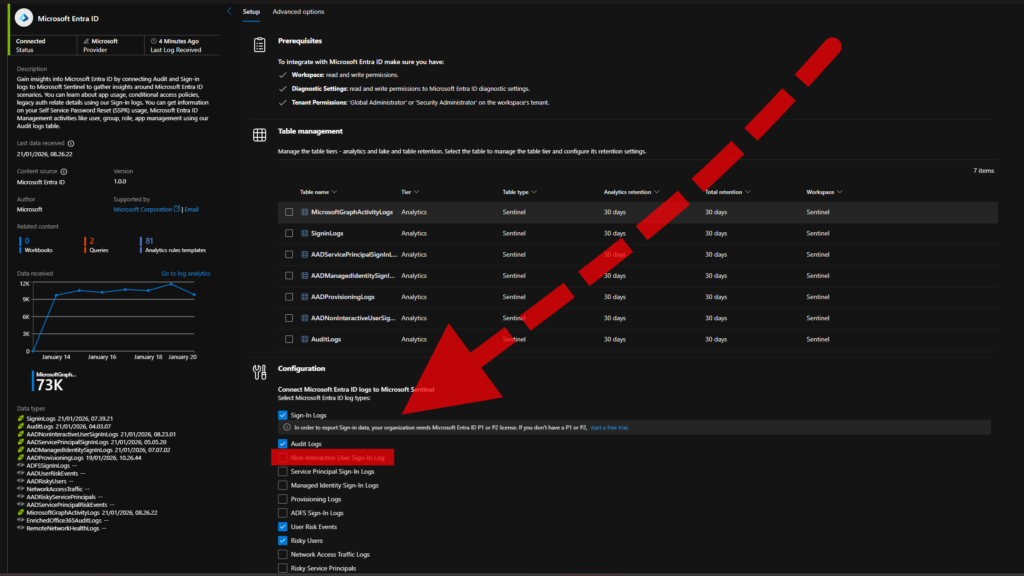
In one deployment, this single log type drove more than 40% of Sentinel ingestion cost across 12 months and produced zero incidents in the same period. In another environment, a single on‑premises server emitting legacy demo errors consumed more data than their entire cloud environment.
Be deliberate with scope and filtering. Limit connector coverage to necessary hosts and services, and filter or exclude non‑actionable event categories at the connector. Monitor per‑table ingestion with a custom workbook or the Workspace Usage report, then iterate on sources and filters until cost aligns with detection value.
DO: Tune your alert thresholds to reduce false positives
In Microsoft Sentinel, analytic rules define detection conditions for events and patterns (e.g., “impossible travel” logins). Rules are implemented in Kusto Query Language (KQL) and are fully customizable.
Rule Templates are a practical baseline when enabling new data connectors. However, their default thresholds are generic and can trigger repeatedly under normal operating conditions. For example, the “Unusual Volume of file deletion by users” template generated multiple incidents per day during a SharePoint migration where large-scale deletions were expected, overwhelming incident bundling and creating alot of noise.
The rule has the following KQL:
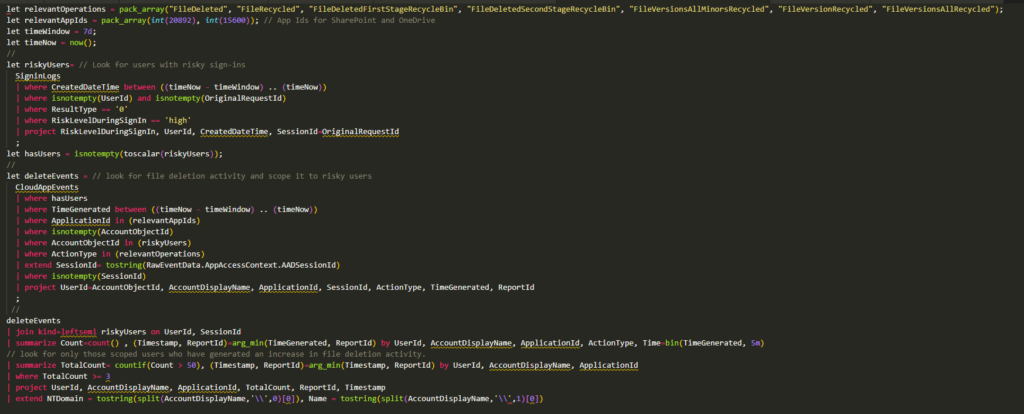
The template’s KQL includes logic like “TotalCount = countif(Count > 50),” which counts how many 5‑minute buckets exceed 50 deletion events per user/app (from a prior summarize). Increasing this threshold (e.g., to 100) reduces false positives by requiring a higher activity level before alerting.
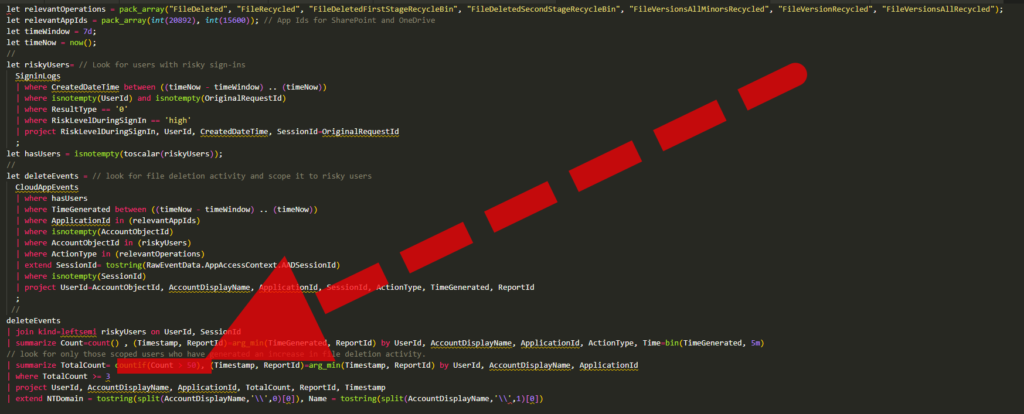
This tuning preserves visibility into genuinely abnormal spikes while avoiding outright disabling or suppressing the rule. Adjust thresholds to match baseline activity and revisit during known high‑volume operations to keep signal-to-noise aligned with your detection goals.
DON’T: Leave alarms blaring until you tune them
Repeated alerts that generate ~20 incidents per day create alert fatigue and will be ignored. Coordinate with the SOC to triage and tune rules often, adjust thresholds, apply bundling and in some cases suppression, and add context-aware exclusions for expected activity.
Establish a monthly review with the SOC to remove false positives and retire low‑signal rules. Do not leave persistent false positives unaddressed, or you will miss true positives due to alert fatigue.
DO: Set your data retention to 90 days ONLY on free tables
For Microsoft Sentinel, configure data retention per table. The Defender portal migration removed the workspace-level toggle; retention now must be set individually, which is significant when you have hundreds of tables from many connectors. Set 90 days only on tables that do not ingest from Microsoft Defender XDR. XDR-backed tables include 30 days as part of the plan; extending them to 90 days adds cost. Reference: https://learn.microsoft.com/en-us/azure/sentinel/manage-data-overview
The Tables view allows sorting by XDR vs non‑XDR, but labeling can be unreliable because many tables blend XDR sources. To verify, open the table details and check for the “This XDR table” indicator; keep those at 30 days. Non‑XDR tables can be set to 90 days to optimize cost without losing necessary history.
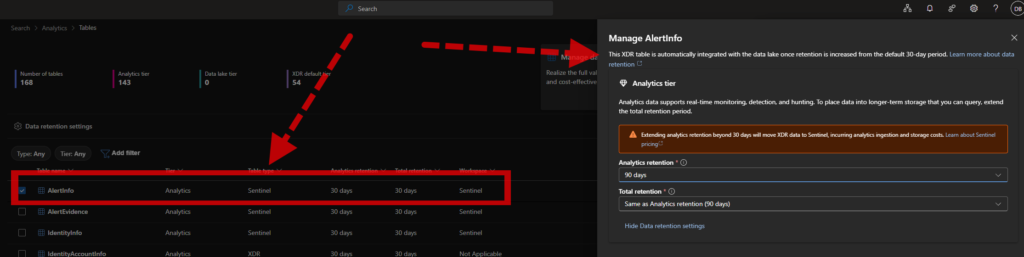
Microsoft provides a PowerShell automation, but it does not differentiate between XDR and non‑XDR tables. Apply changes in small batches, verify the impact, and monitor costs before broad rollout to avoid unintended retention charges.
DON’T: Stay on the Azure portal
Microsoft Sentinel will be fully migrated to the Microsoft Defender security portal by July 2026. New features are already shipping in the security portal, so begin operating and configuring Sentinel there and plan your transition accordingly.
This migration reflects an architectural shift: Sentinel is no longer the single endpoint for all logs and incidents. It serves as the SIEM layer focused on multicloud and third‑party integrations, working alongside Defender products that aggregate and manage signals across Microsoft ecosystems. See the difference on the following link.
Conclusion
I hope these tips help you reduce noise, improve detections, and keep Sentinel costs predictable. If you want help with rule tuning, DCR/KQL filtering, workbook usage analysis, retention configuration, or planning your Defender portal migration, feel free to reach out.








