
Many customers using Microsoft Teams request teams restricted to internal members, without guest account access.
Teams’ behavior is very often controlled by SharePoint or Microsoft 365 Group settings and a typical team user may not know anything about these settings. We recommend building your own app or automation to ensure SharePoint and Microsoft 365 Group settings meet requirements, such as Naming standards, download control, guest access, sharing options, folder structures and much more. We’ve successfully assisted many customers in implementing this approach for better teams’ management.
In Part one Teams and external members Pt. 1 we investigated how we could prevent external sharing with guests on a Microsoft Team site.
But even though we already did that any user can still share files from our Internal team directly from SharePoint, let’s try it.
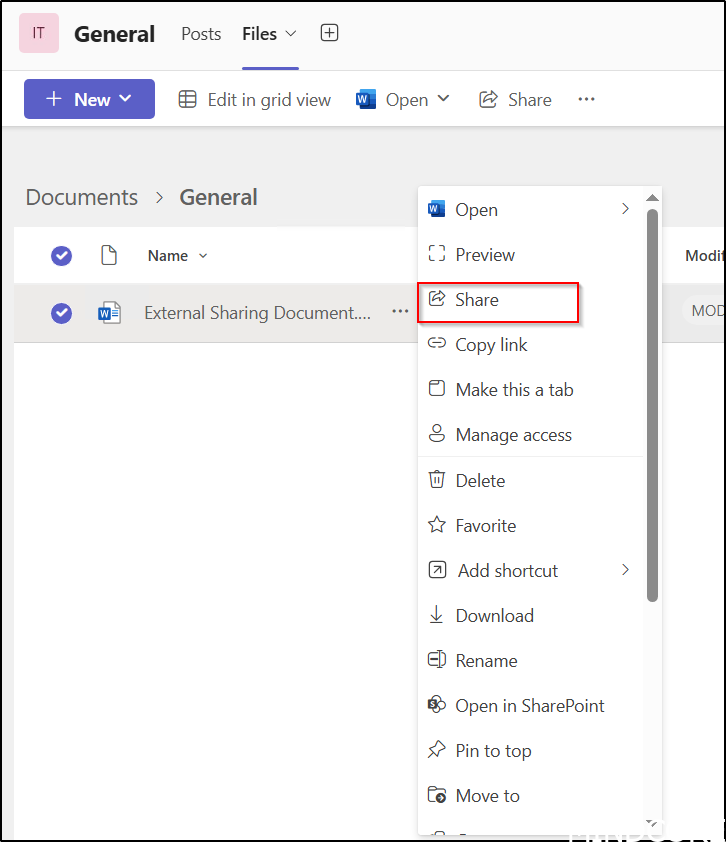
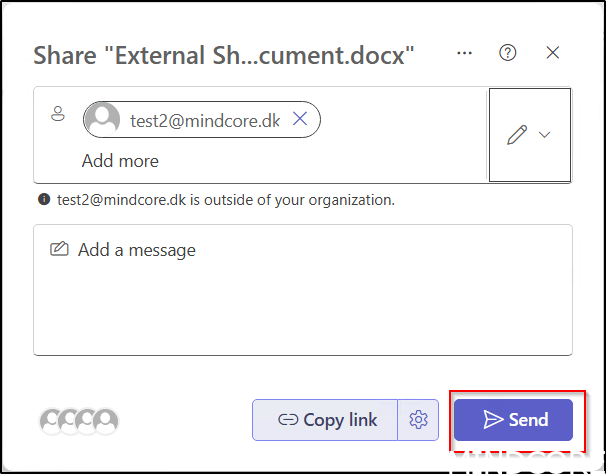
In Teams, choose Share on a file.
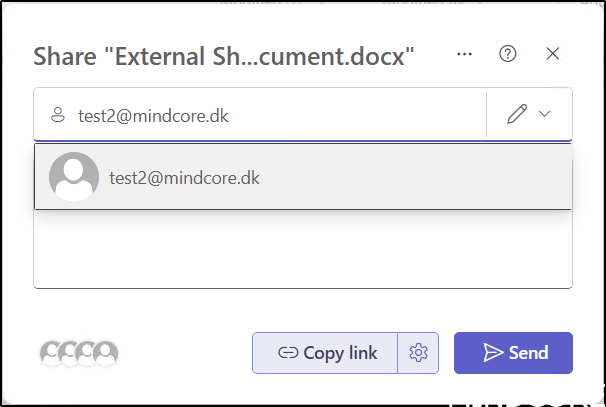
Enter an external user.
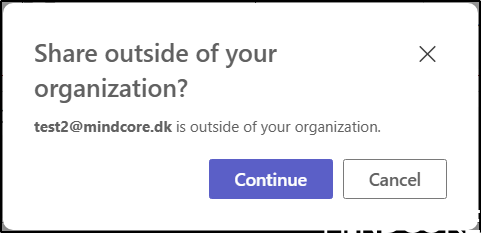
We will get a warning about sharing outside our own organization.
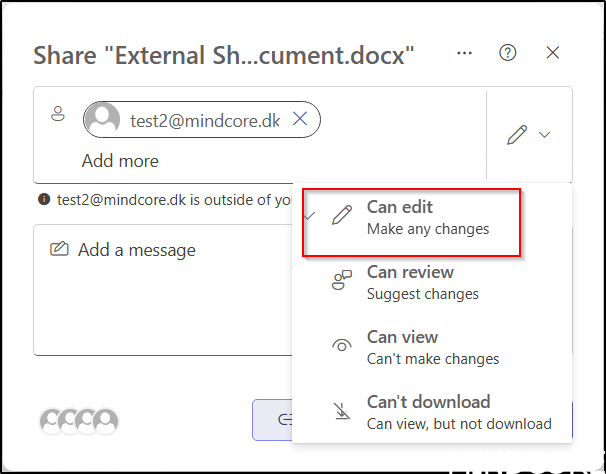
We will in this example allow editing.
And filaly we will send the invitation to the file.
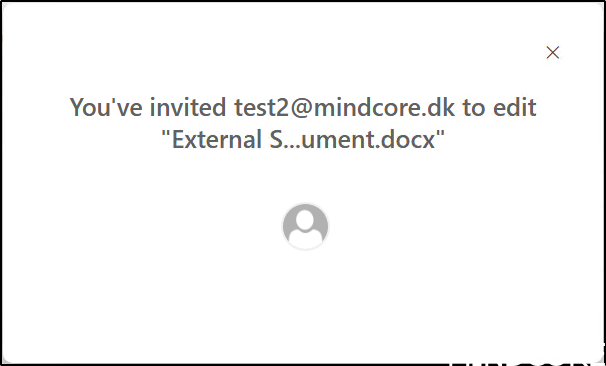
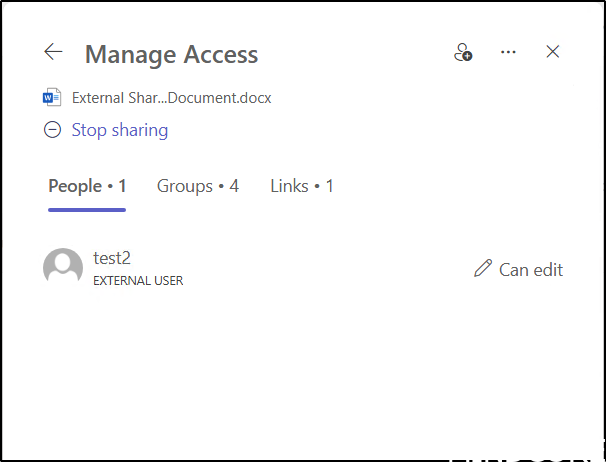
After the invite was send we can verify access to the external user on the file, and it works as we expected.
Reusing part of the Powershell code from part one, we can change SharingCapability on the SharePoint site using the SharePoint Online Management Shell.
Connect-MgGraph -NoWelcome
Connect-SPOService -url https://m365x98530817-admin.sharepoint.com
$TeamsGroups = Get-MgbetaGroup -ConsistencyLevel eventual -Search '"DisplayName:internal"' -filter "ResourceProvisioningOptions/any(p:p eq 'team')"

Foreach ($Team in $TeamsGroups) {
    $Uri = ("https://graph.microsoft.com/v1.0/groups/{0}/sites/root" -f $team.id)
    $SPOData = Invoke-MgGraphRequest -URI $Uri -Method Get

    Set-SPOSite $SPOSiteURL -SharingCapability "Disabled"
}
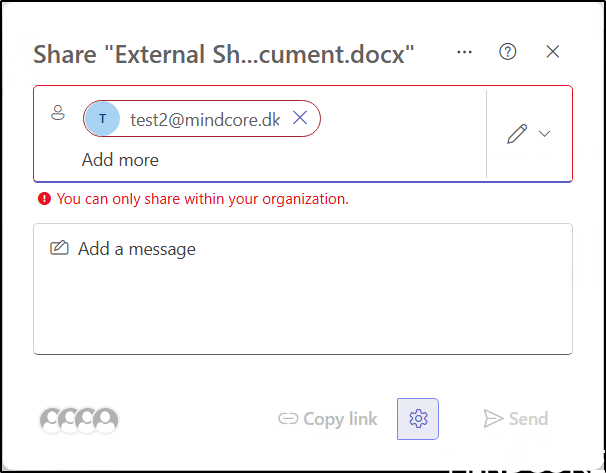
Following this change, adding external users is disabled, displaying the message: “You can only share within your organization.”
SharePoint, the Microsoft 365 admin portal, and Entra ID all significantly impact on how users experience Microsoft 365 and Teams. In our Governance workshops, we always begin with our governance data collector that gathers details about the current Microsoft 365 configuration and identifies areas where we suggest alternative approaches, the guest sharing options are a good example of data we collect for teams.
And now a short message in Danish 🙂
Hos Mindcore elsker vi at dele viden, men det er vores Danske kunder der rent faktisk gør dette arbejde muligt. Hvis du er interesseret i hvad vi kan tilbyde i forhold til Microsoft 365 Governance og sikkerhed, Azure ARC, Intune eller nogen af de andre områder vi har skrevet om her på bloggen, så kontakt os på info@mindcore.dk eller telefon 51 91 44 10.








