
Combine the power of Entra ID Conditional Access and Defender for Cloud Apps Conditional Access policies to gain even more control over how apps in your tenant can be accessed.
A common scenario would be to block access from Tor/Botnet/Anonymous Proxy networks as there’s really no use-cases for end-users to be using those unless it’s for nefarious reasons.
Entra ID Conditional Access Policy
To begin, we need to create a new Conditional Access Policy in Entra ID that will ‘passthrough’ all traffic to Defender for Cloud Apps. This can be done as follows:
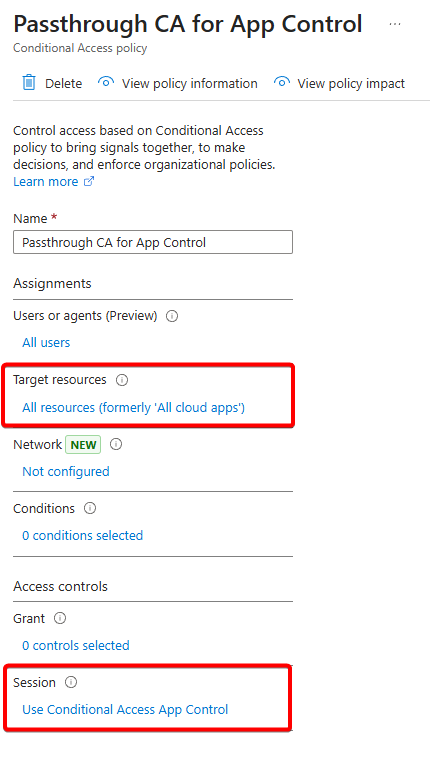
The magic here is the session control ‘Use Conditional Access App Control’. Target this policy far and wide (all users/resources) to ensure this provides complete coverage. Naturally you’ll want to initially scope this small and gradually include more users/apps since not everything will appreciate the App Control. More on that in a moment.
Now is a good time to get a dedicated exclusion group ready and it may be useful to utilize Dynamic Conditional Access policies by targeting apps only tagged with specific Custom Security Attributes but that’s a whole blogpost by itself.
With a Conditional Access Policy deployed it is time to configure the next policy within the Defender for Cloud Apps portal.
App Control Policy
In the Security portal, head to Cloud Apps > Policy Management > Conditional Access:
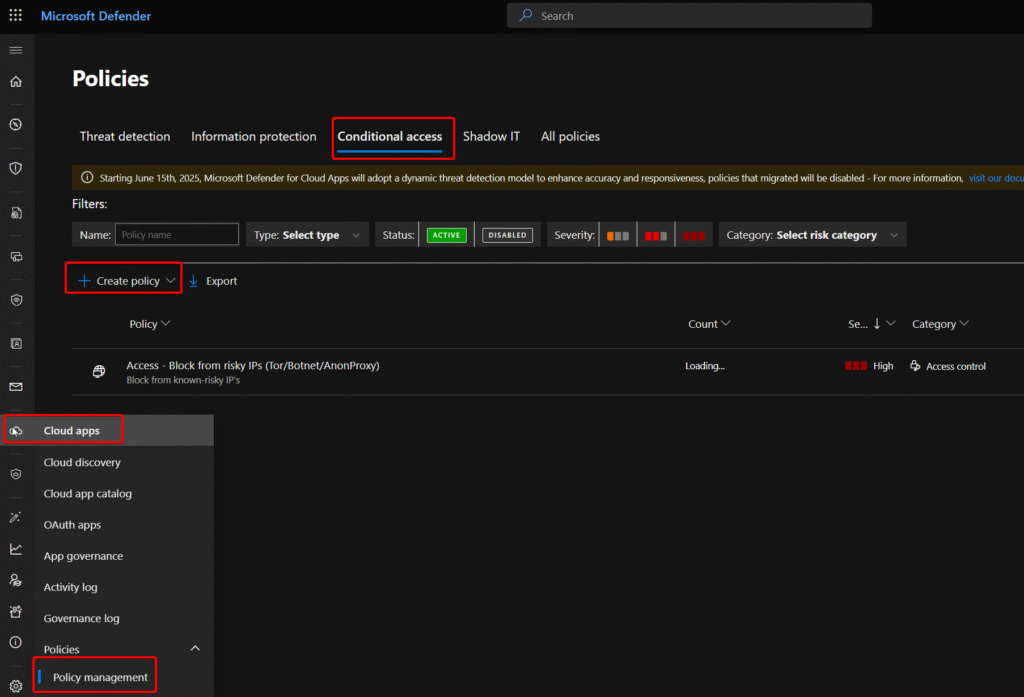
Create a new ‘Access Policy’ and give it an appropriate name/description. Configure the Activity matches to the following:
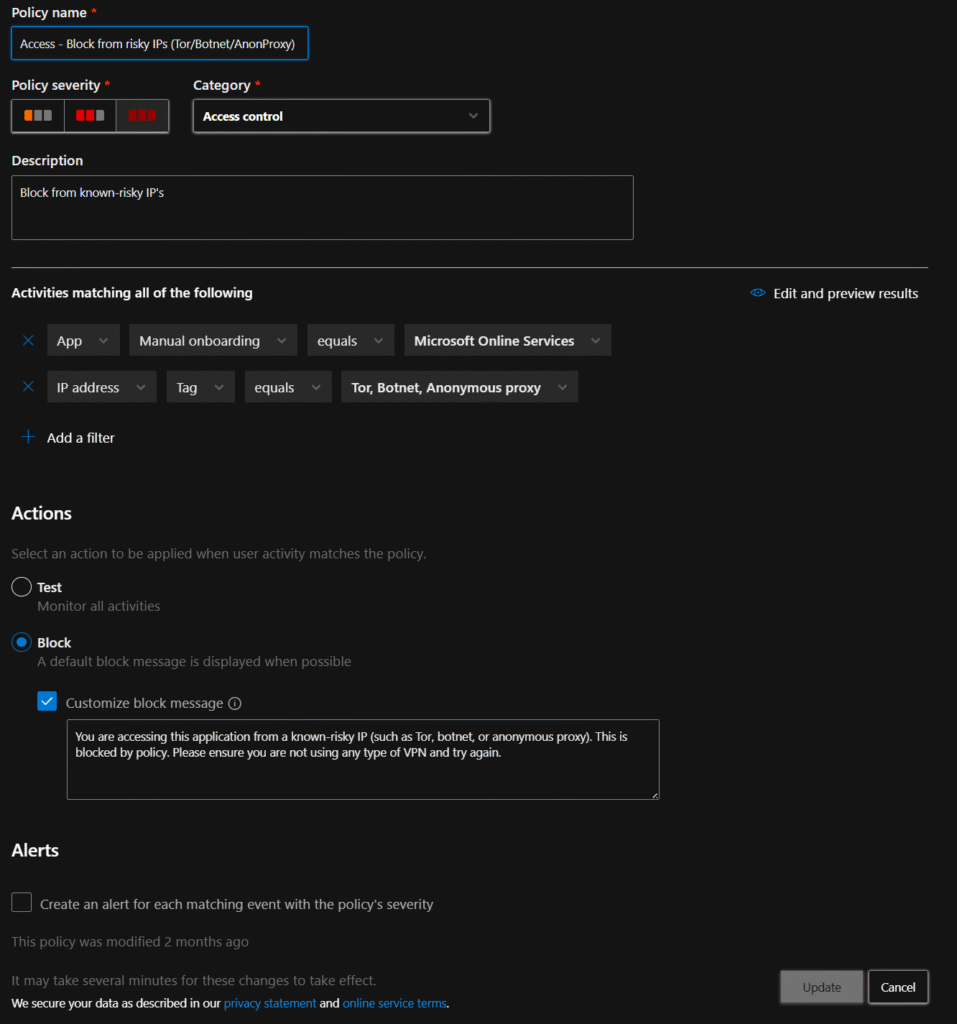
Put the action to Test mode first or set it to Block mode to actually enforce it.
A note on Conditional Access App Control Apps:
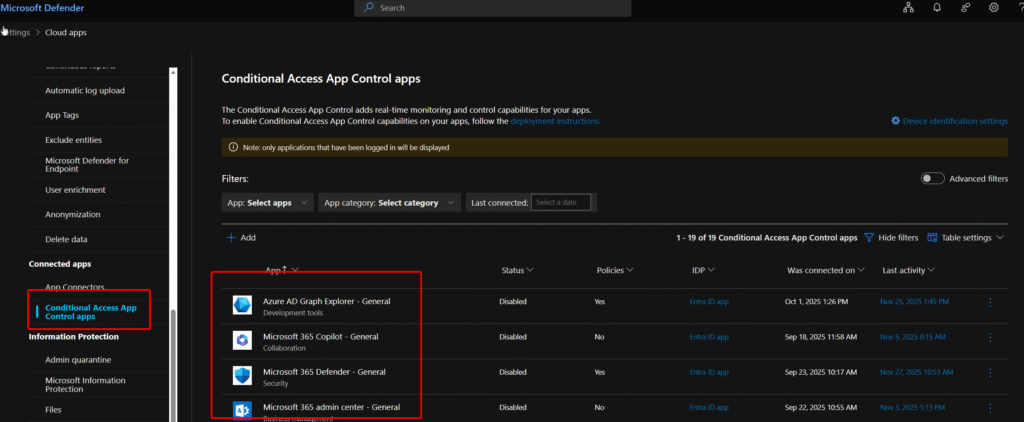
These get populated as users affected by the
End user experience
Onwards to testing! In a new browser session, when a user logs in, they’ll briefly see a redirection to an *mcas.ms/ URL:
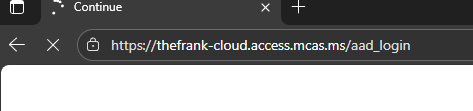
This is a reverse proxy connection that will be initiated by all apps that fall under the Conditional Access policy defined in Entra ID. This allows Defender for Cloud Apps to take actions on the connection and session within it such as blocking a user from downloading files from SharePoint if they’re on an unmanaged device because it is made aware of what’s happening within the session. Essentially, it is a managed man-in-the-middle, but for good purposes!
Note: if you are filtering on URL’s in firewall configurations and/or performing TLS inspection, this URL needs to be allowlisted.
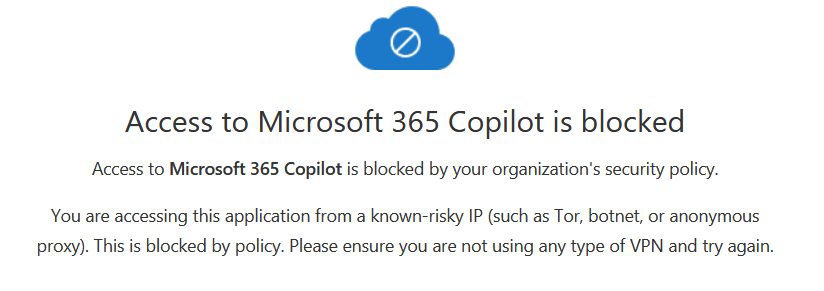
If the user is using the Tor network, they’ll be blocked by the policy and shown the custom message like so:
Sources:
Create session policies – Microsoft Defender for Cloud Apps | Microsoft Learn
Conditional Access app control – Microsoft Defender for Cloud Apps | Microsoft Learn








