
We recommend assigning at least two owners to every Microsoft Teams site. This prevents the team from becoming “ownerless” if one owner leaves, ensuring settings and permissions can still be managed. Multiple owners share responsibilities and help maintain continuity, especially in larger teams, but having too many can create confusion.
Owners should actively participate in the team, understand its purpose, and be familiar with Teams features and security practices—particularly regarding guest access and sensitive data.
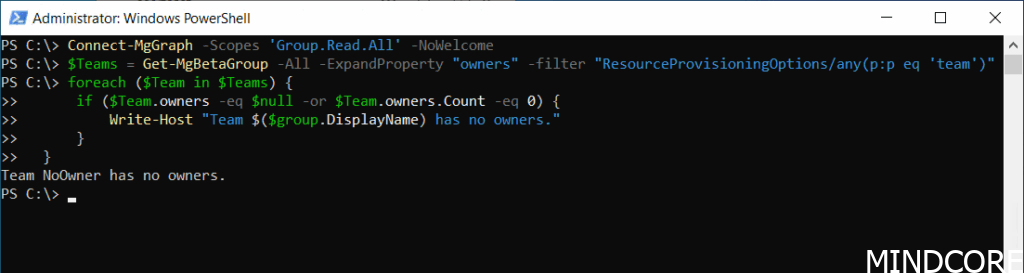
The following example demonstrates how to utilize PowerShell to identify Team sites that do not have an assigned owner.
Connect-MgGraph -Scopes 'Group.Read.All' -NoWelcome

$Teams = Get-MgBetaGroup -All -ExpandProperty "owners" -filter "ResourceProvisioningOptions/any(p:p eq 'team')"

foreach ($Team in $Teams) {
      if ($Team.owners -eq $null -or $Team.owners.Count -eq 0) {
          Write-Host "Team $($group.DisplayName) has no owners."
      }
}
Now that we have a team without an owner, what are our options?
Microsoft has a feature called Ownerless Group Policy where we can set up a policy that automatically invites the most active group members to accept ownership when a group is ownerless. If a member agrees to take on ownership When no group activity is detected, the policy selects random members to invite as potential owners.
To configure and manage the Microsoft 365 ownerless group policy, Microsoft require an eligible Microsoft 365 subscription or an Azure P1 or P2 premium plan (Manage ownerless Microsoft 365 groups and teams)
This policy will work for all Microsoft 365 groups and not just Teams.
Let’s try to set up the ownerless group policy.
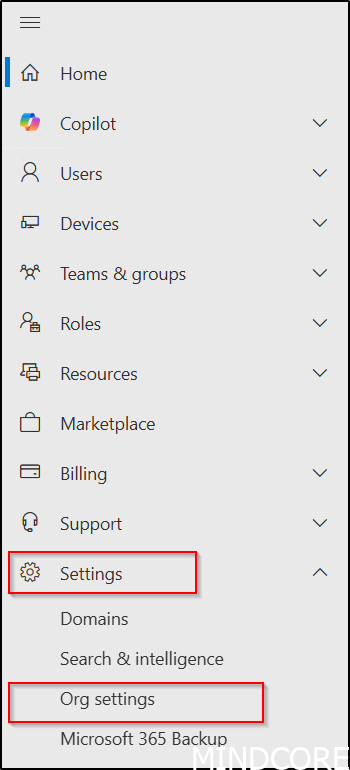
In the Microsoft 365 admin center, go to Settings and choose Org settings.
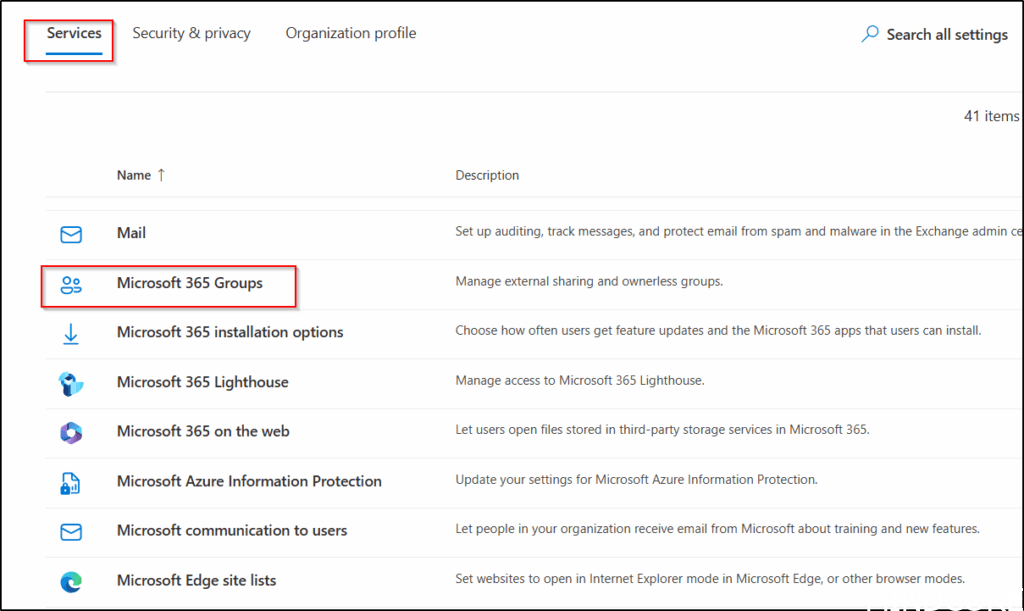
On the Services tab, select Microsoft 365 Groups.
Turn on When there’s no owner, email and ask active group members to become an owner.
If you’re keeping the default settings, just click Save.
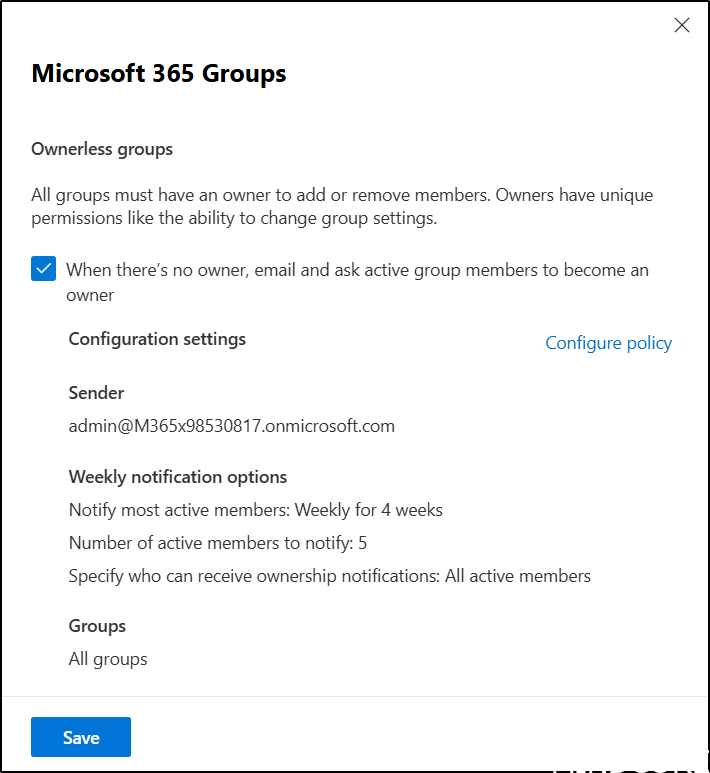
We can also customize the ownerless group policy, if needed, as shown here.
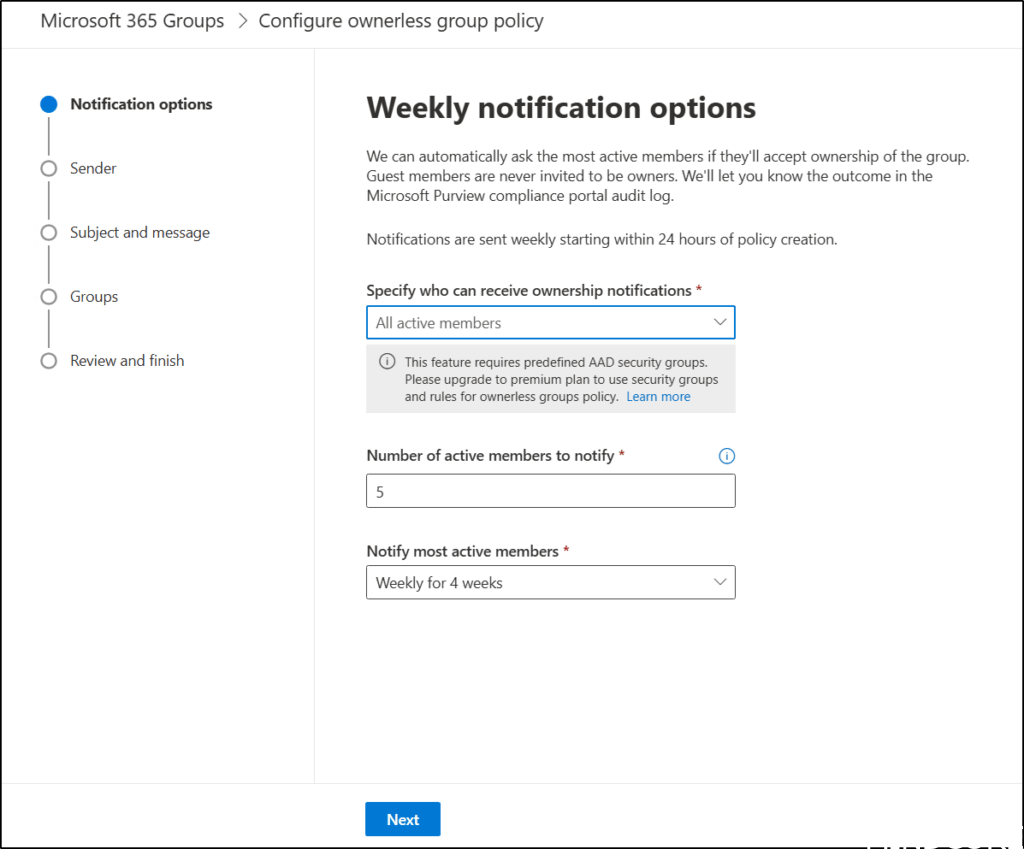
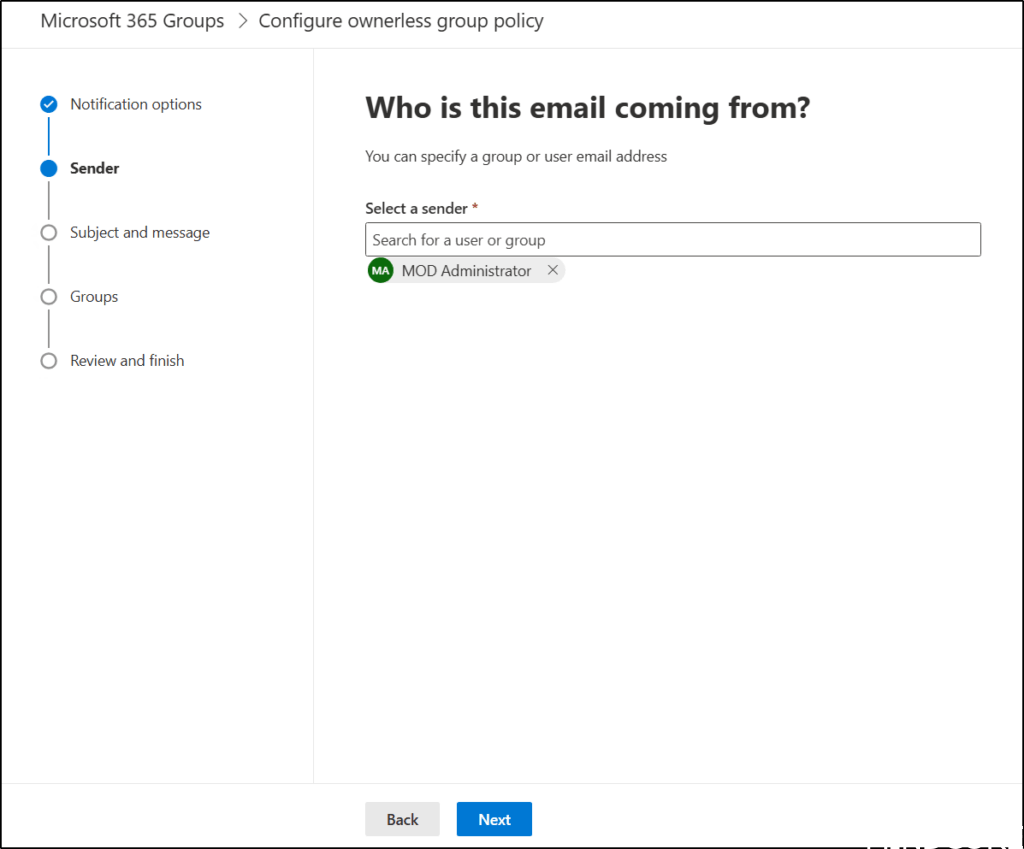
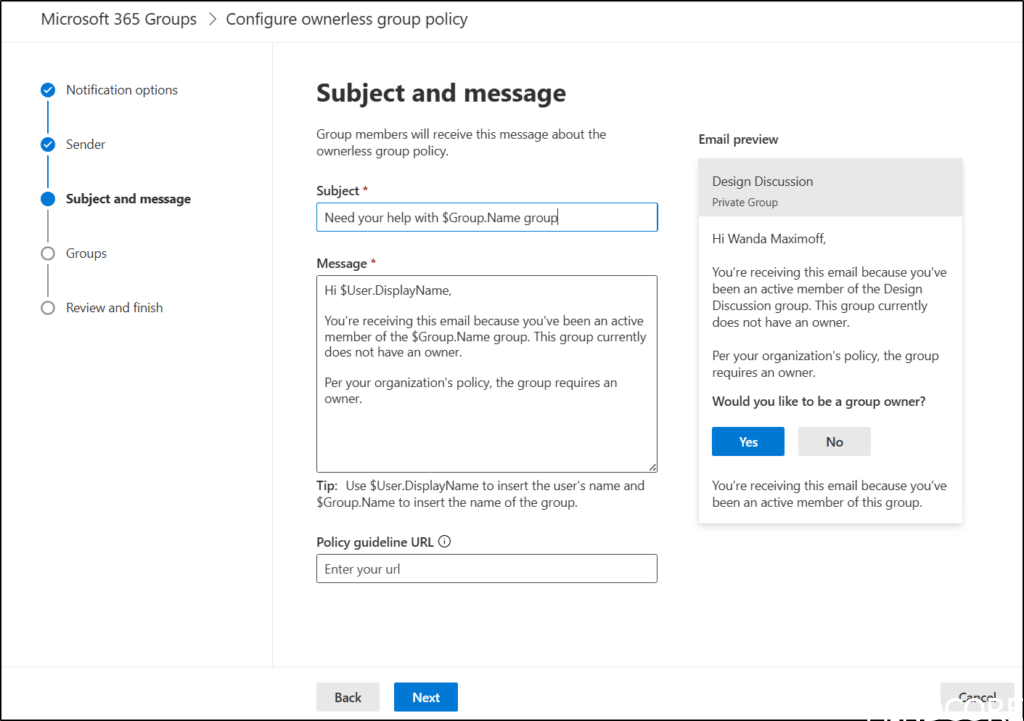
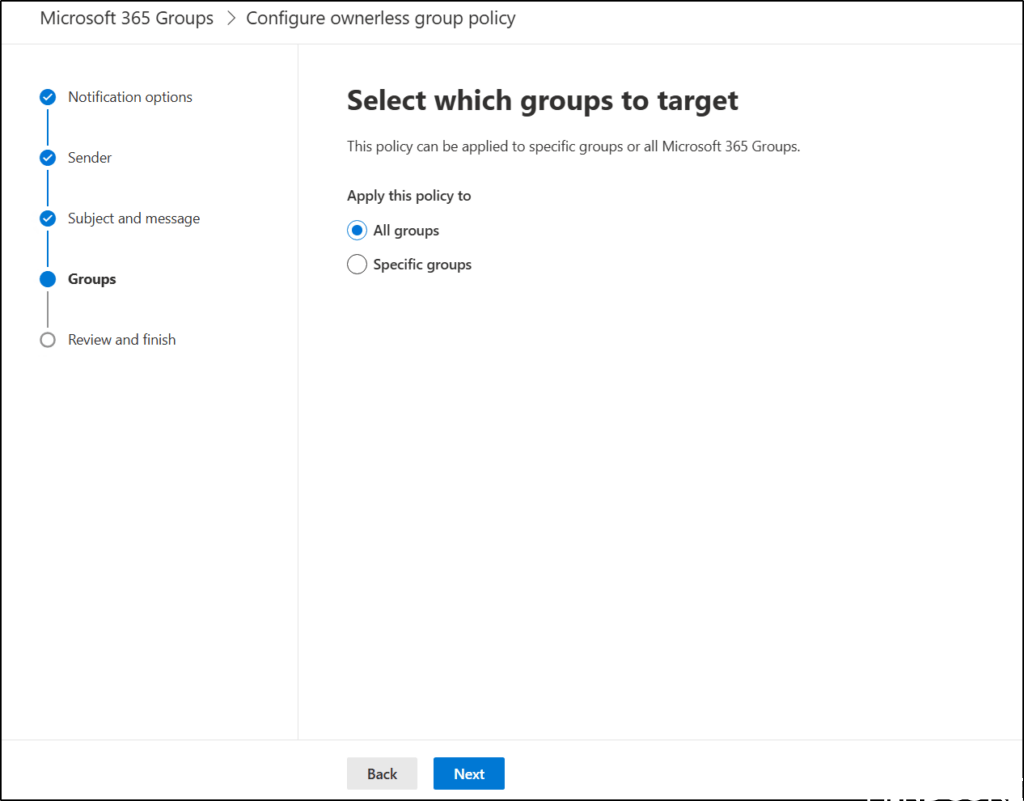
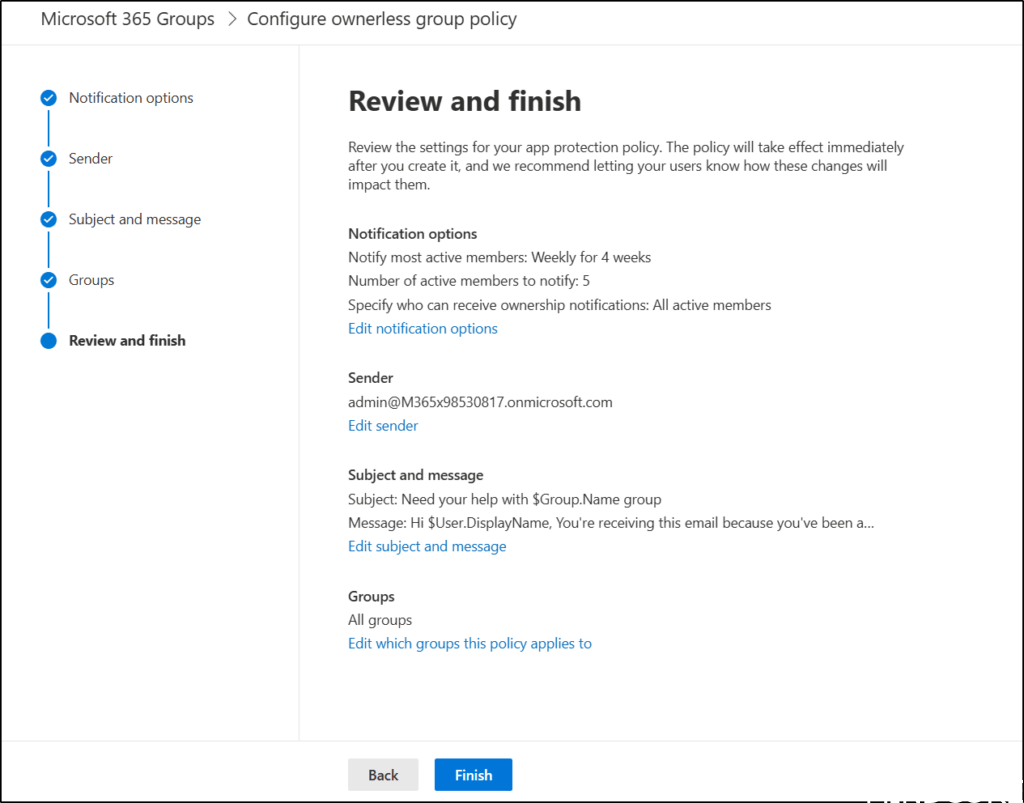
After we configured the ownerless group policy notifications are sent on a weekly basis, beginning within 24 hours after the policy is created.
When a user responds to a group ownership invitation, no more than two members per group may accept ownership. Upon acceptance of ownership, notifications to all group members will cease.
Members who decline ownership stop getting weekly notifications. Those who don’t respond keep receiving them for the policy’s specified period.
If group ownership is not accepted by the end of the notification period, notifications cease. The ownerless groups policy then takes no further action, leaving tenant administrators to assign an owner.
This is an example of a mail from the Ownerless Group Policy feature.
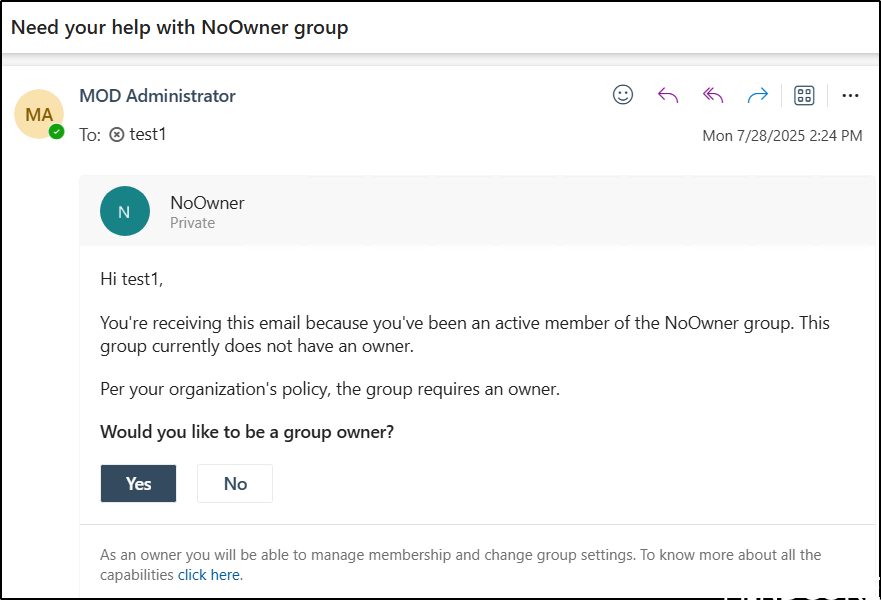
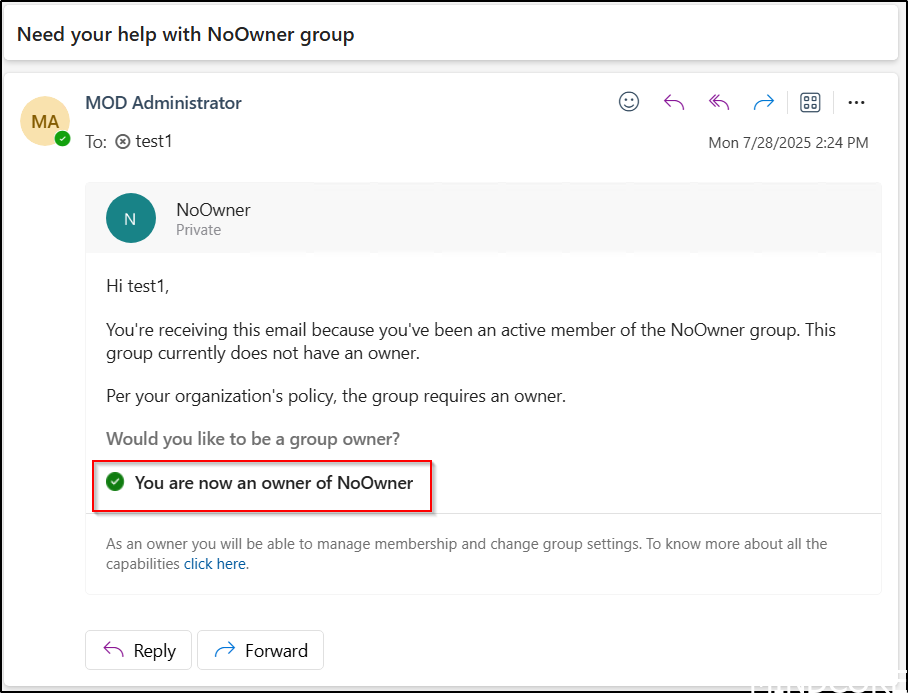
If “Yes” is selected, the user will automatically be assigned ownership of the group.
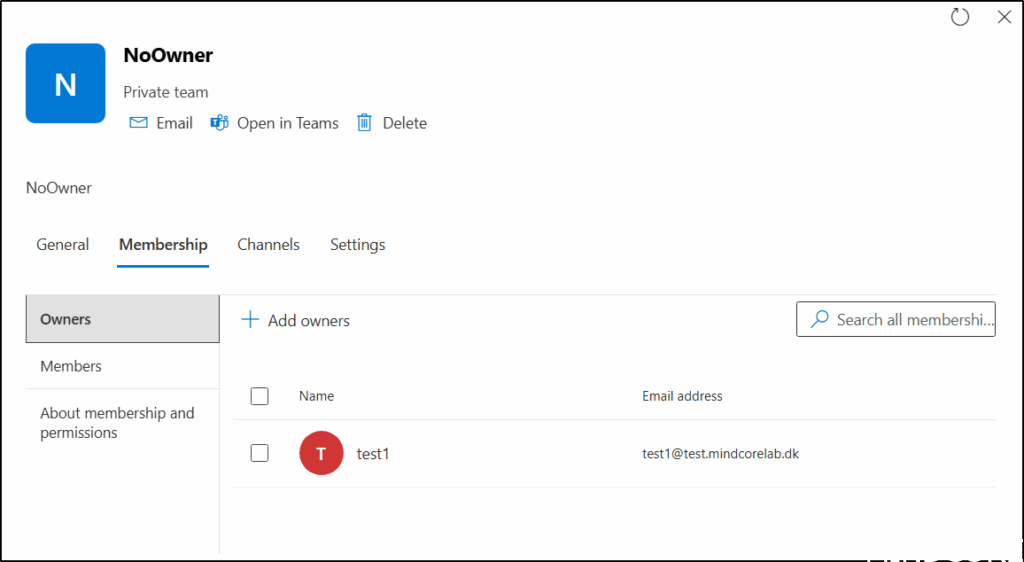
Let us confirm if that is also the case, and as demonstrated, it is.
Instead of using the built-in solution, you can use automation and create custom rules. For example have we implemented the following for various clients
- If someone leaves the organization and owns a Team, we notify the remaining owner to assign a replacement.
- If a team loses its last owner, we alert members, using teams chat, that the team will become read-only in 14 days unless a new owner is appointed.
These examples focus only on monitoring Teams groups, unlike the default policy, which covers all Microsoft 365 groups. When chat is used, users do not need to have a user mailbox set up in Exchange Online.
You can properly find many better ways to handle ownerless Groups/Teams.
Teams’ behavior is very often controlled by SharePoint or Microsoft 365 Group settings, as shown in this post. We recommend building your own app or automation to ensure SharePoint and Microsoft 365 Group settings meet requirements, such as Naming standards, download control, guest access, sharing options, folder structures, owners and much more, when users create Team sites. We’ve successfully assisted many customers in implementing this approach for better teams’ management.
During our Governance workshops, we initiate the process with a governance data collector that compiles comprehensive information regarding the current Microsoft 365 configuration and highlights areas for potential improvement. For example, we record instances of Teams lacking owners or managed by a single owner, as well as review the status of the Ownerless Group Policy.
And now a short message in Danish.
Hos Mindcore elsker vi at dele viden, men det er vores Danske kunder der rent faktisk gør dette arbejde muligt. Hvis du er interesseret i hvad vi kan tilbyde i forhold til Microsoft 365 Governance og sikkerhed, Azure ARC, Intune eller nogen af de andre områder vi har skrevet om her på bloggen, så kontakt os på info@mindcore.dk eller telefon 51 91 44 10.








