
Introduction
Microsoft has quietly rolled out a feature that in Entra ID, many administrators have been waiting for: the ability to disable Enterprise Applications directly through Microsoft Graph API (hope to see an UI also at some day)!
While this might sound like a small update, it’s a game-changer for organizations managing application access and security (also multitenant apps, as disable sign-in is not the same).
This also gives an option to ensure that you not need to re-create a hole setup/integration again if you feel that the Enterprise Application is not used (etc. ref. last sign-in logs) but still unsure – and want to keep the setup, secret setup (if so) and SSO setup.
Deactivating an Enterprise Application provides a reversible way to prevent the application from accessing protected resources without permanently removing it from your tenant. When you deactivate an application, it immediately stops receiving new access tokens, but existing tokens remain valid until they expire.
This means disabling an application does not immediately terminate active sessions.
Unlike permanently deleting an application, deactivation preserves all application metadata, permissions, and configuration settings, making it easy to reactivate the application if needed. The application remains visible in your tenant’s enterprise applications list, but users can’t sign in and no new tokens are issued.
The challenge we’ve all faced (I think so!)
If you’ve worked with Entra ID Enterprise Applications, you’ve likely encountered this frustrating scenario: An application needs to be temporarily disabled – perhaps due to a security concern, during an incident response, or while troubleshooting integration issues or just in general: cleanup.
Until now, your options were limited and often involved “workarounds” like deleting the application entirely (losing all configurations), or revoking permissions (which could be tedious to restore), removing the original assigned users or groups – but what was originally assigned before if you need to restore access? 🤔
Microsoft has finally added a native toggle to disable Enterprise Applications without removing them. This means you can:
- Instantly block user access to an application while preserving all configurations, permissions, and assignments
- Automate security responses using Microsoft Graph API to programmatically disable applications based on alerts or compliance rules
- Simplify lifecycle management during offboarding, maintenance windows, or testing phases
This feature brings Enterprise Applications in line with how we manage other resources in Entra ID, making administration more intuitive and secure.
Prerequisites
Before you can deactivate an application, you need to ensure you meet the following requirements and roles:
- One of the following Microsoft Entra roles:
- The following API permissions if using Microsoft Graph:
Application.ReadWrite.All(delegated or application)Application.ReadWrite.OwnedBy(application, for owned apps only)
You are able to deactivate/re-activate Entra ID applications using Graph API (either with PowerShell and Microsoft Graph (PowerShell Gallery | Microsoft.Graph) or Graph Explorer (Graph Explorer | Try Microsoft Graph APIs – Microsoft Graph))
Understand application deactivation
When an application is deactivated, the following behavior occurs:
- Immediate effects:
- New access token requests are denied
- Users can’t sign in to the application
- Application can’t access protected resources with new tokens
- Preserved elements:
- Existing access tokens remain valid until their configured lifetime expires
- Application configuration, permissions, and metadata are preserved
- Application remains visible in Enterprise applications list
- Service principal object is maintained in the tenant
The isDisabled property is currently only visible via Microsoft Graph and the Activation State column in the Enterprise Applications list. It is not yet exposed as a toggle in the Entra ID portal.
When users attempt to sign in to a deactivated application, they receive an error message indicating the application has been disabled by its owner. This is different from other error messages like invalid credentials or access denied.
Comparison with other options
Microsoft Entra apps and service principals can be prevented from usage in four ways:
- isDisabled (deactivate) property is set on apps that have been disabled globally by the app owner or administrator – now a way you can control it yourself!
- disabledByMicrosoftStatus (disabled by Microsoft) property is set on apps that have been disabled globally by Microsoft.
- accountEnabled (disable sign-in) property is set on service principals disabled in the tenant by the app owner or administrator.
- DELETE (delete) operation is completed as an operation on apps or service principals by the app owner or administrator.
The following table outlines the different approaches in more detail:
| Action | Token issuance | Configuration preserved | Reversible | Scope |
|---|---|---|---|---|
| Deactivate | Blocked | Yes | Yes | Global (all tenants) |
| Disabled by Microsoft | Blocked | Yes | Yes | Global (all tenants) |
| Disable sign-in | Blocked in tenant | Yes | Yes | Single tenant only |
| Delete | Blocked | No (30-day recycle bin) | Yes (30 days) | Global |
Here you can see there is some small differences depending on what you do –
How does it looks like
Entra ID Portal
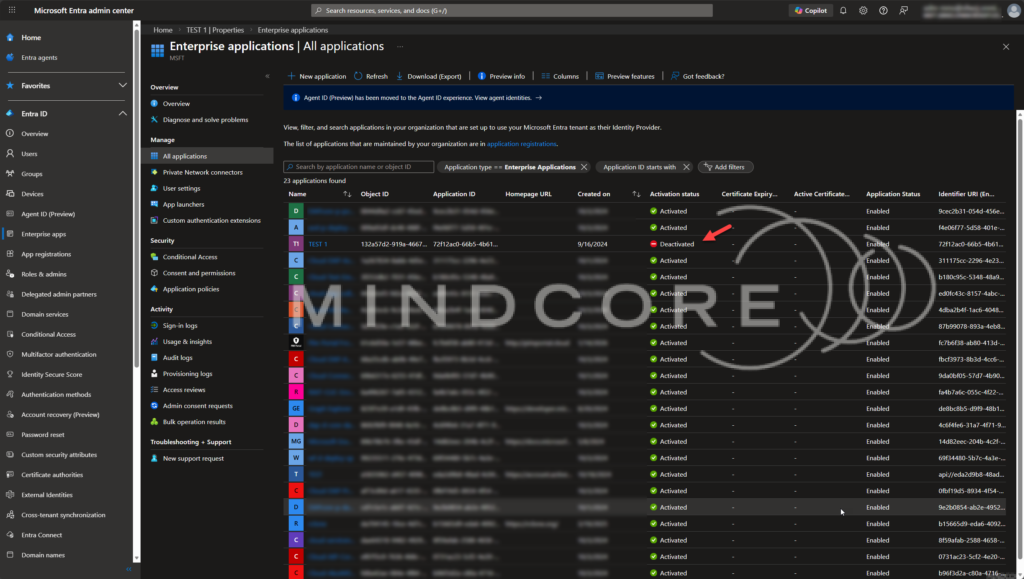
In the Entra ID Portal, it´s easy to see – let´s check. Go to https://entra.microsoft.com > Enterprise Applications (direct link) – here we can see the state of an Enterprise Application in Entra ID.
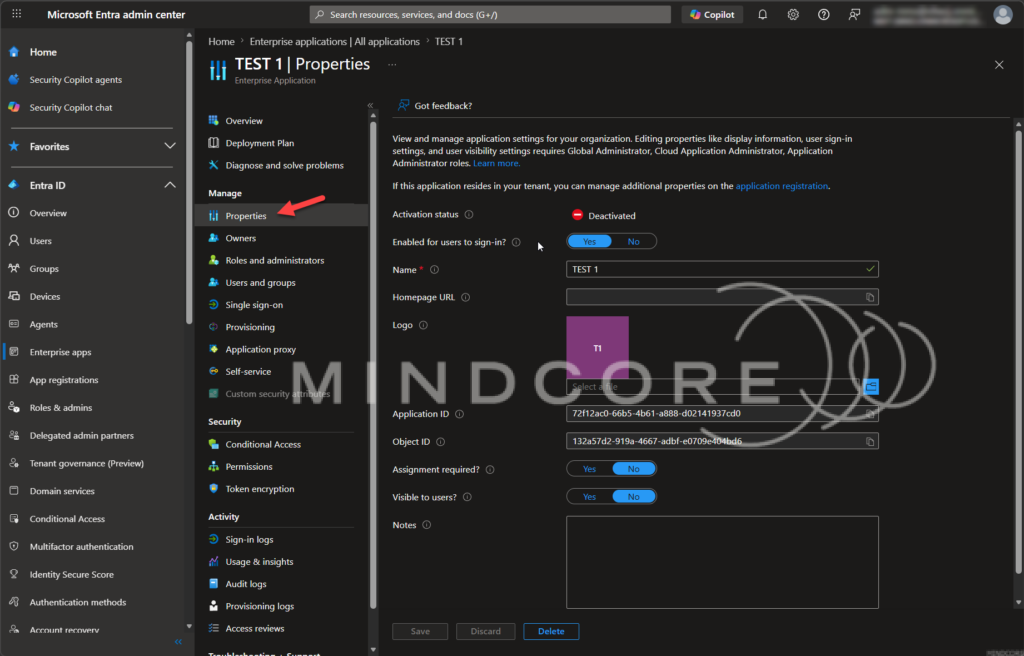
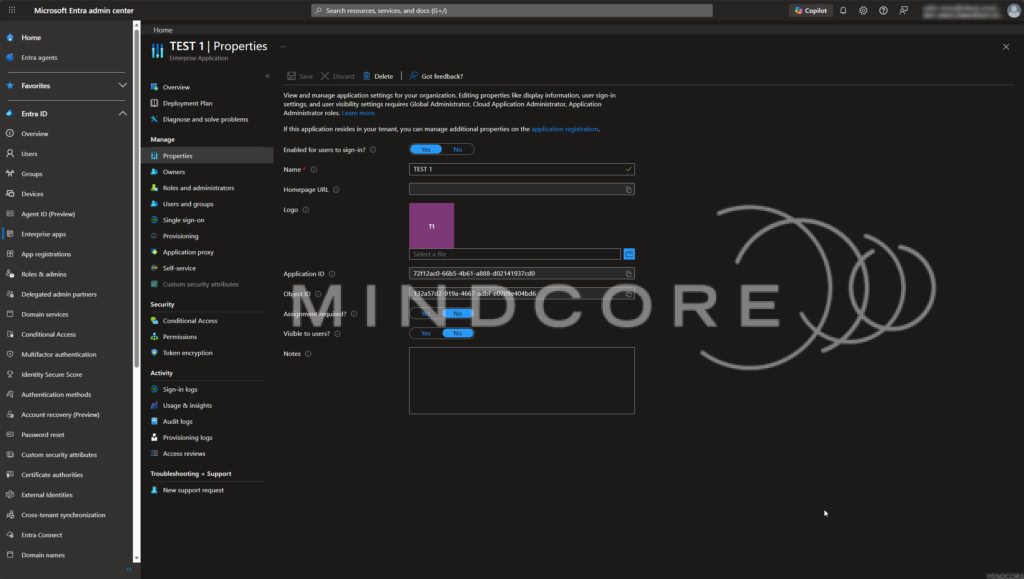
Remember: You can´t change the state in the Entra ID Portal – a missing part if I should say it. There is no differences in the properties to see on the portal – all seems normal, and you can see the toggles for “Enabled for users to sign-in?” and so it´s still possible to manage and change.
Microsoft Graph
Let´s start with a small check – here we can see the default state of an Enterprise Application in Entra ID via the UI tool Microsoft Graph Explorer via http://aka.ms/ge.
Here we can get the data from this: https://graph.microsoft.com/beta/applications/{applicationObjectId}/

If you need to get a full overview of your states, you can run this command in Graph Explorer: https://graph.microsoft.com/beta/applications?$filter=isDisabled eq true

Change state of an Enterprise Application
To change the state of an Application, we need to do the change via Graph – as there (for now at least) is no option to mange this change in the UI.
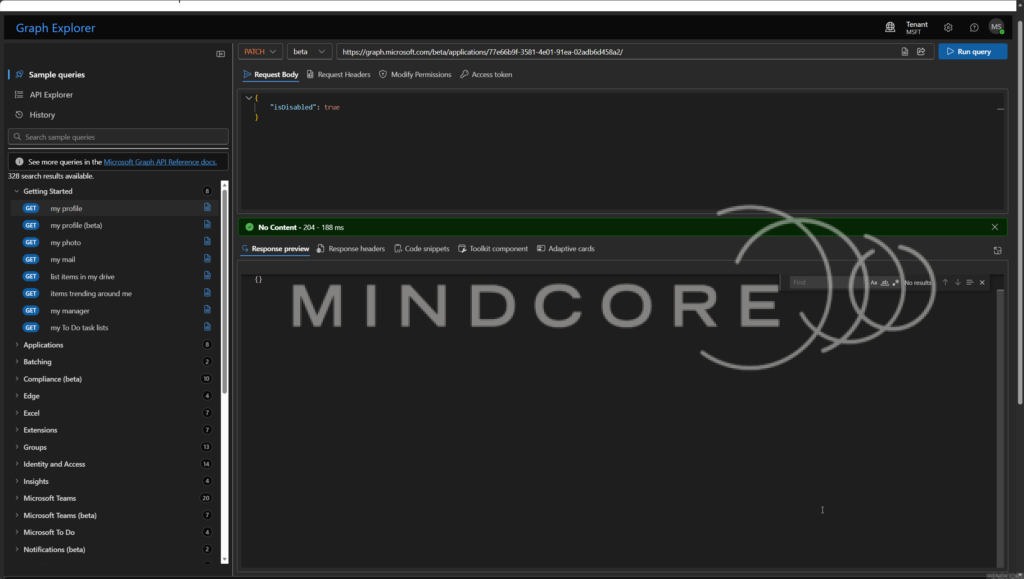
PATCH https://graph.microsoft.com/beta/applications/{applicationObjectId}
Content-Type: application/json

{
  "isDisabled": true
}
Re-enable the application:
PATCH https://graph.microsoft.com/beta/applications/{applicationObjectId}
Content-Type: application/json

{
  "isDisabled": false
}
This makes the post immediately usable for admins testing in Graph Explorer.
Many Entra admins work with Graph PowerShell, and it´s possible here too if you need it:
Disable:
Update-MgBetaApplication -ApplicationId <applicationObjectId> -IsDisabled $trueRe-enable:
Update-MgBetaApplication -ApplicationId <applicationObjectId> -IsDisabled $false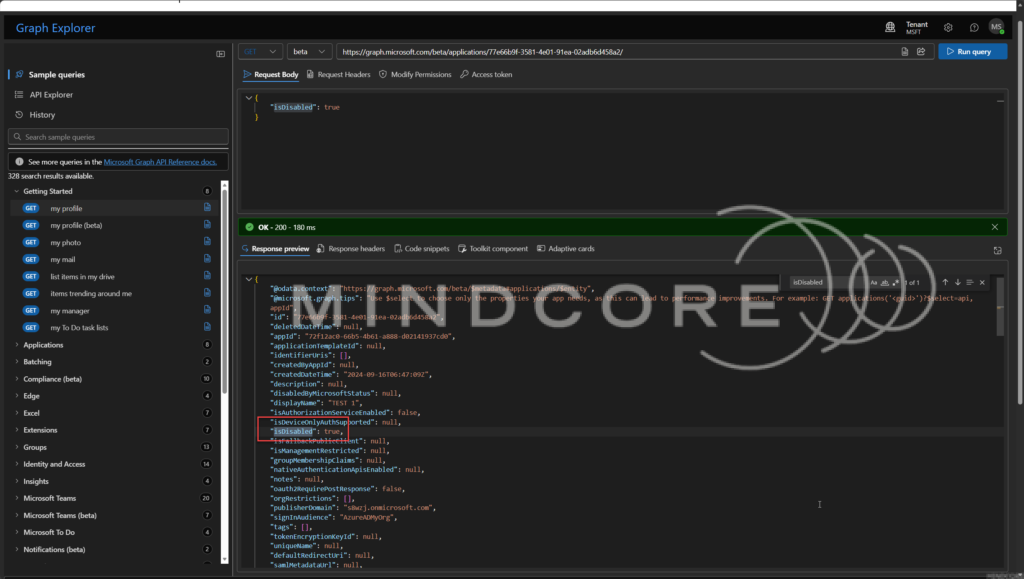
But the funny thing is – or missing part – is you can´t see it in the Entra ID Portal as of now – there is no differences in the properties to see on the portal – all seems normal, and you can see the toggles for “Enabled for users to sign-in?” and so it´s still possible to manage and change.
The only place you can see this when you try to login to a Enterprise Application or in the overall list of all Enterprise Applications (you need to add the Colum “Activation State”)… then you will get this:
This can be better, but we have a starting point.
Conclusion
The introduction of the new isDisabled property for applications in Entra ID through Microsoft Graph might seem like a small technical update, but in practice it fills a long-standing gap in application lifecycle management.
For many administrators, temporarily disabling an Enterprise Application has traditionally required workarounds such as removing assignments, revoking permissions, or deleting the application entirely. Each of those approaches introduced unnecessary complexity and risk, especially when configurations, secrets, and SSO settings had to be recreated later.
With this new capability, administrators can now quickly and reversibly deactivate an application and not need to “cleanup”, and still keeping all configuration and metadata intact. This makes it significantly easier to:
- Etc. pause application access during incident response or security investigations
- Temporarily disable integrations during maintenance or when troubleshooting
- Perform application lifecycle cleanup without losing configurations and assignments
- Build automated governance and security workflows using Microsoft Graph
Although the visibility in the Entra ID portal is still limited (for now), the functionality already provides a powerful control mechanism that administrators can integrate into scripts, automation, and governance processes.
In short, this feature brings more flexibility, better security response capabilities, and improved lifecycle management to Enterprise Applications in Entra ID – something many administrators have been waiting for!
As Microsoft continues to improve portal visibility and tooling around this property, it will likely become a standard part of application governance and automation strategies for organizations managing large numbers of enterprise integrations.








