One of the biggest challenges with Microsoft Teams collaboration is working across organizational boundaries. Whether you’re collaborating with another department in a different tenant, a partner organization, or managing a multi-tenant environment, traditional Teams sharing with external parties often introduces friction through guest accounts and tenant switching.
Microsoft Teams Shared Channels were designed to solve exactly that problem, yet they remain one of the most underutilized collaboration features in Microsoft 365. Hopefully this blog post demystifies and shows some use cases in which Shared Channels could be used to great effect.
What are Shared Channels?
Shared Channels are collaboration spaces within a Team where you can invite people who are not in the Team to collaborate. This can include external users using B2B Direct Connect for trusted partner organizations.
Shared Channels can be useful if you want to collaborate with a group of people who are all members of a different Team. For example, a Sales Team and Engineering Team can have a Shared Channel for collaboration.
Each Shared Channel receives its own dedicated SharePoint site collection, separate from the parent Team’s SharePoint site, while remaining logically associated with the Team.
Channel feature comparison
The following table shows a comparison of Teams features for each channel type.
| Features | Standard channel | Private channel | Shared channel |
|---|---|---|---|
| People can be added to the channel without adding them to the team. | No | No | Yes |
| Channel membership can be limited to a subset of the team. | No | Yes | Yes |
| Channel can be shared directly with other teams. | No | No | Yes |
| Channel can be shared directly with its parent team. | N/A | No | Yes |
| Guests can participate in the channel. | Yes | Yes | No |
| External participants (B2B Direct Connect) can participate in the channel. | No | No | Yes |
| Moderation | Yes | No | No |
| Copy link to channel | Yes | No | No |
| Each channel has a dedicated SharePoint site. | No | Yes | Yes |
| Scheduled meetings | Yes | No | Yes |
| Planner | Yes | No | No |
| Bots, connectors, and messaging extensions | Yes | No | No |
| Supported in class teams | Yes | Yes | No |
| Tags | Yes | Yes | Yes |
| Analytics | Yes | Yes | No |
Source: Overview of teams and channels in Microsoft Teams – Microsoft Teams | Microsoft Learn
⚠️ Important
Shared Channels do not support traditional B2B Collaboration guest users.
External users must be connected through B2B Direct Connect, and the external tenant must be configured to allow that relationship.
Many administrators assume existing guest accounts can simply be added to Shared Channels—this is not the case.
B2B Direct Connect? What’s that?
We’re all probably quite used to the B2B Collaboration flow that Microsoft initially offered us to collaborate with users from another tenant. B2B Collaboration allows users to share files, folders, sites, groups and teams with external people. These external users access these shared resources through B2B guest accounts that are either manually or automatically provisioned.
Typically, these guests accounts stick around quite a while, long after the user has accessed the required shared resources (e.g. sharing a PowerPoint presentation) since these guest accounts now require governance and a lifecycle to be established. We recommend deleting inactive guest accounts after 30 days in order to keep tenants clean. External users can always be reinvited (which recreates the guest account).
B2B Direct Connect, on the other hand, enables similar levels of shared resource access to external guests but without the need for these guest accounts to be created in our tenant.
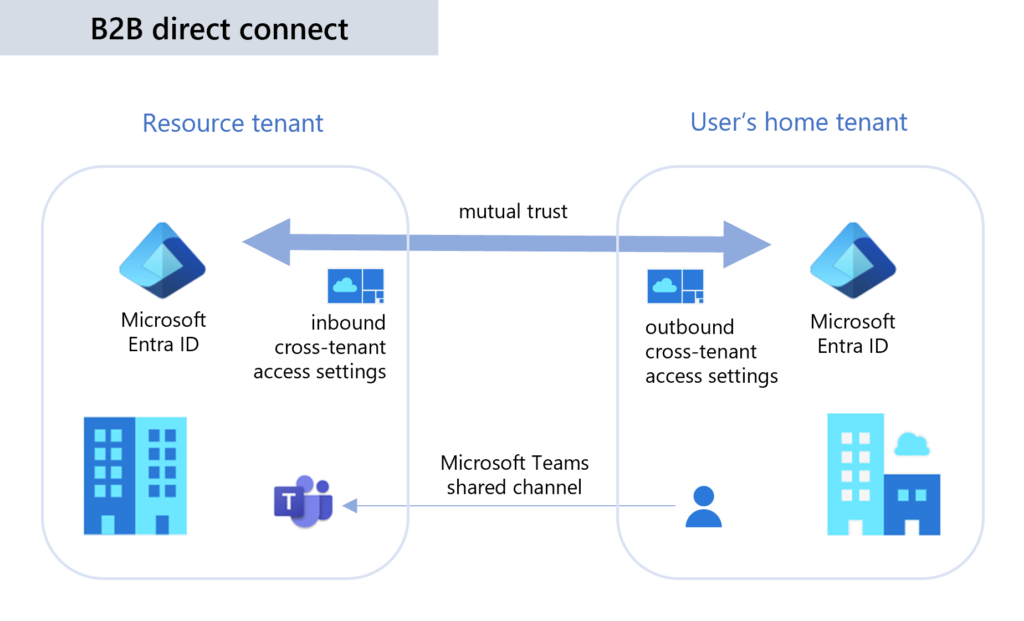
For more information, have a look at this Microsoft documentation.
Just be aware that you’ll most likely want to end up using both B2B Collaboration and Direct Connect, but for different reasons. B2B Direct Connect would be most often used for trusted tenants (either internal or external to the organization) such as partners or by multi-tenant setups (learn more about multi-tenancy in my previous blogpost).
When should I use Shared Channels?
| Scenario | Recommended Approach |
|---|---|
| Small project within a team | Standard Channel |
| Restricted discussion within a team | Private Channel |
| Collaboration with another internal team | Standard/Shared Channel |
| Long-term collaboration with trusted partners | Shared Channel + B2B Direct Connect |
| Ad-hoc document sharing with external users | Standard Channel + B2B Collaboration |
Show me these advanced use cases
Guest Users access Shared Channels without needing to switch tenants
External users present in a tenant with B2B Direct Connect configured and invited into a Shared Channel will see the channel show up as follows:
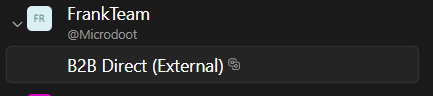
Note that they can see the Team name, but not the default ‘General’ channel; only the Shared Channel they’ve been invited into. Underneath the team it displays which tenant it belongs to (@Microdoot in this case) which makes it easy for users to see which organization they’re collaborating with.
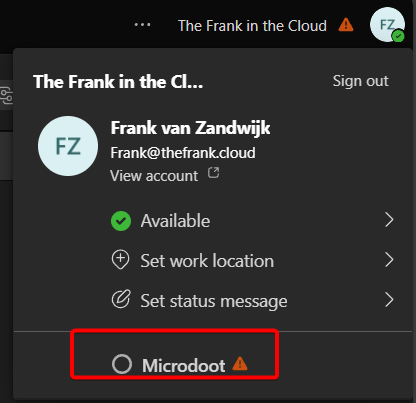
This external Shared Channel will also be listed among their own internal Teams, meaning that the user does not need to use the Teams Tenant Picker as shown below to ‘switch’ to the correct tenant:
Adding Entire Teams to Shared Channels
A unique feature that Shared Channels have is that we can add additional Teams to them. Somewhat like nesting a group within a group like we used to be able to do in Active Directory except way less messy this time.
The end result would look as follows:
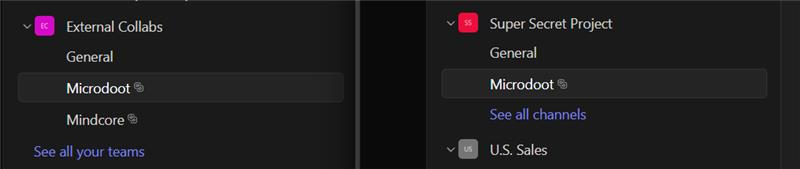
On the left, I’m logged in as an owner of a Team called ‘External Collabs’ in which I created a couple shared channels. Within the Microdoot shared channel I then added the ‘Super Secret Project Team’ into it since I’m an owner of that as well.
On the right, I’m logged in as another user that is part of Super Secret Project and they can now see only that one Shared Channel but don’t see any reference to the ‘External Collabs’ Team or any other Shared/normal Channels (such as General) created within.
I set the External Collab team to be private, so no one else can see it or join unless added by an owner and I can still invite external users to any given Shared Channel within (as long as I’m owner of the channel).
A slight oddity with the use of Shared Channels is that they’ll now appear multiple times if you are the owner or member of multiple Teams where it was added:
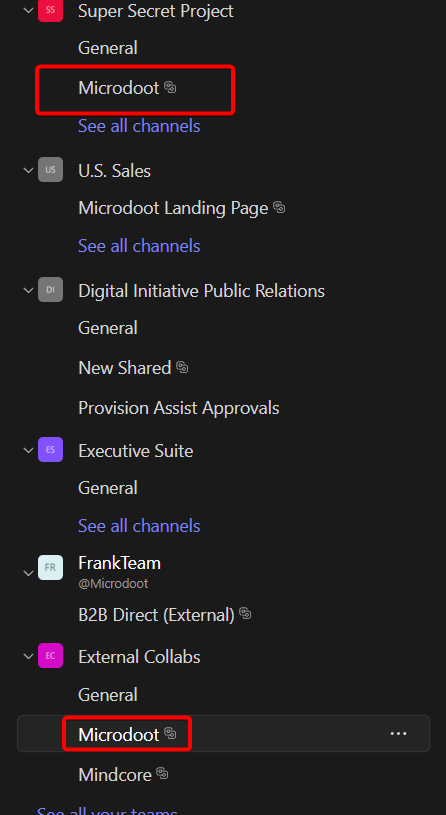
Interestingly, from the Teams Admin Center I can see that someone has added a Team to the Shared channel and have the option to remove it, but not add any others. This can only be done by an owner of the Shared Channel from the Teams app itself… Here’s to hoping Microsoft will add this functionality to the admin portal in the future.
Deployment Considerations
While Shared Channels are enabled by default for users to use internally, B2B Direct Connect requires an Administrator to configure Entra ID to allow or disallow specific tenants from participating. We recommend against allowing B2B Direct Connect to be enabled for all tenants, as there is a certain loss of governance over using B2B Collaboration since there are no guest accounts you can disable/remove to quickly revoke access (you’ll need to revoke access on each Shared Channel instead).
Shared channels introduce a new method of collaboration but introduces its own oddities and considerations in terms of design choices and governance that should be carefully tested and considered before wide-spread adoption. You may want to consider disabling Shared Channels for users to create until such a time as proper governance and training has been provided:
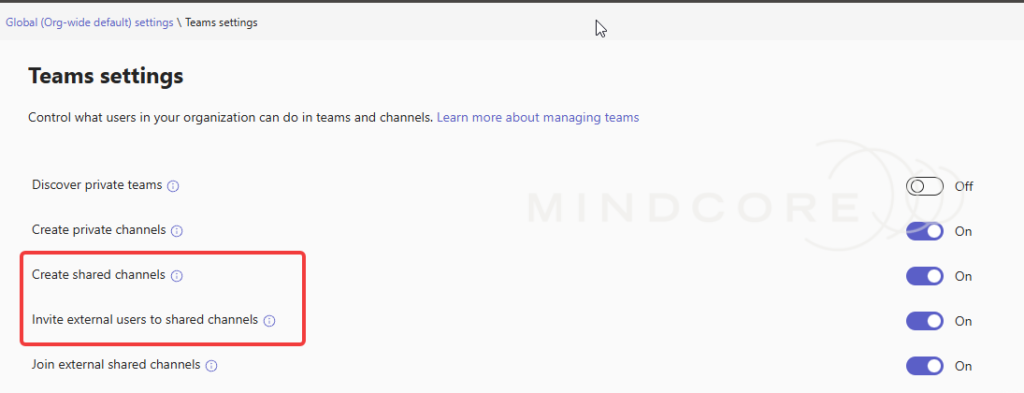
Only enable B2B Direct Connect for trusted partners with long term engagements and collaboration requirements. It’s important to have a documented business process that users can follow to request cross-tenant access with trusted partners.
Governance Checklist
Before enabling Shared Channels broadly, consider:
- Who can create Shared Channels?
- Which partner organizations are allowed to use B2B Direct Connect?
- Who approves new cross-tenant relationships?
- How is access reviewed periodically?
- How are Shared Channel owners trained?
- What happens when a project ends (archival/backup)?
Shared Channels are a wonderful middle ground between traditional Team membership and guest collaboration. They simplify cross-team and cross-tenant collaboration while reducing the overhead associated with guest accounts and tenant switching.
However, they are not a replacement for B2B Collaboration, and they should not be enabled without governance. However, for trusted partners and multi-tenant organizations, they can significantly improve the user experience and reduce administrative complexity.
If your organization has dismissed Shared Channels as “just another Teams feature”, it may be worth taking a second look.