Microsofts provisioning of users from Entra ID to Active Directory has been released in Preview and is supposed to help organizations move user and group administration to Entra ID, while retaining on-premise connectivity.
We have tested how it works and what to be aware of.
First of the requirements:
License requirements
| Configuration | License required |
| Existing configurations (created before general availability) | No license change is required. These configurations continue to run under their existing Microsoft Entra ID P1 licensing. |
| First 2 new configurations per tenant | Microsoft Entra ID P1. |
| More than 2 new configurations per tenant (3–20) | Microsoft Entra ID Governance. |
General requirements
- Microsoft Entra account with at least a Hybrid Identity Administrator role.
- On-premises AD DS schema with the msDS-ExternalDirectoryObjectId attribute, which is available in Windows Server 2016 and later.
- Provisioning agent with build version 1.1.2334.0 or later.
Restrictions
A maximum of 20 Domains per tenant!
Current design
Up until now, we have synchronized users and groups from Active Directory to Entra ID, so that users could be licensed in Entra ID and access all the features and apps of the cloud. All user administration was carried out in Active Directory and changes synced to the cloud. In this scenario Active Directory is the SOA (Source Of Authority).
As Microsofts cloud evolved, more workloads and services have been moved to the cloud, shifting the balance between on-premise services and cloud services. At the same time, Entra ID has evolved and surpassed Active Directory when it comes to features, such as self-service, external access control and security. So shifting SOA from Active Directory to Entra ID, is a move more and more companies are considering. But for companies with large on-premise environments, it isn´t easy to shift to the cloud, this is often because there is a strong dependency on existing components that are installed on-premise and tied to Active Directory.
So with this feature release, Microsoft has made it easier for companies that have a legacy on-premise setup and who wants to move users and groups to the cloud.
Shifting Source Of Authority
To move users to the cloud and benefit from all the features, we don´t move anything, we “just” shift SOA. Users and all their properties are already in the cloud, so the real shift is to make the cloud take over management of them and reversing the sync, so that changes made in Entra ID is synchronized to Active Directory.
Sounds easy, but to make sure that everything works as expected, we need to make sure that every legacy on-premise component users had access to before, is still available to them after. So before we make the change, we need to know what exactly happens.
The change is made in 2 steps:
- Change users to cloud managed
- Sync users back to Active Directory
Change users to cloud managed
This requires that we change the attrbute IsCloudManaged on the userobject from false to true. For testing purposes I do this with graph explorer, but for moving larger amounts of users, we need to consider doing this programatically with Powershell.
The command requires the Object ID of the user:
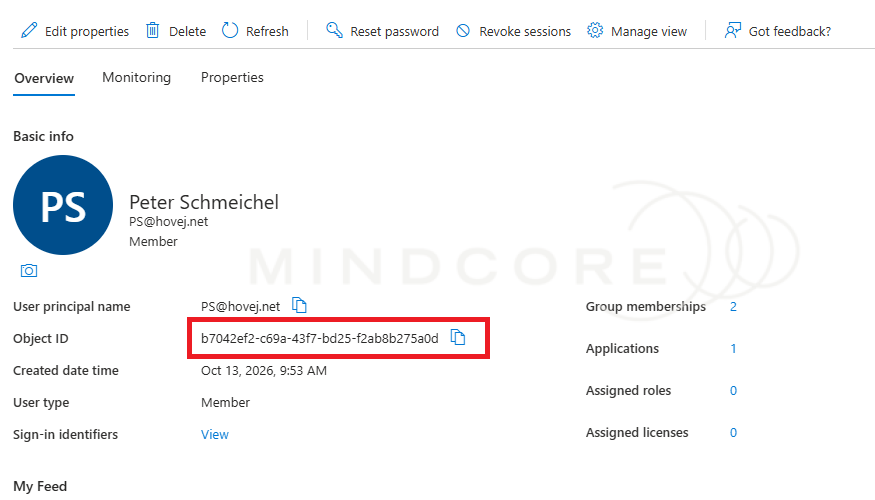
In Graph Explorer we login with an admin that have the correct privileges to read and edit the user attributes and passes the command
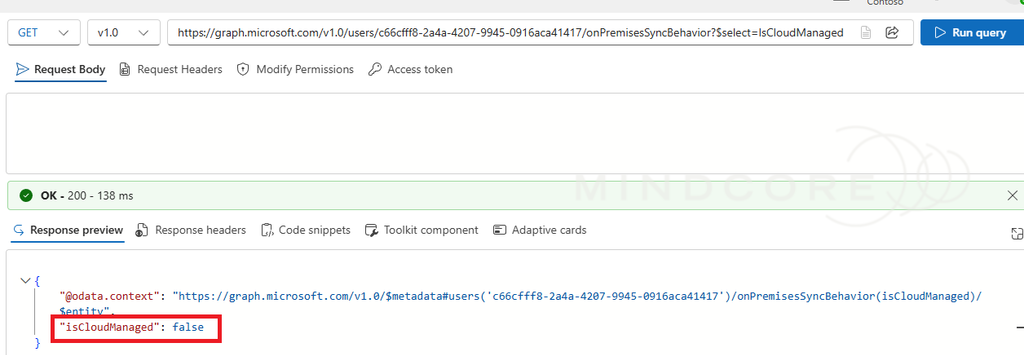
"https://graph.microsoft.com/v1.0/users/{id}/onPremisesSyncBehavior?$select=IsCloudManaged"to list the current setting.
This should return the below, if the user is NOT managed by Entra ID.
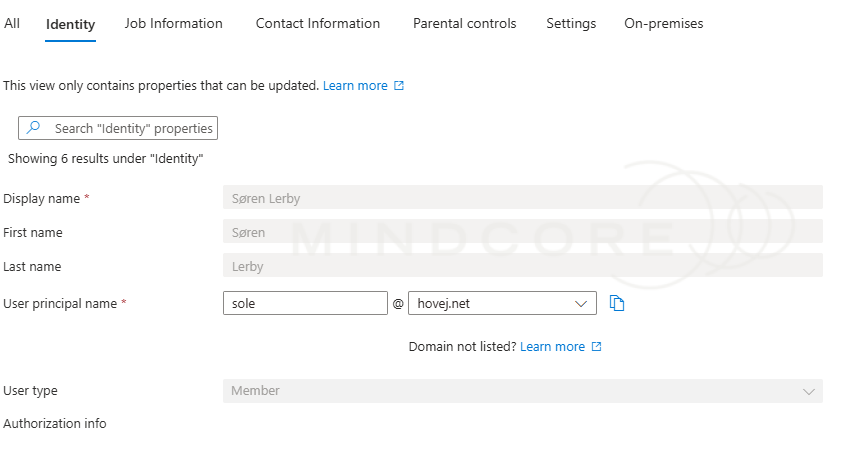
Entra ID reflects this, because the users properties are greyed out, proving that the user is maintained elsewhere.
To change the user from false to true, we change focus from GET to PATCH and pass this:
https://graph.microsoft.com/v1.0/users/c66cfff8-2a4a-4207-9945-0916aca41417/onPremisesSyncBehavior?$select=IsCloudManagedWith a Request body of:
{
"IsCloudManaged":true
}
The change is reflected immediately in Entra ID and the user is now editable.
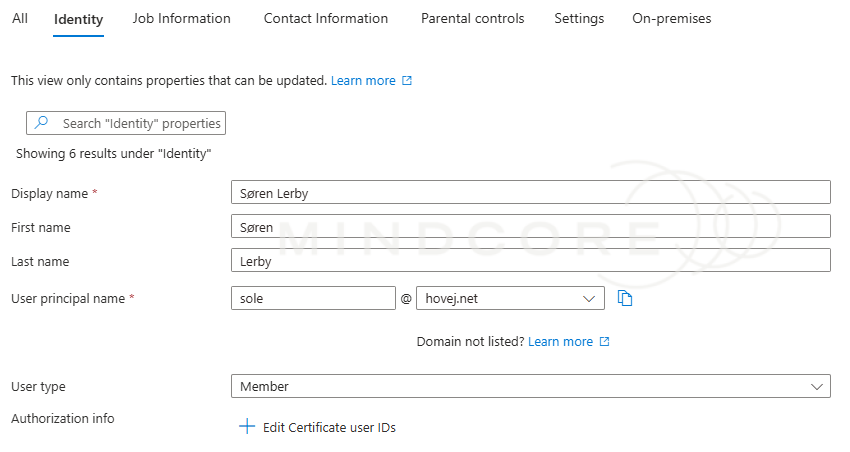
Also the sync of the user from Active Directory will now fail because the SOA changed, so we need to change the sync direction of the user, by creating a sync from Entra ID to Active Directory.

Synchronize users back to Active Directory
Synchronizing user from Entra ID to Active Directory requires CloudSync. How to install cloudsync is described in this post: Microsoft Entra provisioning setup (Preview) – Microsoft Entra ID | Microsoft Learn
Synchronization can be done in different ways, I chose to set up a scoping filter and synchronize all users with a specific city in the City field.
I then returned the users to Active Directory to a new OU, which isn´t required, but I wanted to be able to see when a user was synced.
The result is that I got my users returned with part of the object ID in their Common Name.
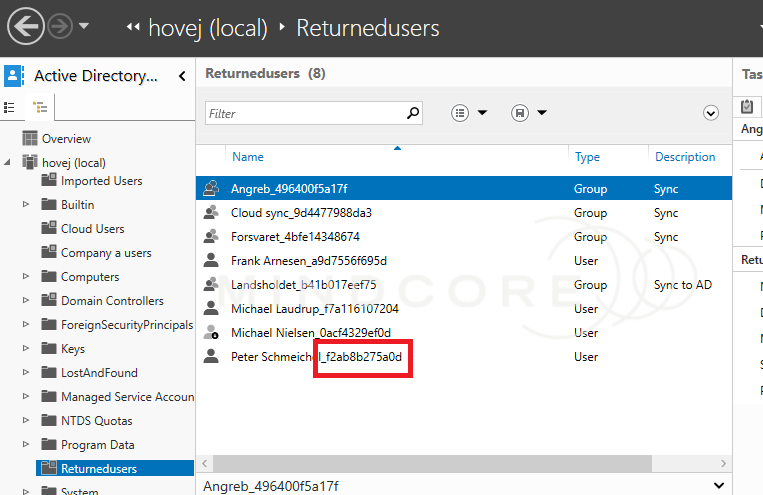
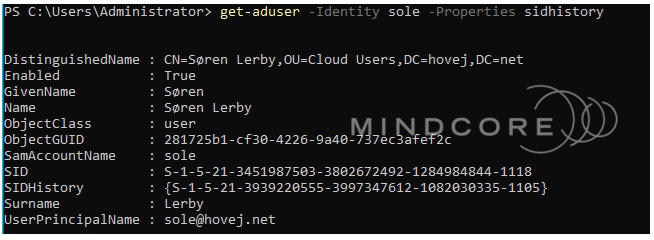
A different common name is not a big issue, we are more interested in the users SID and the SID history, so that the user would return with the same privileges.
Before sync the user looked like this:
After sync the user looked like this:
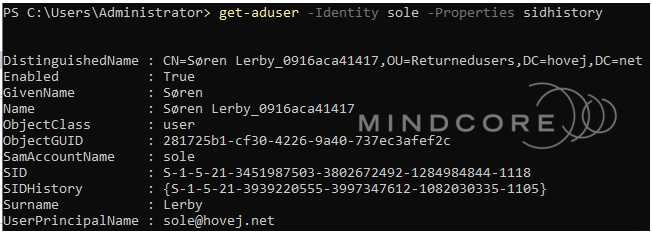
Note that the user has maintained the SID and SIDHistory, which means that access to on-premise ressources are intact. We have tested for shares and login to workstation, access to other legacy ressources like enterprise applications that rely on Active directory for SSO, should be tested before implementing this.
As always, if you have any questions regarding the above or are considering minimizing your Active Directory, we are always available for a chat.