In my previous blog I covered how to migrate to Microsoft’s Unified App Management experience. Now that the migration is complete, the next question becomes how to actually govern Teams apps.
Unified App Management gives organizations a practical way to identify which applications are in use, block unapproved third-party apps, create exceptions for approved solutions, and establish a request process for new applications. In this post I’ll walk through the approach I typically recommend for securing Teams app deployments.
Usage Reports
The very first thing we’ll want to do is generate an Apps usage report from the Teams Admin center. This requires a Teams Administrator to see the full details. Go to Analytics & Reports > Usage reports and select the ‘Apps usage’ report together with a date range (goes back to 180 days). Run the report and you’ll see something like this (but probably with many more apps listed):
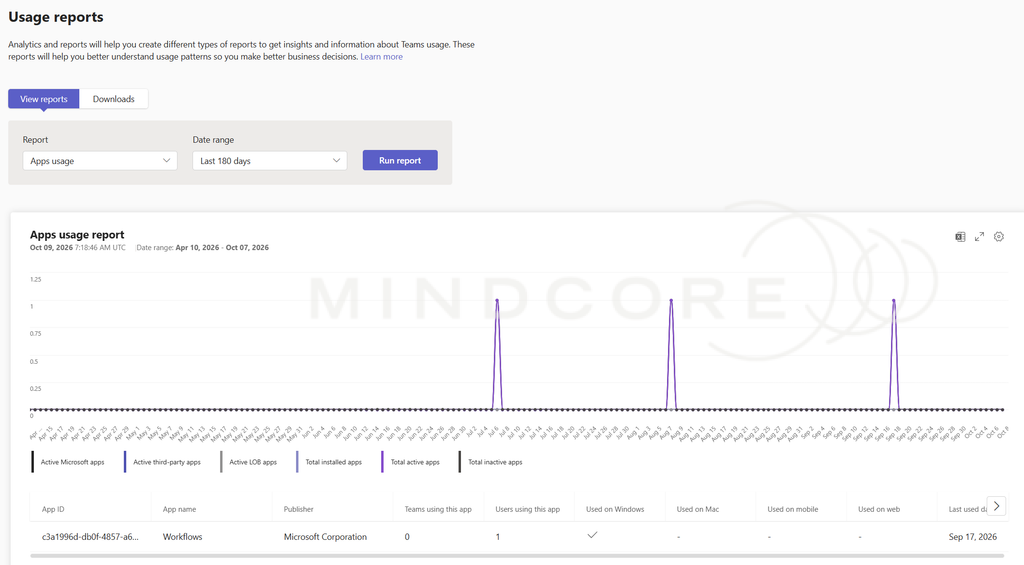
With this I can see how many users have used the app called ‘Workflows’ which is a first-party Microsoft app but this should show you third-party apps too if they’ve been used. I like to export this to Excel using the button in the top right to easily manipulate and filter the data I require (such as filtering out Microsoft’s apps – those we consider fine).
Once we’ve identified a list of the apps currently used, we can determine whether or not to allow them. This is typically an exercise done together with the Cyber Security and management teams.
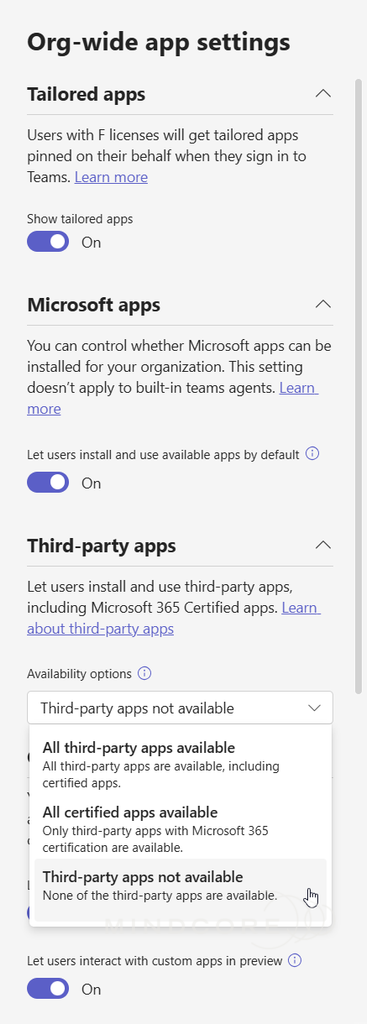
After a decision has been made, we can finally use the new unified app management settings. we typically suggest blocking all third-party apps as part of an org-wide default setting and then choosing to allow specific apps. In my opinion, this should’ve been Microsoft’s default considering the security implications of allowing publishers to add new apps to the store and making those available to users without proper vetting.
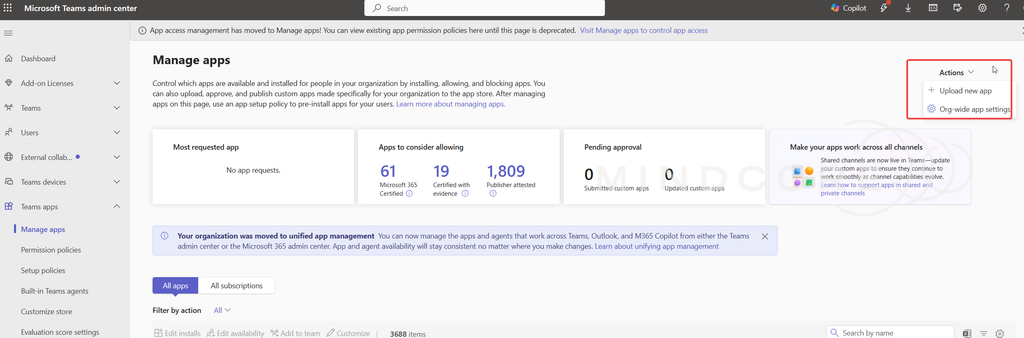
Open the org-wide app settings:
Choose ‘Third-party apps not available’
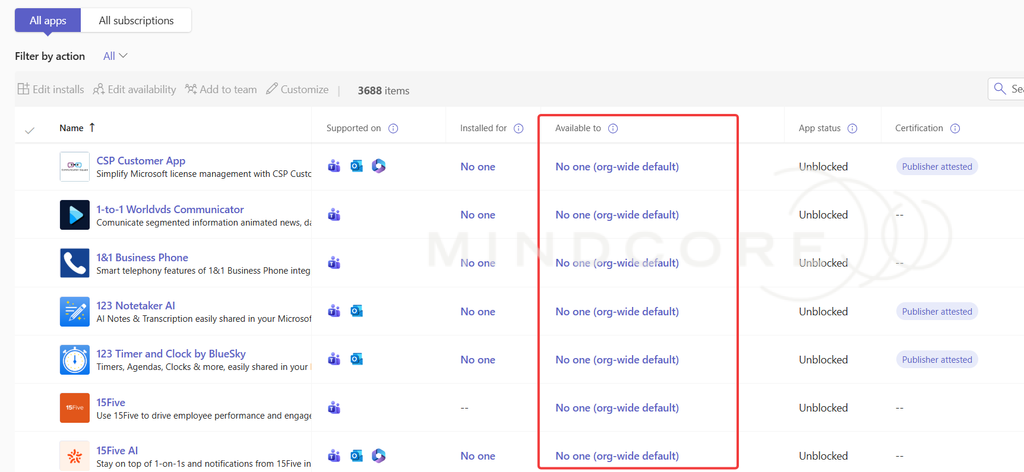
After saving you’ll notice that all third-party apps will become available to ‘No one (org-wide default)’. Note that this change can take 24+ hours to take effect.
EXCEPT for apps that have had a manual configuration put in place:
It will also leave Microsoft first-party apps still available for users:
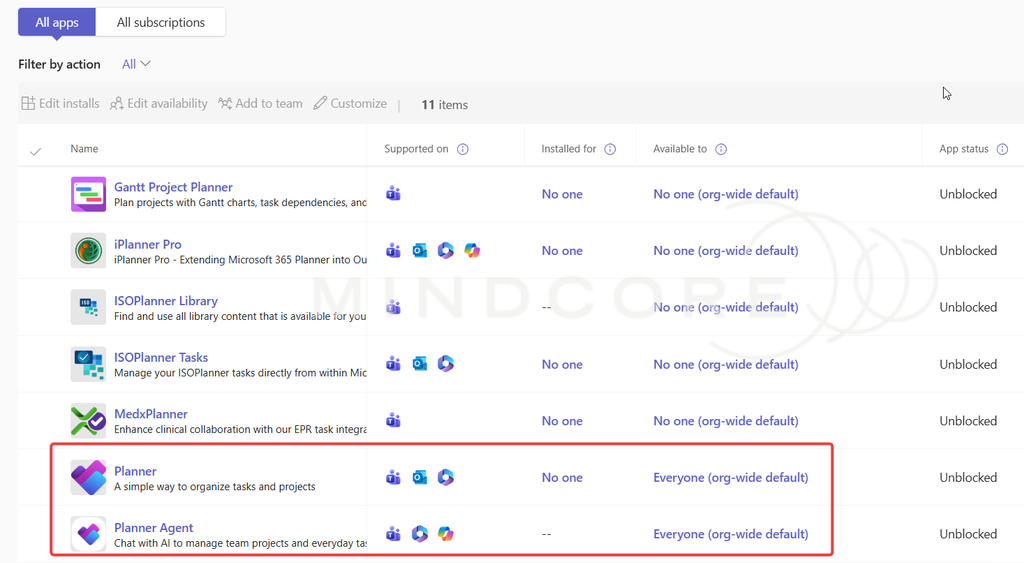
Now back to the usage report, once you’ve identified the apps to keep available, search for them and manually make them available for users.
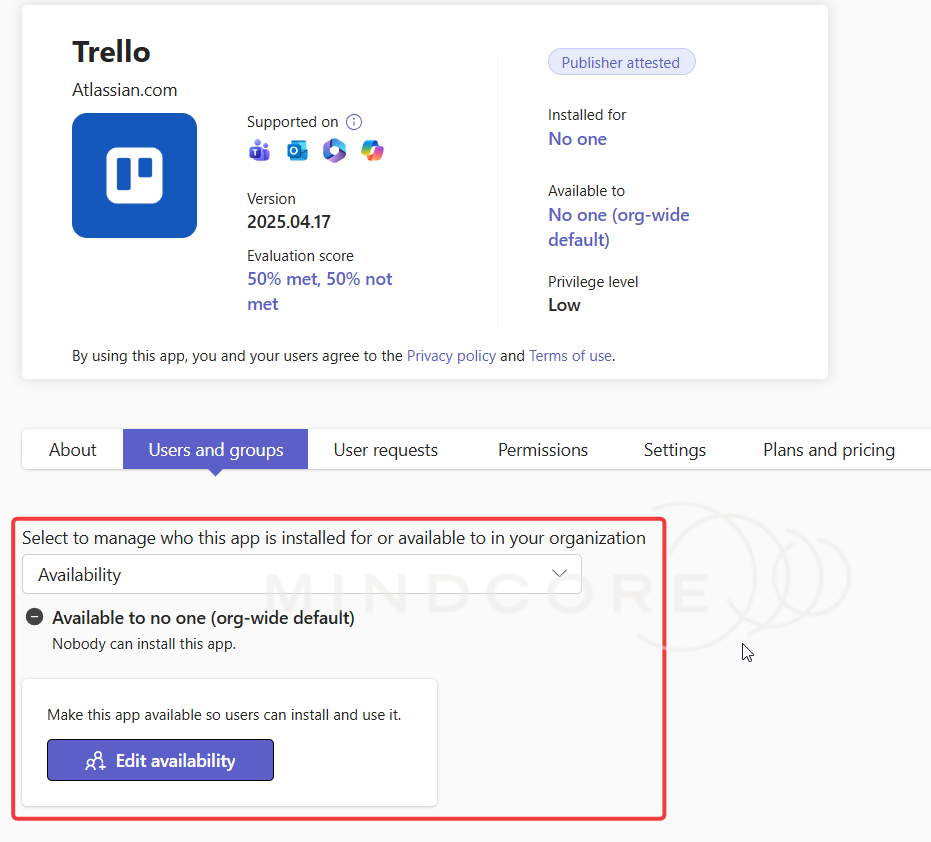
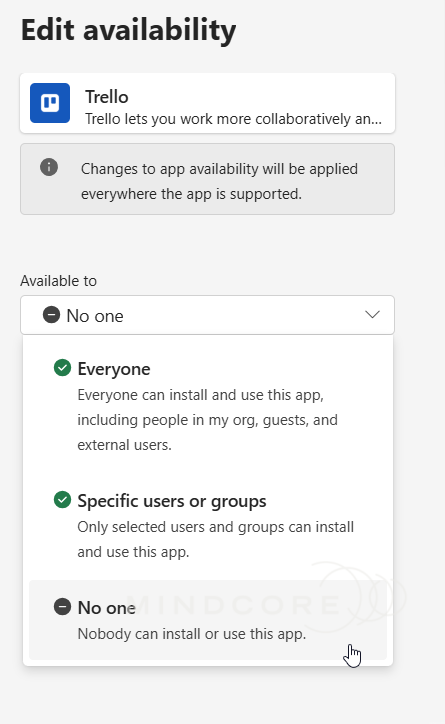
You can choose to either allow it for everyone in the organization or create a group and filter it down:
End user experience
For any allowed apps, users are simply able to add them to Teams:
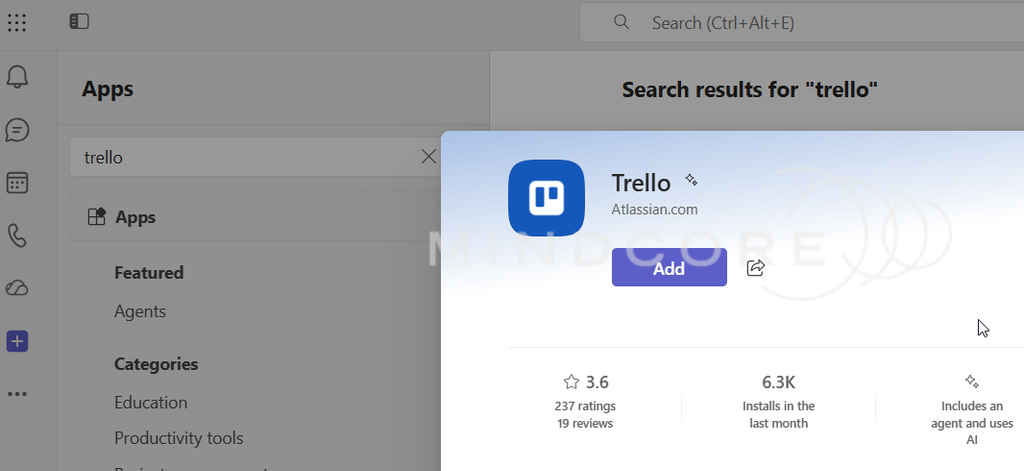
App Requests
After the changes have applied, users will still be able to see and find third-party apps from within Teams but when they attempt to add one that is not made available to them they’ll get an option to request it instead:
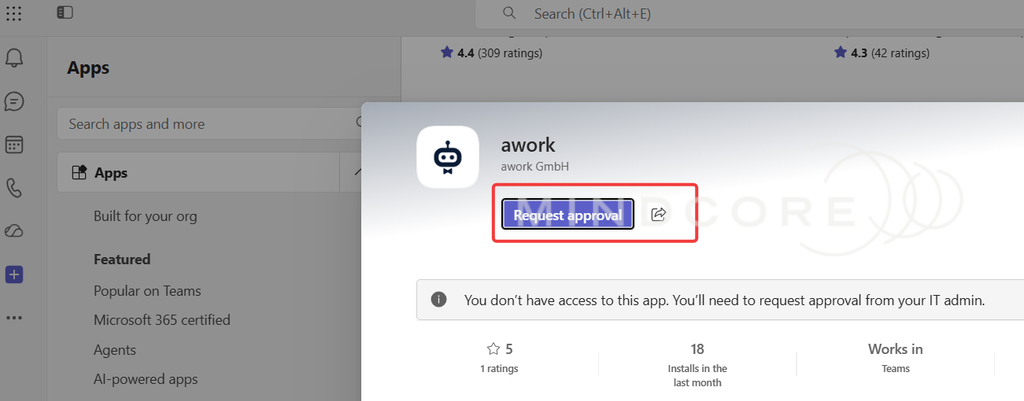
The user can request access:
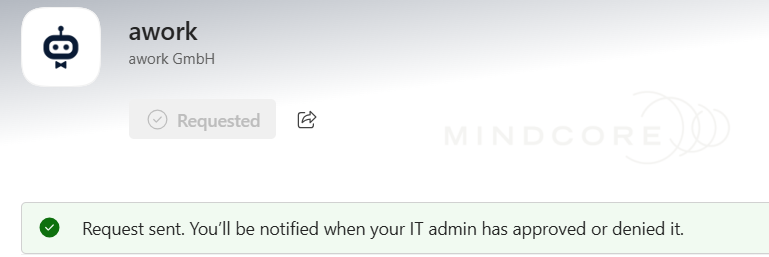
Which results in an app request sent to the Teams Admin Center:
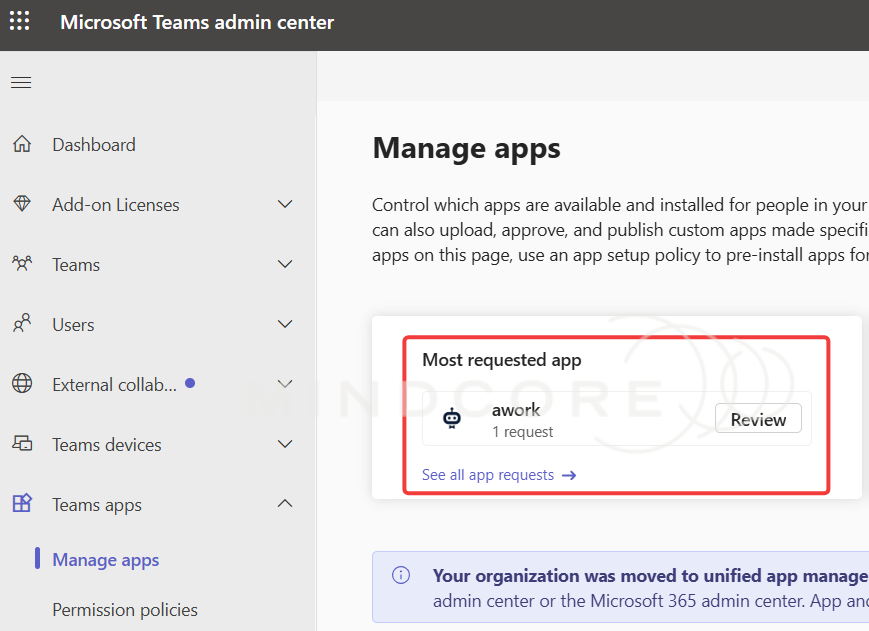
From there it can be approved or denied:
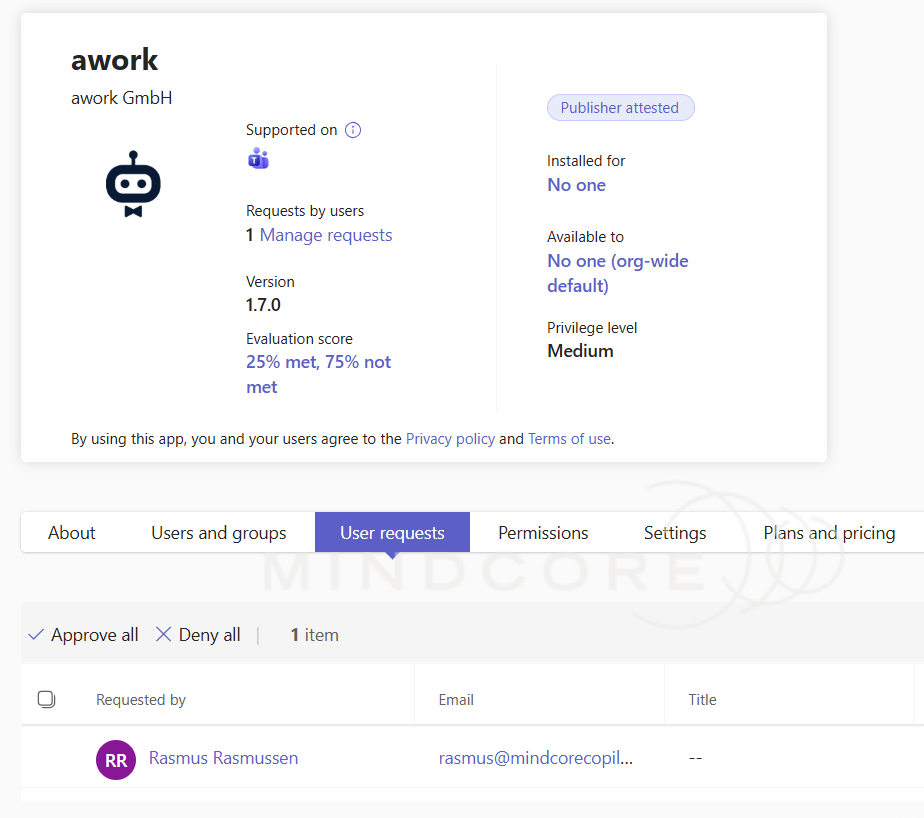
App Request Alerts
I also recommend configuring an alert within Teams Admin Center for these app requests as they’re otherwise silent and would require manual checking:
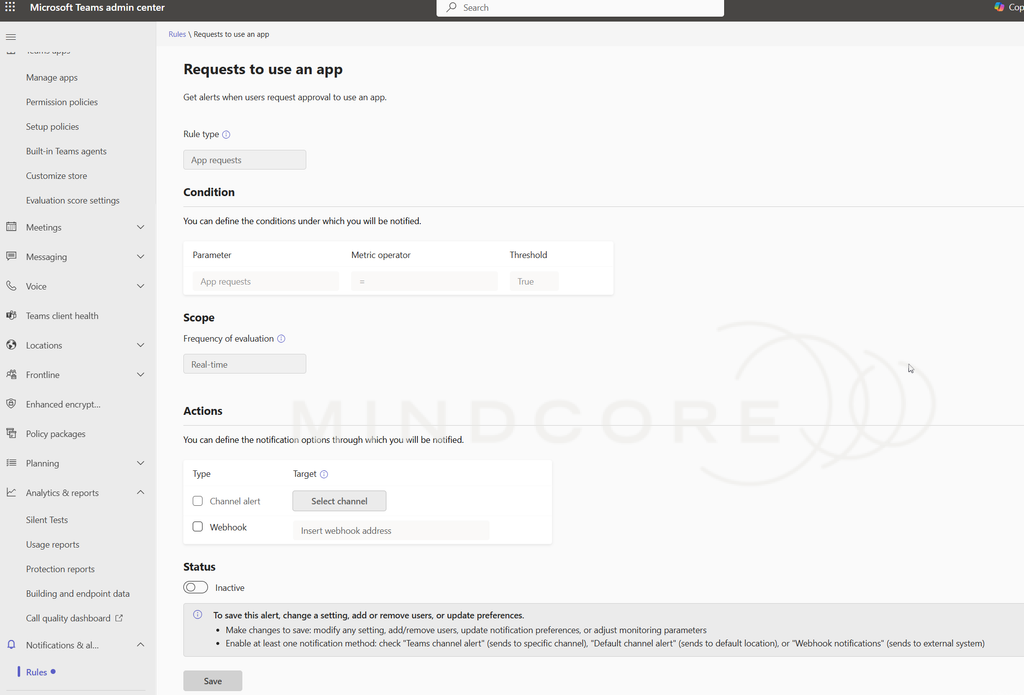
This can then generate an alert within a chosen Teams channel like so:
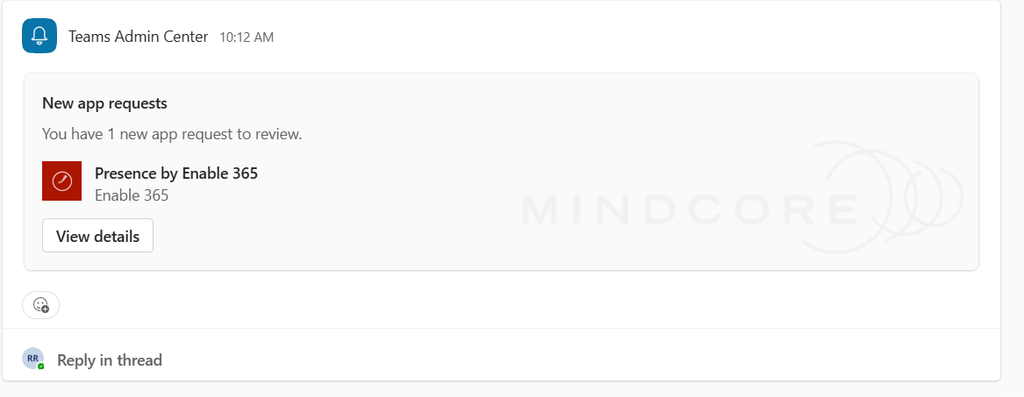
You can also choose to use a webhook and integrate it into a ticketing system if that’s more suitable for the organization for traceability of such requests.
Conclusion
There are many more options to dig into such as customizations to the app store by uploading organization logos and background images or customizing the message instructions users see when they attempt to request apps:
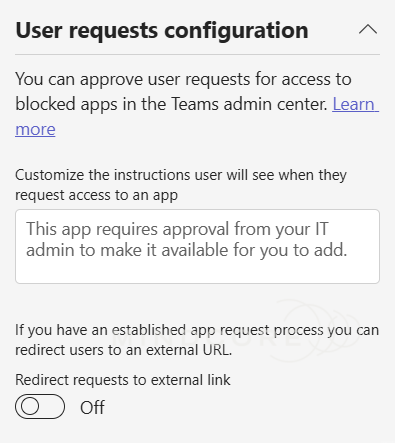
This allows tight integration with already existing software approval processes.