Notes from the Field
Microsoft is moving Apple Automated Device Enrollment (ADE) from the older Profiles experience to the newer Enrollment policies experience. The new policies support enrollment-time grouping, allowing devices to be added to a Microsoft Entra security group as part of enrollment.
This post covers a cautious way to make that transition in Intune:
- Test the new enrollment flow first
- Change the default for future devices
- Re-assign devices that are already in Intune.
Microsoft’s overview of the new experience is here.
Scope and assumptions
This walkthrough assumes:
- New and/or existing Apple devices enrolled with Intune.
- Apple Business is connected to Intune with a valid enrollment token.
- Any Apple VPP token needed for your app deployment is present and valid.
- Access with an administrator account with sufficient permissions (Intune Administrator).
The legacy Profiles experience applies to iOS/iPadOS and macOS.
tvOS and visionOS use the new enrollment policies experience, but do not have old enrollment profiles to migrate from. For those platforms, this process is about assigning a new policy to devices, not replacing a legacy profile.
A key detail about the default policy
Changing a token’s default policy does not reassign devices that are already imported into Intune. The default is used for devices synced from Apple Business.
Existing device assignments remain as they were until you explicitly reassign them.
That makes changing the default a useful first step for new devices, but it is not a migration of your existing fleet. To use the new enrollment experience, an existing device must go through ADE enrollment again; assigning the new policy does not immediately change an already enrolled device’s settings or add it to the enrollment-time group.
Recommended Migration
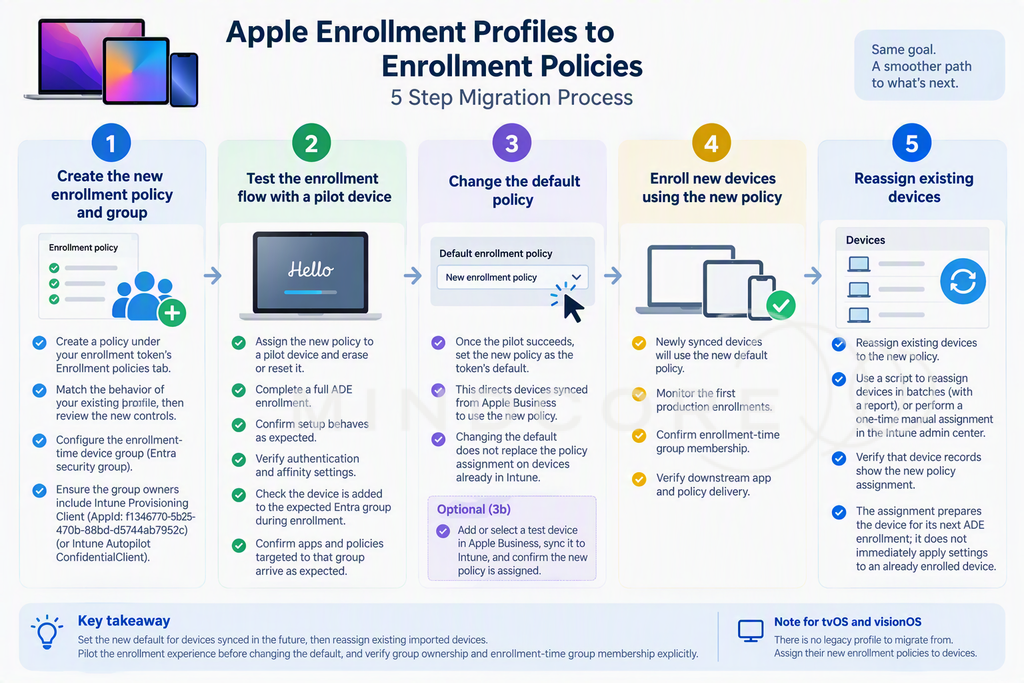
1. Create the new Enrollment policy and Enrollment Time Grouping security group
Create a policy under the selected enrollment token’s Enrollment policies tab.
Start by matching the behavior of the existing profile, then review the new controls. The new policy experience is not a field-for-field copy of the old profile, and some settings may differ – An example of this is the new “Liquid Glass” pane in iOS 27 has been included in the new policy.
Configure the enrollment-time device group while creating or editing the policy.
Enrollment-time grouping depends on the policy being able to add enrolling devices to a selected Entra security group.
The groups owners must include Intune Provisioning Client with AppId of f1346770-5b25-470b-88bd-d5744ab7952c.
Note that in some tenants, this app can be called: Intune Autopilot ConfidentialClient
See Microsoft’s documentation on the subject here.
2. Test the enrollment flow with a pilot device
Assign the new policy to a pilot device and test a complete ADE enrollment. Since enrollment settings are applied during setup, plan to erase or reset the pilot device before testing.
Confirm that:
- Setup Assistant behaves as expected.
- The device enrolls using the intended authentication and affinity settings.
- The device is added to the expected Entra group during enrollment.
- Apps and policies targeted to that group arrive as expected.
A successful policy assignment alone does not prove that the full enrollment experience is correct – Make sure that the enrollment experience matches your designed platform.
3. Change the default policy
Once the pilot succeeds, set the new policy as the token’s default. This directs devices synced from Apple Business after the change to the new policy.
Changing the default does not replace the policy assignment on devices already in Intune.
Optional: Test a newly synced device
If you want to validate the default-policy path separately, add or select a test device in Apple Business, sync it to Intune, and confirm the new policy is assigned. Then test its ADE enrollment.
This is optional if you have already validated the flow another way, but it checks the path used for newly synced devices.
4. Enroll new devices using the new policy
Newly synced devices can now use the new default policy. Monitor the first production enrollments and confirm enrollment-time group membership and downstream app and policy delivery.
5. Reassign existing devices
Existing devices need a separate assignment step. You can either:
- Use a script to reassign devices in batches, with a report of the results.
- Perform a one-time manual assignment in the Intune admin center.
Whichever method you choose, verify that the device records show the new policy assignment. That assignment prepares the device for its next ADE enrollment; it does not immediately apply enrollment settings to a device that is already in use.
5.1 Reassign existing devices with PowerShell
For larger environments, I created a PowerShell script to reassign devices to an existing Enrollment policy. It handles interactive sign-in, device selection, batched assignment, verification, and CSV reporting.
The script does not create policies, change the token’s default policy, delete old profiles, or wipe devices.
Script: Get-AppleEnrollmentMigrationCandidates.ps1
The script automatically checks for Microsoft.Graph.Authentication, installs it for the current user if missing, and imports it before sign-in. Installation requires access to PowerShell Gallery.
Sign in with an administrator account that has sufficient Intune permissions.
The script requests the delegated Graph permission DeviceManagementServiceConfig.ReadWrite.All, which may require administrator consent.
5.2 Preview the migration first
Run the script with -WhatIf:
.\Get-AppleEnrollmentMigrationCandidates.ps1 -WhatIfAfter sign-in, select:
- The Apple enrollment token.
- The device platform.
- Devices with no profile, or devices with no profile plus one selected legacy profile.
- The new Enrollment policy to assign.
Devices already assigned to a new policy are excluded. Devices assigned to other legacy profiles are also left untouched.
Review the candidate list carefully: selecting a legacy profile also includes unassigned devices for that platform. -WhatIf generates a report but does not send assignment requests.
5.3 Perform the assignment
Once the preview looks correct, run the script again without -WhatIf:
.\Get-AppleEnrollmentMigrationCandidates.ps1Make the same selections, review the candidate list, and approve the confirmation prompt. Assignments are submitted in batches of 100 devices by default.
5.4 Verify the results
After assignment, the script polls Intune every five seconds for up to 120 seconds by default. A CSV report is saved in the reports folder beside the script.
- Verified: Intune reports the target policy assignment for the device.
- Not verified before timeout: The assignment could not be confirmed within the polling window. Check the portal and the report’s observed profile ID before retrying.
- Not attempted: No assignment request was sent for that device.
If an assignment request fails, the script stops sending further batches. Previously submitted assignments are not rolled back.
Verification confirms the assignment for the device’s next ADE enrollment. It does not confirm that an already enrolled device has received the new enrollment settings or joined the enrollment-time group. That still needs to be validated through a complete enrollment.
The script uses Microsoft Graph beta APIs. Start with a controlled candidate set, and protect the reports because they contain device serial numbers and tenant information.
In summary
Treat the change as two related tasks: set the new default for devices synced in the future, then reassign existing imported devices. Pilot the enrollment experience before changing the default, and verify group ownership and enrollment-time group membership explicitly.
For tvOS and visionOS, skip the legacy-profile migration step: there is no old profile to replace, though you can still assign their new Enrollment policies to devices.