
In part 1 of this series, I covered how to configure basic SSH on an Azure Arc-enabled server that allowed us to connect to any machine from anywhere in the world without needing a VPN or exposing that machine to the internet.
Azure Arc blog overview:
1. Modern Server Management with Azure Arc – Remote Management Pt.1 (SSH/RDP)
2. Modern Server Management with Azure Arc – Remote Management Pt.2 (Security/Linux) (This blog post)
3. Modern Server Management – Entra ID based SSH Login on Linux with Azure Arc (coming soon)
4. Modern Server Management – Azure Arc RDP with Entra ID Authentication (coming soon)
5. Azure Arc VM Onboarding Pt.1 (coming soon)
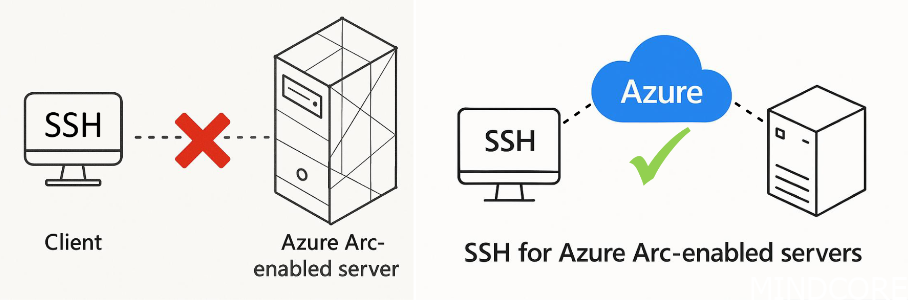
This allows anyone (with the appropriate access rights on your Azure subscription) to connect to the machine without requiring a VPN or jump host session. This enhances security by ensuring that only people requiring access have the capability of connecting to the machine since we can now use Azure RBAC and Entra ID’s capabilities to assign groups, require PIM, and add Conditional Access Policies.
On a typical on-premises network, you may be utilizing jump hosts to provide access to administrators but to simplify the jump host configuration, they are typically setup to allow broad network access. This results in a user possibly being able to access resources they may not supposed to. This can be illustrated like so:
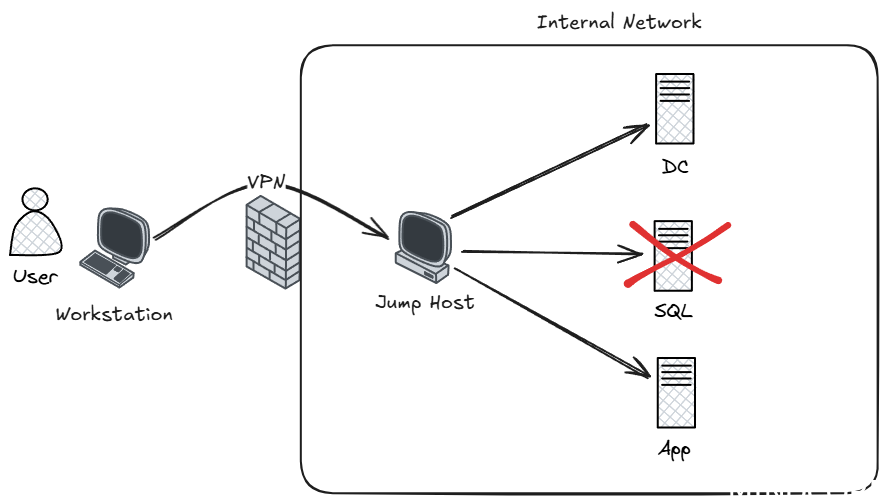
In the above example, once the user is on the jump host, there is often limited network separation implemented. The user may not have enough access to properly logon to the SQL server, but from a networking perspective, there is little stopping them from trying. If this user now obtains credentials that do have access to the SQL server, they’ll be able to login.
Compare this to remoting to an Azure-Arc enabled machine:
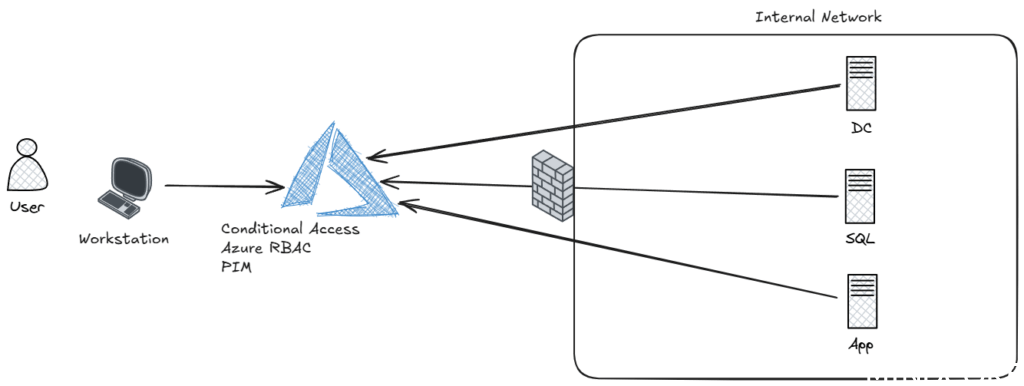
When a user needs to access a machine, no direct access to the internal network is required. Instead, the initial authentication is performed to Azure, where Entra ID’s Conditional Access Policies can be applied. This can ensure that prior to accessing, a compliant device is used. Furthermore, Azure RBAC ensures the user is only given access to exactly the resources they require, in exactly the same way it is done for normal Azure resources. This means that PIM can be used prior to the user being able to establish a connection to ensure MFA has been performed, or a justification reason is given to access for example, Tier 0 resources.
This fine-tune control lets you lock-down the servers within the on-premises environment to only allow access to the services hosted there, instead of needing to also open up access for remote management to a specified jump host. This eliminates the need for the jump host to exist and better secures the network by reducing attack surface and follows Zero Trust practices.
PIM
When configuring PIM for a given group, we can configure any of the following options to tailor the exact requirements needed prior to being able to access a VM:
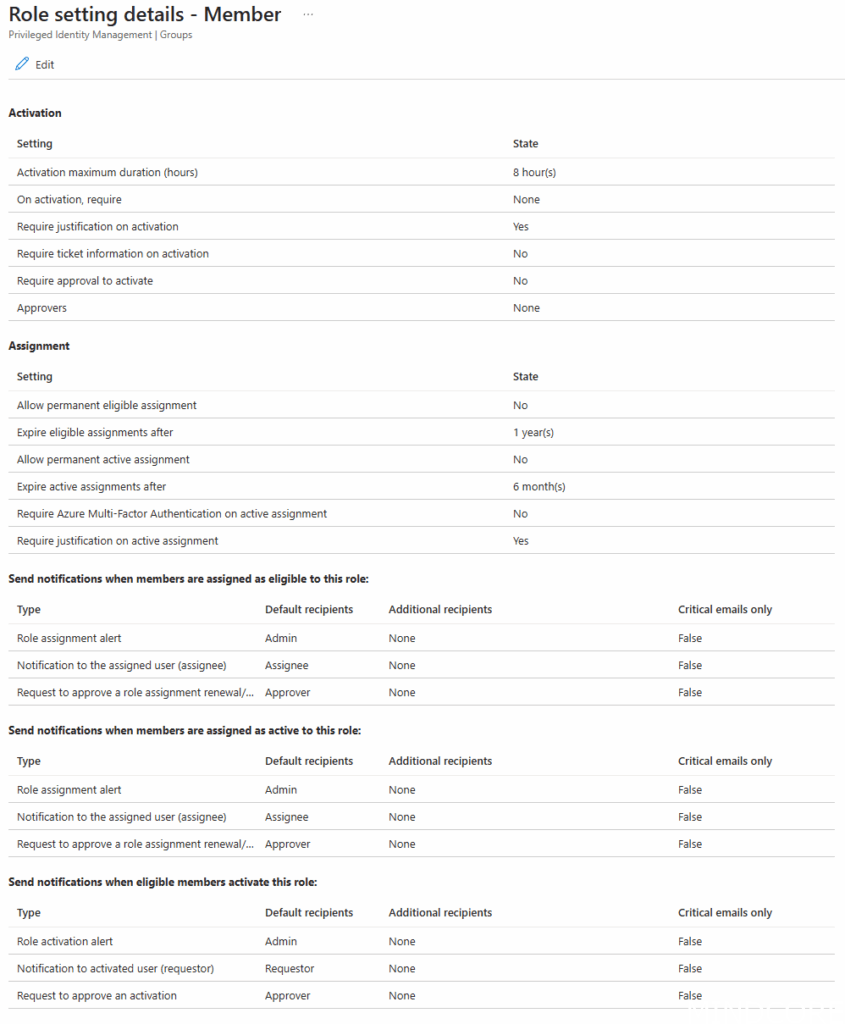
This could include requiring an additional MFA, or approval. We can also assign a specific Conditional Access Authentication Context.
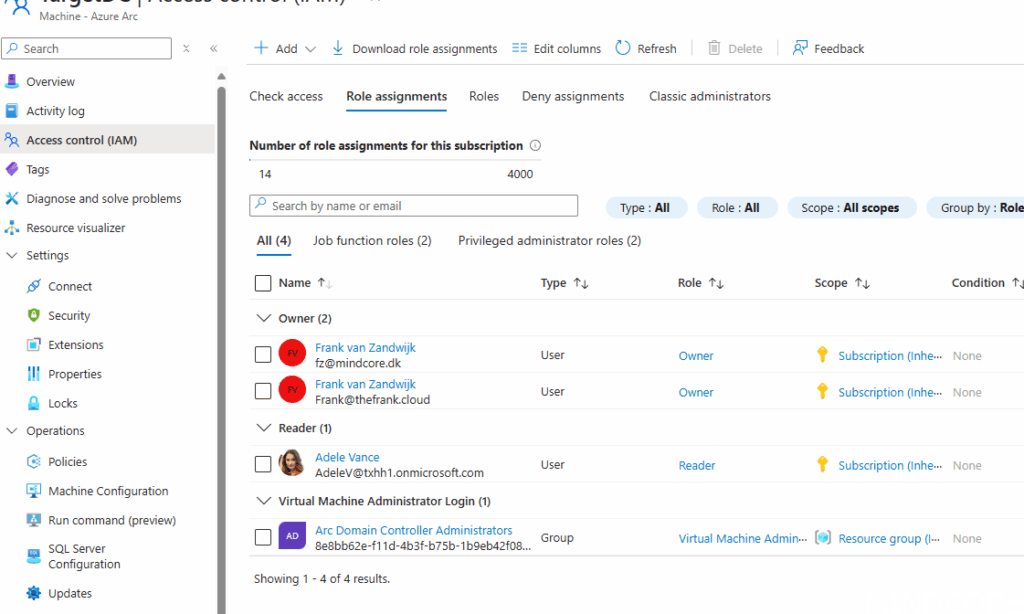
The above Azure Arc machine has been configured to allow ‘Adele’ to see the machine but should not be able to access it unless she’s also added to the ‘Arc Domain Controller Administrators’ group. That group has specific PIM requirements.
If Adele now attempts to gain access to a VM that they have not done proper PIM for yet, they’ll receive an error that they cannot login:
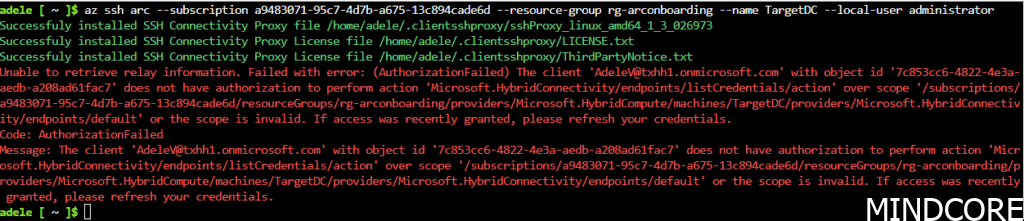
A justification is required for Adele to gain access to that group:

After that, retrying the login works just like it normally would:
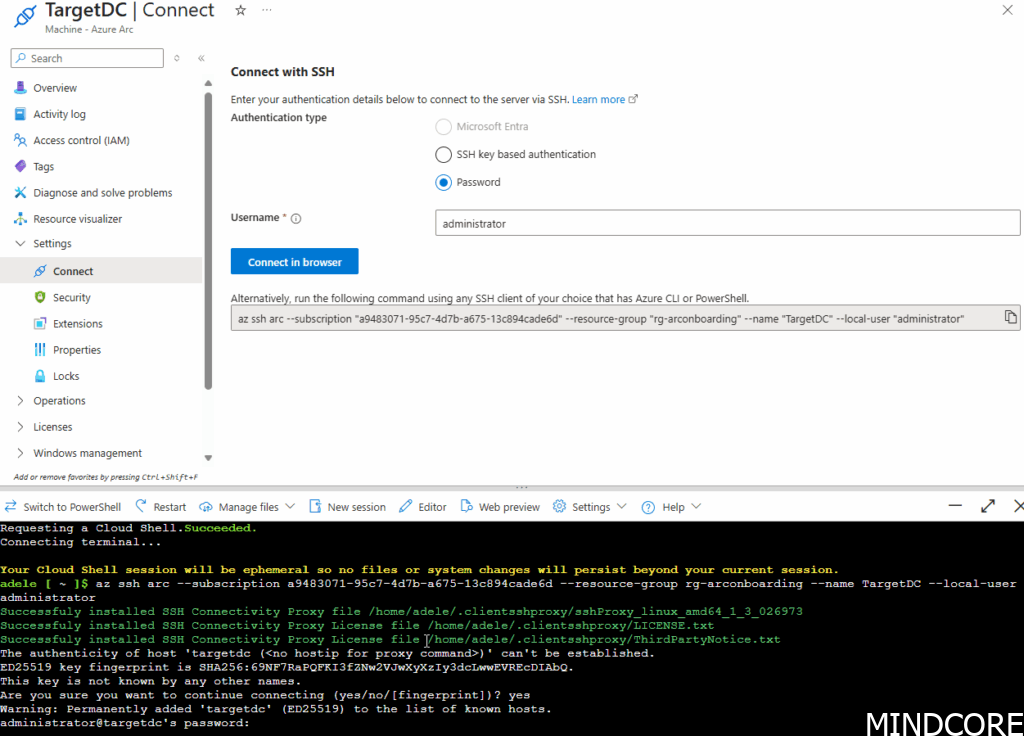
Configuring remote access like this for Arc machines allows fine-tune control and existing best-practices for managing Azure resources to extend to your internal network(s) or cross-cloud scenarios. Things such as Access Reviews will work, and access can even be granted to guests (for example, external consultants or vendors can be securely granted temporary access – e.g 14 days). No complicated local AD Account onboarding required anymore! Just invite them to your tenant, assign them the required access and off they go, just like any other Azure resource.
NOTE: This is not full-fledged just-in-time (JIT) access. Access will not be revoked when the group membership is revoked by PIM. Would recommend configuring time-out values for SSH and RDP to ensure access is lost and no long-standing access can be had by simply staying logged in. In addition, it should be noted that by default, access tokens have a random lifetime between 60-90 minutes so users would still be able to log back in as long as their token is valid despite access being revoked.
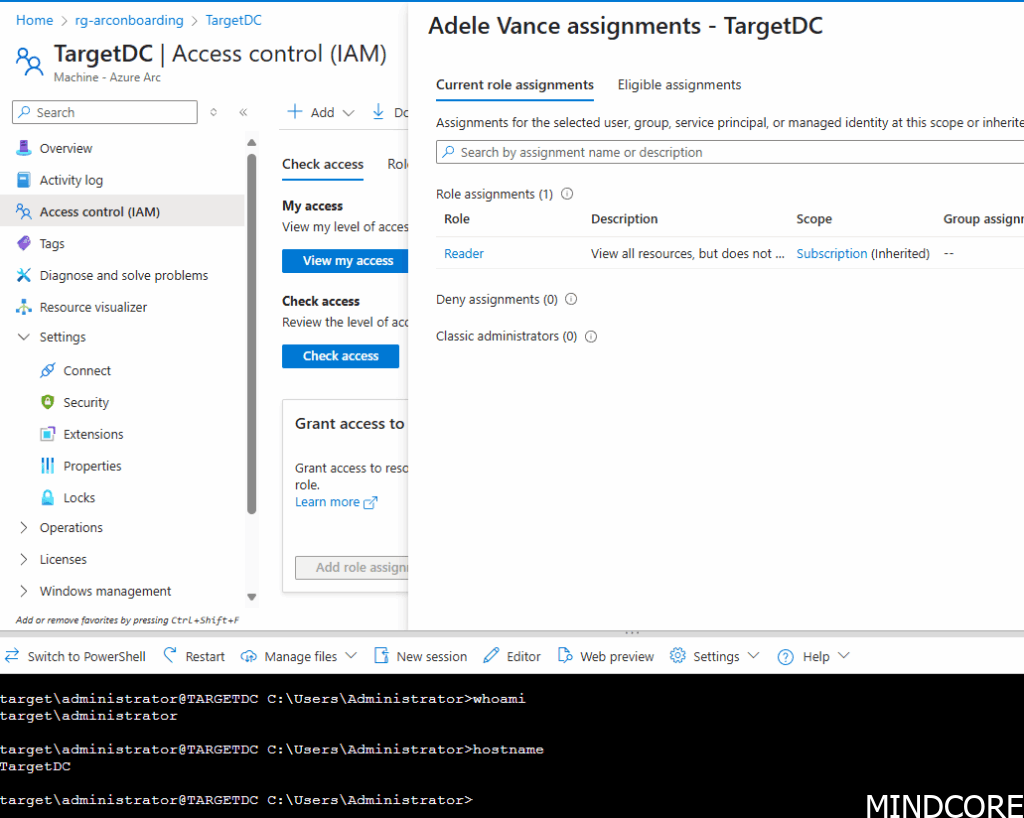
In the above screenshot you can see that the user has lost their group membership to the login group and therefore the administrator login role but has retained the active SSH session.
Authentication with Keys
In the above example, you’ll notice that the user is still prompted for a password for the local administrator account. That’s still not great in terms of security since that a plaintext secret you’ll need to share with whoever requires access.
To get around this, we can use SSH’s public key authentication capabilities combined with an Azure Key Vault.
Creating a secret
Generate an SSH key, this can be done either locally on the workstation or directly from the Azure portal:
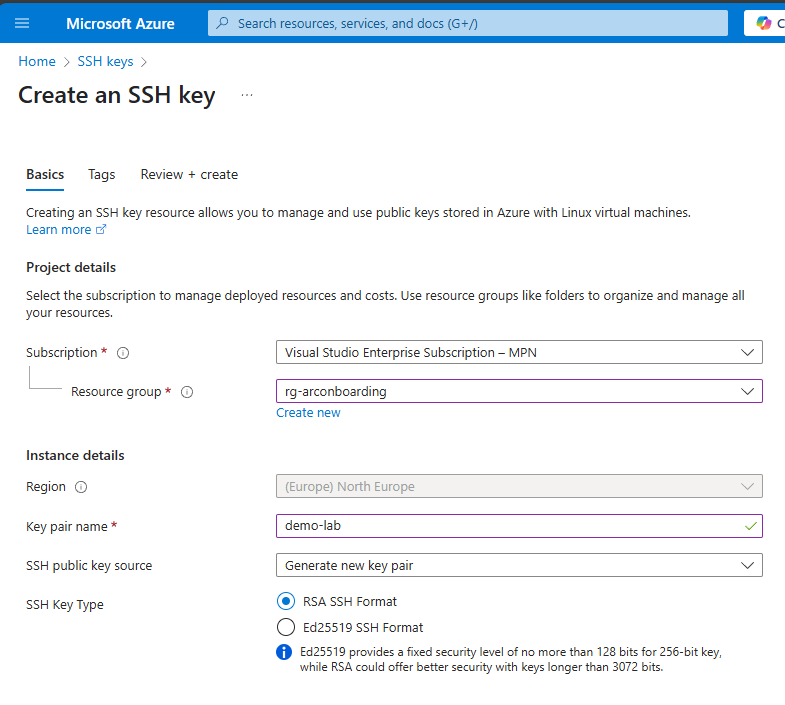
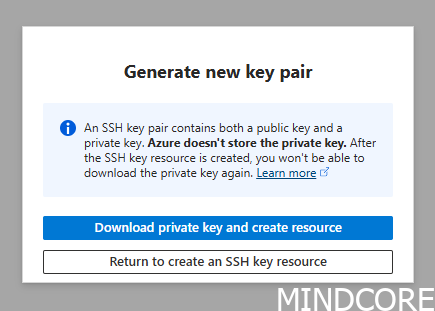
Download the private key to your local machine:
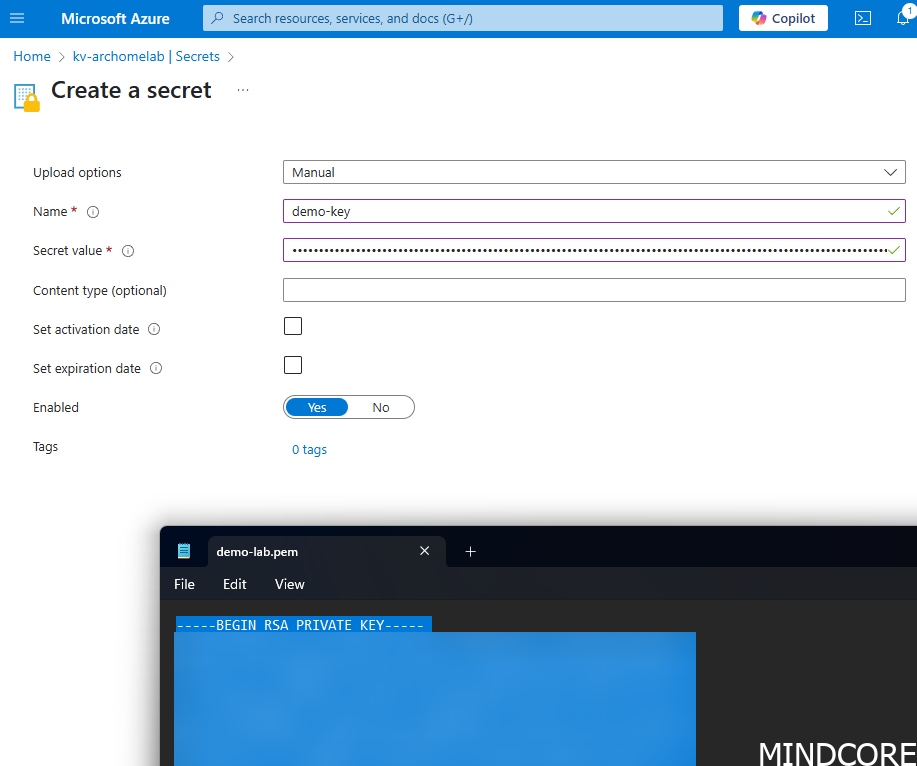
Upload the private key as a secret to a key vault:
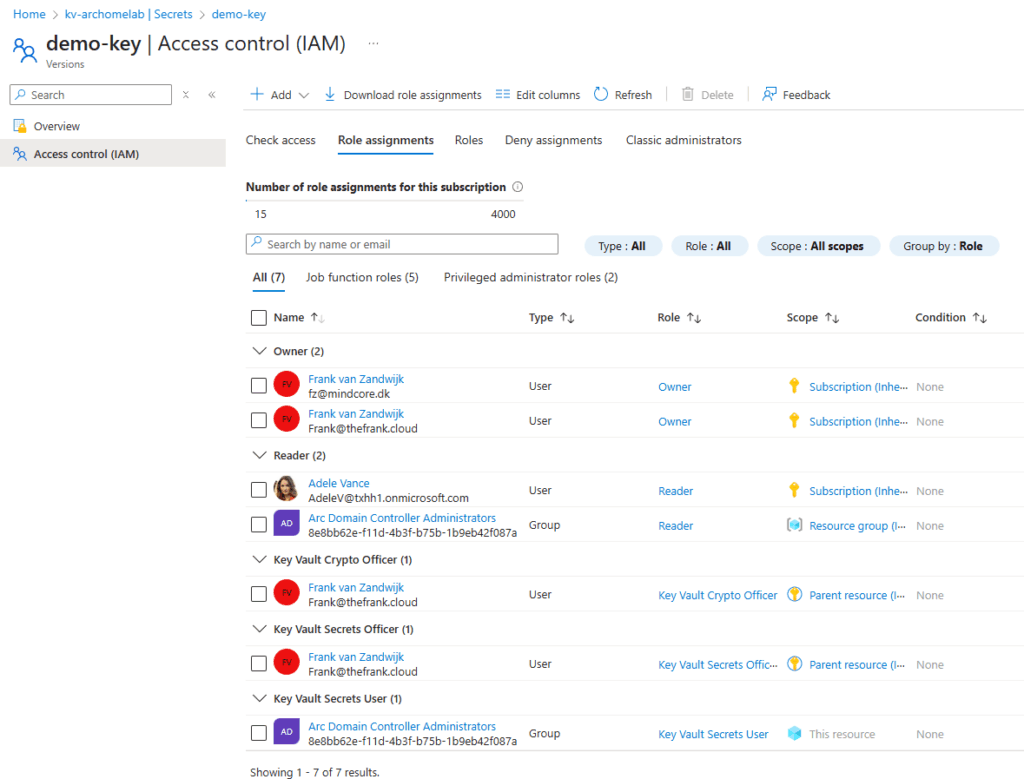
Anyone with appropriate permissions (Key Vault Secrets user) can access it. Assign it to a group similar as to how the VM access is assigned. Make sure it is scoped down to the specific secret and not the entire key vault.
Uploading the public key to the machine
The value of the public key can be easily obtained by referencing the previously created SSH key in the Azure portal:
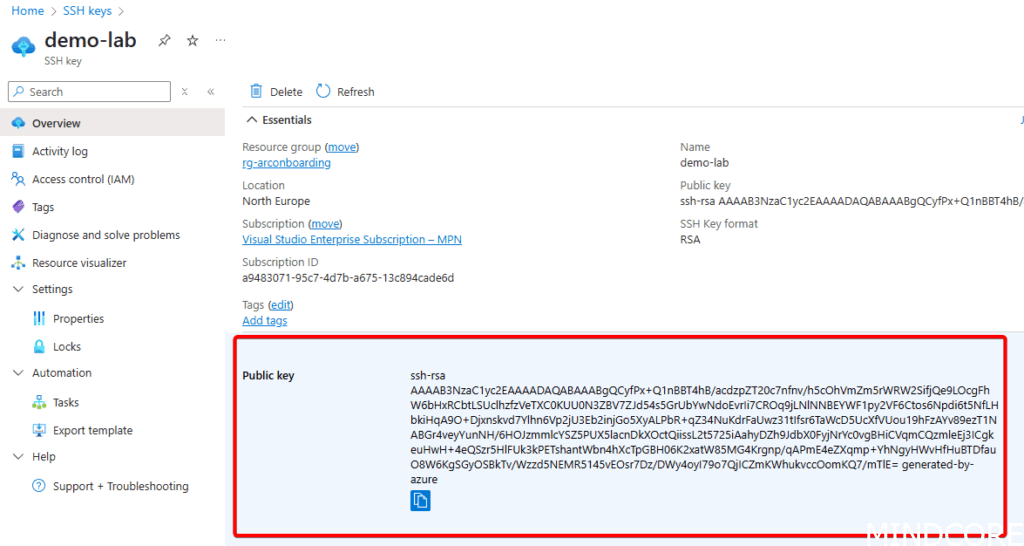
This can be manually added to the machine
Or it can be automated by using Azure’s Run Command functionality using something like the below code snippet:
#Variables
$resourceGroup = "rg-arconboarding"
$keyvaultrg = "rg-homelab-westeu"
$arcMachineName = "TargetDC"
$subscriptionId = "a9483071-95c7-4d7b-a675-13c894cade6d"

# Get the public key from Azure
$sshkey = Get-AzSshKey -ResourceGroupName $keyvaultrg -Name "demo-lab"

$location = 'northeurope'

$Script = {
    param(
        [string]$pubkey
    )
    # Add the public key to the authorized keys file for Administrators
    Add-Content -Force -Path $env:ProgramData\ssh\administrators_authorized_keys -Value "$pubkey";
    # Only allow access to administrators and the System user
    icacls.exe "$env:ProgramData\ssh\administrators_authorized_keys" /inheritance:r /grant "*S-1-5-32-544:F" /grant "SYSTEM:F"
    # Enable the arc agent to listen on port 22 - note that this overrides if the port is already set to a different value
    azcmagent.exe config set incomingconnections.ports 22
}

$ScriptBlock = [scriptblock]::create($Script)

$invokeAzVMRunCommandParams = @{
    ResourceGroupName  = $resourceGroup
    MachineName        = $arcMachineName
    RunCommandName     = 'SSHOnboard'
    SourceScript       = $ScriptBlock
    Parameter          = @(@{Name='pubkey';Value=$sshkey.publickey})
    Location           = $location
    #ProtectedParameter = $privateParametersArray
}

New-AzConnectedMachineRunCommand @invokeAzVMRunCommandParams
This could be scaled up to perform this function against many machines if you rapidly need to deploy a new SSH key. Alternatively, it can be adapted to perform a key rotation as well. You may also want to disable password authentication at the same time to enforce SSH authentication.
Keep in mind that the script passed through as a scriptblock will be locally stored on the machine, so make sure never to store any sensitive information or secrets within it.
With the public key deployed to the machine, it should now be possible to select the SSH private key from the key vault (as long as the user has permission to read it):
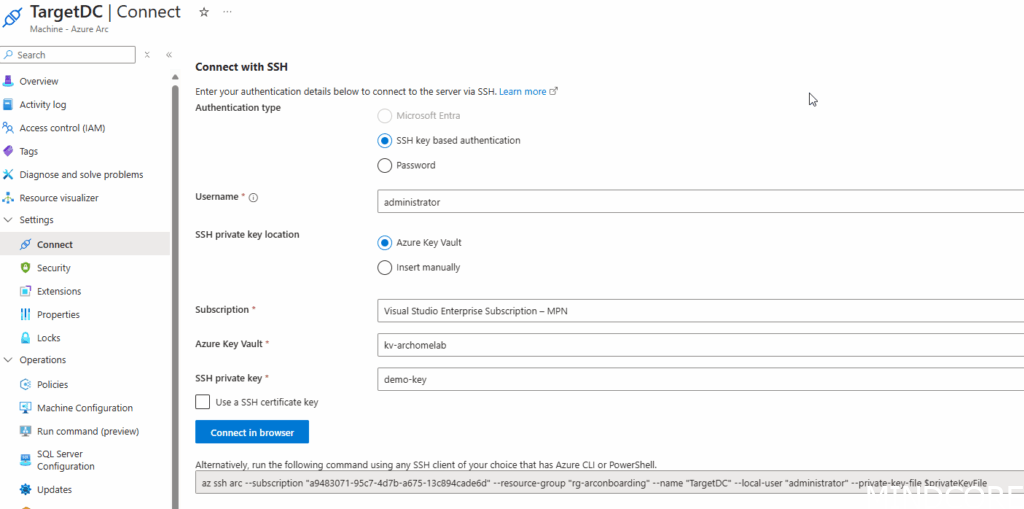
Clicking ‘Connect in Browser’ will now automatically retrieve the SSH key and sign in the user without any further prompts:

If the user needs to use the private key in their own terminal, they’ll need to manually retrieve it from the Key Vault (or better yet automatically retrieve it at the time of connection and only load it into memory, for example, using PowerShell’s SecretManagement cmdlets).
Off course, security of the private key is paramount, since with it users could also create an SSH connection directly to the machine as long as they have the required network connectivity. However, no users should ever have direct line-of-sight to SSH any longer as long as Azure Arc is used.
Optionally, Certificate authentication can also be used but that requires a bit more setup and will not be part of this blogpost.
Other Security Considerations
Other folks in the industry have also seen the use case of Azure Arc’s remoting capabilities from a different perspective – that of an attacker wanting to gain and maintain control (often called ‘C2 – aka Command & Control).
Some interesting reads about that can be found below:
IBM – Identifying and abusing Azure Arc for hybrid escalation and persistence
Andy Gill – LOLCLOUD – Azure Arc – C2aaS
Ryan (Hausec) – Azure Virtual Machine Execution Techniques
I won’t fully cover each aspect that these blogposts cover but I do think it’s good to point out that an improper onboarding of Arc machines may lead to a less secure environment by increasing the attack surface, letting machines be managed from the cloud.
It’s also important to note that even if you decide not to utilize these Azure Arc, that an attacker could onboard your machines into a tenant of their own choosing if you’re not actively looking for signs of Arc onboarding.
Also of note is that the SSH extension isn’t the only way to remotely execute things from Azure. As I’ve covered in a previous blogpost: Modern Server Management – Exploring Azure Arc Run Commands using Bicep – Mindcore Techblog
The Run command doesn’t require an extension to be installed at all but does leave distinct traces of execution that can be detected.
You can limit access to the Run command using Azure RBAC as described here.
In general, it’s important to have a good design and architecture around how you’ll actually want to manage these new resources within Azure. Much of the same best-practices you should follow for Azure resources apply here as well. Make full use of subscriptions, resource groups, and administrative units if required.
Allowlists & Blocklists
In addition, you can block (or allow) specific extensions from running on any given VM by adding them to a list within the Azure Arc Agent. This is a local configuration that can be adjusted on a per-server basis. This ensures that nobody, not even a user with Owner or Global Administrator permissions in Azure, can override your security rules by trying to install an unauthorized extension.
You can read more about this in detail here.
This is a must-have configuration to implement, especially for critical servers (such as Domain Controllers).
What about Linux?
Be sure to check the supported operating systems for the agent here.
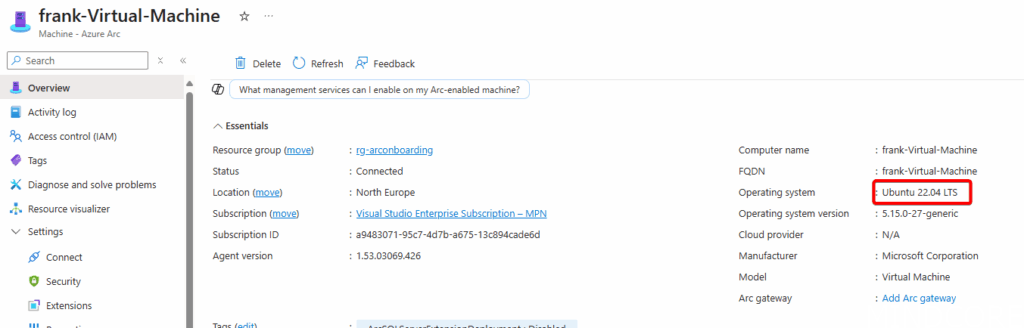
Onboard the machine to Arc and as long as OpenSSH is installed (on Ubuntu, simply apt install openssh-server) you’ll be able to connect to it using SSH right-away:
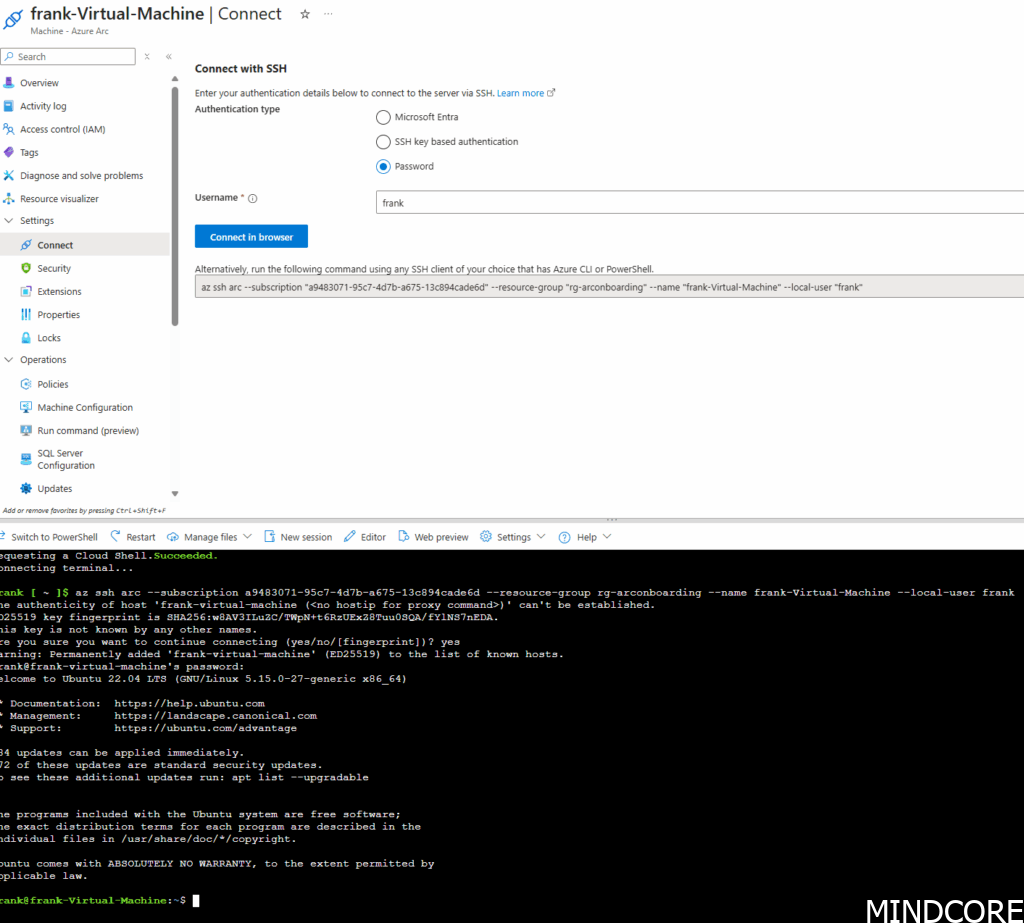
Off course, RDP does not work, as that’s a bit more Microsoft specific but I think it’s rare for a Linux server to require interactive desktop sessions.
An interesting advantage that Linux does have is the ability to login using Entra ID authentication. That will be covered in a later blogpost.
Conclusion
I hope this post has shown how to gain better remote control of all resources, regardless of where they are hosted. Using Azure’s RBAC model and Entra’s security methods, it’s possible to create a highly secure environment based on Zero-Trust principles.
What I’d like to see next
As already mentioned in Pt.1 of this series, I’d love to have the same management experience across Azure native VM’s as well as Azure Arc. Currently, in order to SSH to an Azure VM a public IP needs to be created with appropriate firewall openings. Alternatively, using Bastion to gain access to it. I don’t see a reason why Azure VMs would not be able to use the same Arc Proxy service to create SSH sessions as an alternative means of connecting.








