
Introduction
In our previous post, Michael Morten Sonne and I covered the background: what Secure Boot is, why the 2011 certificates are expiring, and how Microsoft is rolling out the new Windows UEFI CA 2023 certificates. We ended with a recommendation to use a ring-based deployment approach and set up your tooling.
This post is the “how.” We’ll walk through the Intune Remediation scripts we’ve written to automate the transition across your device fleet – what they do, why they work the way they do, what the output tells you, and what a real 40-day device journey through the transition looks like.
If you haven’t read the first post yet, start there. This one picks up right where it left off.
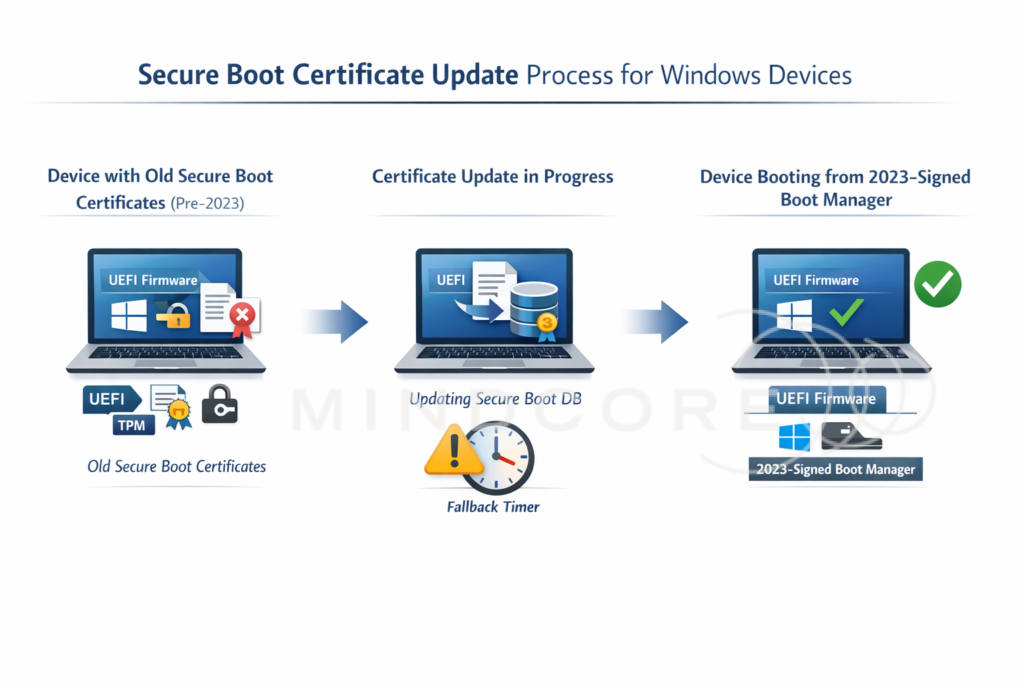
Who This Applies To
Before diving into the solution, let’s be clear about scope – because this update is broader than many people assume.
The Secure Boot certificate transition is required for any Windows device that has Secure Boot enabled, regardless of form factor or management model. This is not a server-only concern, and it is not limited to a specific hardware generation. If Secure Boot is on and the device boots Windows, the 2011 certificates will expire and the device needs to transition.
Device types in scope
| Device type | Notes |
|---|---|
| Windows 11 Enterprise / Pro — Intune managed |
Primary target for this remediation approach |
| Windows 10 Enterprise / Pro — Intune managed |
Supported, but Windows 10 reached end of support in October 2025. Ensure ESU is in place. |
| Azure Virtual Machines with vTPM and Secure Boot |
VMs with Trusted Launch enabled use Secure Boot and are in scope |
| Azure Virtual Desktop session hosts |
In scope if Secure Boot is enabled on the host image |
| On-premises / co-managed devices | Can use this approach through Intune workload assignment |
| BYOD / personal devices | Out of scope for managed opt-in — these rely on the standard Windows Update rollout |
Device types out of scope
The managed opt-in model requires Microsoft Intune and a Windows Update connection to Microsoft’s update infrastructure. Devices that receive updates exclusively from WSUS without internet access to Windows Update, or devices managed through other tooling, will need a different approach – typically direct registry configuration or GPO combined with WSUS targeting.
Also out of scope: devices with Secure Boot disabled. These are detected at Stage 0 and cannot be remediated through software. The detection script logs whether the device is on legacy BIOS (MBR) or has Secure Boot turned off in firmware, both require manual intervention and are flagged in the Intune portal.
A note on servers
Windows Server is technically in scope for the certificate expiration, but the remediation approach described here is designed for client devices managed through Intune. Server environments typically require separate change management processes, firmware validation, and constraints around unscheduled reboots. Treat servers as Ring 2 at minimum and validate thoroughly before any broad rollout.
Telemetry Is Not Optional
This is one of the less-documented prerequisites, and skipping it will cause the managed opt-in to silently fail in ways that are hard to diagnose.
To use the controlled MicrosoftUpdateManagedOptIn model, your devices must have Required Diagnostic Data (formerly Basic telemetry) enabled. This is not a policy recommendation, it is a functional requirement of the update mechanism itself.
Why Microsoft requires it
When the UEFI DB update is applied, Microsoft uses the diagnostic data your device sends to monitor whether the firmware transition succeeded or failed. If the update causes a problem, a boot failure, a BitLocker recovery loop, or a firmware incompatibility, Microsoft’s backend detects this via the telemetry and automatically blocks Windows Update from re-offering the update to that specific device. This safety mechanism prevents a bad firmware interaction from bricking a machine on a subsequent retry.
If telemetry is off, Microsoft has no signal from your device. The safety gate cannot function. Windows Update will not process the certificate update reliably through the managed opt-in path.
What needs to be configured
1. Allow Diagnostic Data – set to at least Required
If your devices are configured at the Security telemetry level (value 0) which is only supported on Windows Enterprise and Education editions, the managed opt-in will not function properly. You must set this to at least Required (value 1).
| 📌 The Security telemetry level is not the same as “secure.” It predates the current telemetry model and means Microsoft receives almost no data from the device. For this specific update, it breaks the feedback loop that makes the managed rollout safe. |
2. The DiagTrack service must be running
The Connected User Experiences and Telemetry service (DiagTrack) must be in a running state. If this service has been disabled by policy, the diagnostic data pipeline is broken regardless of the telemetry level setting.
How to check and configure in Intune
You can verify the current state on a device by checking the following registry path:
Look for the AllowTelemetry value. The expected data values are:
And confirm the DiagTrack service is running using PowerShell:
Verify and set telemetry through either of the following:
- Settings Catalog: System > Allow Telemetry → set to Required (or Optional / Full)
- Device Restriction Profile: Reporting and Telemetry > Share usage data → set to at least Required

| ⚠️ If you have a blanket policy disabling telemetry across your fleet, you will need to carve out an exception or accept that the Windows Update managed opt-in will not work for those devices. The v3.0 fallback method handles this automatically after the configured threshold, but devices with no telemetry will not benefit from Microsoft’s safety gate either. |
Why Not the Built-in CSP?
Before getting into the scripts, it’s worth addressing the obvious question: Microsoft provides Secure Boot-related CSPs, so why not just use those through a configuration profile?
The short answer is that there is a known bug in the CSP path that causes it to exit with error 65000, which means the policy silently fails to apply on the device. The device appears configured in Intune, but the underlying firmware-level change never happens. You don’t get useful diagnostic output, and you have no reliable way to know which devices are affected.

Using a PowerShell remediation script instead gives you full control over the registry write, verification of the result, and structured output you can read both in Intune’s remediation portal and in a local log file on the device. It’s the safer and more observable path — which is exactly what you want when managing a change that touches UEFI firmware and BitLocker.
Why Intune Remediations?
Microsoft’s guidance for enterprises is clear: don’t rely on the automatic rollout. Use a controlled, registry-based opt-in so you can manage timing, rings, and rollback. The mechanism itself is simple, a single registry DWORD, but doing it at scale, tracking progress, and handling edge cases is where it gets interesting.
Intune Remediations are the right tool for this job because:
- They run on a schedule, so you get continuous visibility rather than a one-time push
- The detection script defines compliance – Intune reports on it natively
- The remediation script only runs when the detection says a device is non-compliant
- Output is visible directly in the Intune portal under the remediation run results
The scripts went through several iterations before reaching their current state. Version 1.0 handled the basic opt-in. Version 2.x improved idempotency and added diagnostic logging. Version 3.0, the current release, adds the fallback timer that proved essential after observing a real device sit in Stage 2 for 36 days without Windows Update ever delivering the certificate payload. More on that below. (Thanks to our colleague Martin Bengtsson for the idea to build this fallback solution into one single clever solution)
The Compliance Stages
The detection script evaluates devices against a tiered model with six stages. A device can only be considered compliant at Stage 5.
| Stage | Status | What it means |
|---|---|---|
| Stage 0 | Secure Boot disabled | Updates cannot apply. Manual intervention required to enable Secure Boot in BIOS/UEFI, or convert legacy MBR disks to GPT. |
| Stage 1 | Managed Opt-In not set | Not configured for managed certificate updates. The remediation script will automatically set the required registry key. |
| Stage 2 | Configured, awaiting WU scan | Waiting for Windows Update. If stuck beyond the fallback limit (e.g. 30 days), the script will automatically use a direct method (WinCS) on its next run. |
| Stage 3 | Update in progress | Windows Update is applying certificates. If failing with 0x80070002 (missing payload files), a new Cumulative Update must be installed. |
| Stage 4 | CA2023 cert in UEFI DB | Certificate written to firmware, but device is still using the old boot manager. One reboot away from compliance. |
| Stage 5 | ✅ Compliant | The certificate transition is complete. The device is successfully booting from the 2023-signed boot manager. |
A device is only considered compliant when WindowsUEFICA2023Capable equals 2 – meaning the 2023 certificate is not just present in the UEFI DB, but the device is actively booting from it. Values of 0 or 1 are not enough.
It’s also worth separating the two distinct operations that must both complete before a device reaches Stage 5:
- Certificate enrollment into the UEFI DB – the Windows UEFI CA 2023 certificate is written to the Secure Boot allowed signatures database in firmware. This happens while the OS is running. When complete,
WindowsUEFICA2023Capablemoves from0to1. - Boot manager transition on next reboot – the device reboots and loads the new boot manager that is signed by the 2023 certificate chain. After a successful reboot,
WindowsUEFICA2023Capablemoves from1to2.
Stage 4 is the most operationally important state in the whole process. The cert is already in the firmware DB, but the device is still booting the old chain. This is the point where change control, reboot timing, and BitLocker readiness matter most. A device can sit at Stage 4 indefinitely if it isn’t rebooted.
The Detection Script
What it does
Detect-SecureBootCertificateUpdate.ps1 walks through the six stages above and exits with the appropriate code:
- Exit 0 – Compliant (Stage 5 only)
- Exit 1 – Non-compliant (any other stage, or an error)
At each stage, the script writes detailed diagnostic data to a local log file at:
%ProgramData%\Microsoft\IntuneManagementExtension\Logs\SecureBootCertificateUpdate.logThis is the same log location the Intune Management Extension uses, making it easy to find when you’re troubleshooting a specific device.
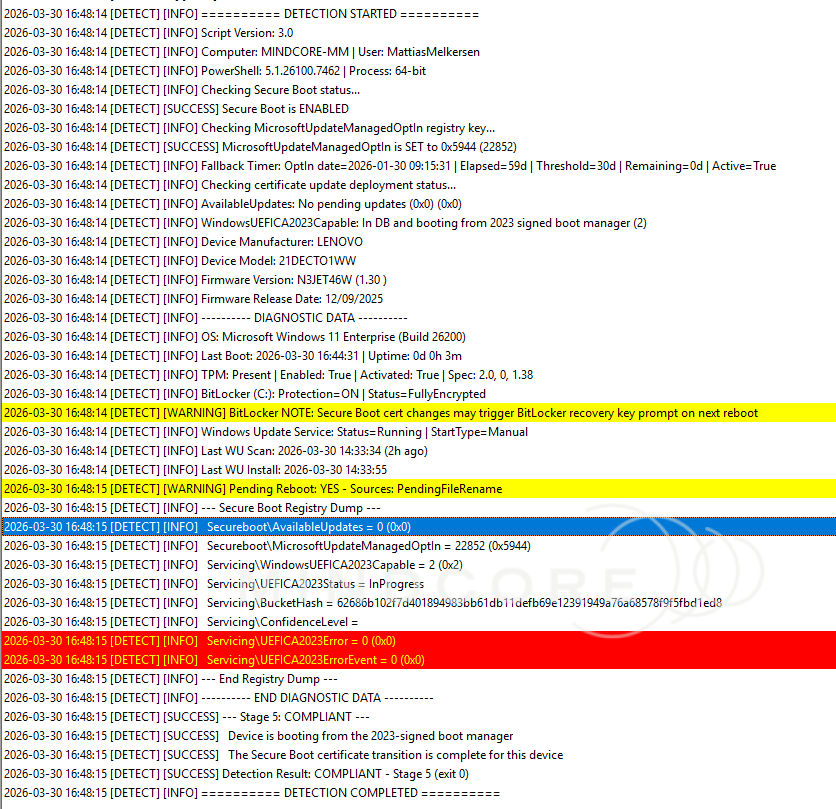
Key registry values checked
The script reads two registry paths:
Registry paths read by the script
- MicrosoftUpdateManagedOptIn — must be 0x5944 (22852 decimal) for Stage 1+
- AvailableUpdates — tracks certificate deployment progress
-
WindowsUEFICA2023Capable — the key compliance indicator:
0Not in DB1In DB (cert enrolled in firmware, but booting old chain)2In DB and booting from 2023-signed boot manager ✅
- UEFICA2023Status — deployment status written by WinCS New
Diagnostic data collected on every run
Beyond the compliance check, the script collects a rich set of diagnostic data to help you understand why a device is stuck at a given stage. This includes:
- OS version and build Warns if still on Windows 10
- Last boot time and uptime
- Firmware-level UEFI DB verification (reads raw bytes to confirm CA 2023 presence) New in v4.0
- WinCS (WinCsFlags.exe) availability check and query results New in v4.0
- Payload folder validation (`SecureBootUpdates`) to detect missing `.bin` files (Error 0x80070002) New in v4.0
- Scheduled task execution status (`Secure-Boot-Update`) and Last Run Result New in v4.0
- Secure Boot event log harvesting (Event IDs 1036, 1043, 1044, 1045, 1801, 1808) New in v4.0
- TPM status (enabled, activated, spec version)
- BitLocker status on the OS drive
- Windows Update service health and timestamp of the last successful scan
- Pending reboot indicators (CBS, WU, PendingFileRename)
- Full dump of all values under both Secureboot registry paths
ℹ️ A note on pending reboot indicators: The script may flag a persistent PendingFileRename reboot signal. Unless this can be correlated with a specific change on a given reboot, treat it as background noise rather than evidence that the Secure Boot update itself is waiting on a reboot. It is a common long-running signal on managed devices and is unrelated to the certificate transition. |
This diagnostic data proved invaluable during testing – see the real-world timeline section below.
The fallback timer
The detection script reads a timestamp written by the remediation script (ManagedOptInDate) and calculates how many days have elapsed since the device was opted in. If that exceeds the configured threshold (default: 30 days), the script includes Fallback:ACTIVE in its output, signalling to the remediation script that it should stop waiting for Windows Update and trigger the direct method instead.
Example detection output
A device at Stage 2 (opted in, waiting for Windows Update):
CONFIGURED_AWAITING_UPDATE | OptIn:0x5944 | Fallback:18d remaining | Action: Waiting for Windows Update scanA fully compliant device at Stage 5:
COMPLIANT | OptIn:0x5944 | CA2023:In DB and booting from 2023 signed boot managerThe Remediation Script
What it does
Remediate-SecureBootCertificateUpdate.ps1 runs when the detection script returns exit 1. Its job depends on which stage the device is at:
- New devices (Stage 1): Set
MicrosoftUpdateManagedOptIn = 0x5944and write aManagedOptInDatetimestamp. Then let Windows Update do its job. - Already opted-in devices (Stages 2-4): Check the fallback timer. If below the threshold, exit 0 and wait. If exceeded, activate the direct method.
- Compliant devices (Stage 5): Exit 0 immediately without writing anything.
Idempotency
The script is fully idempotent. If the registry key is already set correctly, it won’t write it again. This matters because Intune Remediations run on a schedule, and unnecessary registry writes create noise in audit logs and make it harder to correlate the log output with actual state changes.
The fallback mechanism
If a device has been opted in for more than FallbackDays days (default: 30) without reaching compliance, the script activates the direct method from Microsoft’s KB5025885 guidance – also known as Mitigation 1+2. This bypasses the Windows Update delivery pipeline entirely.
It works in two steps:
Step 1: DB cert (Mitigation 1):
Sets AvailableUpdates = 0x40 and triggers the \Microsoft\Windows\PI\Secure-Boot-Update scheduled task. This initiates the write of the Windows UEFI CA 2023 certificate into the UEFI Secure Boot DB. Skipped if the cert is already present (WindowsUEFICA2023Capable ≥ 1).
Step 2: Boot manager (Mitigation 2):
Sets AvailableUpdates = 0x100 and triggers the same task again. This stages the boot manager update so that the next reboot loads the 2023-signed chain.
After Step 2, the device moves to Stage 4. A reboot is required to complete the transition to Stage 5.
⚠️ Important: The fallback requires the Secure-Boot-Update scheduled task to exist. This task is delivered by the July 2024 cumulative update or later. If it’s missing, the fallback will log FALLBACK_BLOCKED and exit with error 1. Ensure your devices are fully patched. |
A note on transient errors at Stage 4
After the fallback sets AvailableUpdates = 0x100 and triggers the task, you may see a transient UEFICA2023Error value in the registry (for example, error 2147942750 with event 0x708). This indicates the boot manager update is staged and waiting for a reboot, it is not a failed end state. In testing, this error value cleared after the device rebooted and WindowsUEFICA2023Capable reached 2. If you see this on a device, the right action is to ensure a reboot happens, not to re-run remediation.
Timestamp backfill
For devices that were already opted in before version 3.0 (which introduced the fallback timer), the remediation will automatically write a ManagedOptInDate timestamp on the first v3.0 run — starting the fallback clock from that point forward.
Example remediation output
Fresh opt-in on a new device:
SUCCESS: MicrosoftUpdateManagedOptIn set to 0x5944. Certificate updates enabled.Already configured, fallback not yet active:
ALREADY_CONFIGURED: OptIn 0x5944 already set. CA2023: Pending. Fallback in 12d.Fallback triggered successfully:
FALLBACK_APPLIED: Direct method triggered. CA2023 was: Not in DB. Reboot may be required.A Real-World Case: 40 Days
The version 3.0 fallback mechanism wasn’t written speculatively. It came directly from observing a real device fail to progress through the certificate transition for over five weeks.
Device profile
| Property | Value |
|---|---|
| Computer | MINDCORE-MM |
| Manufacturer | Lenovo |
| Model | 21DECTO1WW |
| Firmware | N3JET46W (1.30), released 2025-12-09 |
| OS | Windows 11 Enterprise, Build 26200 |
| TPM | 2.0, Enabled, Activated, Spec 1.38 |
| BitLocker | ON, FullyEncrypted (C:) throughout |
| Secure Boot | Enabled throughout |
Phase 1: The silent stall (Feb 19 – Mar 27)
The first logged detection ran on Feb 19, 2026. The device was already opted in — MicrosoftUpdateManagedOptIn = 0x5944 had been set by an earlier v2.1 remediation run before detailed logging was in place. The device was at Stage 2 from day one.
What followed was 36 consecutive days of identical results: (this will happen in your environment too)
MicrosoftUpdateManagedOptIn  = 0x5944  ← Opted in
AvailableUpdates             = 0x0     ← No updates staged
WindowsUEFICA2023Capable     = 0       ← Not in DB
Windows Update was fully active during this entire period. Scans ran multiple times daily. Cumulative updates installed normally. The Secure Boot certificate payload was simply never included in any update cycle during the 36-day observation window.
The v2.1 remediation saw MicrosoftUpdateManagedOptIn already set correctly, reported ALREADY_CONFIGURED, and exited with success, every single day. It had no mechanism to escalate. The device was in a compliant-looking non-compliant loop.
The device rebooted twice during this window (around Feb 27 and Mar 20). Neither reboot changed anything, after each one, detection immediately reported the same Stage 2 state.
Phase 2: The state change (Mar 27)
The last automated Intune cycle under v2.1 ran at 10:05 on Mar 27. Still Stage 2. Still CA2023Capable = 0.
V3.1 was built and tested with the fallback mechanism.
What the log can prove is the before and after state. At 14:33, a manual v3.0 detection run confirmed – for the first time in 36 days – that the registry state had changed:
| Registry Key | Before (10:05) | After (14:33) | Change |
|---|---|---|---|
| WindowsUEFICA2023Capable | 0 | 1 | Certificate written to UEFI DB |
| UEFICA2023Status | NotStarted | InProgress | Transition initiated |
| UEFICA2023Error | (not present) | 0 | New key, no errors |
The device jumped from Stage 2 to Stage 4. The cert was now in the UEFI DB. But the device hadn’t rebooted yet to load the 2023-signed boot manager.
ℹ️ The most likely explanation: Windows Update did not autonomously complete the transition during the 36-day observation window. A manual servicing action using v3.0 – triggering the Secure-Boot-Update scheduled task directly – appears to have been what finally moved the device forward. The v3.0 fallback automates exactly this action, targeting devices that have been stuck in Stages 2–4 beyond the configured threshold. |
Phase 3: Fallback validation (Mar 30)
After the state change on Mar 27, the device hadn’t rebooted. No Intune cycles ran on Mar 28–29.
On Mar 30, the v3.0 remediation ran and backfilled a ManagedOptInDate timestamp (the device had been opted in before v3.0 was deployed). To validate the fallback logic, the timestamp was manually backdated to simulate 59 elapsed days – well beyond the 30-day threshold.
The fallback activated cleanly:
- Since
CA2023Capablewas already1(cert in DB from Mar 27), Step 1 was correctly skipped - Step 2 set
AvailableUpdates = 0x100and triggered the scheduled task to stage the boot manager update
A subsequent Intune-automated cycle at 13:20–13:21 independently confirmed the same state and fired the fallback again. The transient UEFICA2023Error = 2147942750 / ErrorEvent = 0x708 appeared at this point – as noted above, this indicates the update is staged and waiting for a reboot, not a failure.
Phase 4: Resolution (Mar 30 afternoon)
The device rebooted at 16:44. The new boot manager loaded using the 2023 certificate chain.
The post-reboot detection at 16:48 delivered the final verdict:
| Registry Key | Final Value | Meaning |
|---|---|---|
| WindowsUEFICA2023Capable | 2 | Booting from 2023-signed boot manager ✅ |
| AvailableUpdates | 0x0 | Updates consumed |
| UEFICA2023Error | 0 | Cleared after successful boot |
BitLocker remained Protection=ON | Status=FullyEncrypted throughout the entire 40-day period – including through the final reboot where the boot manager switched to the 2023 certificate chain. No recovery key prompt was observed.
| It’s worth framing this correctly: BitLocker recovery was a risk that needed to be planned for, not an observed incident on this device. Other hardware or firmware configurations may behave differently. Always validate recovery key escrow in Entra ID before triggering reboots at scale. |
Phase 5: The Missing Payload Dilemma (Enter Version 4.0)
While the v3.0 fallback mechanism successfully broke the Windows Update stall by invoking the legacy Secure-Boot-Update scheduled task, expanding the deployment revealed a new, silent failure layer on a subset of devices: Error 0x80070002 (File Not Found).
On these devices, the v3.0 fallback would trigger exactly as designed, but the device remained stuck. Inspecting the scheduled task’s last run result revealed it was failing entirely out of view. The root cause? The legacy task strictly depends on binary payload files located at C:\Windows\System32\SecureBootUpdates. If a device was missing these files -due to OS corruption, aggressive cleanup scripts, or servicing stack anomalies -the task would instantly fail, leaving the device stranded in a non-compliant loop.
To combat this fragile dependency, Version 4.0 was engineered to bring extensive diagnostic intelligence and a modernized fallback architecture:
| v4.0 Enhancement | Mechanics & Impact |
|---|---|
| WinCS API Integration | Remediation now defaults to Microsoft’s modern WinCsFlags.exe API, completely bypassing the need for local .bin payload files. The legacy scheduled task is relegated to a true backup. |
| Pre-flight Payload Validation | Before attempting the legacy fallback task, the script validates the health of the SecureBootUpdates folder. If files are missing, it blocks the failing task gracefully. |
| Firmware-Level Verification | Detection no longer relies solely on the OS registry. It queries the raw UEFI NVRAM bytes (Get-SecureBootUEFI db) to verify the Microsoft Windows Production PCA 2011 certificate is physically present. |
| Event Log Harvesting | Detection scoops up critical Kernel-Boot and System Event IDs (1036, 1043, 1044, 1045, 1801, 1808) to provide immediate context on firmware rejections during boot. |
With v4.0, when a device reaches the fallback state, it seamlessly pivots to the WinCS architecture. Even if the local payload files have been stripped out, the script can command the OS to transition the certificates natively, surfacing task execution status and payload health straight to the Intune portal.
How the investigation was done
The timeline above was reconstructed from two sources:
Windows Event Logs
- Microsoft-Windows-BitLocker/BitLocker Management
- Microsoft-Windows-Kernel-Boot/Operational
- Microsoft-Windows-TaskScheduler/Operational
- Microsoft-Windows-WindowsUpdateClient/Operational
- Setup
- System
Script Log
- SecureBootCertificateUpdate.log %ProgramData%\Microsoft\IntuneManagementExtension\Logs\
The combination of both is what allowed pinpointing the exact moment the state changed and correlating it with reboot events and task scheduler execution.
Key takeaways from the device timeline
Windows Update may not autonomously complete the transition. This device was opted in for over 36 days with active daily Windows Update scans and regular cumulative update installations. The Secure Boot certificate payload was not delivered through the standard update cycle during that observation window. A fallback mechanism is essential, don’t rely solely on the managed opt-in path.
The v3.0 fallback automates what previously required manual intervention. Had v3.0 been deployed from the start with the default 30-day threshold, the fallback would have activated around March 19, staging the boot manager update without any hands-on action.
Stage 4 is where reboot management matters most. Once CA2023Capable = 1, the cert is in firmware. The only remaining step is a reboot. If devices in your fleet reboot infrequently, Stage 4 can persist for days or weeks after the cert write. Reboot enforcement policies are critical for timely completion.
BitLocker survived – but plan for it anyway. The PCR 7 measurements changed when the boot manager transitioned to the 2023 chain, yet BitLocker did not prompt for a recovery key on this device. This is the expected behavior on modern hardware with Entra ID-backed key escrow and a properly configured TPM, but it is hardware and firmware dependent. Always verify your recovery key escrow before rolling out broadly.
Setting It Up in Intune
Create the remediation package
- In the Intune portal, go to Devices > Remediations
- Click Create script package
- Name it – e.g., Secure Boot Certificate Update 2026
- Upload
Detect-SecureBootCertificateUpdate.ps1as the Detection script - Upload
Remediate-SecureBootCertificateUpdate.ps1as the Remediation script - Set Run this script using the logged-on credentials → No (must run as SYSTEM)
- Set Enforce script signature check → No (unless you sign your scripts)
- Set Run script in 64-bit PowerShell → Yes
Recommended schedule
Set the detection to run once every day. This gives you fast visibility on newly enrolled devices and ensures the fallback fires within a reasonable window once it becomes active.
Deployment rings
Align your remediation assignments with the rings from the first post:
| Ring | Assignment | Notes |
|---|---|---|
| Ring 0 – Pilot | IT team + representative hardware group | Deploy first, validate BitLocker escrow and hardware behaviour |
| Ring 1 – Broad | General device population | Roll out after Ring 0 is confirmed stable |
| Ring 2 – Critical | Servers, kiosks, high-availability systems | Manual review before deploying |
Customizing parameters
The defaults work well for most environments, but both the fallback threshold and registry path are configurable:
# Default (30-day fallback, Mindcore registry path)
.\Remediate-SecureBootCertificateUpdate.ps1

# Custom threshold, your own registry path
.\Remediate-SecureBootCertificateUpdate.ps1 -FallbackDays 45 -TimestampRegPath "HKLM:\SOFTWARE\Contoso\Secureboot"
To pass parameters in Intune, you’ll need to wrap the scripts in a launcher, as Intune Remediations don’t support parameter passing from the portal UI directly. That is clunky and it is much easier to just set the parameter directly in the script.
You could have just used the report in Intune right?
Or could we? That is the key question. Since this is written on March 31, and the device, as shown above, has already updated, the report in Intune should reflect this, correct?
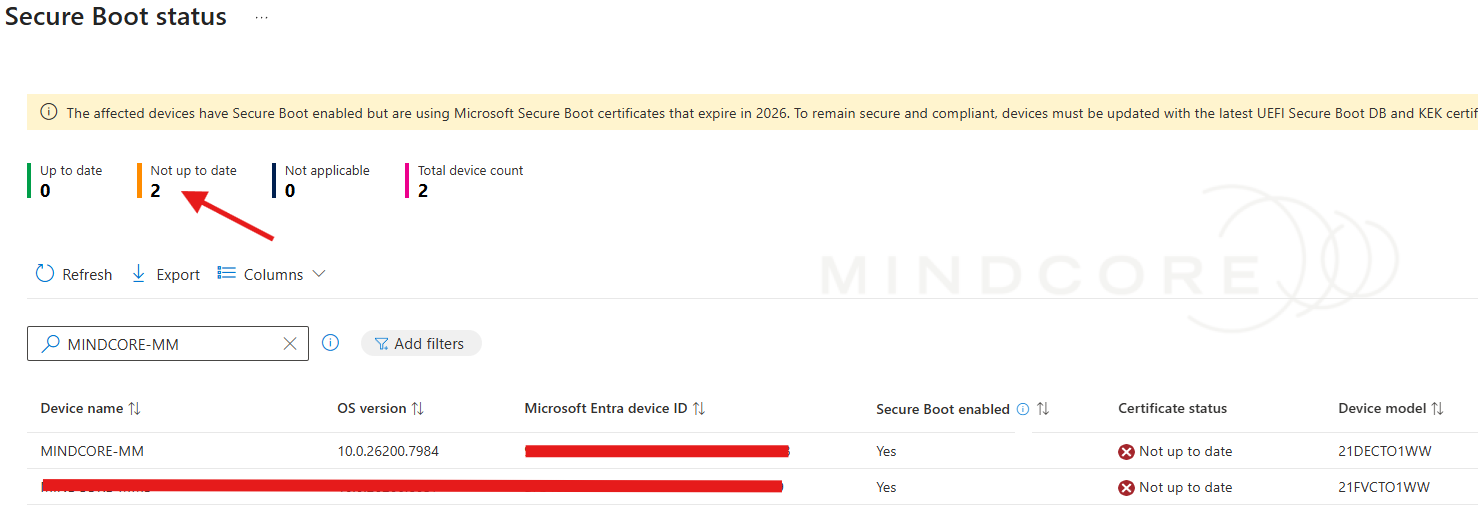
Well there you have it. Not too fast and you want progress as you go when doing operations on critical things like secure boot certificate update

And even today (April 6th) while checking the report, my device has still not updated in the report.
Reading the Log File
Both scripts write to the same log file, tagged with [DETECT] and [REMEDIATE] prefixes. The log rotates automatically at 4 MB, keeping one backup (.log.old).
A healthy log for a device progressing from Stage 1 through to Stage 5 looks like this:
2026-03-10 08:14:22 [DETECT] [INFO]    ========== DETECTION STARTED ==========
2026-03-10 08:14:22 [DETECT] [SUCCESS] Secure Boot is ENABLED
2026-03-10 08:14:22 [DETECT] [WARNING] MicrosoftUpdateManagedOptIn is NOT SET - Remediation required
2026-03-10 08:14:22 [DETECT] [WARNING] Detection Result: NON-COMPLIANT - Stage 1 (exit 1)

2026-03-10 08:14:25 [REMEDIATE] [SUCCESS] Registry value verified: 0x5944 (22852)
2026-03-10 08:14:25 [REMEDIATE] [INFO]    Fallback timer started: ManagedOptInDate = 2026-03-10T08:14:25
2026-03-10 08:14:25 [REMEDIATE] [SUCCESS] Remediation Result: SUCCESS (exit 0)

2026-03-18 14:02:11 [DETECT] [INFO]    WindowsUEFICA2023Capable: In DB (1)
2026-03-18 14:02:11 [DETECT] [WARNING] Detection Result: NON-COMPLIANT - Stage 4 (exit 1)
2026-03-18 14:02:11 [DETECT] [WARNING] NEXT STEPS: Reboot the device.

2026-03-19 09:31:04 [DETECT] [SUCCESS] Detection Result: COMPLIANT - Stage 5 (exit 0)
What to Watch Out For
BitLocker recovery prompts
When the Secure Boot certificates change, devices with BitLocker may prompt for the recovery key on the next reboot because the PCR 7 measurements change. Verify recovery key escrow in Entra ID before triggering reboots at scale. The detection script logs a BitLocker warning for every device where protection is active. In testing on MINDCORE-MM, no recovery prompt was triggered, but treat that as a data point, not a guarantee.
Stage 4 devices that don’t progress
A device at Stage 4 (WindowsUEFICA2023Capable = 1) has the cert in the UEFI DB but hasn’t rebooted. Check whether the device has actually been powered on and rebooted, the detection log includes last boot time to help you assess this. Stage 4 can persist for days if the device isn’t rebooted promptly.
Devices showing FALLBACK_BLOCKED
This means the Secure-Boot-Update scheduled task is missing – typically because the device is missing a post-July 2024 cumulative update. Ensure the device is fully patched and re-run the remediation.
Stage 0 devices
Devices with Secure Boot disabled cannot be remediated through software. The log will tell you whether the device is on legacy BIOS (MBR) or if Secure Boot is simply off in firmware. Both require manual intervention.
Transient UEFICA2023Error values
If you see a non-zero UEFICA2023Error in the registry after fallback runs, check the context. If it appeared after AvailableUpdates = 0x100 was set and clears after the next successful reboot, it is a transient staging signal, not a failure. Only escalate if the error persists after a clean reboot with CA2023Capable still below 2.
A Word on Hotpatch and Low-Reboot Environments
The entire Stage 4 → Stage 5 transition depends on one thing: the device must reboot. That’s easy to take for granted – until you consider environments where reboots have been deliberately reduced.
Windows 11 Hotpatch, available to Intune-managed devices with Windows 11 Enterprise 24H2 or later on supported hardware (and rolled out by april 2026 automatically if you use autopatch), delivers security updates without requiring a reboot during the update cycle itself. This is a significant operational benefit for organizations that care about availability and user experience. But it has a direct implication for Secure Boot certificate compliance.
If most of your quality updates are delivered as hotpatches, your devices may reboot far less frequently than they used to. A device could sit at Stage 4 – cert in the UEFI DB, boot manager update staged – for weeks simply because no reboot has been triggered. From the compliance dashboard, it looks non-compliant. In practice, it’s one reboot away. But “one reboot away” and “compliant” are not the same thing, and with the June 2026 deadline approaching, timing matters.
Practical recommendations for hotpatch-enabled environments:
- Don’t rely on the update cycle to trigger the reboot. Hotpatch months skip the reboot entirely; baseline months include it but occur less frequently (roughly quarterly with the current Microsoft schedule).
- Use a reboot enforcement policy alongside the remediation. An Intune compliance policy or a scheduled restart window ensures that Stage 4 devices don’t linger. Consider a separate policy that triggers a reboot for devices that have been at Stage 4 for more than a defined number of days.
- Monitor Stage 4 as its own compliance state. In your Intune remediation reporting, filter for devices returning
CONFIGURED_CA2023_IN_DBin their output. These are devices where the hard work is done – they just need a reboot. Track this group separately from the devices still in Stages 1-3. - Communicate to end users. In a hotpatch environment, users may not have seen a restart prompt in weeks. If your rollout reaches a scale where you need to enforce reboots, give users advance notice rather than forcing a restart mid-day.
The bottom line: Hotpatch is a feature worth using, but it removes the natural reboot cadence that would otherwise resolve Stage 4 automatically. Plan for it explicitly.
The Scripts
Both scripts are available on GitHub in Mathias’s repository:
🔗 mmelkersen/EndpointManager — Secure Boot remediation scripts
Wrapping Up
With these two scripts deployed as an Intune Remediation package, you get:
- Automatic opt-in for devices that haven’t been configured yet
- Continuous compliance tracking through Intune’s built-in remediation reporting
- A smart fallback that switches to the direct method after 30 days if Windows Update hasn’t delivered the certs – and real-world data shows this fallback is not just a theoretical safety net
- Rich diagnostic logging on every device so you can understand exactly why a device is stuck
- A known-good path that avoids the CSP bug that causes silent failures on some devices
The June 2026 deadline for the KEK CA 2011 and UEFI CA 2011 certificates is real and approaching. The good news is the tooling is solid, the failure modes are documented, and with Intune Remediations you can make this a managed, visible, ring-based rollout rather than a last-minute scramble.
Get Ring 0 deployed. Watch the logs. Then roll it broad. And if you’re running hotpatch – make sure your devices actually reboot.
References
- Act now: Secure Boot certificates expire in June 2026 – Windows IT Pro Blog
- Enterprise deployment guidance for CVE-2023-24932 – Microsoft Support
- Windows Secure Boot certificate expiration and CA updates – Microsoft Support
- Part 1: Secure Boot Certificates are expiring – Help is on the way – Mindcore Techblog









