
In previous blogposts, I’ve described how we can use the OpenSSH extension through Azure Arc to gain better remote SSH and RDP sessions to machines without requiring direct network access. However, they’ve always required we login to the machine with local credentials (or domain, but that’s old school, we want to get away from that).
Azure Arc blog overview:
1. Modern Server Management with Azure Arc – Remote Management Pt.1 (SSH/RDP)
2. Modern Server Management with Azure Arc – Remote Management Pt.2 (Security/Linux)
3. Modern Server Management – Entra ID based SSH Login on Linux with Azure Arc
4. Modern Server Management – Azure Arc RDP with Entra ID Authentication (This blog post)
5. Azure Arc VM Onboarding Pt.1 (coming soon)
introducing Entra ID authentication! Microsoft has recently started publicly updating the documentation for the AADLoginforWindows Azure Arc extension. They clearly have other priorities than renaming it from Azure AD to Entra ID but I’m happy to see there’s still some life.
Caveats
I’ll preface this entire blogpost by saying the following is a wonderful POC but please don’t use it in production (yet…) despite it being publicly available. Some of the limitations I’ve run into (which I’ll cover in more detail throughout) are as follows:
- It requires the machine(s) that we’re logging into not to be domain joined. Or any other kind of joined, as the extension will enroll it to our tenant.
- Guest accounts not supported.
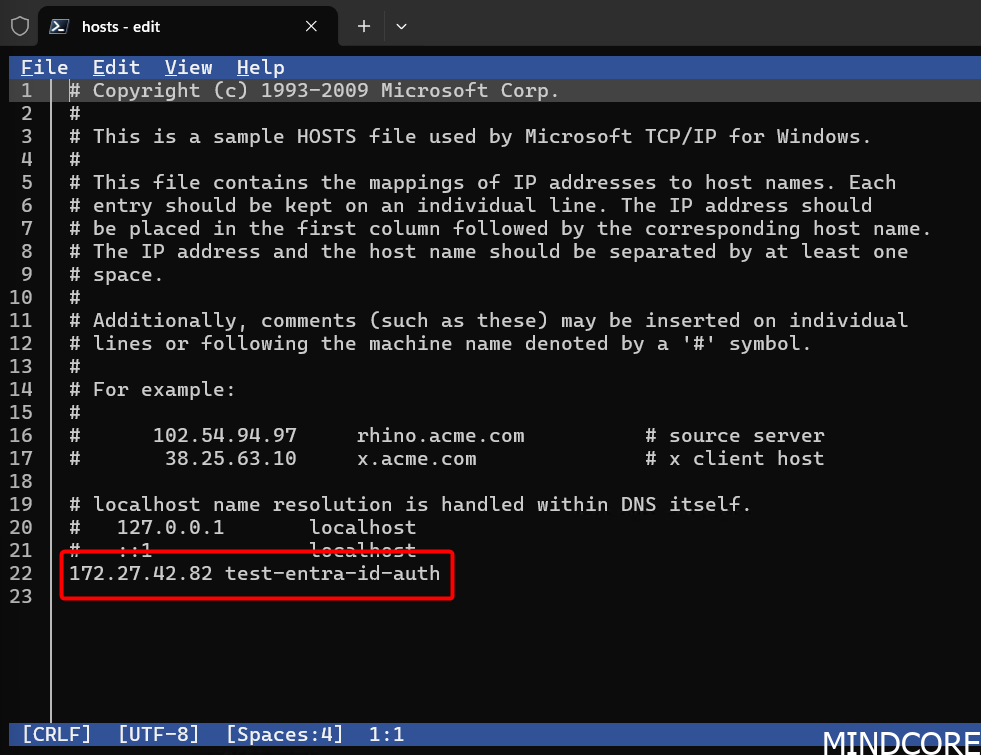
- Can’t connect to machines through IP’s – you need valid DNS resolution (or editing of the hosts file like I do for this example).
- Error-handling is basic at best.
Setup
Installing the extension is currently not possible through the portal, you’ll need to pull out some PowerShell:
$Setting = @{ "mdmId" = "" }

$params = @{
    ResourceGroupName = $resourceGroup
    Location          = $location
    MachineName       = $machineName
    Name              = "aadloginforwindows"
    Publisher         = "Microsoft.Azure.ActiveDirectory"
    ExtensionType     = "AADLoginForWindows"
    Setting           = $Setting
}

New-AzConnectedMachineExtension @params
Take specific note of the ‘mdmId’ setting – that should just be left empty, but if you forget to provide this setting, the extension will fail to install (ask me how I know).
After that, the extension should deploy, and you’ll be able to see it in the portal:

On the machine itself you’ll be able to see the extension deployed as well:
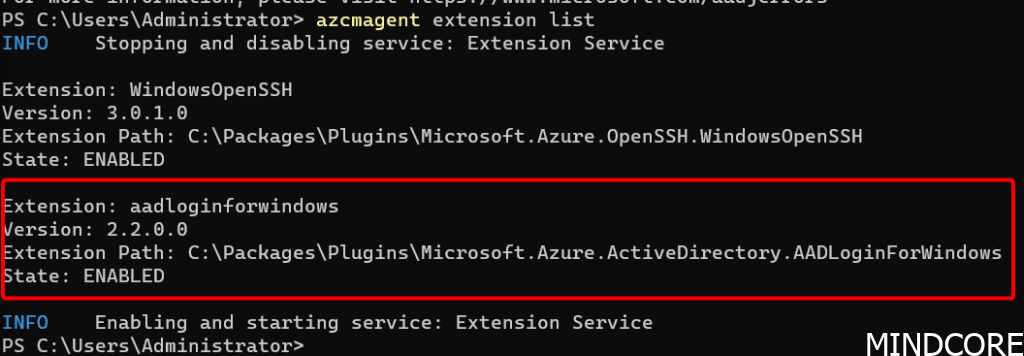
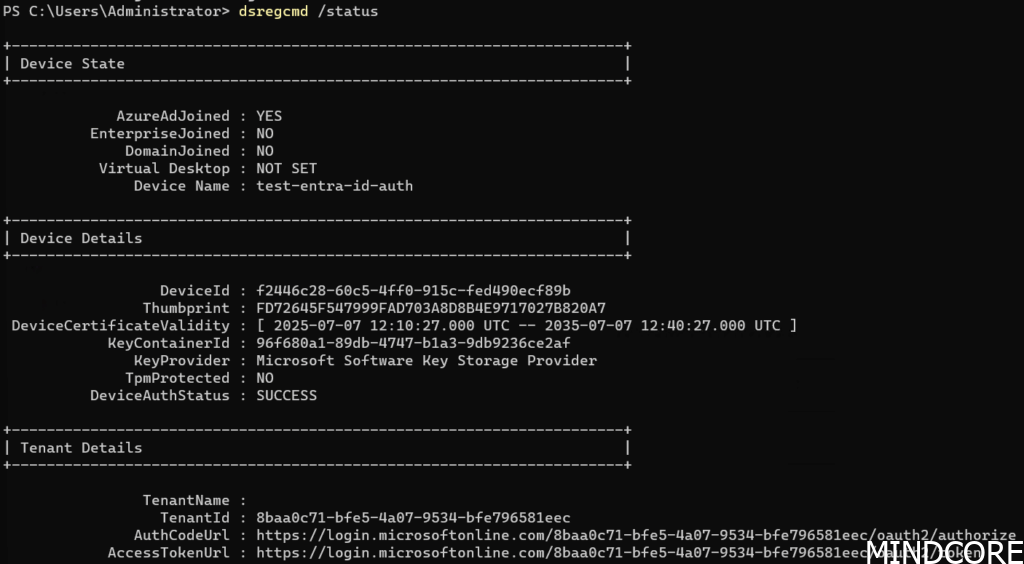
And after a little bit of time you should be able to see it as AzureADJoined:
Next you’ll need to provide a user account the appropriate RBAC permissions on the Azure Arc resource in Azure before they can sign in.
To assign user roles, you must have the Virtual Machine Data Access Administrator role, or any role that includes the Microsoft.Authorization/roleAssignments/write action such as the Role Based Access Control Administrator role.
- Virtual Machine Administrator Login: Users who have this role assigned can sign in to an Azure virtual machine with administrator privileges.
- Virtual Machine User Login: Users who have this role assigned can sign in to an Azure virtual machine with regular user privileges.
Note: Manually elevating a user to become a local administrator on the device by adding the user to a member of the local administrators group or by running net localgroup administrators /add "AzureAD\UserUpn" command isn’t supported. You need to use roles in Azure to authorize sign in.
With permissions configured, make sure that from the machine you are creating an RDP session from (the client) can resolve the machine by name (it needs to match what’s registered in Azure). For my demo, I decided to quickly edit the hosts file on the machine:
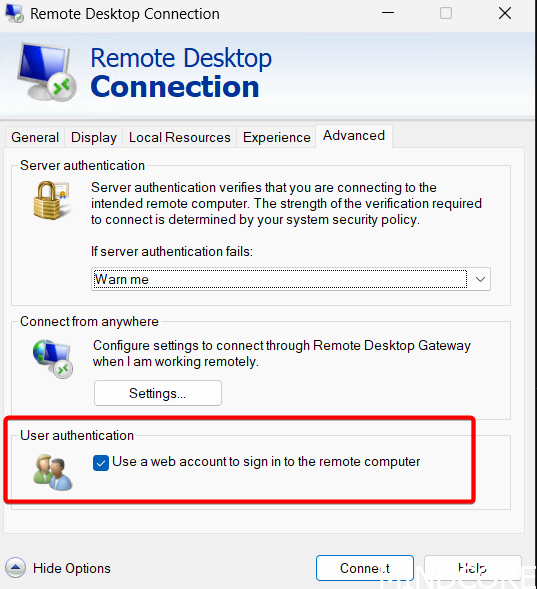
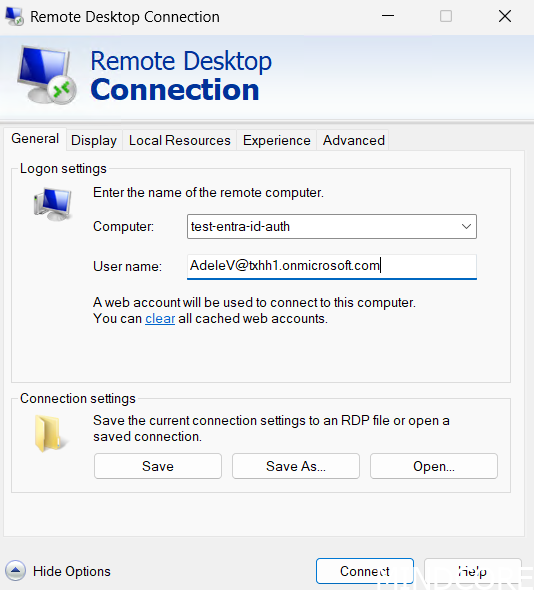
Now fire up Remote Desktop Connection from Windows Search, or by running mstsc.exe and be sure to select Use a web account to sign in to the remote computer option in the Advanced tab:
For this example, Adele will be logging into this machine for the first time:
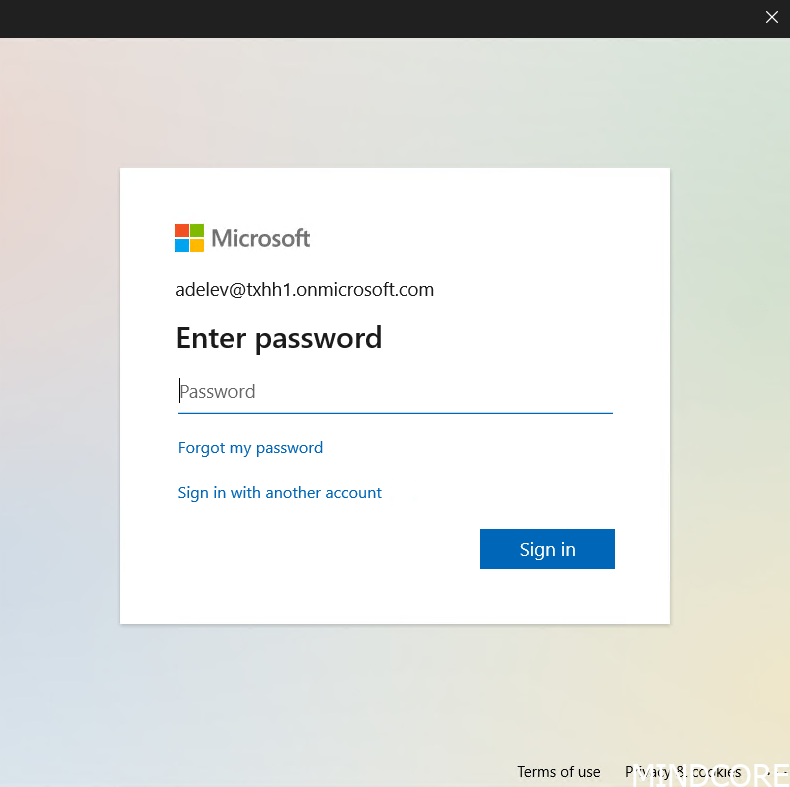
Next, a web browser sign-in window shows up:
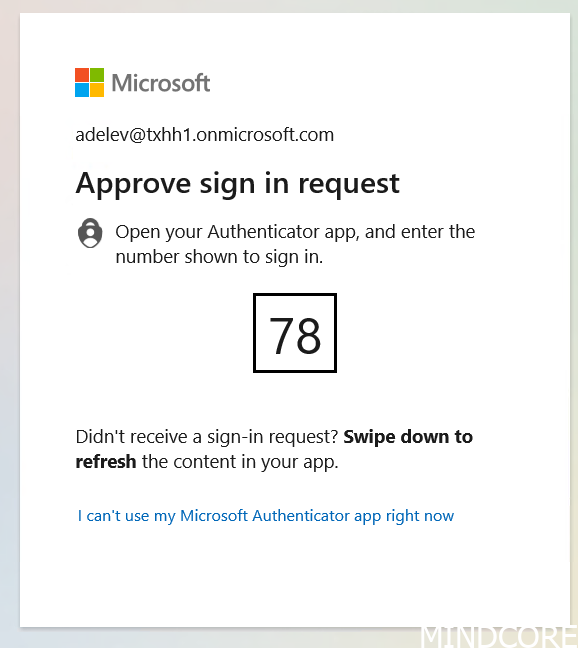
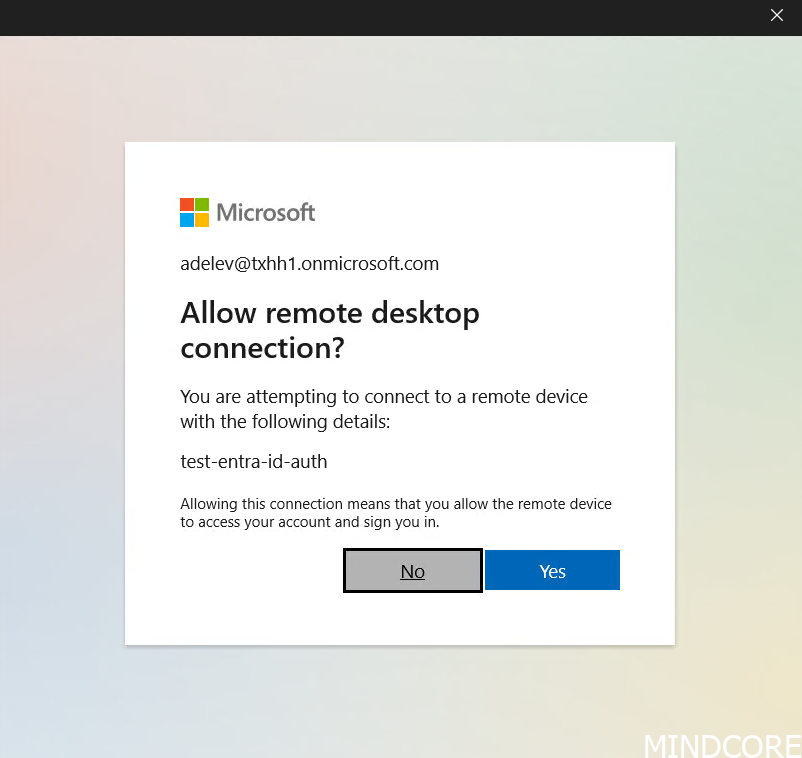
Next, the user needs to allow the connection from starting up:
This only happens the first time and its saved for 30 days for up to 15 different RDP sessions:
After that, the normal connection begins:
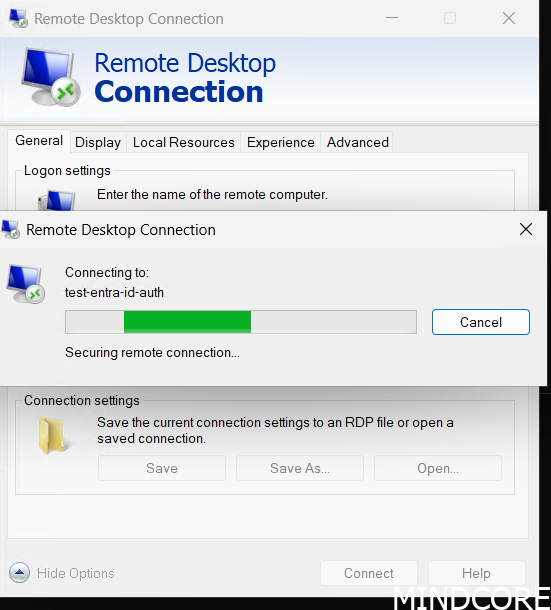
And the user is signed in:
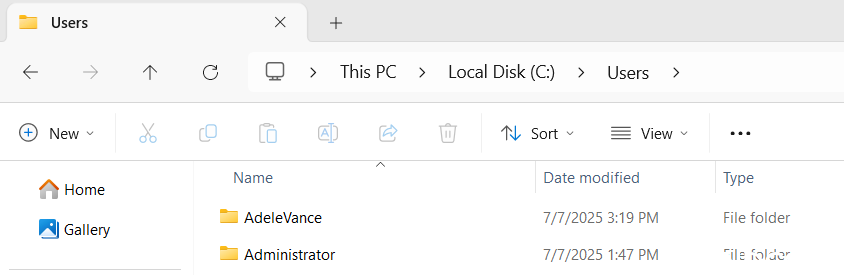
With their own home directory being created. Surprisingly though, it does not create new Local user objects…
Putting it all together
During this process, I wanted to be able to access the server from anywhere, and we can already do that using SSHARC proxy services (see my previous blog posts). So, I decided to combine the two together and not require network line-of-sight (which I did have in the above example) but still be able to use RDP with Entra authentication:
I think this is just a much more secure and easy way to connect to servers (if you streamline the process a bit with UI on top but the building blocks are there). However, right now I don’t think you should drop everything and attempt to implement the above. It requires a bit too much ‘hacking’ for my taste and Microsoft support is probably going to give you weird looks if you ask them about it.
What I’d like to see
- I’d like to use Entra ID authentication for SSH sessions on Windows too.
- Some other way of internal name resolution to Entra, not DNS (it shouldn’t matter which DNS server I’m talking to, and I shouldn’t need to edit hosts file).
- If the requirement for the machine to NOT be domain-joined is removed, this could be a great way to securely connect to machines. I suspect most folks to need their on-premises machines to be domain joined though.
- Better error-handling! At one point I forgot to add the required permission in Entra, and the result was just an authentication loop when you try to connect to the machine anyways. No error of any kind telling the user they don’t have permission to login.
- Please support Entra ID B2B Guest accounts! This is a perfect use-case for them.








